geometry create shape force
Allows you to create a force graphic on an element. Force graphics are arrows whose magnitudes and directions reflect the scaled, relative magnitudes and directions of the force vectors acting on your model during a simulation.
Force graphics help you gauge how large your forces become and in what directions they are applied during a simulation.
Figure 1 Force Graphics on an Animation
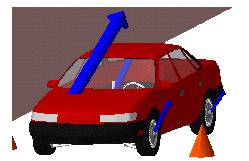
To see force graphics during animations, you must specify those force elements in your model for which you would like to see the associated force graphics. To turn force graphics on or off for particular forces, refer to the Adams View documentation that describe how to modify a force or a motion.
You can specify the following for the display of force graphics during an animation:
■Scale factor used to control the graphic’s relative size compared to the objects in the model.
■Whether or not the force magnitudes are displayed numerically. The numerical values appear near the arrowheads.
■Whether or not the force graphics are drawn in wireframe or shaded mode when the model is animated in shaded mode.
■Whether the force graphic is always drawn in front of other geometry. This is particularly useful when viewing forces inside geometry, such as three-dimensional contacts.
There are two different scale factors: one for forces and one for torques. Adams applies the force scale factor to all force graphics in your model to maintain their proper relative sizing, while it applies the torque scale factor to all torque graphics in your model.
Finding force and torque scale factors that are good for the entire animation might require some trial and error. It is often useful to set your scale factors while viewing the frame for which the largest force reaches its peak value.
Format:
geometry create shape force | |
|---|---|
force_name = | new force symbol |
adams_id = | integer |
comments = | string |
force_element_name = | existing force |
joint_name = | existing joint |
jprim_name = | existing primitive joint |
curve_curve_name = | existing ccurve |
point_curve_name = | existing pcurve |
all_force_elements = | true_only |
applied_at_marker_name = | existing triad |
Example:
geometry create shape force & | |
|---|---|
force_name = | force_1_1 & |
force_element_name = | vforce_1 & |
applied_at_marker_name = | marker_4 |
Description:
Parameter | Value Type | Description |
|---|---|---|
Force_name | New Force Symbol | Specifies the name of the force graphic to be created |
Adams_id | Integer | Specifies a new name for the geometry. Assigns a unique ID number to the geometry. |
Comments | String | Adds any comments about the geometry to help you manage and identify it. |
Force_element_name | Existing Force | Specifies the name of the force element whose force is to be displayed by the force graphic. |
Joint_name | Existing Joint | Specifies the name of the joint element whose force is to be displayed by the force graphic. |
Jprim_name | Existing Primitive Joint | Specifies the name of the joint primitive element whose force the force graphic is to display. |
Curve_curve_name | Existing Ccurve | Specifies the name of the curve_curve element whose force the force graphic is to display. |
Point_curve_name | Existing Pcurve | Specifies the name of the point_curve element whose force the force graphic is to display. |
All_force_elements | True | Specifies that all the forces from all the force elements acting on the marker that applied_at_marker_name specifies, are summed together to determine the force that the force graphic displays. The only value allowed is true. There must be at least one force element acting on the marker. |
Applied_at_marker_name | Existing Triad | Specifies the name of the marker where Adams View displays the force graphic. |
Extended Definition:
1. When using the Adams View command language and naming entities, you can use the name later to refer to this entity. Adams View does not allow you to have two entities with the same full name, so you must provide a unique name. Normally, entity names are composed of alphabetic, numeric, or '_' (underscore) characters, and start with an alphabetic or '_' character. They may be of any length. For more information, see Using Extended Names.
By enclosing the name in double quotes, you can use other printable characters, or start the name with a numeral. If a name contains characters, or starts with a numeral, you must always quote the name when entering it.
Note that you can specify the parentage of an entity (for example, what part "owns" a marker or a geometry element) when you create it by changing the name. If you enter just the entity name, then Adams View assigns the default parent. If you type in the full name, then you can override the default parent. In most cases, when creating an entity, Adams View provides a default name. The default name that Adams View provides specifies the parentage that it has assumed. You can, of course, delete this name and use your own. The form of a full name is:
"...._NAME.GRAND_PARENT_NAME.PARENT_NAME.ENTITY_NAME"
The number of levels used varies from case to case and the parentage must exist before an entity can be assigned to it.
2. The force element can be:
■Beam
■Bushing
■Field
■Translational spring damper
■Rotational spring damper
■Tire
■Single-component force
■Force vector
■Torque vector
■General force
■Multi-point force
3. The joint element can be:
■Translational
■Revolute
■Cylindrical
■Univesal
■Spherical
■Planar
■Rackpin
■Screw
4. The joint primitive element can be:
■At point
■Inline
■Inplane
■Orientation
■Parallel_axis
■Perpendicular
5. If you use the all_force_elements=true argument, the marker must have at least one force applied to it. If you enter a specific force type using joint_name, jprim_name, force_element_name, point_curve_name, or curve_curve_name parameters, then the marker named in this parameter must be one of the markers on which the specified force acts.