Setting Up the Suspension and Steering Subsystems
In this section, you work with a suspension and steering assembly from two subsystems: a suspension subsystem and a steering subsystem. You create the suspension subsystem using the standard double-wishbone template. You don’t need to create the steering subsystem. Instead, you can open an existing subsystem that we’ve provided.
After creating and opening the subsystems, you create an assembly that contains the subsystems and a test rig.
Creating a New Front Suspension Subsystem
You create the front suspension subsystem based on a double-wishbone design stored in the standard template named _double_wishbone.tpl, and then save it.
After you create the subsystem, you save it in an Adams Car database. When you save a subsystem, Adams Car stores it in the database designated as the default writable database. Initially, the private database is the default writable database, but as you become more familiar with Adams Car, you can change your writable database. Later, when you are sure the design is complete or ready for review, you can have your database administrator save the file in a shared database or allow others to access it from your private database.
To create the front suspension subsystem:
1. Start Adams Car Standard Interface as described in Starting Adams Car Standard Interface.
2. From the File menu, point to New, and then select Subsystem.
The New Subsystem dialog box appears.
Tip: | For information on any dialog box, press F1 when the dialog box is active. |
3. In the Subsystem Name text box, enter UAN_FRT_SUSP.
4. Set Minor Role to front. A minor role defines the subsystem’s function and its placement in the assembly (for example, front or rear). In this case, you select front because you are creating a front suspension.
5. Right-click the Template Name text box, point to Search, and then select shared_car_database.
The Select File dialog box appears.
6. Select templates.tbl and double-click _double_wishbone.tpl.
The Template Name text box now contains the file _double_wishbone.tpl and an alias to its directory path.
7. Verify that Translate from default position is not selected.
8. Select the Comment tool  .
.
.The Entity Comment dialog box appears.
9. In the Comment Text text box, enter Baseline UAN Front Suspension.
10. Select OK.
11. Select OK again.
Adams Car creates the suspension subsystem using the default data contained in the template and displays it as shown next:
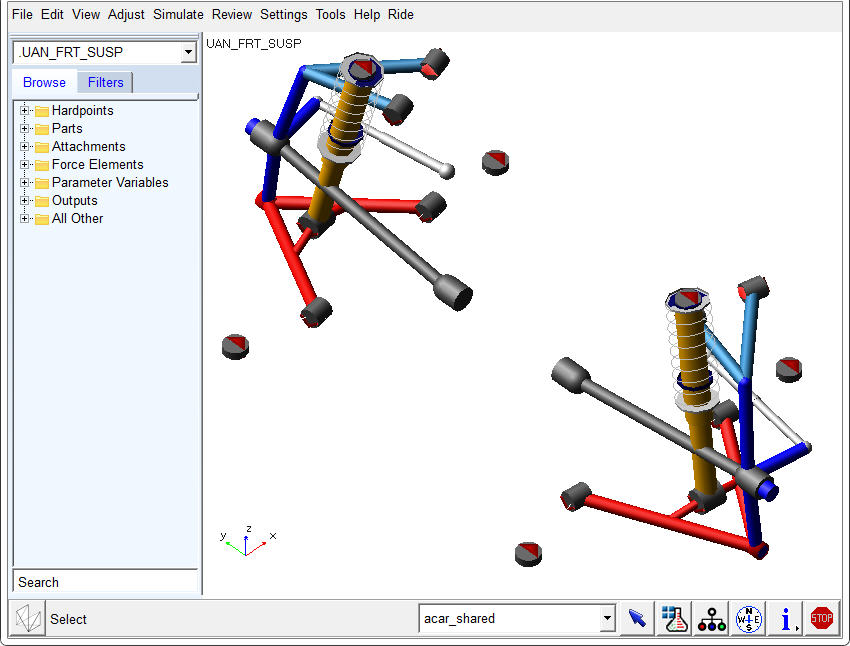
Figure 2 Suspension Subsystem
To save the suspension subsystem:
■From the File menu, select Save.
Adams Car saves the subsystem in your default writable database, which might be your private database. For more information on databases, see the Adams Car online help.
Creating a Suspension Assembly
In this section, you create a new suspension assembly and add to it a steering subsystem.
To create the suspension assembly:
1. From the File menu, point to New, and then select Suspension Assembly.
The New Suspension Assembly dialog box appears.
2. In the Assembly Name text box, enter my_assembly.
3. Click the folder icon next to Suspension Subsystem.
The name of the suspension subsystem you just created appears.
4. Select Steering Subsystem.
5. Right-click the Steering Subsystem text box, point to Search, and then select the shared_car_database.
The Select File dialog box appears.
6. Select subsystems.tbl and double-click MDI_FRONT_STEERING.sub.
The Steering Subsystem text box now contains MDI_FRONT_STEERING.sub and an alias to its directory path.
Note that by default Adams Car selects a test rig for the assembly, __MDI_SUSPENSION_TESTRIG.
7. Select OK.
The Message Window appears, informing you of the steps Adams Car takes when creating the assembly.
Adams Car displays the suspension and steering assembly in the main window.
8. Select Close, to close the Message Window.