Simulating a Hydromount with the Component Model Test Rig
In this part of the tutorial you will load the Adams Car Ride plugin into Adams Car and learn how to perform a simulation using the Adams Car Ride Component-Model Test Rig. This test rig is for models of frequency-dependent force/moment producing elements, such as the Adams Car Ride Hydromount, the Adams Car Ride Frequency-Dependent Bushing, and the Adams Car Ride GSE Damper. The test rig is used to exercise the model in the same way that real physical elements are tested in the laboratory. You will use the test rig to examine the properties of a hydromount.
Opening the Assembly
You first open the assembly on which you will perform the analysis.
To open the assembly:
1. Start Adams Car Ride as explained in Starting Adams Car Ride.
2. From the Ride menu, point to Component Analysis, and then select Component-Model Test Rig.
3. Right-click the  tool and then select the
  tool.
tool.
tool and then select the tool. 4. Right-click the Assembly Name text box, point to Search, and then select <aride_shared>/assemblies.tbl.
5. Double-click component_hydro_bushing_example.asy.
6. Select OK.
7. Close the Message Window.
Setting Up the Test Rig and Running Simulations
You will set up the test rig to exercise the hydromount at seven discrete frequencies. For each of the seven frequencies (Hz) 1, 2, 5, 10, 20, 50, and 100, you will specify that a simulation will be run with a prescribed sinusoidal Z displacement of the hydromount for each of the of the three amplitudes (mm) 1, 2, and 5. In addition, each sinusoidal input will have a phase angle of zero. Adams Car Ride will perform 21 (7x3) simulations and store all data in memory.
When all simulations are completed, Adams Car Ride will create requests from which you can create plots to show both the dynamic stiffness and loss angle of the hydromount as a function of frequency. You can create three such plots for dynamic stiffness, and three for loss angle. They will show dynamic stiffness versus frequency, and loss angle versus frequency, for each of the three amplitudes.
Each of the 21 simulations proceeds in time for up to ten cycles of the sinusoid. A simulation terminates earlier than this if steady-state behavior of the hydromount is achieved before the end of the tenth cycle via the energy sensor. 256 equally spaced data points are stored for each cycle of a sinusoid.
To set up the test rig and run simulations:
1. For getting the transfer functions calculated in the simulation results of the testrig, change the output settings for the solver: click on Settings - Solver - Output - Request File - Yes
2. From the Component Analysis dialog box, select Set Up Test Rig (located at the bottom).
Adams Car Ride displays the Component Analysis: Set Up Test Rig dialog box. Note that Component Assembly is set to the same assembly you chose from the Component Analysis dialog box: component_hydro_bushing_example.asy.
3. Enter the following specifications:
■Actuation Type: Motion Driven
■In the area that follows Motion Degrees of Freedom, select the following:
Constraint: | Initial: | Value: | |
|---|---|---|---|
X | Locked | Displacement | 0.0 |
Y | Locked | Displacement | 0.0 |
Z | Motion | Displacement | 0.0 |
AX | Locked | Displacement | 0.0 |
AY | Locked | Displacement | 0.0 |
AZ | Locked | Displacement | 0.0 |
■The test rig is now set up so that it prescribes a displacement for the Z translation of the hydromount as a function of time. All other motions are locked, so only Z translation occurs. The initial values of all displacements are zero, meaning that the I and J markers that define the bodies connect to the hydromount.
4. Select OK to return to the Component Analysis dialog box.
5. Enter the following specifications:
■Output Prefix: hydro_test
■Excitation Function: Set of Frequencies
■Frequency: 1, 2, 5, 10, 20, 50, 100
■Maximal Cycles: 10
■Steps per Cycle: 256
■Axis: Z
■Excitation Amplitudes 1, 2, 5
■Phase: 0.0
■Loop Over: Frequency
■Energy Sensor: On
■If Energy Sensor were set to Off, all 10 cycles would always be completed for each sinusoid.
■Measuring Method: Min-Max
Do not select Keep Files. If you select Keep Files, Adams Car Ride does not erase the data files for each of the 21 simulations.
6. Select OK.
Running the simulations will take a few minutes.
Viewing the Analysis Results
You will now view plots of the dynamic stiffness and loss angle of the hydromount as a function of frequency.
To view the analysis results:
1. From the Review menu, select Postprocessing Window, or press F8.
2. In the dashboard, set Source to Result Sets.
In the Simulation list you should see simulation results named:
.component_hydro_bushing_example.{result}, where {result} is:
hydro_test_fre_sweep_1_1 through hydro_test_fre_sweep_7_1, hydro_test_fre_sweep_1_2 through hydro_test_fre_sweep_7_2, and hydro_test_fre_sweep_1_3 through hydro_test_fre_sweep_7_3.
The first index in the simulation name is the ith frequency of the sweep. Therefore, i = 1, 2, 3, 4, 5, 6, and 7 correspond to the frequencies (Hz) 1, 2, 5, 10, 20, 50, and 100, respectively. The second index in the simulation name is the jth amplitude of the sweep. Therefore, j = 1, 2, and 3 correspond to amplitudes (mm) 1, 2, and 5, respectively. For each group of simulations of the same amplitude (j = 1, 2, or 3), there is also a result set named hydro_test_Transfer_Function_j. Therefore, you should see:
hydro_test_Transfer_Function_1
hydro_test_Transfer_Function_2
hydro_test_Transfer_Function_3
The transfer_function results sets contain the steady-state data for all frequencies at a given amplitude.
Note: | Solver output settings for the request files has to be switch on for getting the transfer functions (Settings - Solver - Output - Request File - Yes) |
3. From the Simulation list, select hydro_test_Transfer_Function_1.
4. From the Result Set list, select Force_Characteristics_z.
5. Set Independent Axis to Data (on the bottom right side of the dashboard).
6. In the Independent Axis Browser:
■From the Result Set list, select TestMotion_z.
■From the Component, select last_freq.
■Select OK.
7. In the dashboard, from the Component list, select last_dyn_stiffness.
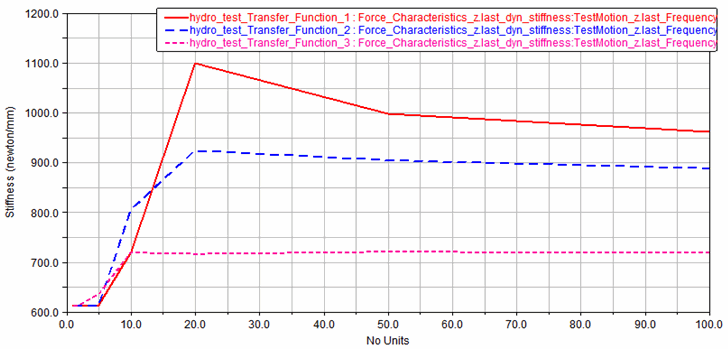
8. Select Add Curves. You now have a plot of dynamic stiffness versus frequency for a sinusoidal excitation amplitude of 1 (mm).
9. Repeat steps 3 through 8 for the entries hydro_test_Transfer_Function_2 and hydro_test_Transfer_Function_3, adding the curves to the same plot. This yields a plot with three curves of dynamic stiffness versus frequency, each for a different excitation amplitude. Your plot should look similar to the one shown next.
Note: | You can drag the legend to move it away from the plot peak. |
10. Select the New Page  tool.
tool.
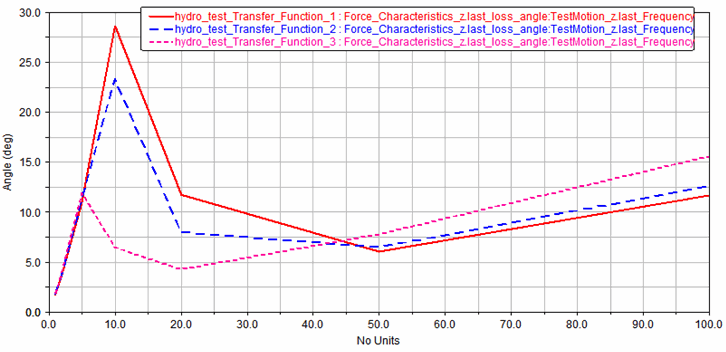
tool. 11. Now repeat steps 3 through 8 for the entries hydro_test_Transfer_Function_1, hydro_test_Transfer_Function_2, and hydro_test_Transfer_Function_3, again adding the curves to the same plot. This time, however, select last_loss_angle when choosing the data for the vertical axis from the Component list in the dashboard. This yields a plot with three curves of loss angle versus frequency, each for a different excitation amplitude. Your plot should look similar to the one shown next.
12. To return to Adams Car Ride, press F8.
Now that you’ve completed this part of the tutorial, you can run similar tests on the GSE damper model and other components.