Step Six – Code Generation of Control System
First you will configure MATLAB/Code Generation and then you will create the external system library from the Simulink model.
Given a controller designed with the appropriately designated inports and outports, the following steps are required to export the model using Code Generation.
1. From the Code menu, point to C/C++ Code, and then select Code Generation Options.
The Configuration Parameters dialog box appears.
2. Verify that Generate code only is not selected.
3. Complete the Configuration Parameters dialog box for MATLAB, as shown Figure 18.
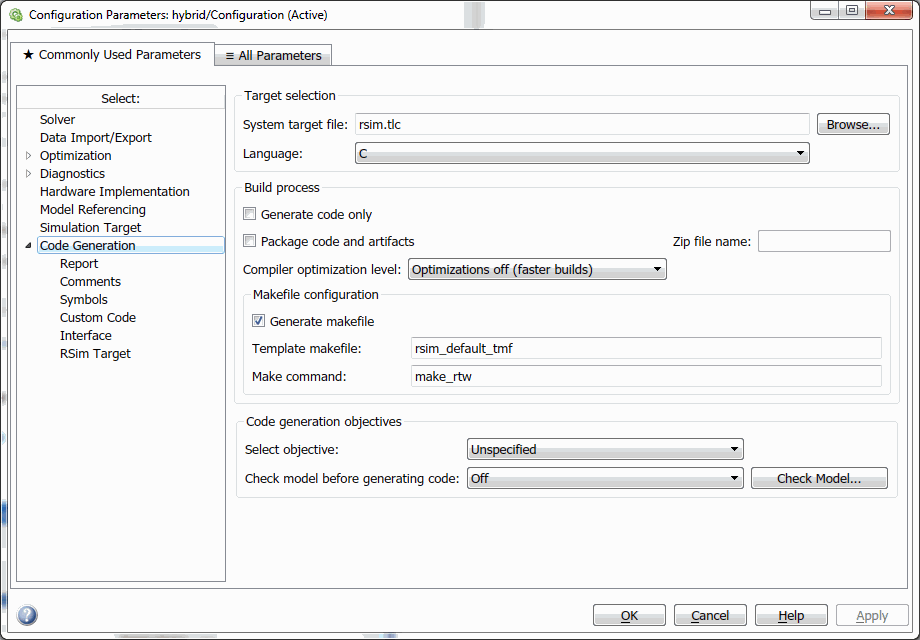
Figure 18 Configuration Parameters
4. From the treeview on the left side of the window, select Solver.
The dialog box displays the Solver options as shown in Figure 19
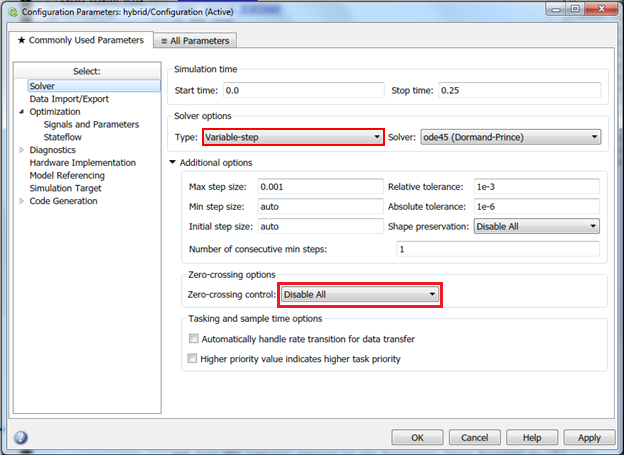
Figure 19 Configuration Parameters - Solver Options
5. Set Solver options Type to Variable-Step. (If selecting Fixed-step solver, Set Mode to SingleTasking.).
6. Under zero-crossing options, set Zero-crossing control to Disable All.
Note: | Zero-crossing support is experimental in Adams Controls, and not available in Adams Mechatronics. If you have zero-crossing in your model, and you would like try to use them in Adams Controls, simply select Use local settings or Enable All to turn them on, and Adams SENSOR's will be created via Controls System Import that use the zero-crossings functions. |
7. From the treeview on the left side of the window, select Optimization → Signals and Parameters.
The dialog box displays the Advanced options as shown in the Figure 20.
8. Set the Default parameter behavior to Inlined. Check the Inline Invariant Signals checkbox. Enabling Inline parameters has the following effects:
♦Code Generation uses the numerical values of model parameters, instead of their symbolic names, in generated code.
♦Reduces global RAM usage, because parameters are not declared in the global parameters structure.
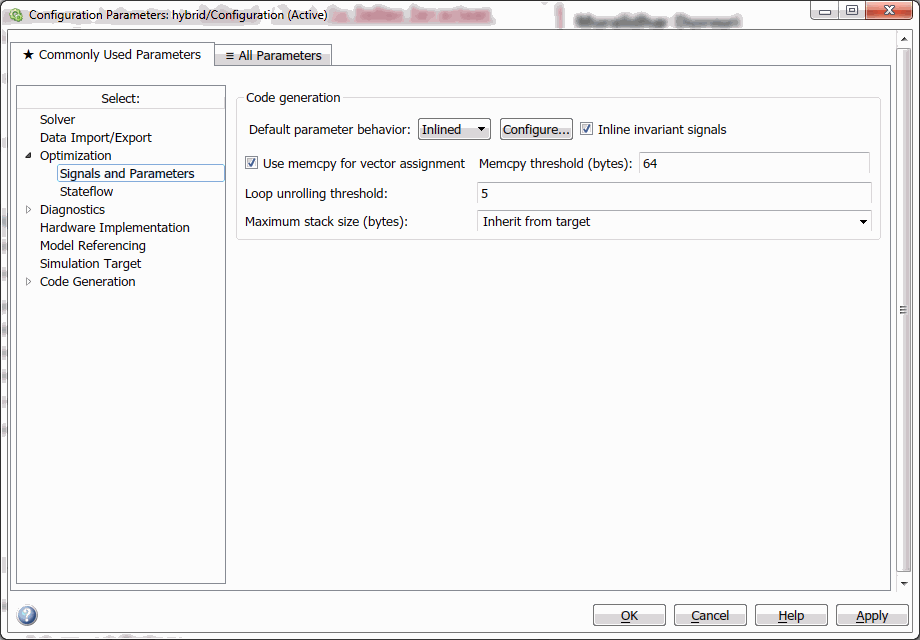
Figure 20 Configuration Parameters - Advanced Options
9. Select Apply.
10. Select the Code Generation tab.
11. To begin code generation and build the RTW library, select Code → C/C++ Code → Build Model.
Messages will appear in the MATLAB command window indicating successful code generation and library creation. You should see messages that end with the following:
Creating library ..\hybrid.lib and object ..\hybrid.exp
*** Created ADAMS dll
C:\adams_controls_getting_started\antenna\hybrid_rsim_rtw>exit /B 0
### Successful completion of Code Generation build procedure for model: hybrid
The library you created will be in your working directory.