Step Three - Export Your Easy5 Model
This section details the procedure to export an Easy5 model as an Adams External System Library.
An Adams External System Library is a binary file that can be loaded into Adams as a General System Equation (GSE) element. In this form, the equations in the Easy5 model become equations of the Adams model just as if you had entered them as run-time function expressions within Adams State Variable or Differential Equation elements.
To create an Adams External System Library:
1. Launch Easy5, move to the directory where the Adams model files and Easy5 model files reside, and open the Easy5 antenna controller model.
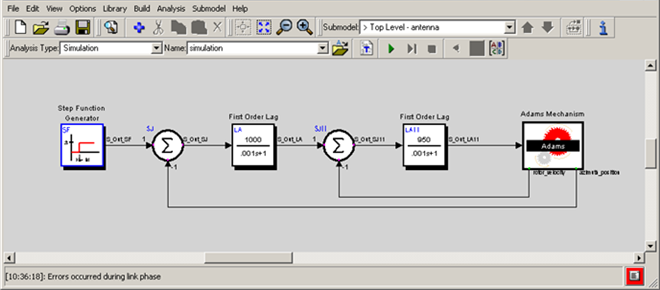
Figure 51 Antenna Control System
In the previous chapter, you configured the Adams component of the antenna controller model to run in co-simulation mode. Because you want the controller to execute as a set of equations inside Adams, you must reconfigure the Adams Mechanism component to be in function-evaluation mode. Failure to reconfigure the Adams component may result in a model that does not behave correctly in Adams. If you have already configured your Adams component to be in function-evaluation mode, you may skip 2.
2. To reconfigure the Adams component:
a. Double-click the Adams Mechanism Block to open the Component Data Table (CDT) shown in Figure 52.
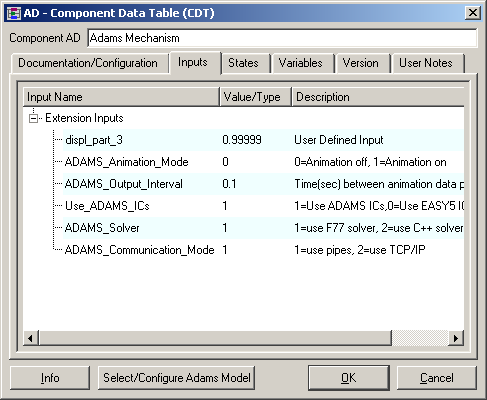
Figure 52 Component Data Table
b. Select Select/Configure Adams Model to open the Configure Adams block panel.
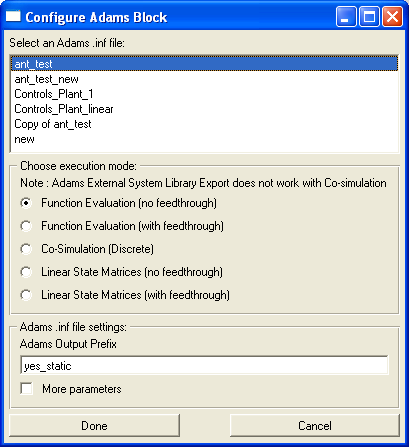
Figure 53 Configure Adams Block Panel
c. Select ant_test as the exported Adams model and choose the first option for execution mode: Function Evaluation (no feedthrough).
d. Close the panel by selecting Done.
The Component Data Table for the Adams Mechanism Block is updated as shown next.
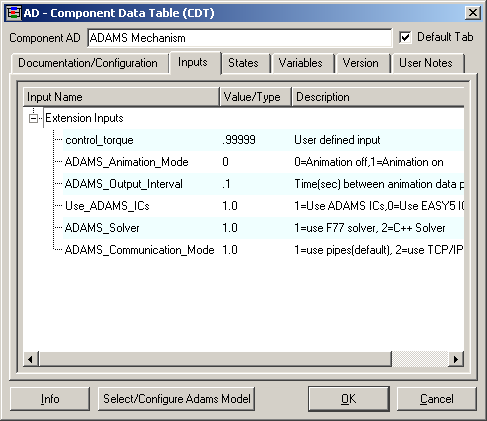
Figure 54 Component Data Table after Re-Configuration
e. Select OK to close the CDT for the Adams Mechanism component.
The updated Adams Mechanism Block now contains all the information necessary to interface with Adams.
Note: | The following Adams block inputs in the CDT are not relevant: ADAMS_Animation_Mode, ADAMS_Output_Interval, and Use_Adams_ICs. |
3. Create the Adams External System Library files:
a. From the Easy5 Build menu, point to Export Model as, and then select Adams External System Library.
The Export Adams External Systems form appears.
b. Accept the settings in this form, and then select Export to start creating the library.
Messages in the message line at the bottom of the Easy5 window show the progress of the library build. After a successful build, you will have two new files in your working directory. The first file is a binary demand-loaded library file (named antenna.dll on Windows, antenna.sl on HP-UX11 workstations, or antenna.so on other Linux platforms). The second file (named antenna.esl.ezanl) contains the parameter values and other information the Easy5 model needs. If you need to move these files to another directory (for example, to make the Easy5 model available to other Adams users), you must move the two files together or the exported Easy5 model will not work.
c. Exit Easy5.