Step Four - Import the Exported Easy5 Model into Adams
In this section, you import the exported Easy5 antenna controller model into the Adams antenna model.
1. Launch Adams View.
2. Import the Adams antenna model, ant_test.cmd: from the Adams View File menu, select Import.
3. From the Plugins tab, click on Controls container, point to Control System, and then select Control System Import.
The Adams Control system Import Dialog box appears.
a. In the General State Equation Name text box, enter antenna_gse. You may use any name here that has not already been used as an element name in your Adams model and is not an Adams keyword.
b. Right-click the External System Library text box, and then select Browse.
c. Select the demand-load library file created in the previous step (named antenna.dll, antenna.sl, or antenna.so depending on your platform).
d. Select Import I/O Signals from Existing Controls Plant to display the Database Navigator.
e. In the Database Navigator, select ant_test.
The output and input signal text boxes update automatically, as shown in Figure 55.
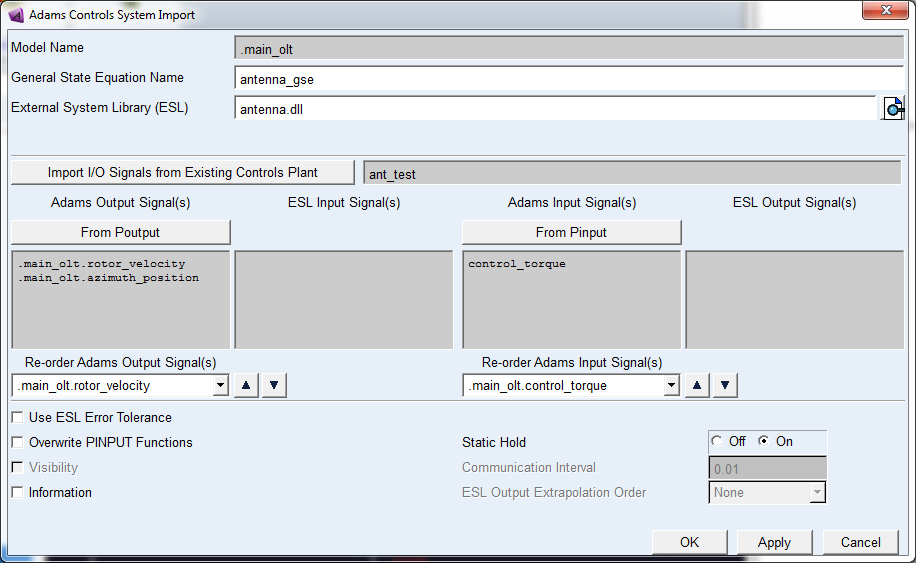
Figure 55 Adams Controls System Import Panel
f. Select OK or Apply to import the model.
If there is a problem in the importing process, the Adams Message window will explain it. Correct the problem and try importing again. When the import is successful, the Information window appears as shown in Figure 56, containing details about the GSE element created in the Adams model.
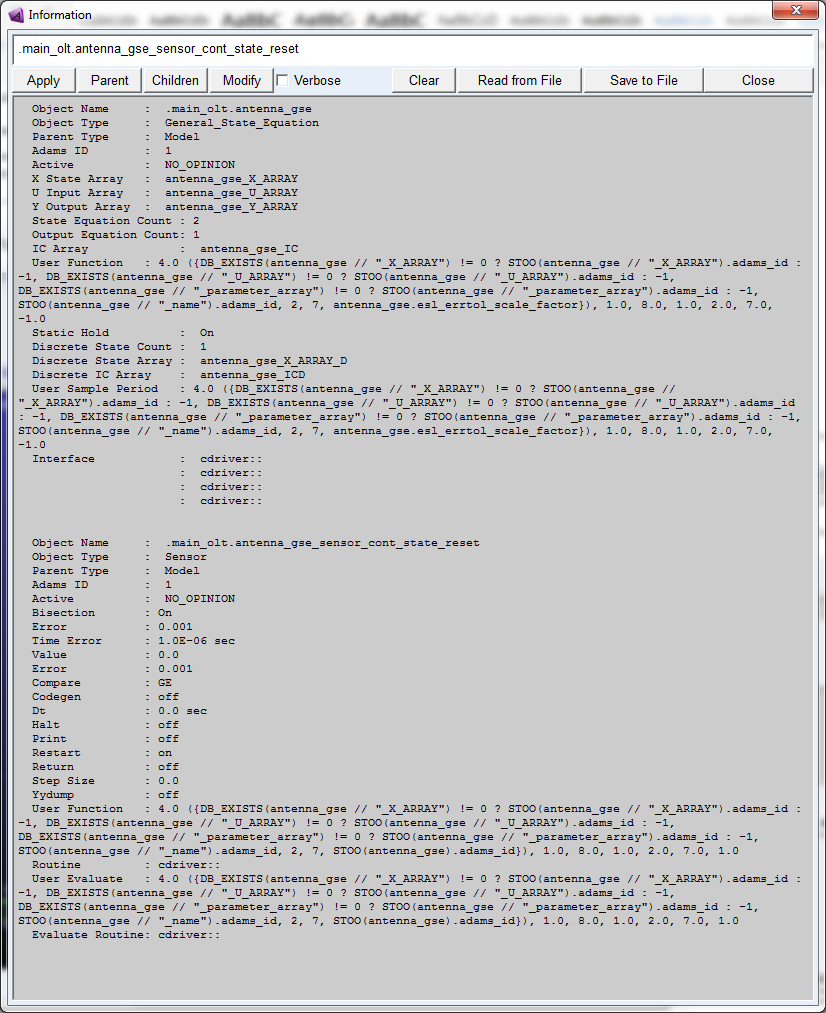
Figure 56 Message indicating the Creation of GSE
4. When you have finished examining the Information window, select Close.
The Easy5 controls system has now been incorporated into your Adams model. Next you'll run a simulation to see how it performs.