Starting Adams Driveline Standard Interface
Note: | Before you start Adams Driveline, set the Adams View and Adams Solver memory to huge, as explained in Configuring Adams Driveline. |
In the Linux environment, you start Adams Car from the Adams Toolbar. In the Windows environment, you start Adams Car from the Start button. For more information, see the online help for Running and Configuring Adams (from the online help window, use the navigation list on the left to select Running and Configuring).
To start in the Windows environment:
1. From the Start menu, point to Programs, point to Adams 2024.1, and then select Adams Driveline.
The Welcome dialog box appears on top of the Adams Driveline main window.
2. Do one of the following:
■If the Welcome dialog box contains the options Standard Interface and Template Builder, select Standard Interface, and then select OK.
■If the Welcome dialog box does not contain any options, then Adams Driveline is already configured to run in standard-interface mode. Select OK.
The Adams Driveline Standard Interface appears.
The Adams Driveline Standard Interface window appears as shown in Figure 1. Familiarize yourself with the Adams Driveline window and for more information refer to Familiarizing Yourself with Adams Driveline section.
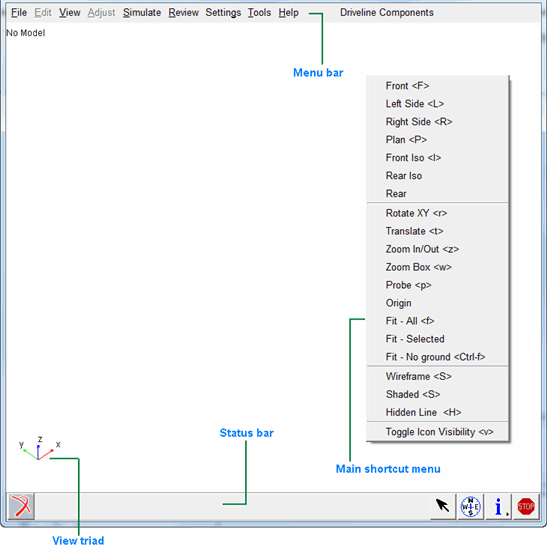
Figure 1 Adams Driveline Standard Interface
To start in the Linux environment:
1. At the command prompt, enter the command to start the Adams Toolbar, and then press Enter. The standard command that MSC Software provides is adamsx, where x is the version number, for example adams2024_1.
The Adams Toolbar appears.
2. Select the Adams Driveline tool  .
.
.The Welcome dialog box appears on top of the Adams Driveline main window.
3. Do one of the following:
■If the Welcome dialog box contains the options Standard Interface and Template Builder, select Standard Interface, and then select OK.
■If the Welcome dialog box does not contain any options, then Adams Driveline is already configured to run in standard-interface mode. Select OK.
The Adams Driveline Standard Interface appears.
The Adams Driveline Standard Interface window appears as shown above. Familiarize yourself with the Adams Driveline window and for more information refer to Familiarizing Yourself with Adams Driveline section.