Applying a Rotational Joint Motion
In this section, you’ll apply a rotational joint motion to the Upper_Arm that references a spline function. You will apply the motion using the INTERP function. The INTERP function returns either a derivative of a test data curve or an interpolated value from a test data curve. You supply the test data curve using a SPLINE statement that references a RPC III file.
You will apply the motion as shown next:
Creating a Spline
In this section, you’ll create a spline to reference the RPC III file and channel arguments from a test performed on a physical model in a test lab. You use the RPC III file physical_test.rsp, and reference data in channel 1.
To create a spline:
1. Click the Elements tab on the Adams View ribbon.
2. From the Data Elements container, click the General Spline tool  .
.
. The Data Element Create Spline dialog box appears, as shown next.
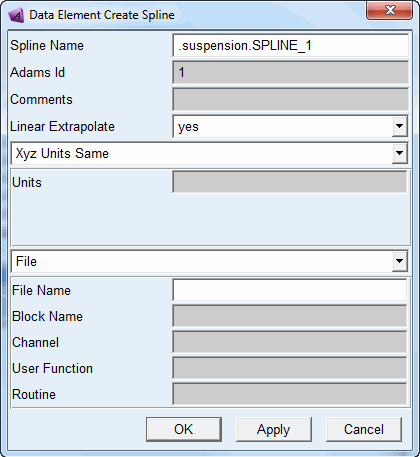
3. In the Spline Name text box, enter .suspension.jounce_data.
4. Right-click the File Name text box, and then select Browse.
The Select File dialog box appears with the current directory showing the files in the directory you last selected (install_dir/durability/examples/suspension).
5. Select the file physical_test.rsp.
This file contains physical test data from a test performed on a physical model in a test lab.
6. Select OK.
7. In the Channel text box, enter 1.
8. Select OK.
Adams View creates a spline that references the physical test data from channel 1 of the RPC III file, physical_test.rsp.
Defining a Rotational Joint Motion
Now you’ll apply a rotational joint motion to the Upper_Arm revolute joint, using the INTERP function to reference the spline you created in the previous section.
For more information on the INTERP function, refer to the Adams Solver online help.
To define a rotational joint motion:
1. Click the Motion tab on the Adams View ribbon.
2. From the Joint Motions container, click the Rotational Joint Motion tool  .
.
. 3. Select Upper_REV as the rotational joint.
Refer the video on how to pick the Upper_REV.
Adams View creates a rotational joint motion. Next, you will rename the joint motion so that you can easily identify it.
To rename the rotational joint motion:
1. From the Model Browser window, click Motions and expand.
2. Right-click MOTION_2, and then select Rename.
The Rename Object dialog box appears.
3. In the New Name text box, enter jounce_input.
4. Select OK.
By default, Adams View creates a constant-speed rotational joint motion. You want the rotational joint motion to vary over time, based on the referenced spline. Therefore, next, you will modify the rotational joint motion so that it varies over time.
To modify the rotational joint motion:
1. From the Model Browser window, click Motions and expand.
2. Right-click jounce_input, and then select Modify.
The Impose Joint Motion dialog box shown next appears.
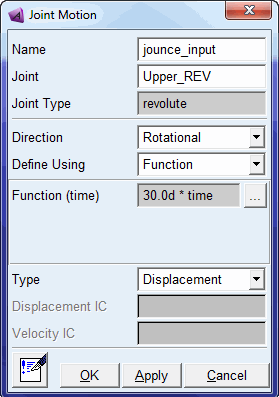
3. In the Function (time) text box, enter the following function:
4. INTERP(time, 3, jounce_data)*DTOR
where:
■time is the independent variable that specifies what you are interpolating
■3 is the method of interpolation, which indicates cubic interpolation between data points. 1, which indicates linear interpolation, is also a valid entry.
■jounce_data is the name of the referenced spline
■DTOR is the angle conversion factor from degrees to radians.
5. Select OK.
Note: | If you enter the function incorrectly, you receive an error when you select OK. Check your function syntax carefully. |