Setting Up Requests
In this section, you will set up a virtual instrument to monitor the displacement at the spindle_center as follows:
Creating a New Request
You’ll create a new request that behaves like an instrument to measure and output the displacement at the spindle_center.
To create a new request:
1. Click the Design Exploration tab on the Adams View ribbon.
2. From the Instrumentation container, click the Create a new Request tool  .
.
.The Create a Request dialog box shown next appears.
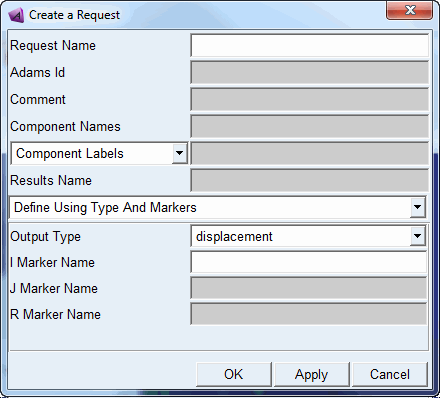
3. In the Request Name text box, enter instrument.
4. Set Output Type to displacement.
5. Right-click the I Marker Name text box, point to Triad, and then select Browse.
The Database Navigator appears.
6. Under Knuckle, select Spindle_Center, and then select OK.
7. Right-click the J Marker Name text box, point to Triad, and then select Browse.
The Database Navigator appears.
8. Under ground, select Spindle_Ref.
9. From the Database Navigator, select OK.
10. Select OK.
Setting Up Adams Results in DAC Format
By default, when you simulate the model, Adams View generates results in Adams format. However, you cannot use results in Adams format in physical testing machines. Therefore, you want the results of your simulation in standard RPC III or DAC format.
In this tutorial, you will set up Adams Durability to generate results in DAC format. For information on generating results in RPC III format, refer to the Using Durability tab in the Adams Durability online help.
To set up Adams results in DAC format:
1. From the Settings menu, point to Solver, and then select Output.
The Solver Settings dialog box appears.
2. Set Save Files to Yes.
3. In the File Prefix text box, enter suspension.
4. Set all of the file options to No.
5. Select More.
Additional text boxes appear.
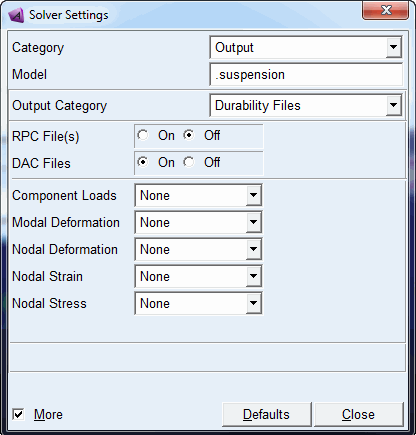
6. Set Output Category to Durability Files.
The Durability Files container appears.
7. Set DAC Files to On.
8. Use the defaults for all other text boxes.
9. Your dialog box should look like the following
:
10. Select Close to close the Solver Settings dialog box.
Simulating the Model
Now you will simulate the model to generate results in DAC format.
To simulate your model:
1. Set up and run a simulation with an end time of 10 seconds and 512 output steps.
This matches the sampled rate of the physical test data that you will use later in the tutorial to validate the results of this simulation.
As the simulation proceeds, Adams Durability outputs requests in DAC format.
Note: | You will receive several warning messages (spline out of range and required extrapolation). You can ignore these messages. |
2. After the simulation completes, reset the model.
Note: | If you don’t reset the model, then all the simulation results will not be entered into the DAC files. Adams View stores DAC files in the current working directory. |
Adams View can only store one channel of data in a DAC file. Therefore, in this simulation, Adams View creates six DAC files, one per request component. The files are named according to the DAC file naming convention shown next:
prefix_request name_component label.dac
Where:
■prefix is the prefix you specified when you set up the Adams results in the Simulation Settings dialog box. In this case, it is suspension.
■request name is the request name you specified when you created a new request in the Create a Request dialog box. In this case, it is instrument.
■component label is the reserved label assigned to the six components of request data by Adams (one of X, Y, Z, R1, R2, R3).
Therefore, the files will be named: suspension_instrument_X.dac, suspension_instrument_Y.dac, and so on.