Part 1 - Mode-Shape Analysis
In this section, you will run MSC.Nastran to obtain the reduced flexible modes in MNF format and the modal stresses in XDB (MSC.Nastran binary attachable) format.
You will perform the following steps:
Running the MSC.Nastran Simulation
Note: | On Windows, you may need to set the permissions to Full Control to edit the tutorial files. |
To run the MSC.Nastran simulation:
1. Copy the file left_lca.dat from the install_dir//durabilityexamples/ATV directory to your working directory.
Note: | install_dir is the directory where Adams is installed. |
2. Run MSC.Nastran using left_lca.dat as the input file.
Depending on your computer resources it could take 5-10 minutes to run the job. You can move on to the next step in the tutorial while the analysis is running. When the job has completed successfully, you will find two files that were created in the run directory: left_lca_0.mnf and left_lca.xdb. These files are important in completing the rest of the tutorial.
The MSC.Nastran input file we provided for this tutorial is set up for MNF generation using the ADAMSMNF statement:
ADAMSMNF FLEXBODY=YES,FLEXONLY=YES,MINVAR=PARTIAL,PSETID=2
,OUTGSTRS=YES,OUTGSTRN=NO
The output of grid point stresses are requested with the OUTGSTRS option. No output of grid-point strains are requested with the OUTGSTRN option.
The geometry and stress data that will be stored in the resulting MNF is optimized with the PSETID option for the surface (skin) only. A partial mass invariant calculation is requested with the MINVAR option.
MSC.Nastran supports the output of ortho-normal modal stress or strain resulting from MNF generation in XDB format. This data can be efficiently combined with the modal coordinate results from Adams for subsequent fatigue evaluations in Patran and MSC.Fatigue. To take advantage of this feature, the following statement has been added to the MSC.Nastran input file:
PARAM POST 0
Importing the Model in Patran
To import the model into Patran:
1. Start Patran and open a new database (from the File menu, select New).
2. From the Look in pull-down menu, select your working directory.
3. In the Filename text box, enter tutorial.
4. Select OK to close the New Database dialog box.
5. From the File menu, select Import, and then specify the following:
■Set Object to Model.
■Set Source to MSC.Nastran Input.
■Set File name to *.dat.
■Browse to left_lca.dat, select it, and then select Apply to import the model.
■The Nastran Input File Import Summary dialog box displays as shown in Figure 2.
■Select OK to close the dialog box.
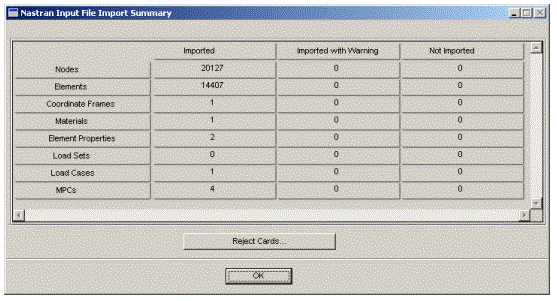
Figure 2 Nastran Input File Import Summary Dialog Box
The following operation automatically separates shells from solids. This will be handy during the fatigue analysis process in Part 3 - Fatigue Life Calculation.
6. From the Group menu, select Create.
7. Set Method to Property Type.
8. Set Create to Multiple Groups.
9. Select Apply.
Patran creates two new groups named Membrane and Solid. You will reference the Membrane group later in this tutorial.
Fatigue is a phenomena that normally originates on the surface. It is, therefore, a common practice to skin any solid model with a thin shell membrane. This allows you to obtain a true two-dimensional stress tensor (which should always be the case on free surfaces) and also avoids uninteresting computation on internal nodes.
Attaching Results in Patran
You will now attach the modal results from MSC.Nastran in Patran.
To attached results in Patran:
1. Select Analysis, and then specify the following:
■Action: Access Results
■Object: Attach XDB
■Method: Result Entities
2. Select Select Results File.
3. In the Select File dialog box, browse to the left_lca.xdb file, and then select OK.
4. Select Apply.
Viewing Results in Patran
To view the results in Patran:
1. Select Results.
A list of 40 mode cases in the result selection window appears. These represent the orthonormalized modes that were computed by MSC.Nastran and imported into Adams using the MNF.
2. Perform some simple plotting as follows:
■Set Action to Create.
■Set Object to Quick Plot.
■Highlight one mode case with a frequency higher than zero (that is, a nonrigid body mode). For example, highlight mode 7.
■Select Stress Tensor as the Fringe Result.
3. Select Apply, and then view the results.
The stresses you are viewing are not actual stress values sustained by the component, but modal stress shapes. Later in this tutorial, these stress shapes will be combined with results from Adams to obtain actual stress values. This process is called modal stress recovery (MSR).
4. Close the Patran session by closing the Patran window or by selecting File and then Quit.
By default, Patran saves all databases.