Curve Based
The Adams Machinery Motor module provides for the modeling of motor systems within the Adams View environment. It supports multiple modeling methodology options. This example shows how to create motor using the curve-based method from the minimal set of input parameters.
This chapter includes the following sections:
What You Will Create
You will model a motor consisting of two parts (Stator and Rotor) with simple geometry. The stator and rotor will be attached to the ground and crank (Input) respectively. The crank is connected with a revolute joint and a spherical joint to the ground and connecting rod respectively. The connecting rod is connected to the rocker via a universal joint. The rocker is connected to ground via a revolute joint. The crank will be driven by the motor whose torque is defined by the user-input torque-speed curve.
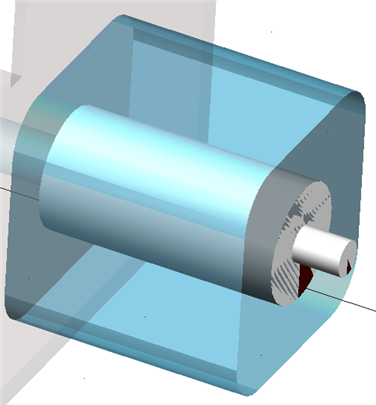
Figure 1 Motor Model
Curve Based Method Motor Model
1. Start Adams 2024.1 → Adams View.
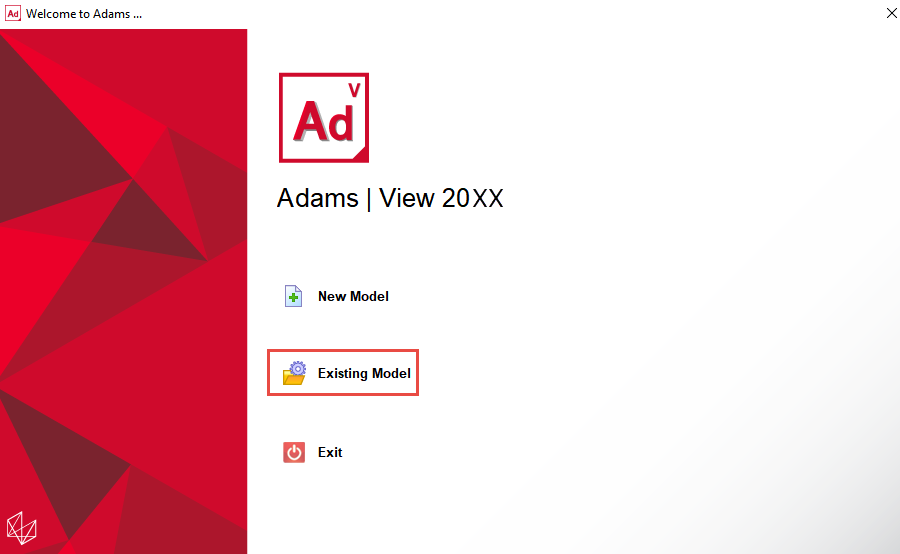
2. From the welcome screen click Existing Model.
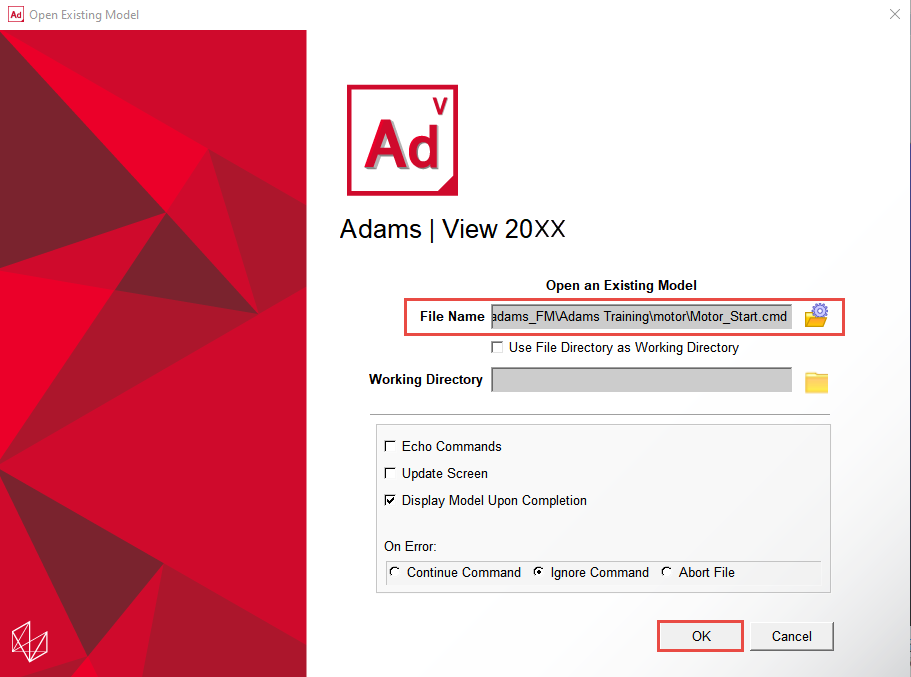
3. Open the model Motor_Start.cmd from the installation directory. For example, Windows examples files placed in the below location:
C:\Program Files\MSC.Software\Adams\2024_1\amachinery\example\motor\Motor_Start.cmd.
C:\Program Files\MSC.Software\Adams\2024_1\amachinery\example\motor\Motor_Start.cmd.
Tip: | Copy the example files folder and place it outside the working directory. Doing this, you can avoid having the working directory inside the Adams install folders. |
4. The imported model will look like the one shown below.
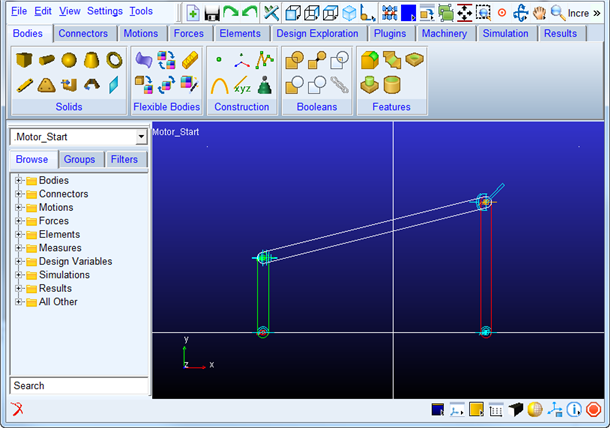
a. It has:
♦Crank geometry connected with revolute and spherical joint with ground and connecting rod
♦Connecting rod is connected to rocker with universal joint
♦Rocker is connected to ground with revolute joint
5. Click the Machinery tab on the Adams View ribbon.
6. From the Motor container, click the icon for Create Motor icon.

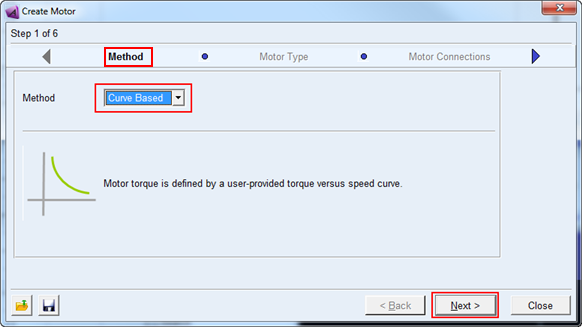
7. The motor creation wizard will launch. On the first page (Method) select Curve_Based from the Method option menu and click Next.
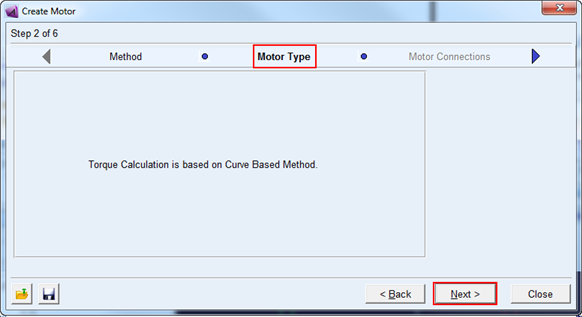
8. On the next page click Next to proceed (the curve-based method is not type-specific).
9. On the next page (Motor Connection) enter values for as given below (circled in Red) and click Next.
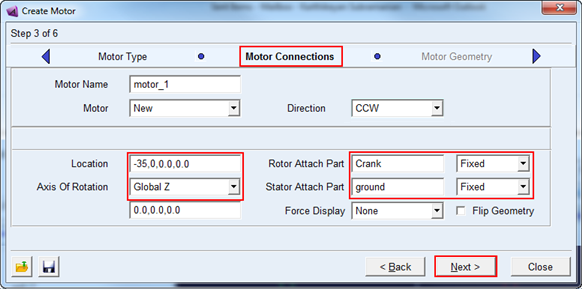
a. Enter the values for the following fields and accept the defaults for others as shown below
♦Axis of Rotation as “Global Z”.
♦Enter the values “-35.0,0.0,0.0” in mm for location.
♦Rotor attach part as “Crank” from right-mouse-button option Guesses.
♦Stator attach part as “ground” from right-mouse-button option Guesses.
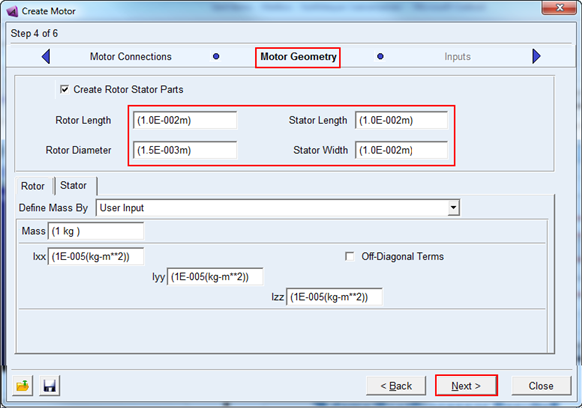
10. In the Motor Geometry, enter the values (circled in red) as shown below and accept the default values for others and click Next.
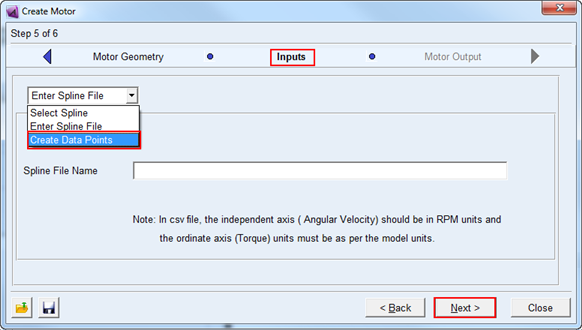
11. In the Inputs page select Create_Data_Points options and accept the default values. Click Next.
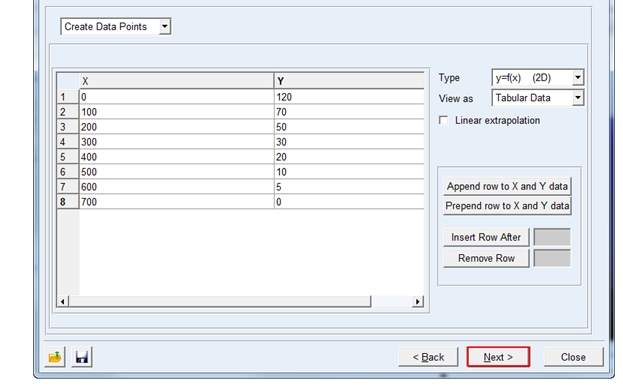
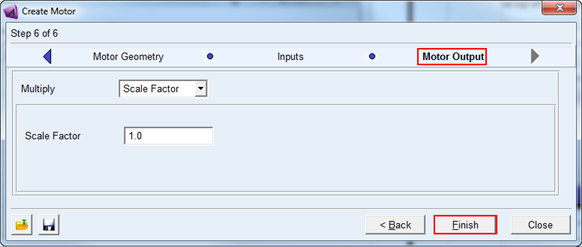
12. Accept the default values in the next page (Motor Output) and click Finish.
Simulation
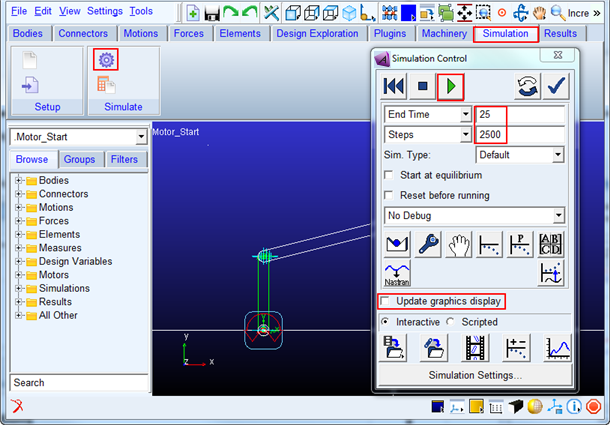
Simulate your model for 25 seconds at 2500 steps by clicking the Interactive Simulation icon from the Simulate container on the Simulation tab, entering the values shown below and clicking the Start Simulation button.
Adams PostProcessor Results
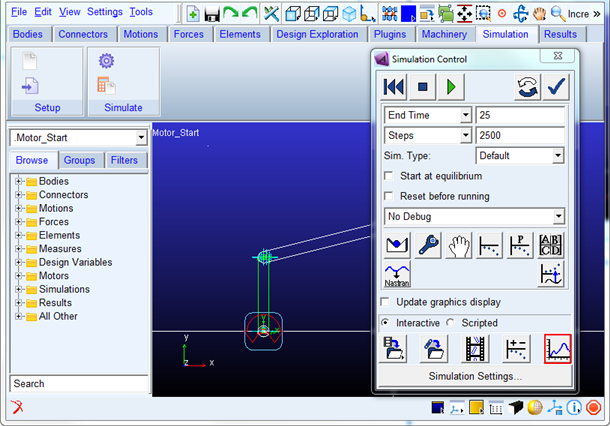
1. Switch to PostProcessor by clicking plotting icon from the Simulation Control.
2. In the Post Processor, Select the Motor_rpm as data for independent axis as shown below.
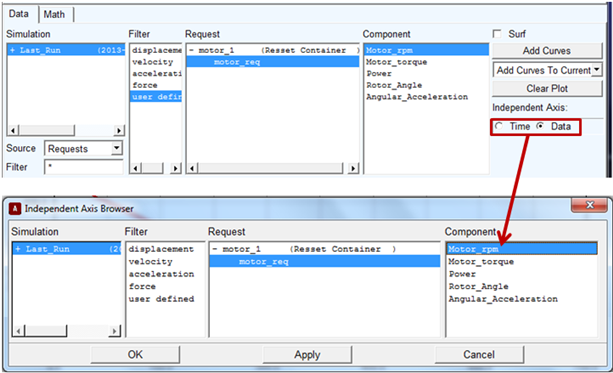
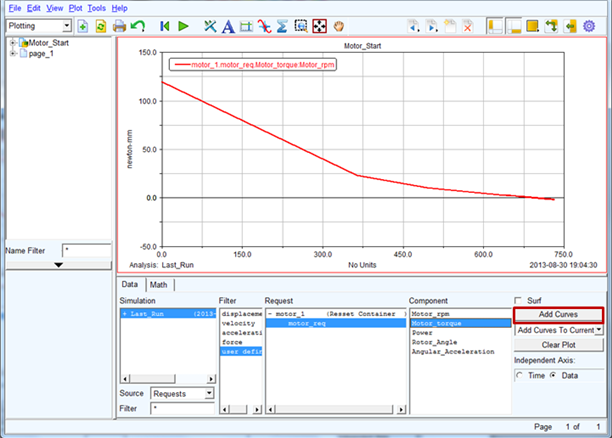
3. Select the items highlighted in blue below and then by clicking Add Curves button to plot the motor rpm vs torque.