Creating a Single Helical Gear Pair
During this tutorial, you will define a tooth profile using embedded profile generator. The first step is to enter all gear parameters in the shape definition step of Gear AT preprocessing which stores all geometrical data including profile in a gear property file, which is used as input for meshing and for cylindrical gear element definition.
Next step is to generate FE meshes, then run Nastran SOL 101 and extract stiffness matrix to a gear stiffness file, which is then used for gear force definition. And finally, to execute a simulation and investigate the results.
Figure 1 shows a helical gear pair that you are going to create.
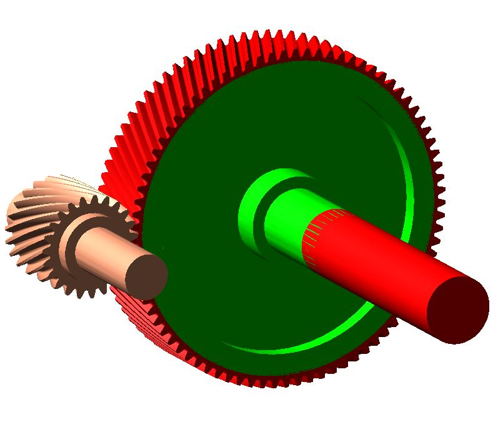
Figure 1 Helical Gear Pair
Prepare Your Working Directory
To prepare your working directory:
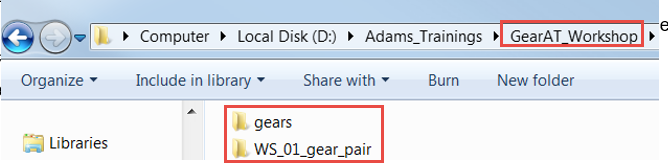
1. Navigate to your working directory in which you create new directory named as gears to store all files related to gears.
2. Create new directory named WS_01_gear_pair
3. Start Adams either from desktop or Windows Start menu → All Programs → Adams 202x.x.
Start Adams View
To load a Gear AT plugin:
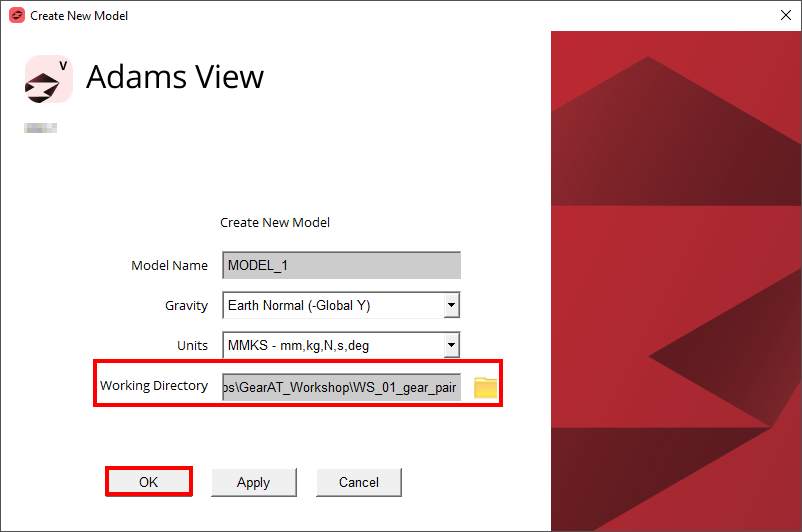
1. Under the Welcome dialog box, select New Model.
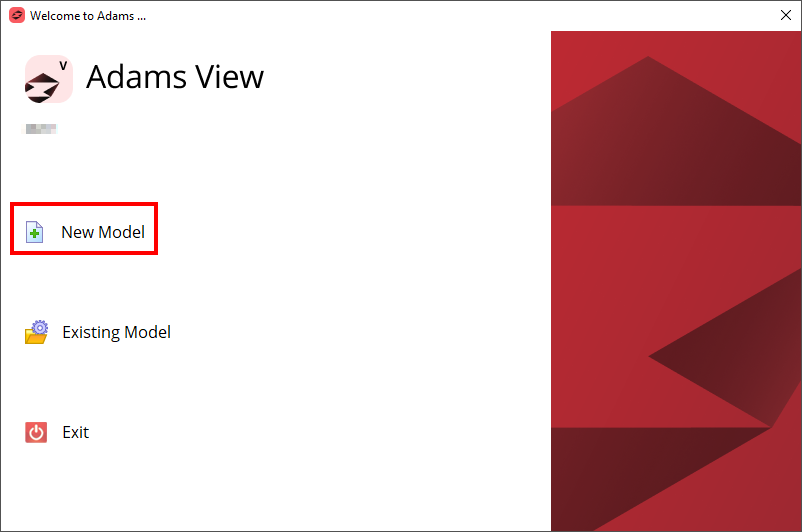
2. Set the Working Directory to WS_01_gear_pair directory.
3. Click the OK button.
Load the Workshop Model
To load the workshop model:
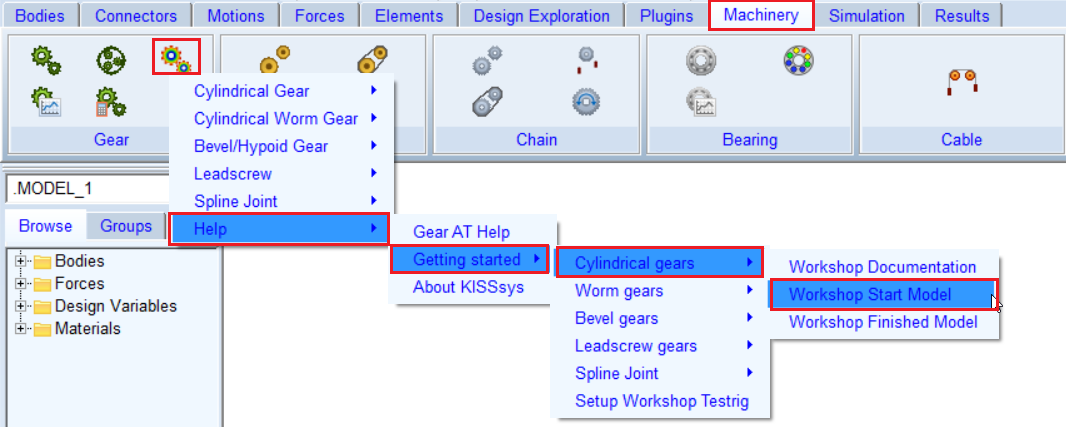
1. Click the Machinery tab on the Adams View ribbon and from the Gear AT container, click the icon to pop up Gear AT menu.
2. In the Gear AT menu, select Help → Getting started → Cylindrical gears → Workshop Start Model.
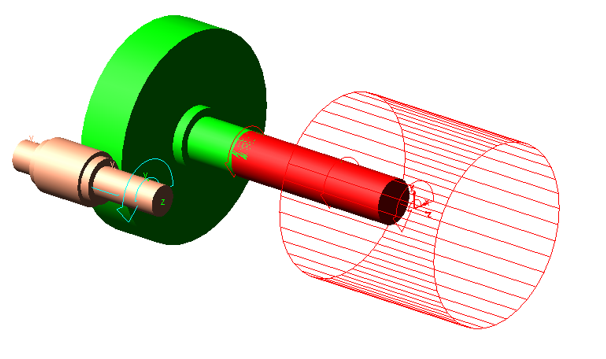
3. The starting workshop model gear_at_cyl_model was loaded.
Create Pinion Tooth Profile
At this point there are no gear property files (*.CGP, *.CGD) available, so we have to prepare them from scratch. In this step we define a property file name (instead of browsing for an existing one) and enter all geometrical parameters manually.
To Create the Pinion Tooth Profile:
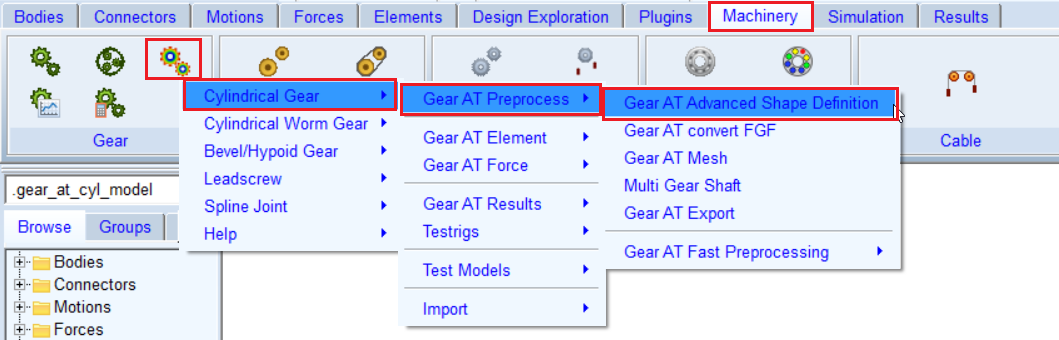
1. In the Gear AT menu, select Cylindrical Gear → Gear AT Preprocess → Gear AT Advanced Shape Definition.
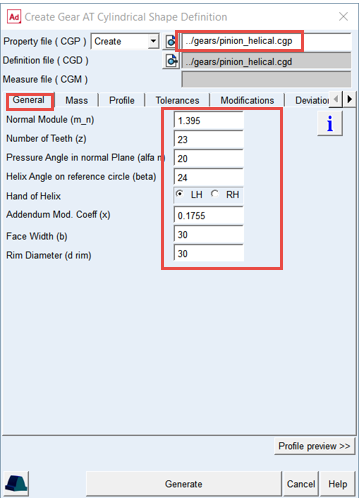
2. Type in the Property File name with relative path: ../gears/pinion_helical.
3. In the General tab, enter Normal Module (m_n): 1.395.
4. Set the value in Number of Teeth (z): 23.
5. Set the value in Pressure Angle in normal Plane (alfa n): 20.
6. Set the value in Helix Angle on reference circle (beta): 24.
7. Select Hand of Helix: LH.
8. Set the value in Addendum Mod. Coeff (x): 0.1755.
9. Set the value in Face Width (b): 30.
10. Set the value in Rim Diameter (d rim): 30.
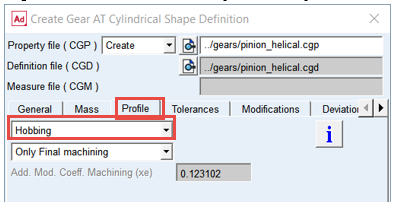
11. In the Profile tab, set the tool option menu to Hobbing.
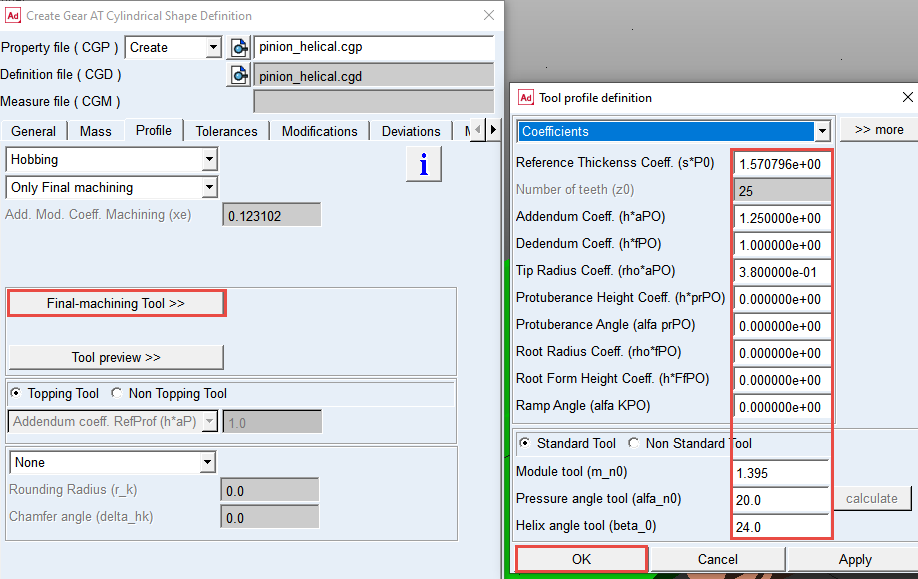
12. Click the Final-machining Tool >> button and under the Tool profile definition dialog box, enter the values as shown below.
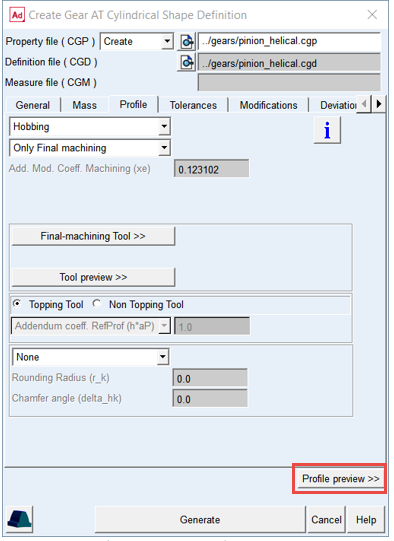
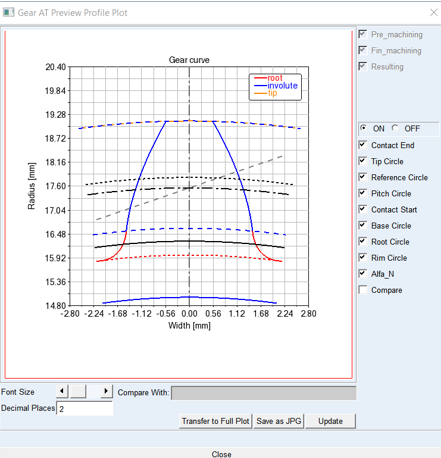
13. Click the Profile preview >> button to review the tooth profile.
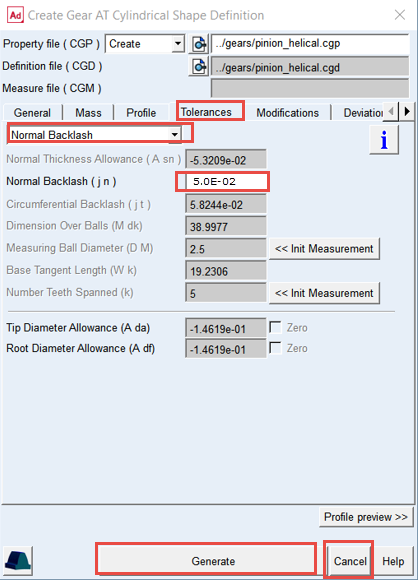
14. In the Tolerances tab, set the option menu to Normal Backlash to define tooth thickness indirectly.
15. Set the value in the Normal Backlash (j n): 5.0E-02.
16. Click the Generate button.
17. The pinon_helical.cgd and pinon_helical.cgp files will be created in the ../gears directory.
18. Close the Gear AT Shape Definition dialog box by clicking the Cancel button.
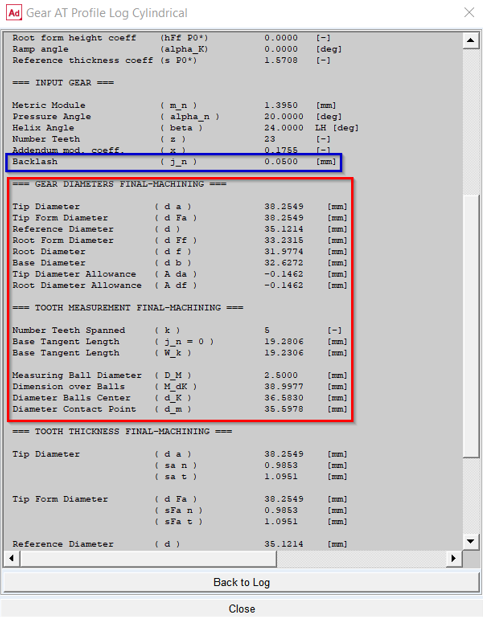
The profile generator calculates gear dimensions and outputs them to the log window. It also outputs tooth measurements such as over balls measure to be compared with your gear drawing specification. Please check if all values are correct before proceeding with your modeling.
Mesh the Pinion Tooth
Theory
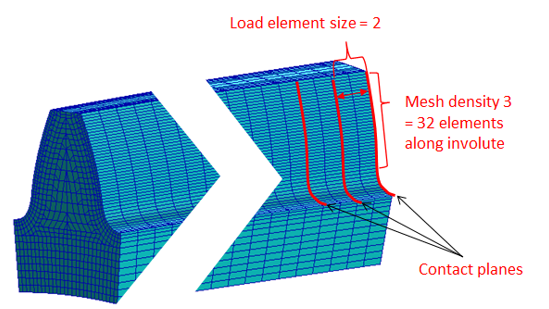
The default FE Data settings have four options that defines the Meshing and the display options. Based on the dimensions of the tooth profile respective settings are generated for the selected option. These can be manually entered.
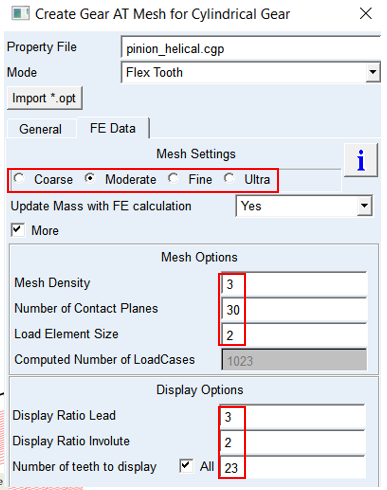
■Mesh Density defines number of elements along the contact line.
■The integer value of Number of Contact Planes is the number of equidistant sections along the lead direction of the tooth flank.
■Load element size is the number of FE element per contact plane.
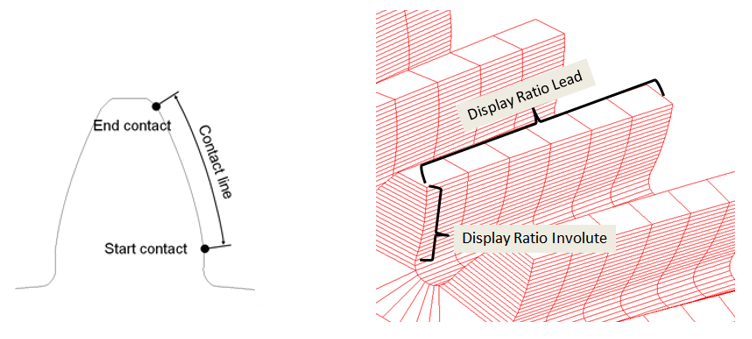
■Display Ratios are only for the visualization purpose. The values are the fractions of the number of elements in their respective directions.
In this step we preprocess FE mesh of a flexible tooth and generate shell file for Adams geometrical representation. Hereafter the stiffness matrix of a flexible tooth is generated with the help of Nastran embedded solver in Adams which is stored in *.cgs file located in the gears folder. It will be referenced for the gear pair force definition later on.
To Create Nastran Mesh and Geometry of the Pinion
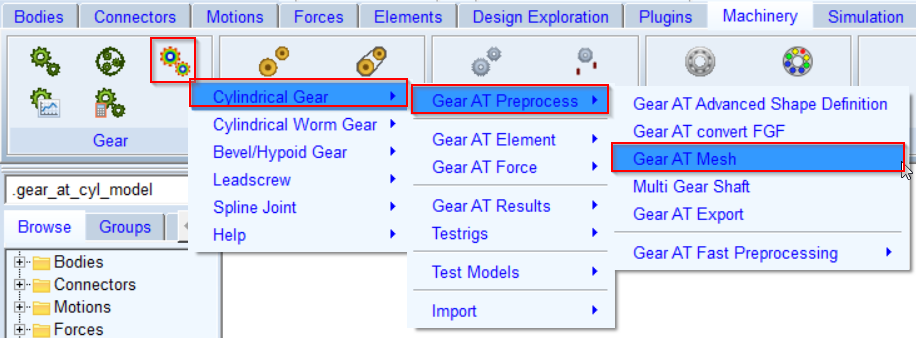
1. In the Gear AT menu, select Cylindrical Gear → Gear AT Preprocess → Gear AT Mesh.
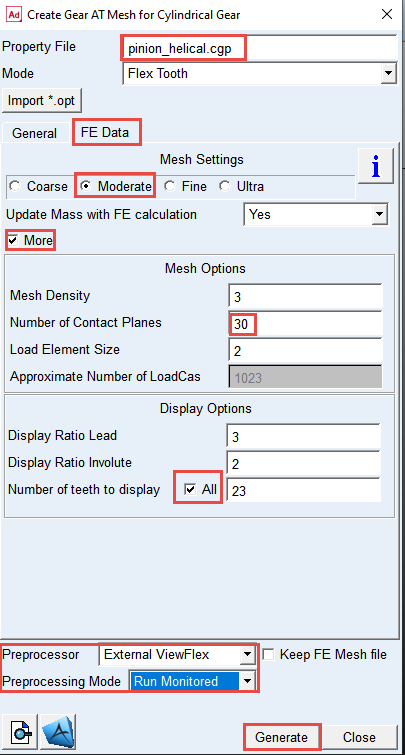
2. Right click and Browse the ../gears directory for the Property File: pinion_helical.cgp.
3. Select the FE Data tab.
4. Select the option Moderate mesh.
5. Select the More toggle for more options.
6. Set the value in Number of Contact Planes: 30.
7. In the display option, select All for the Number of teeth to display toggle.
8. Select the Preprocessor: External ViewFlex.
9. Select the Preprocessing Mode: Run Monitored.
10. Click the Generate button, click Yes to confirm the start of preprocessing and wait till the SOL101 is completed.
Create Wheel Tooth Profile
To create the Wheel tooth profile:
1. In the Gear AT menu, select Cylindrical Gear → Gear AT Preprocess → Gear AT Advanced Shape Definition.
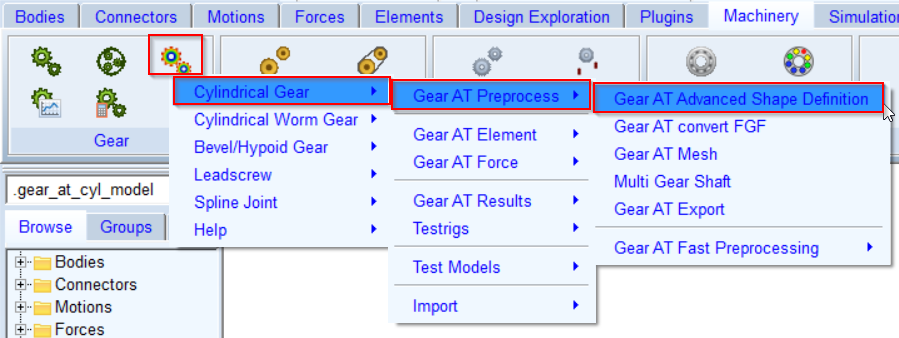
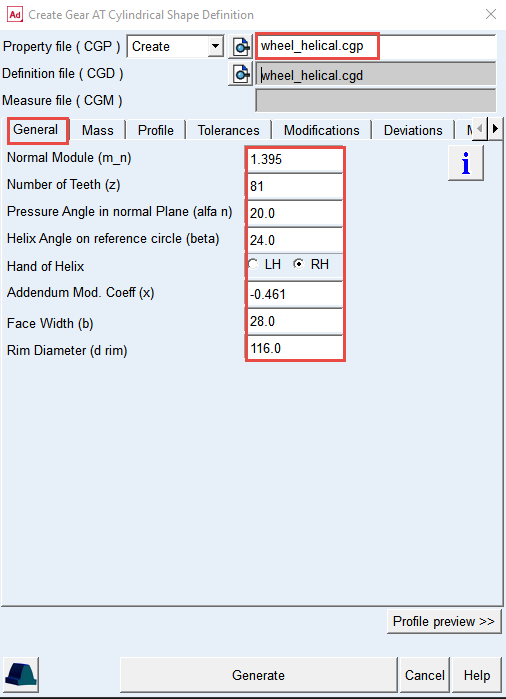
2. Type in the Property File name with relative path: ../gears/wheel_helical.
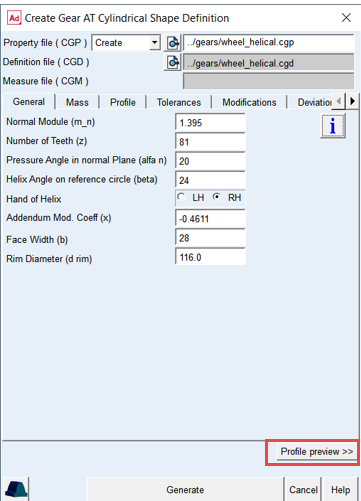
3. In the General tab, enter Normal Module (m_n): 1.395.
4. Set the value in Number of Teeth (z): 81.
5. Set the value in Pressure Angle in normal plane (alfa n): 20.
6. Set the value in Helix Angle on reference circle (beta): 24.
7. Select Hand of Helix: RH.
8. Set the value in Addendum Mod Coeff (x): -0.461.
9. Set the value in Face Width (b): 28.
10. Set the value in Rim Diameter (d rim): 116.
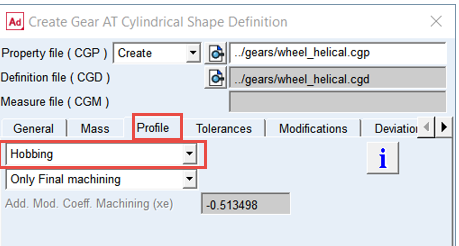
11. In the Profile tab, set the tool option menu to Hobbing.
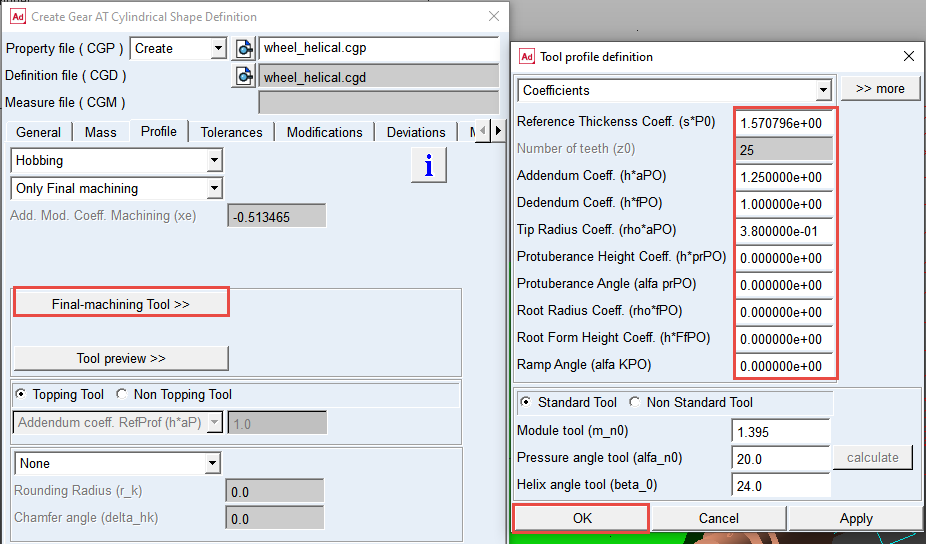
12. Click the Final-machining Tool >> button and under the Tool profile definition dialog box, enter the values as shown below.
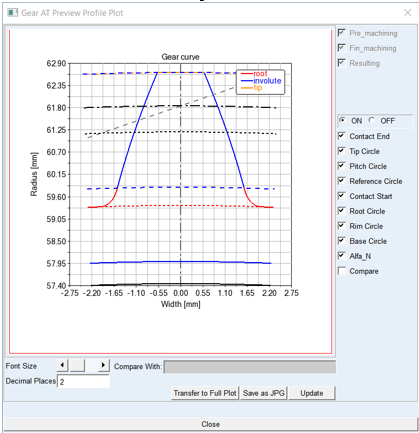
13. Push the Profile preview >> button to review the tooth profile.
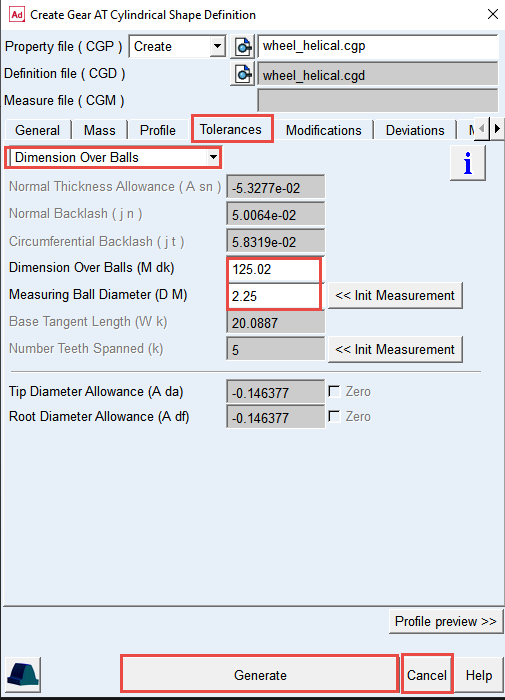
14. In the Tolerances tab, set the option menu to Dimension Over Balls to define tooth thickness indirectly.
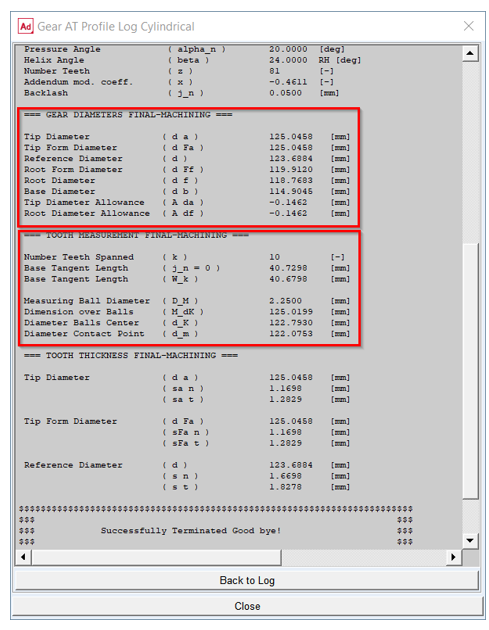
15. Set the value in Dimension Over Balls (M dk): 125.02.
16. Set the value in the Measuring Ball Diameter (D M): 2.25 and hit Enter to recompute normal backlash (Ensure value in the Normal Backlash field is around 5.0E-2).
17. Click the Generate button.
18. The wheel_helical.cgd and wheel_helical.cgp files will be created in the ../gears directory.
19. Close the Create Gear AT Shape Definition dialog box by clicking the Cancel button.
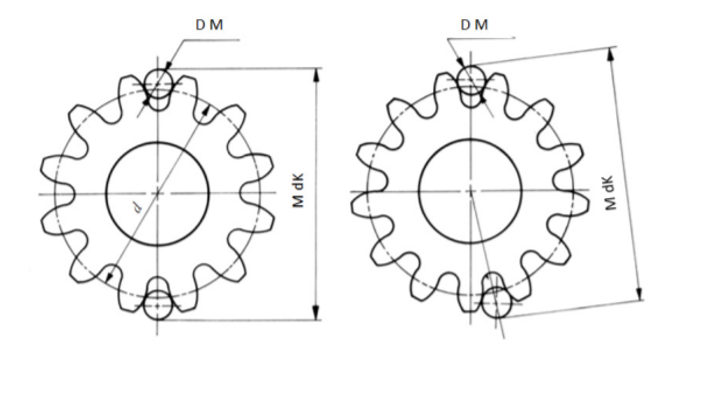
The profile generator calculates gear dimensions and outputs them to the log window. It also outputs tooth measurements such as over balls measure to be compared with your gear drawing specification. Please check if all values are correct before proceeding with your modeling.
Mesh the Wheel Tooth
To create Nastran mesh and the geometry of the Wheel tooth.
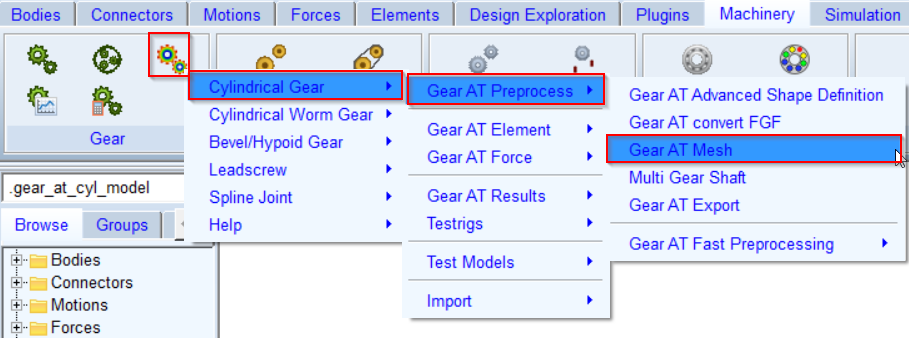
1. In the Gear AT menu, select Cylindrical Gear → Gear AT Preprocess → Gear AT Mesh.
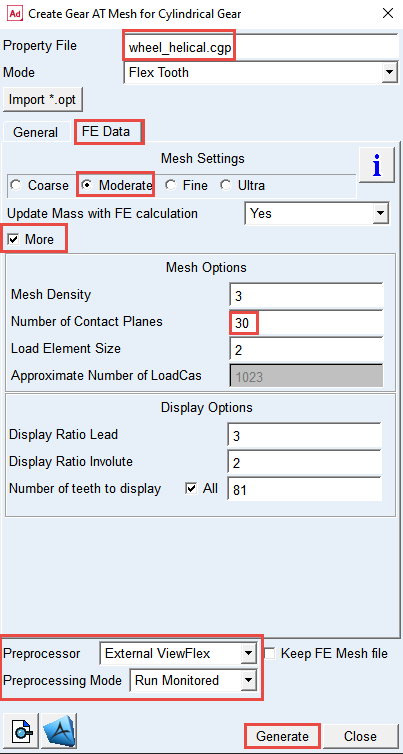
2. Right click and Browse the ../gears directory for the Property File: wheel_helical.cgp.
3. Select the FE Data tab.
4. Select the option Moderate mesh.
5. Select the More toggle for more options.
6. Set the value in the Number of Contact Planes: 30.
7. In the display option, select All for the Number of teeth to display toggle.
8. Select the Preprocessor: External ViewFlex.
9. Select the Preprocessing Mode: Run Monitored.
10. Click the Generate button, click Yes to confirm the start of preprocessing and wait till the SOL101 is completed.
Create the Pinion Gear AT Element
To create the Pinion Gear AT Element:
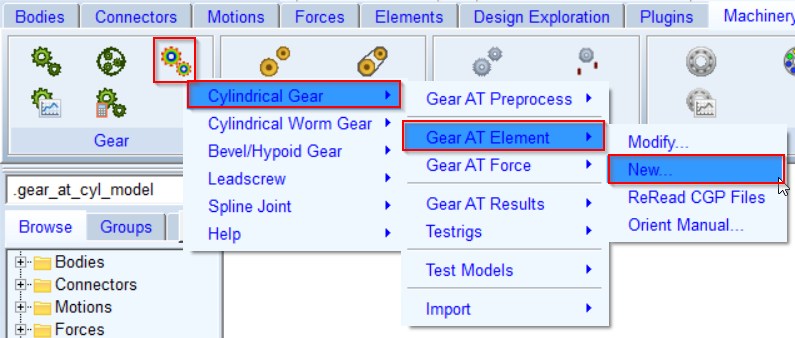
1. In the Gear AT menu, select Cylindrical Gear → Gear AT Element → New.
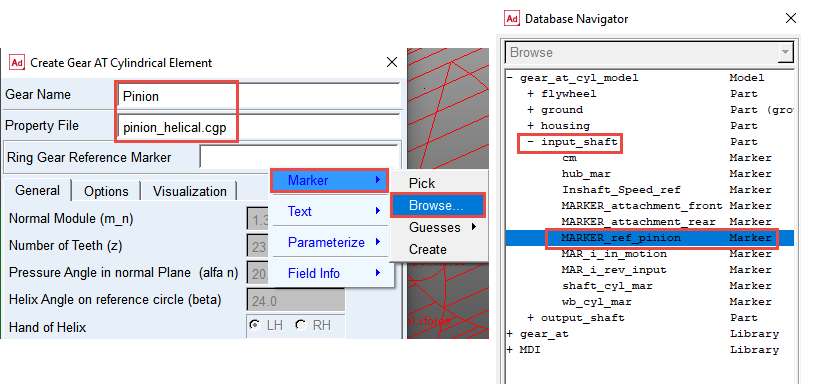
2. Enter the Gear Name: Pinion.
3. Right click and Browse the ../gears directory for the Property File name: pinion_helical.cgp.
4. Right click in the Ring Gear Reference Marker field, navigate to Marker → Browse.
5. In the Database Navigator window, select MARKER_ref_pinion, under the input_shaft part.
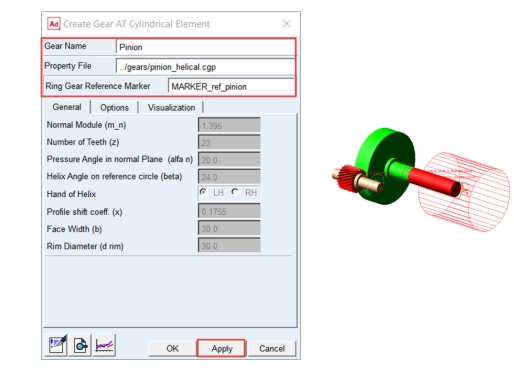
6. Click the Apply button.
7. The Pinion Gear AT Element has been created.
Create the Wheel Gear AT Element
To create the Wheel Gear AT Element:
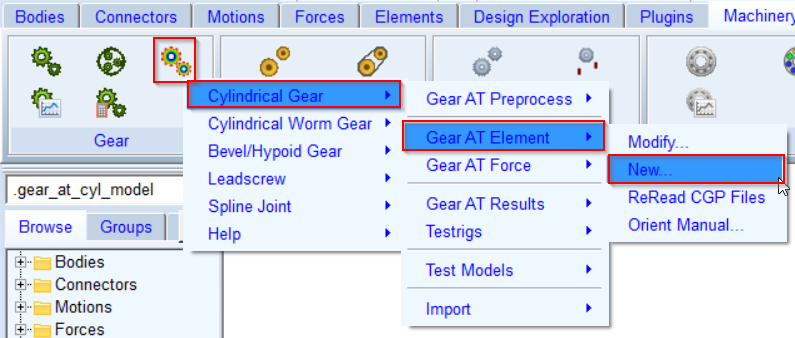
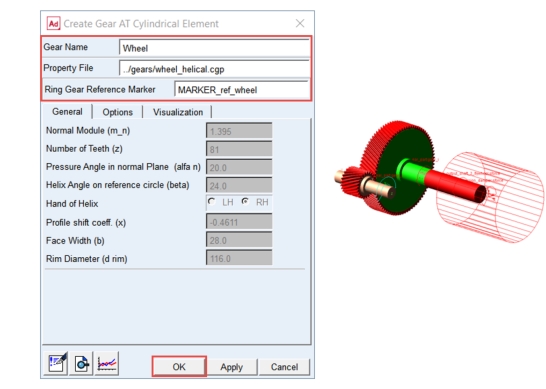
1. In the Gear AT menu, select Cylindrical Gear → Gear AT Element → New.
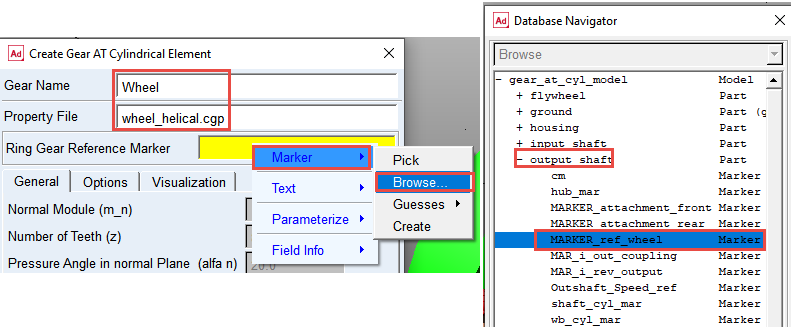
2. Enter the Gear Name: Wheel
3. Right Click and Browse the ../gears directory for the Property File name: wheel_helical.cgp.
4. Right click in the Ring Gear Reference Marker field, navigate to Marker → Browse.
5. In the Database Navigator window, select MARKER_ref_wheel, under the output_shaft part.
6. Click the OK button.
7. The Wheel Gear AT Element has been created.
Create Gear AT Force for the gear pair
Theory – Damping Force
The function b is defined by:
 | (1) |
is used to smooth the damping.
There is no hydrodynamic damping, when b < 0:
 | (2) |
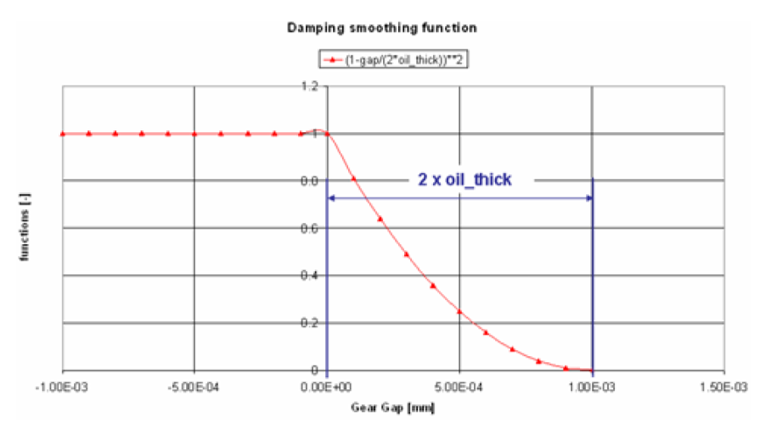
Hydrodynamic damping increases exponentially with decreasing oil film height. The introduction of the damping exponent d_exp:
 | (3) |
is used for this purpose. See Figure 2
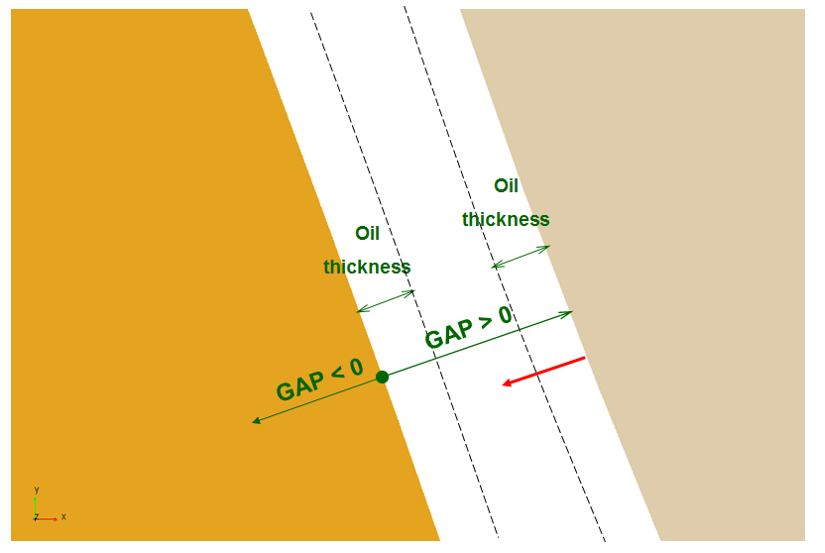
Figure 2 Oil Film Thickness
The structural damping force is made proportional to the contact force as shown by:

A value of 0.01 means, that the structural damping force is 1.0 percent of the elastic contact force.
Theory – Friction Force
The static friction coefficient  is usually somewhat higher than the dynamic friction
  coefficient. Step functions are used for smoothing the transitions. See Figure 3. Parameter of slip velocity (Vs) limits the region of sign change of the sliding velocity.
is usually somewhat higher than the dynamic friction coefficient. Step functions are used for smoothing the transitions. See Figure 3. Parameter of slip velocity (Vs) limits the region of sign change of the sliding velocity.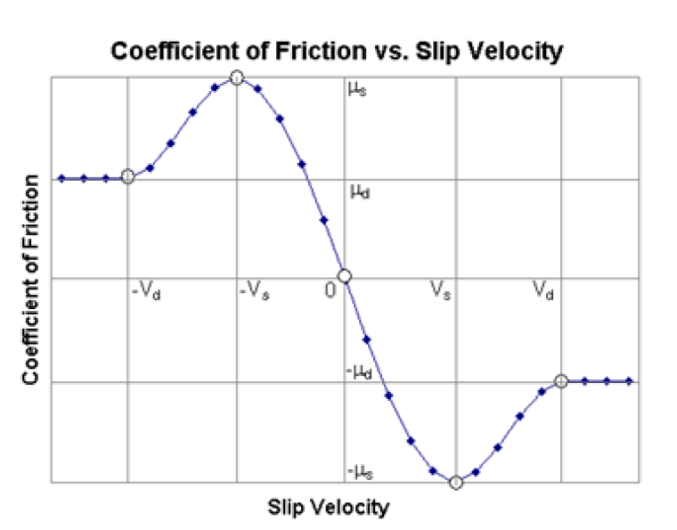
Figure 3 Coefficient of Friction vs, Slip Velocity
The combination of very small slip velocity (Vs) and high friction can reduce the performance of the integrator. You are advised to validate this selection through postprocessing of the sliding velocity.
Transition velocity (Vd) defines the start of the region, where the dynamic friction is constant. A small difference between slip velocity (Vs) and transition velocity (Vd) could also lead to numerical issues of the integrator.
To Create Gear AT Force for the gear pair
1. In the Gear AT menu, select Cylindrical Gear → Gear AT Force → New.
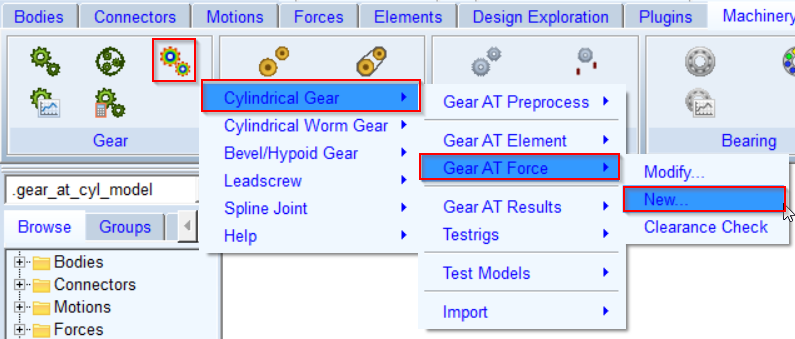
2. Enter the Gear Force Name: external_stage.
3. For Gear 1, Right click → gear_at_cylindrical_element → Browse and select Wheel.
4. For Gear 2, Right click → gear_at_cylindrical_element → Browse and select Pinion.
5. Select the fixed orientation for the Gear AT Element: Wheel.
6. Right click and Browse for the CGS File of Gear 1 in the ../gears directory : wheel_helical_030_03_02.cgs.
7. Right click and Browse for the CGS File of Gear 2 in the ../gears directory : pinion_helical_030_03_02.cgs.
8. Set Modeling Option to Flexible Tooth.
9. Set Contact Overlap to Normal.
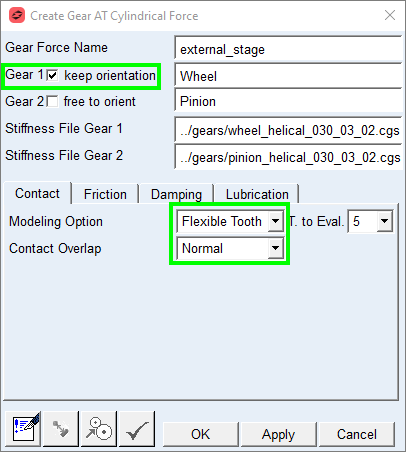
10. Go to Friction tab and set the Friction Model to On.
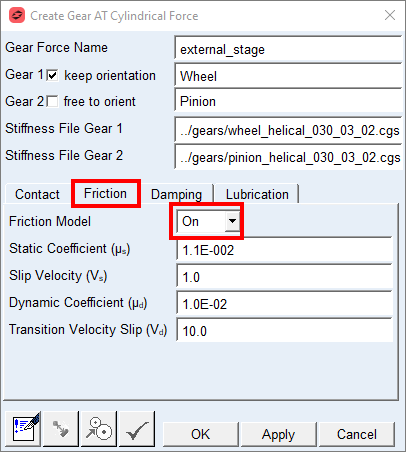
11. Go to Damping tab and set the value of Damping Rate Oil: 10.0.
12. Click the OK button.
13. The Gear AT Force element has been created.
Note: | The color of the Pinion and Wheel Gear AT Element has changed. The color coding is set according to the role of a gear. |
Setup Input motion and Output Torque
In this workshop model the output torque is defined from perspective of input, hence the torque value has to be divided by the gear ratio (3.521).
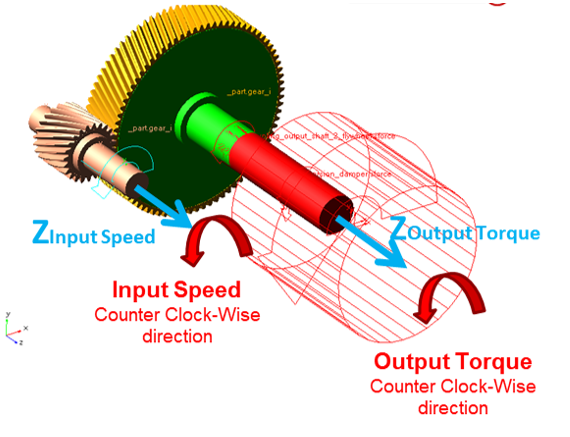
To set Input motion and Output Torque:
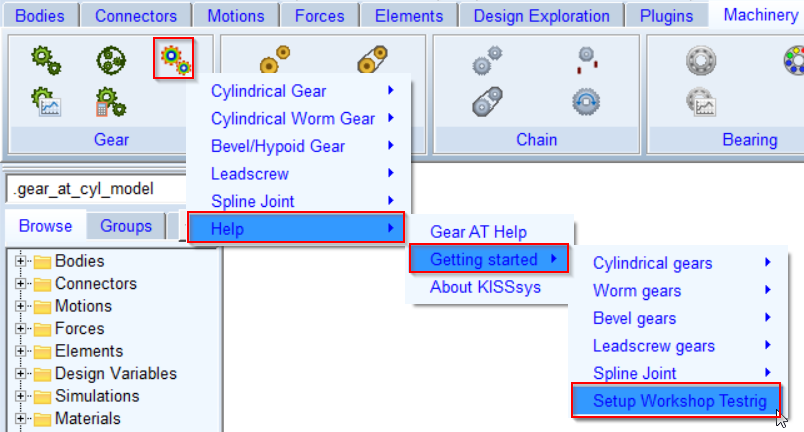
1. In the Gear AT menu, select Help → Getting Started → Setup Workshop Testrig.
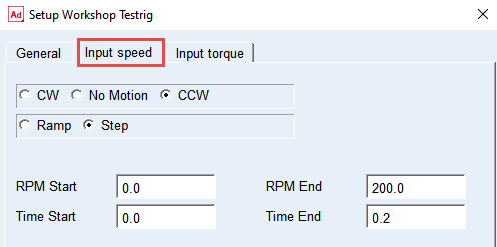
2. In Input speed tab, set the driving motion parameters as shown.
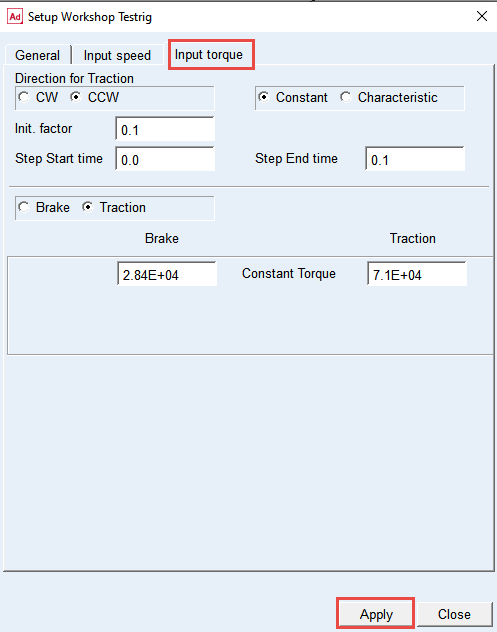
3. In Input torque tab, set the loading torque parameters as shown.
4. Click the Apply button and close Setup Workship Testrig window.
Review the Torsion Damper
To review torsion_damper:
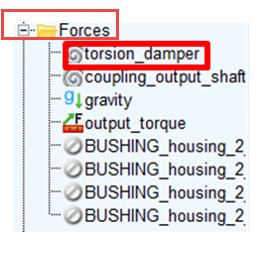
1. In Forces tab, navigate to torsion_damper.
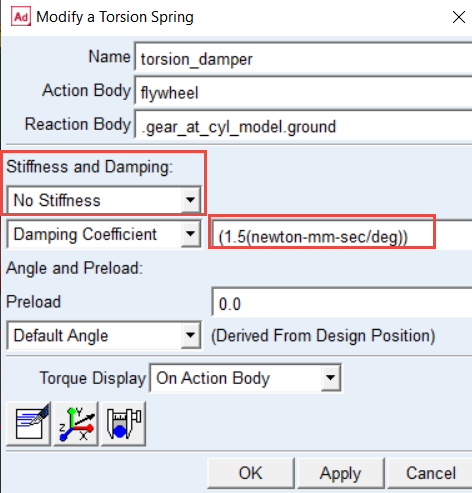
2. Ensure Stiffness and Damping is set to No Stiffness, and the Damping Coefficient is set to (1.5(newton-mm-sec/deg)).
Verify Pinion and Wheel Gear AT Elements
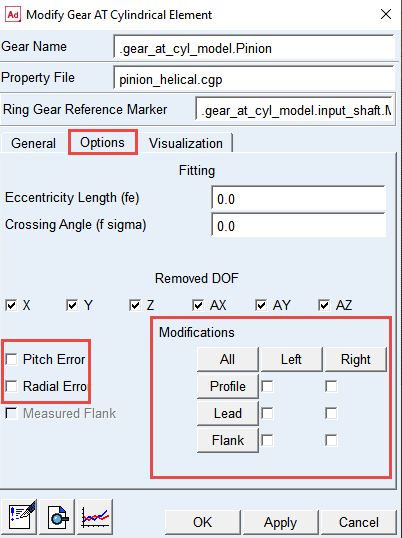
Before you run the baseline dynamic simulation verify that for both, Pinion and Wheel all modifications and errors are switched off.
To verify pinion and wheel Gear AT elements:
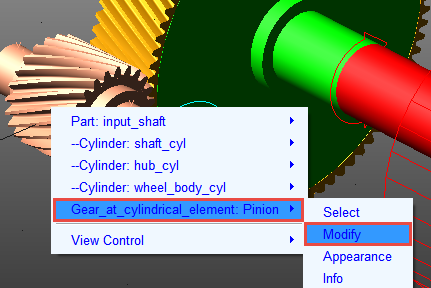
1. Right click on Pinion → Gear_at_cylindrical_element: Pinion and select Modify.
2. In the Options tab, disable all the Modifications and errors check-box.
3. Click the OK button.
4. Do the same for the Wheel Gear AT Element.
Set the solver settings
To set the solver settings:
1. In the Settings menu, select Solver → Dynamics.
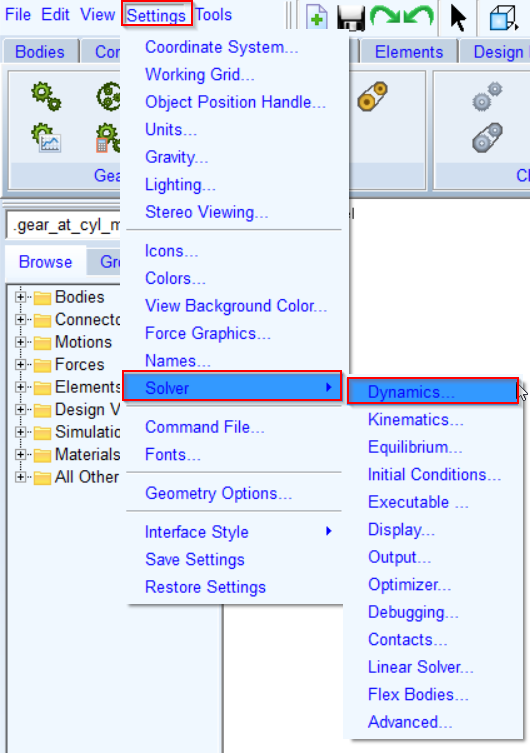
2. Select the Integrator: HHT.
3. Set the value of Error: 1.0E-006.
4. Set the value of Hmax: 5.0E-005.
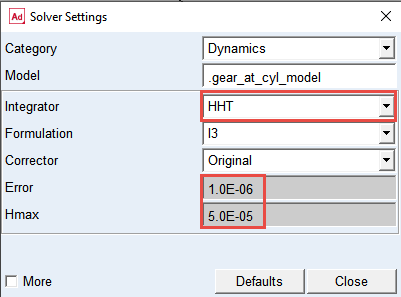
5. Change the Category to: Executable.
6. Set the Executable to: External.
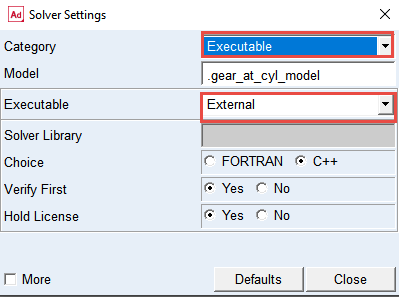
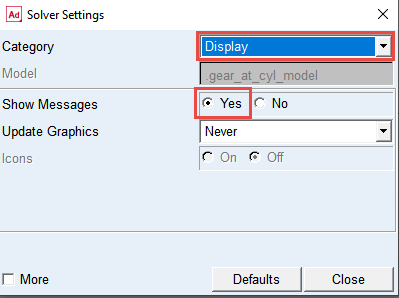
7. Change the Category to: Display.
8. Set the Show Messages to: Yes.
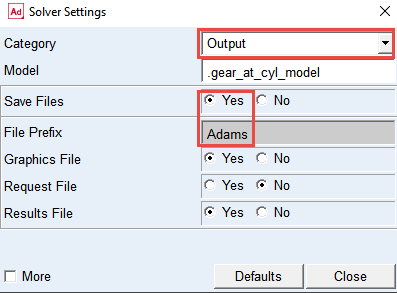
9. select Category: Output.
10. Set the Save Files: Yes.
11. Set the file prefix: Adams; this will be used for CGR result files for contact pattern post-processing.
12. Select Category: Equilibrium.
13. Select the More options.
14. Set the value of Error: 1.0E-2.
15. Set the value of Tlimit: 1.0E-2.
16. Set the value of Alimit: 1.0E-2.
17. Set the value of Maxit: 500.
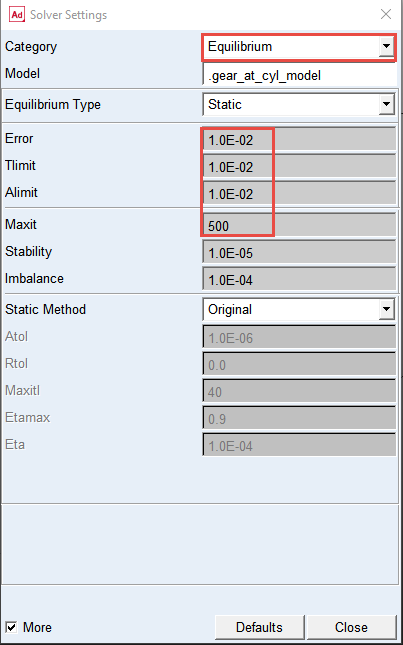
Note: | Using default solver settings for static equilibrium could result in failure to reach convergence for static and quasi-static simulation. |
Verify Simulation script and run the simulation
To verify the simulation script and run the dynamic simulation:
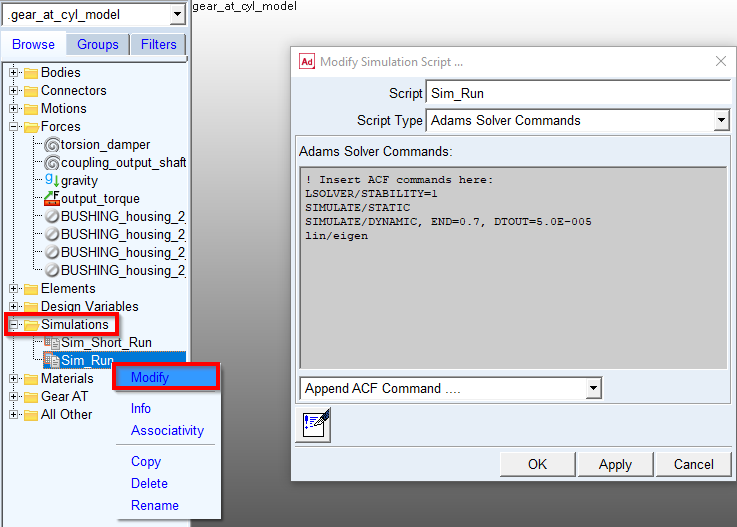
1. In the Model Browser expand Simulations, right click on Sim_Run and select Modify.
2. Verify the Solver Script and click OK button.
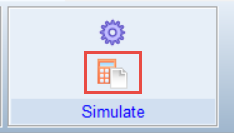
3. In the Simulation tab select Run a Scripted Simulation.
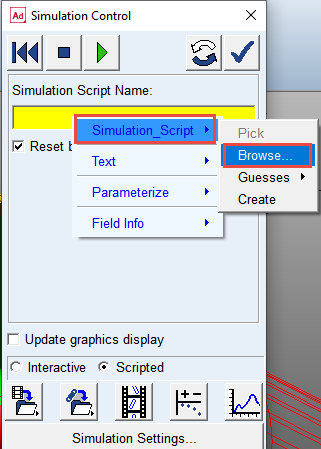
4. Right click in Simulation Script Name, select Simulation_Script → Browse.
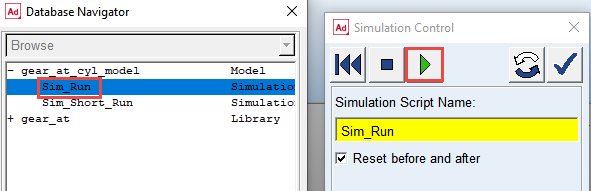
5. From gear_at_cyl_model, double click Sim_Run as solver script and click the play button. The simulation will take a few minutes to run.
Investigate results of linear analysis
1. From the Simulation control dialog box switch to linear modes controls.
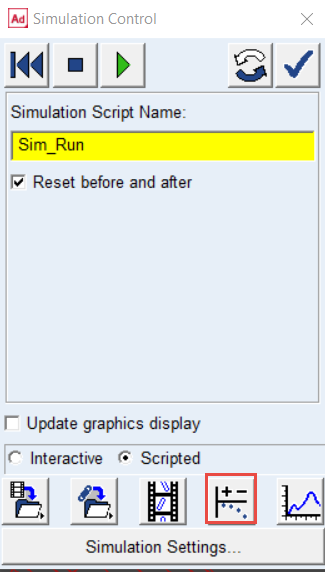
2. Animate system modes.
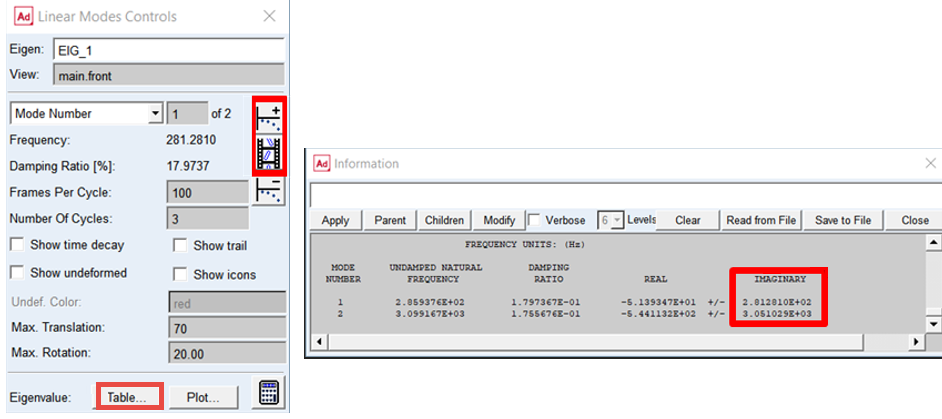
3. Display eigen values in tabular form.
4. Make note of damped natural frequencies (imaginary component), make sure those have non-zero values.
Investigate the simulation results
In the Adams Postprocessor you can investigate the simulation results.
Note: | The resulting force and torque vectors are measured in so-called contact coordinate system denoted by “c” index on the Figure 4. In the Total Force and Torque request group the vectors represent sum of all components from contact stiffness, damping and friction. However, one can plot each component of total force or torque separately. For more information, refer Gear AT Results 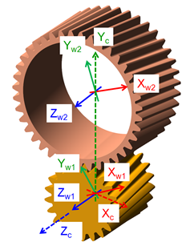 Figure 4 contact_coordinate |
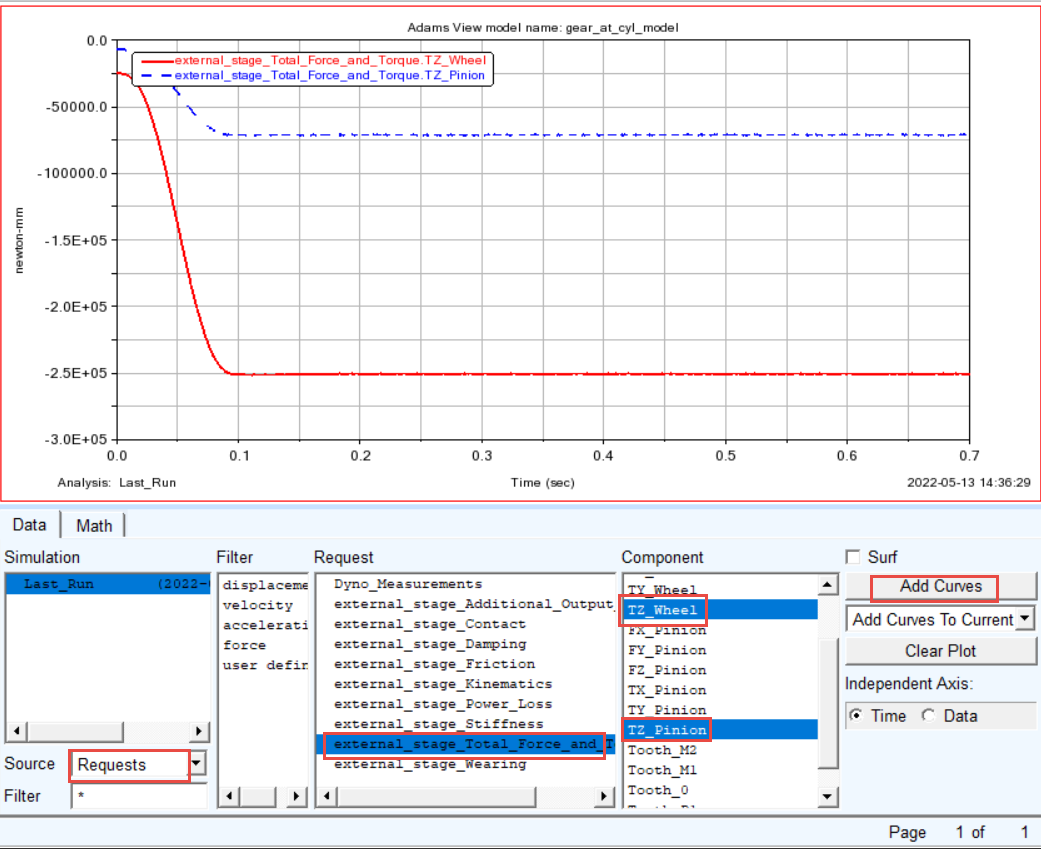
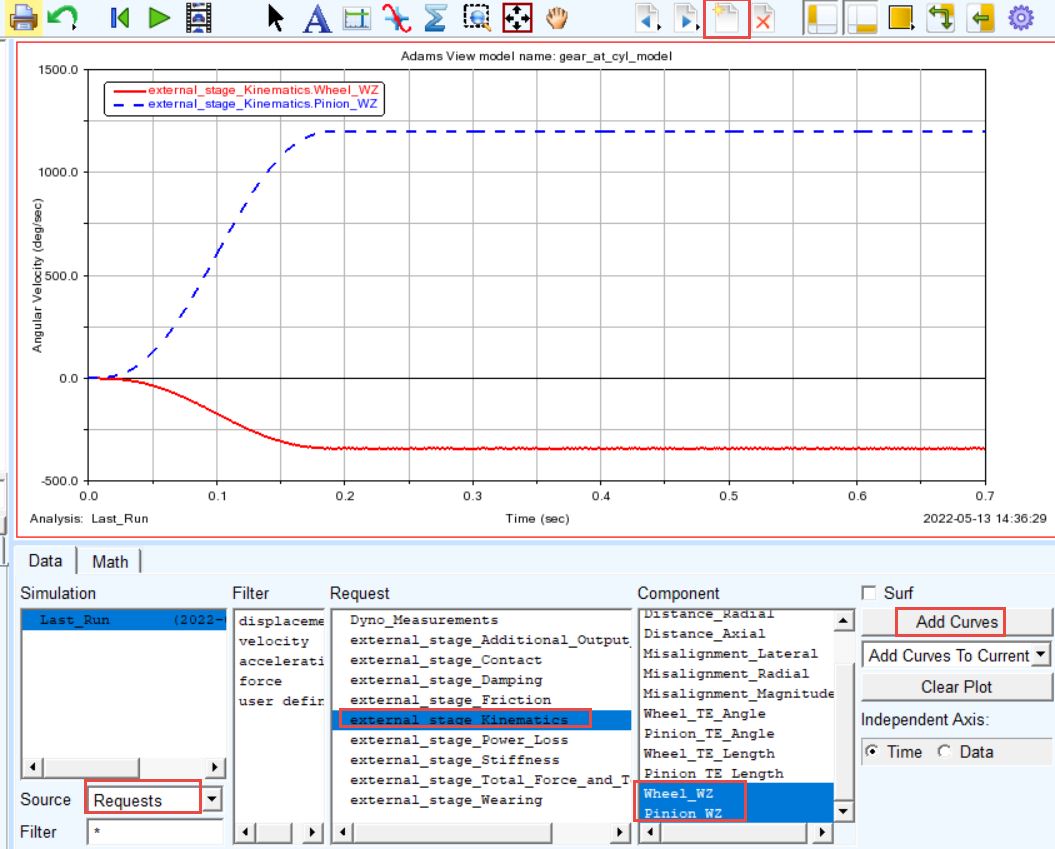
Make a plot of torque applied on Wheel and Pinion and plot of angular velocity of Wheel and Pinion:
1. Switch to Adams Postprocessor by pressing F8 on keyboard.
2. Select the Source: Requests.
3. Select the Request: external_stage_Total_Force_and_ Torque.
4. Select the Components: TZ_Wheel and click Add Curves button.
5. Select the Components: TZ_Pinion and click Add Curves button.
6. Click new page and select the Request: external_stage_Kinematics.
7. Select the Component: Wheel_WZ and click Add Curves button.
8. Select the Component: Pinion_WZ and click Add Curves button.
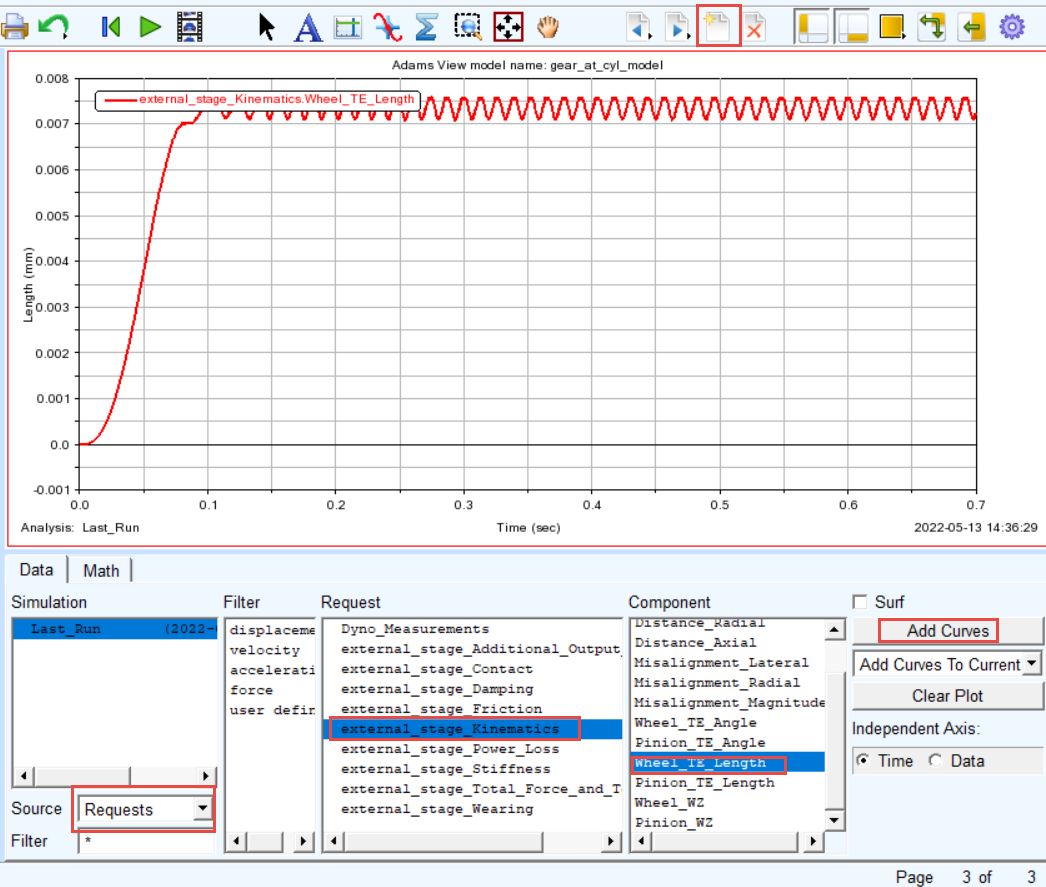
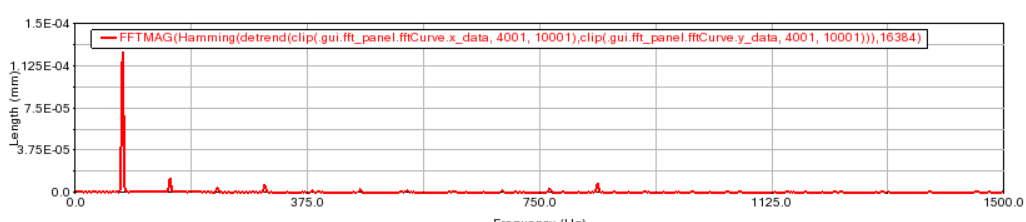
Make plot of Wheel Transmission Error and create FFT plot to identify the tooth mesh frequency:
1. Create a new page.
2. Select the Source: Requests.
3. Select the Request: external_stage_Kinematics.
4. Select the Component: Wheel_TE_Length and click Add Curves button.
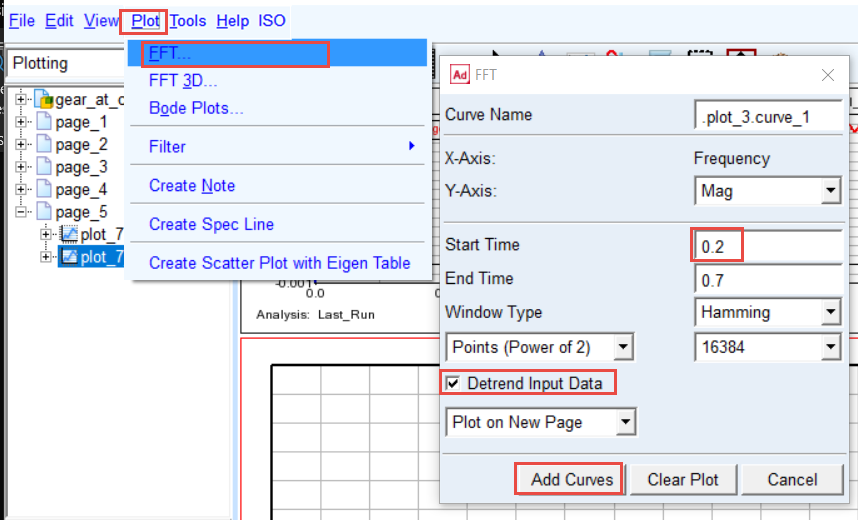
5. In the Plot menu select: FFT.
6. Set the Start Time: 0.2.
7. Enable Detrend Input Data toggle.
8. Click the Add Curves button.
9. The FFT plot is created. Zoom the horizontal axis from 0 to 1000 Hz.
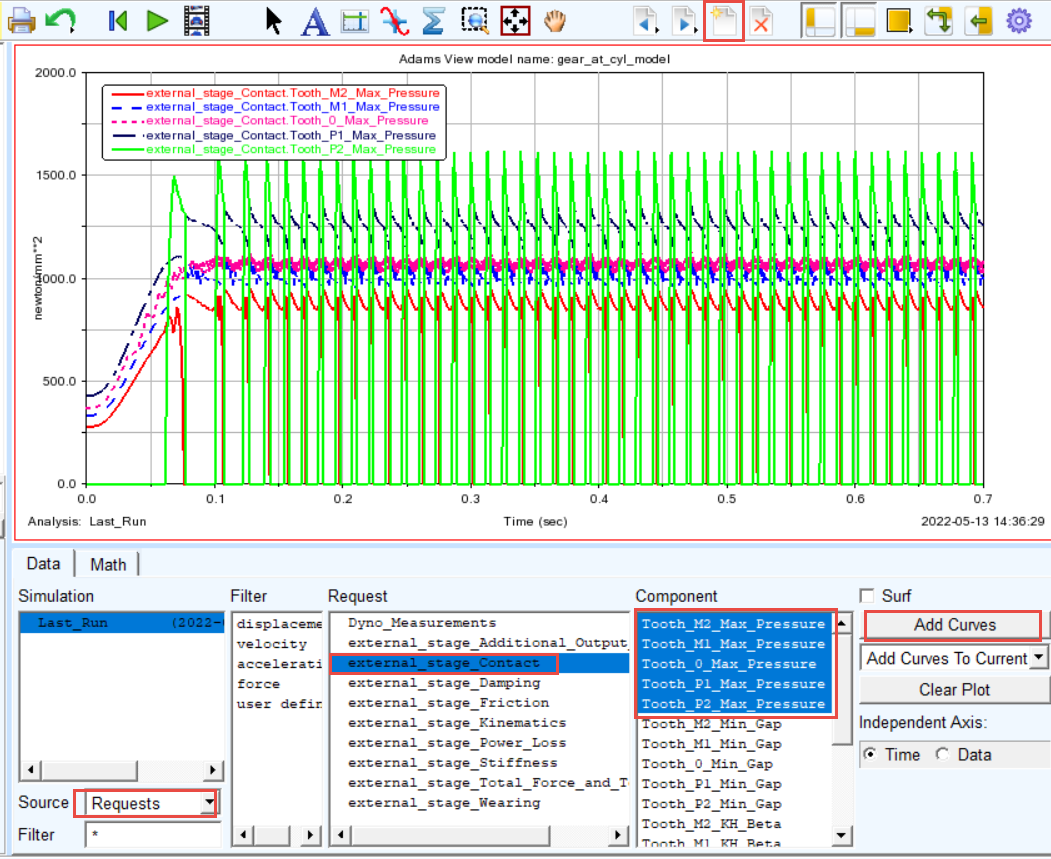
Make plot of maximum contact pressure over all teeth in contact:
1. Create a new page.
2. Select the Request: external_stage_Contact.
3. Select the Component: Tooth_M2_Max_pressure and click Add Curves button.
4. Select the Component: Tooth_M1_Max_pressure and click Add Curves button.
5. Select the Component: Tooth_0_Max_pressure and click Add Curves button.
6. Select the Component: Tooth_P1_Max_pressure and click Add Curves button.
7. Select the Component: Tooth_P2_Max_pressure and click Add Curves button.
8. Zoom in the Plot.
For Tooth Numbering Convention, refer Figure 5.
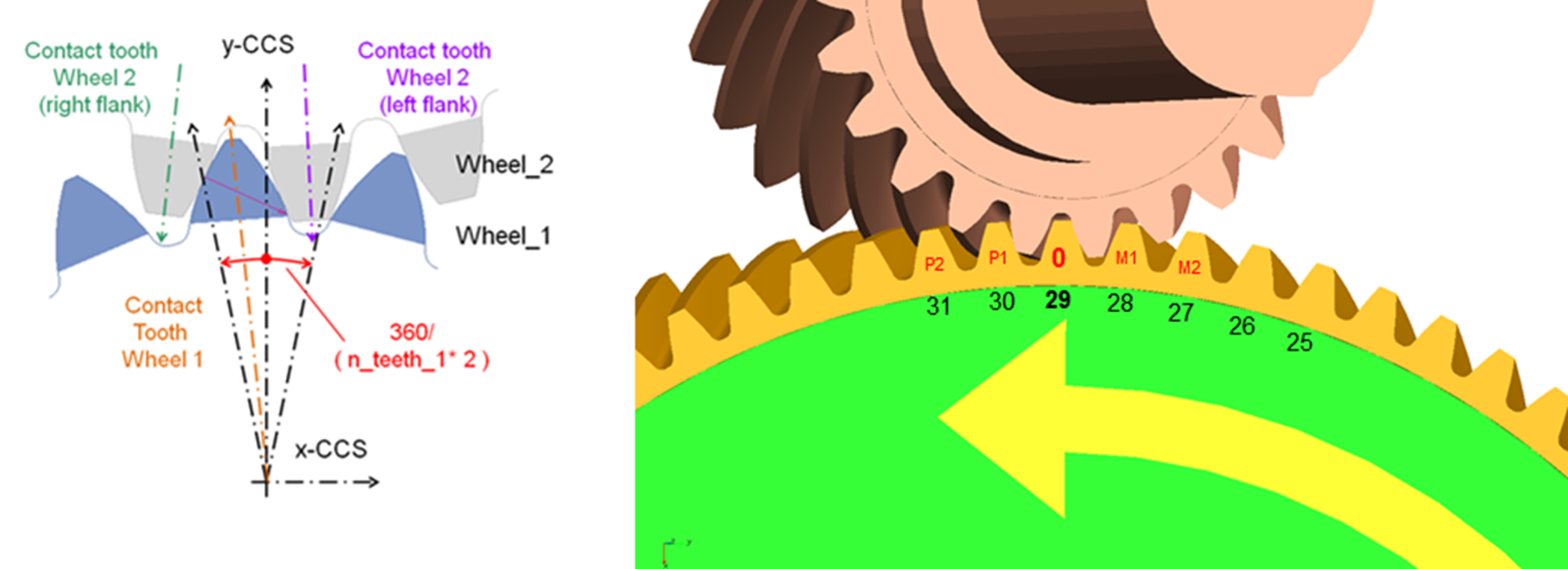
Figure 5 Tooth Numbering Convention
Plotting the contact pattern
Before plotting the contact pattern we need to find out the tooth in contact at particular time interval of interest. For tooth flank side definition, refer Figure 6
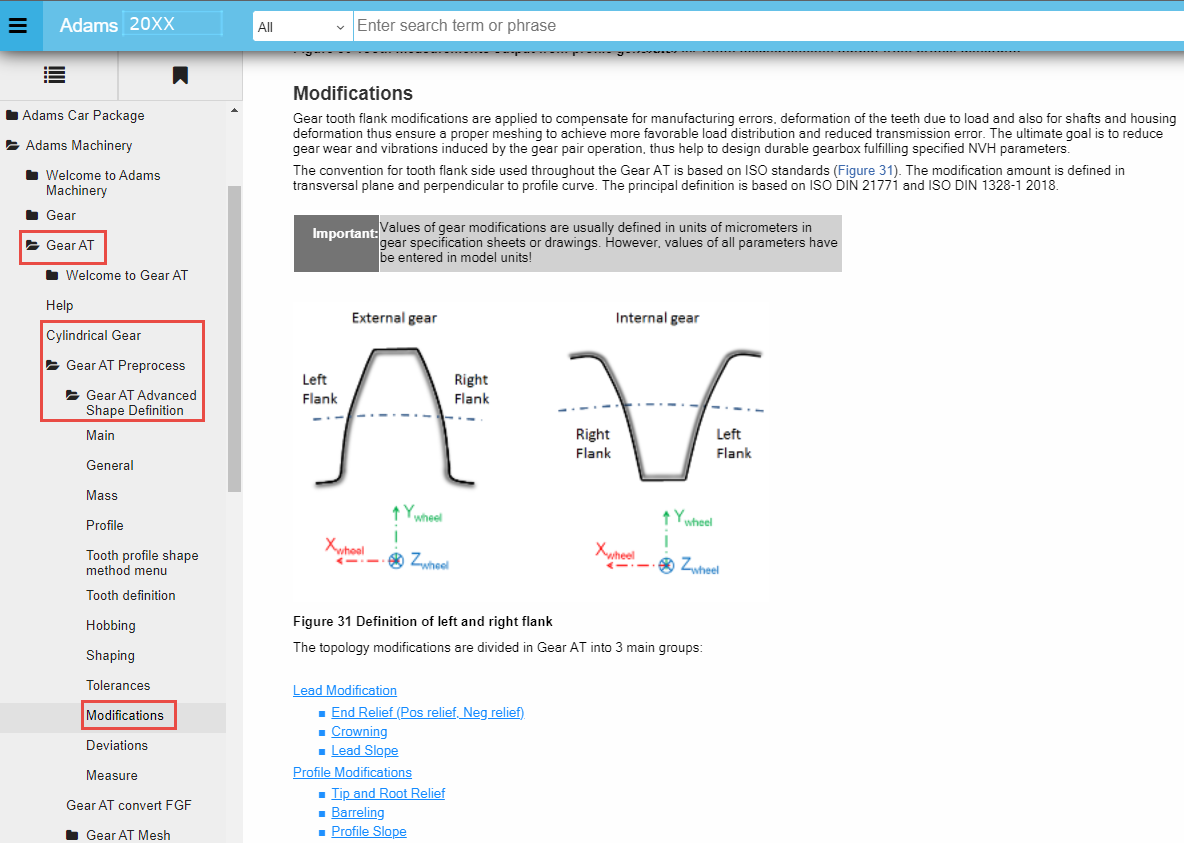
Figure 6 Tooth flank side definition
To plot the pinion and wheel contact tooth:
1. Create a new page.
2. Select the Request: external_stage_Kinematics.
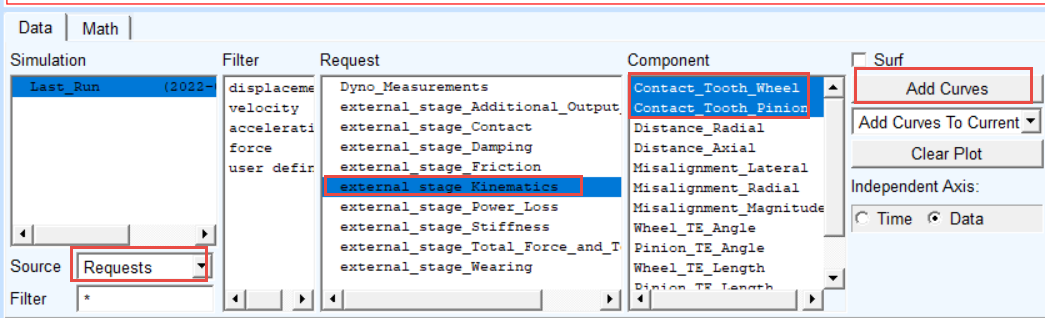
3. Select the Component: Contact_Tooth_Pinion and Contact_Tooth_Wheel, click Add Curves button.
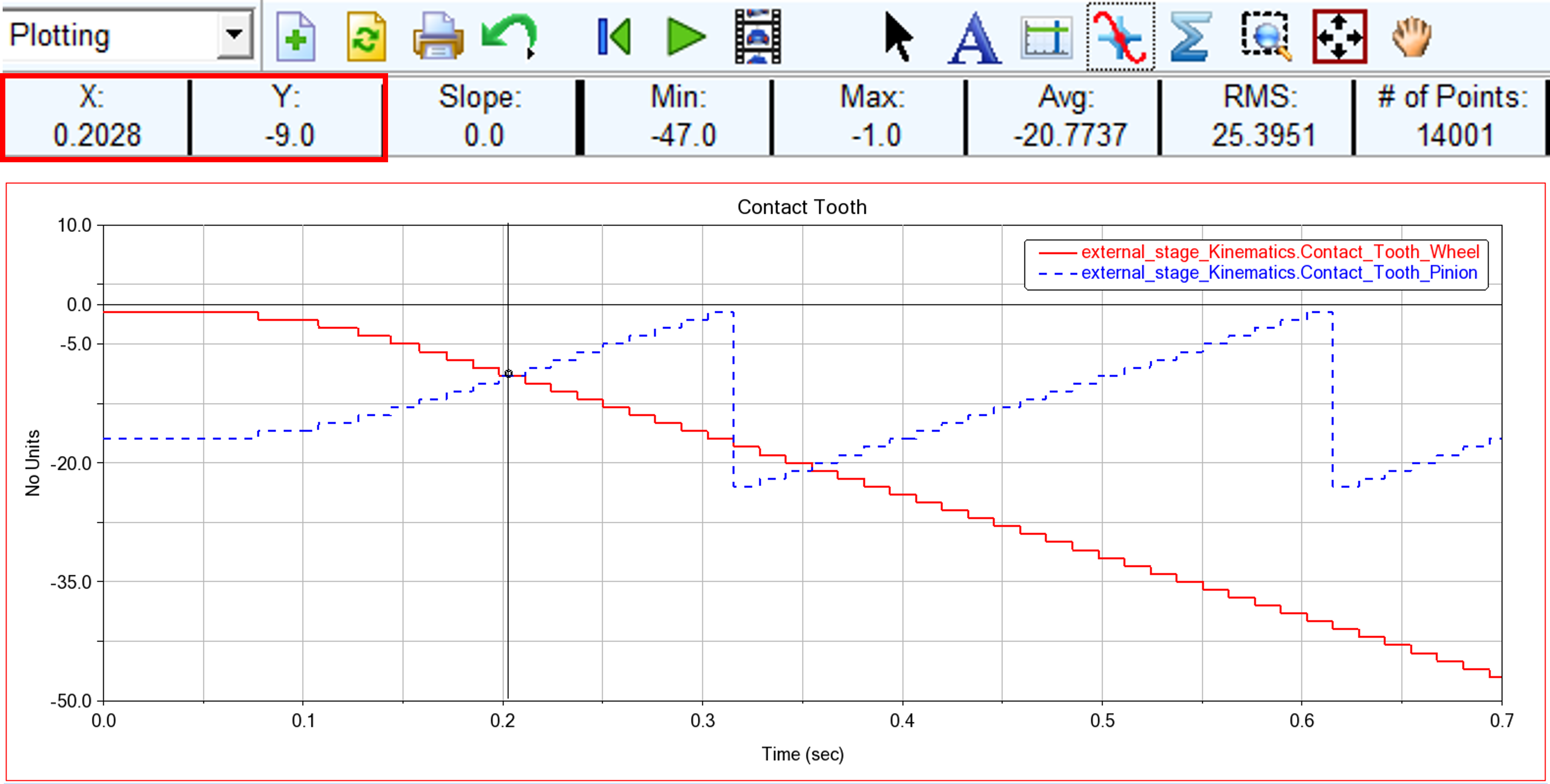
4. In the Menu bar point to the Plot tracking. Track the value of Wheel contact tooth close to time of 0.2 sec. From the tracking plot panel, we can see that Y value is equal to -9. This indicates the number of Wheel tooth on which the contact pressures can be displayed at the given time interval and that the side of contact is Right (MINUS) tooth flank.
To plot the contact pattern in the Adams Postprocessor:
1. In the Adams Postprocessor, select ISO → Gear AT → Advanced Results.
2. Select the Gear Force: external_stage.
3. Browse for Adams__external_stage__M_mode.cgr file.
4. Keep default for Minimum and Maximum Time.
5. Select Tooth: 9.
6. Set the Flank radio button: Right for the contact flank (Right = Minus contact mode – Wheel contact tooth = -9.0).
7. Click the OK button.
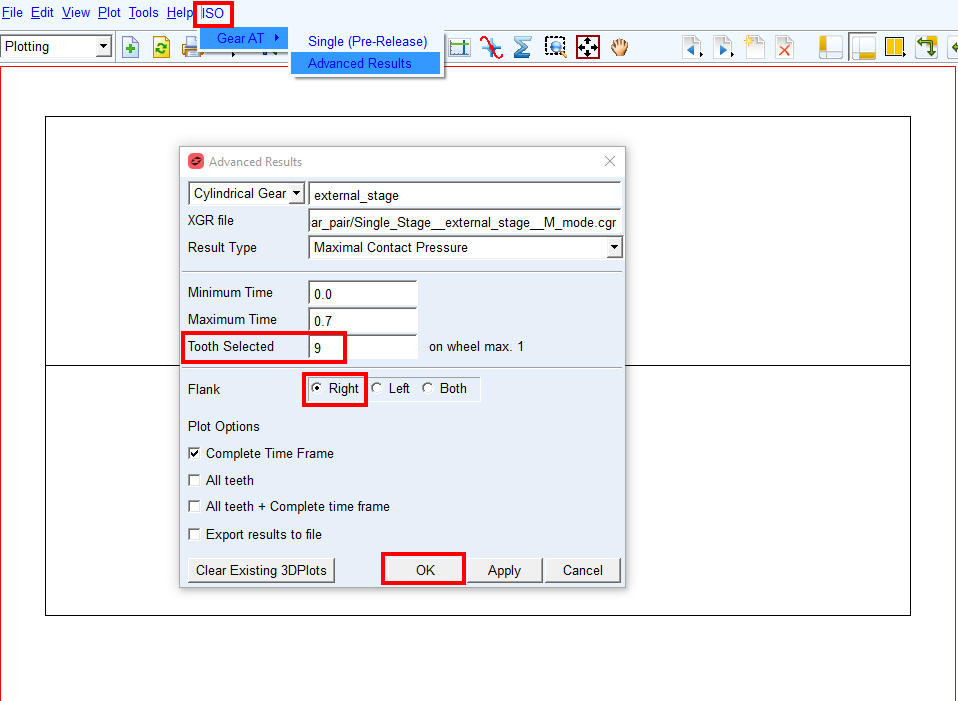
8. The plots of the contact pattern results are created.
9. Explore contact pattern of the Minus (right) Flank of Tooth 9.
10. Rotate the view to see the contact pattern from different views.
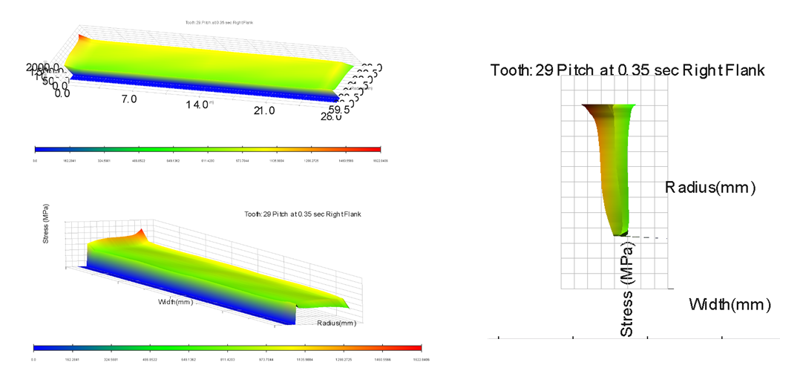
For advanced results, refer Figure 7.
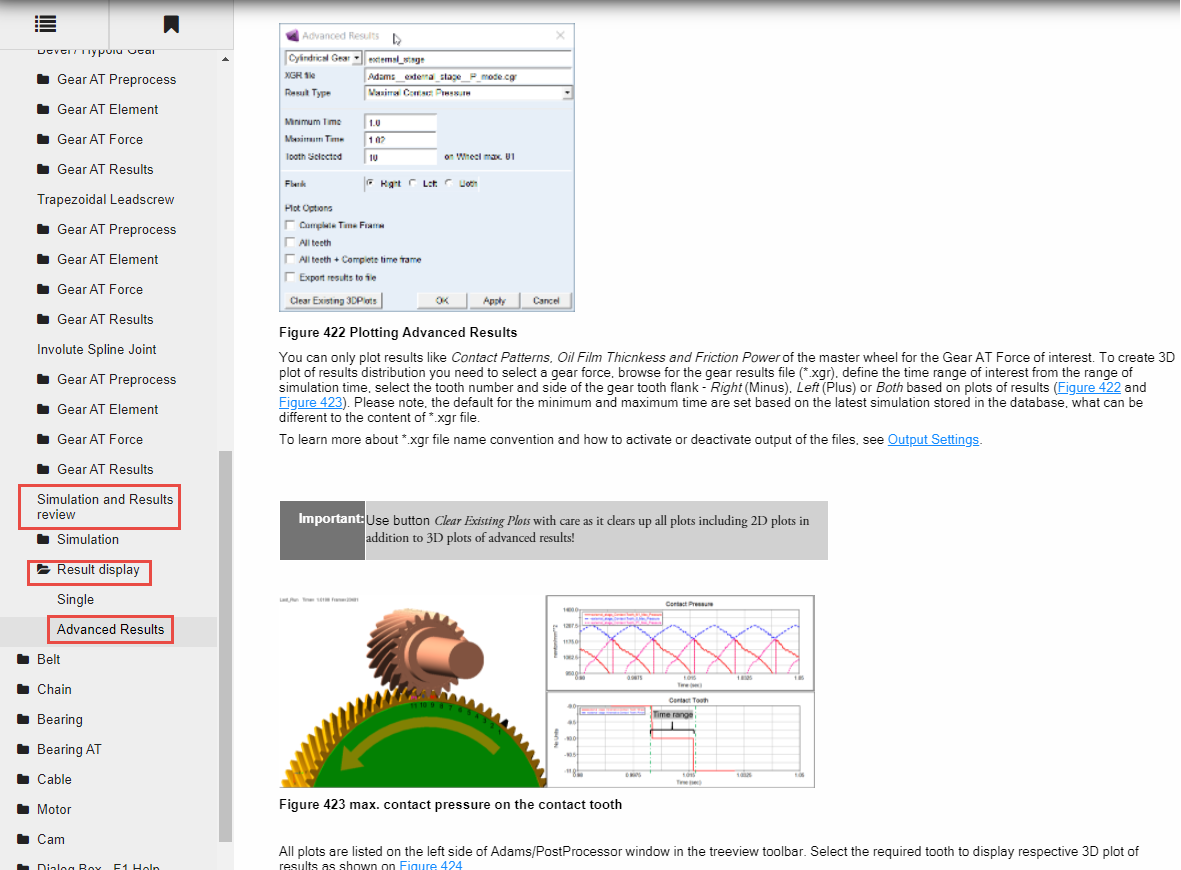
Figure 7 Advanced Results
Save your Work
You will use the completed model in next workshop, that is why you have to save your work.
To save your model:
1. Switch to Adams View by pressing F8 on keyboard.
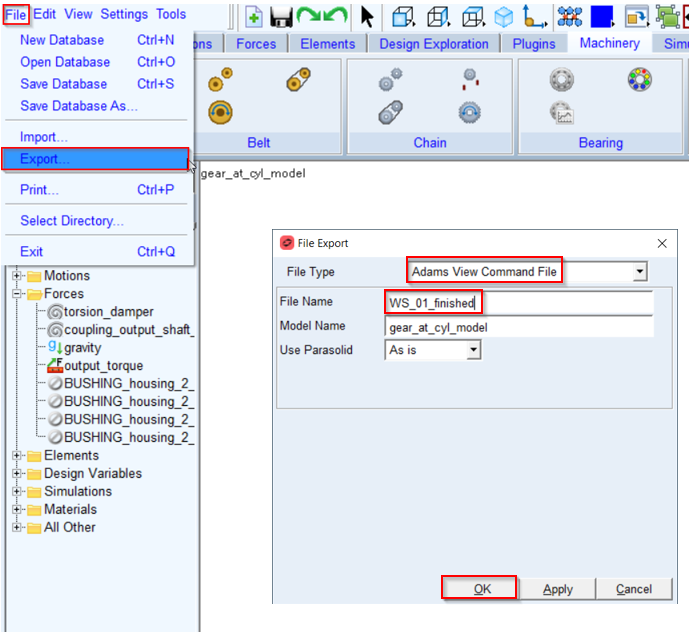
2. In the File menu, select Export...
3. Select the File Type: Adams View Command File.
4. Enter File Name as WS_01_finished.
5. Click the OK button.
6. The CMD and XMT_TXT files are exported to your working directory. You can use them in the next workshop.