Appendix: Offline Verification via Adams-Adams Co-Sim
In the following steps, we will demonstrate the Adams-Adams co-simulation. These next steps are optional. They are meant to test the FMU in offline simulations using Adams as the parent. To run the following steps, the (Intel) compiler must be installed.
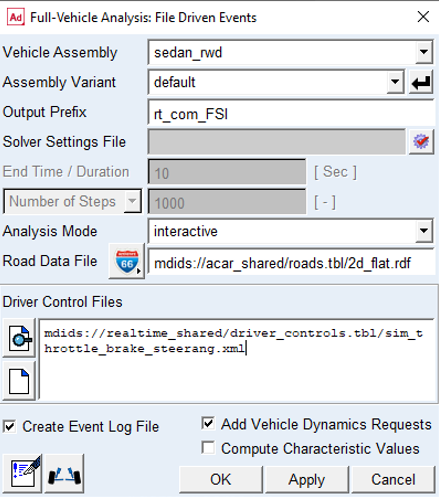
1. Write out simulation files for a file driven event using the driver control file supplied with this example in the realtime_shared database, "<realtime_shared>/driver_controls.tbl/sim_throttle_brake_steerang.xml"
a. Simulate → Full-Vehicle Analysis → File-Driven Events
b. Complete the dialog as shown below and click OK to run the simulation
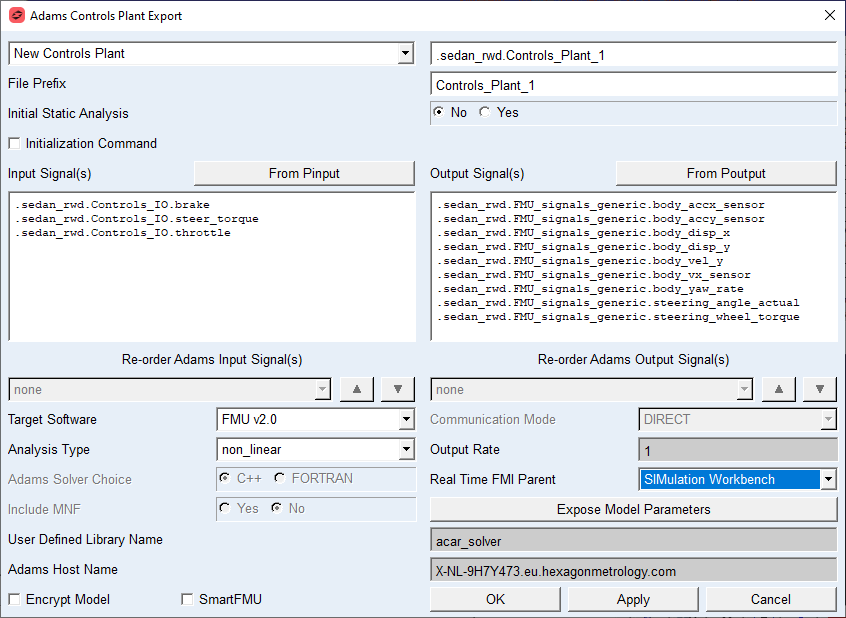
2. Export the FMU for use in the offline Adams-Adams co-sim environment: Controls → Plant Export and complete the dialog as shown below, be sure to select the existing controls plant ".sedan_rwd/Controls_Plant_1" and update the file prefix to match that of the files-only analysis performed in the previous step (this is how the FMU creation process finds the correct event details). Also be sure to choose the "None" for Real Time FMI Parent since it can support an Adams-to- Adams co-simulation.
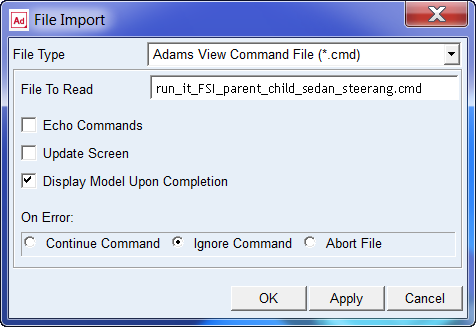
The script file run_it_FSI_parent_child_sedan_steerang.cmd has been provided with this example to run the FMU as a child in an Adams parent-child simulation. Before running this script, close the Adams Car assembly by selecting File → Close → Assembly → Assembly Name "sedan_rwd.asy". Next select File → Import run_it_FSI_parent_child_sedan_steerang.cmd as shown below and make sure the FMU file as generated in previous steps are located in the same directory as the script file.
This script will load the Adams parent model, which is a very simple model, applying inputs (throttle [0-100%], brake [0-100%], steering_wheel_angle [deg]) to the child which in this case is represented by the FMU created in previous steps. The script run_it_FSI_parent_child_sedan_steerang.cmd performs the following steps:
a. Load the Parent model vehicle_fmu_parent.cmd.
b. Import the control system External System Library rt_com_FSI_sim_throttle_brake_steerang.fmu and create a general state equation. Inputs and outputs are defined by the parent model.
c. Set Solver settings (define filename, use the internal Solver).
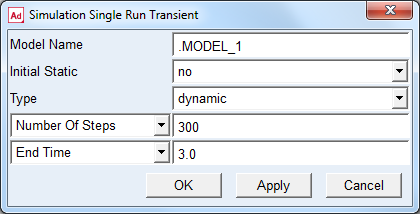
d. Run the simulation (In this example, a dynamics analysis for 3 seconds in 300 steps).
In this example, the Adams parent model applies a steering wheel angle of 0.5 radians to the child model as shown below (Tools → Command Navigator → data_element → modify → variable).
Notes
If you want to see the impact of applying throttle and/or brake input to the model you can modify the variables out1_throttle_state [0-100%] and/or out2_brake_state [0-100%] and run the simulation again.
To run another parent-child simulation, select Tools → Command Navigator → simulation → single_run → reset to reset and allow for running a new simulation starting from time = 0.0s. Then select Tools → Command Navigator → simulation → single_run → transient as shown below to run another simulation.
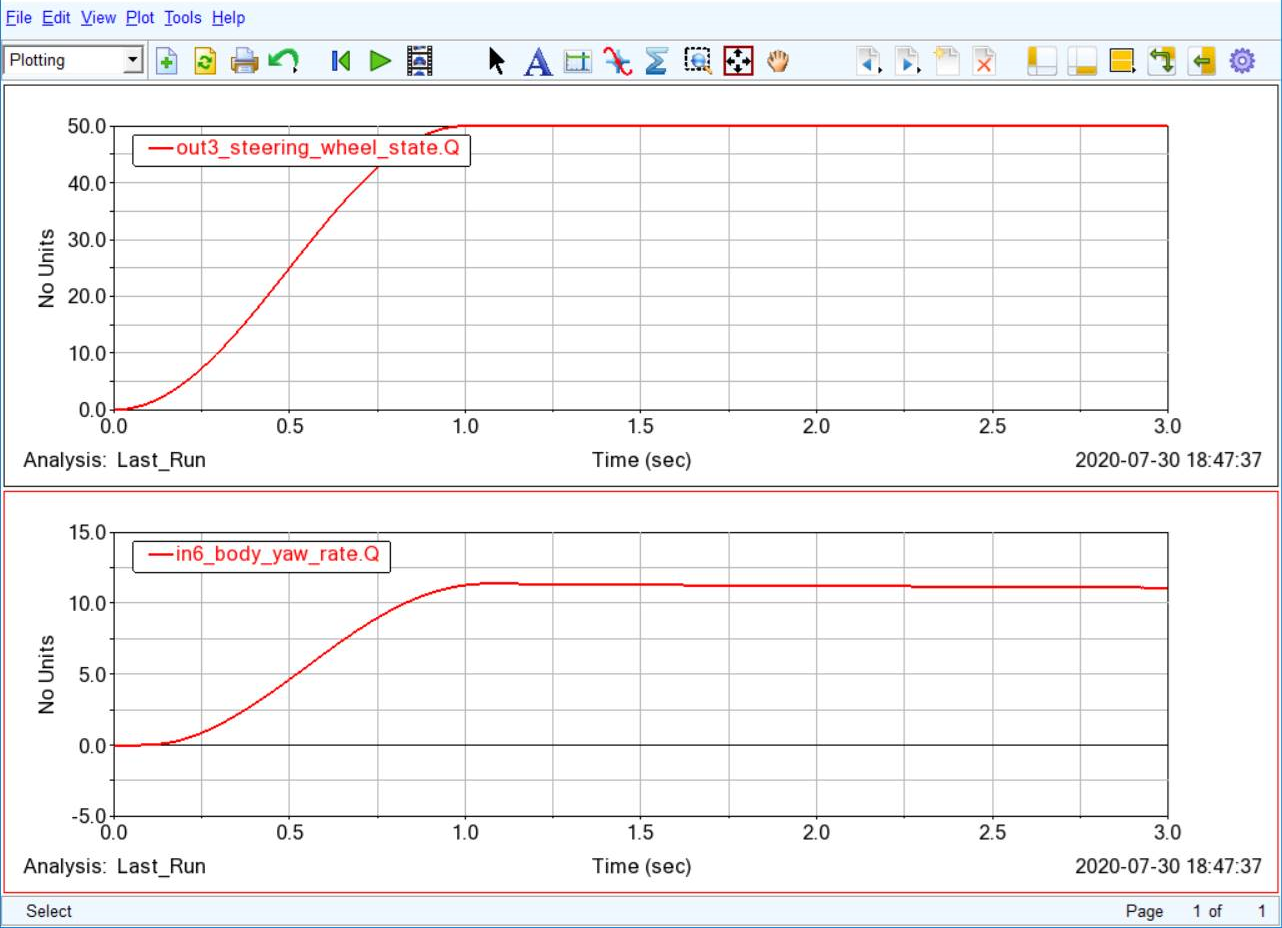
The FMU produces a number of outputs (vx, yaw-rate, accelerations, displacements and so on) that are inputs to the parent model and can be plotted in Adams PostProcessor. Switch to Adams Postprocessor by clicking Review → Postprocessing Window. Select Plotting in the drop down menu at the top left of the Postprocessing window, change Source to Result Sets and plot the signals as shown below (applying a steering wheel torque will steer the front wheels and introduce a yaw velocity to the vehicle).