Selection Menu
The Adams Selection Menu is a command-line interface for building and running Adams products. It provides you with access to all the Adams products for which you are licensed.
Displaying the Selection Menu
Your system administrator can change the command to run the Adams Selection Menu to access Adams products. Before you begin, therefore, you need to know:
■The command to run the software.
■Where the software is installed.
To start the Selection Menu:
■On Windows:
■From the Start menu, point to Programs, point to Adams x (where x is the release number), and then select Command Prompt.
■Enter the command to run the Adams Selection menu.
■On Linux: Enter the command to run the Adams Selection Menu.
The standard command that MSC Software provides is adamsx -c where x is the version number, for example adams2024_1.
The Adams Selection Menu appears. It contains a list of options, or selection codes, for the products for which you are licensed. A Windows example is shown next.
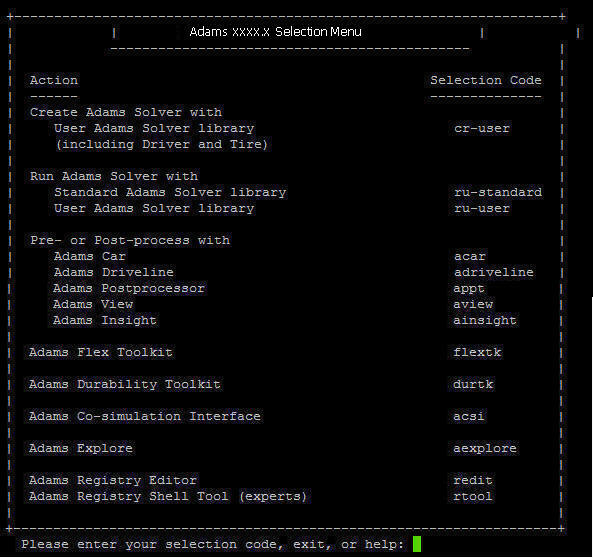
■The following table explains all the possible selection codes available from the Adams Selection Menu:
The code: | Does the following: |
|---|---|
cr-user | Leads you through the creation of an Adams analysis product user library. Creates a library for the Adams analysis products: Adams Solver and Adams Tire. |
ru-standard | Runs standard Adams Solver. |
ru-user | Runs Adams Solver with a user library. A user library is one or more user-written subroutines. |
acar, adriveline, appt, aview, ainsight | Runs Adams products with and without user libraries, and for certain products, leads you through the creation of the user libraries. |
flextk | Runs the Adams Flex toolkit, which lets you view and work with a modal neutral file (MNF), which describes a flexible body. For more information on the Adams Flex toolkit and MNF files, refer to the Adams Flex online help. |
durtk | Runs Adams Durability toolkit. For more information see Adams Durability online help. |
acsi | Runs Adams Co-Simulation Interface. For more information, see Adams Co-Simulation Interface (ACSI). |
aexplore | Runs Adams Explore. For more information, see Adams Explore. |
redit | Runs the Hexagon registry in stand-alone mode. |
rtool | Runs the Hexagon registry shell tool. |
cmm | Windows only Runs a Python tool prompting you to enter various uconfg parameter sizes. A new uconfg_user.dll is created. |
exit | Returns to the system level; exiting at any of the other prompts returns you to this menu. |
help | Displays information about each of the other choices. |
Entering Selection Codes
To perform operations through the Adams Selection Menu, you enter a selection code, after the prompt at the bottom of the screen. You can use either upper- or lower-case letters, and you can abbreviate to the shortest unique abbreviation (except when entering file names). For example, you can use e to indicate exit, h to indicate help, ru-s to indicate ru-standard, and av to indicate aview. If you use an incorrect abbreviation and get an error message, press Enter to continue. Whenever you complete or interrupt a program, the Adams Selection Menu returns.
Getting Help
Anytime that you are using the Adams Selection Menu, you can enter help or h to get help. Help text appears in the window. To exit from the help, press Enter.
Exiting the Selection Menu
You can enter exit or its abbreviation (e) at any prompt to exit from the prompt and return to the Selection Menu. If you enter exit at the Selection Menu, it returns to the operating system prompt.