On Linux
On Linux, use the Adams Toolbar to run Adams products and libraries of user-written subroutines
Modes in Which You Can Run Products
You can run Adams products in the following modes:
■Interactive mode - The product starts (a graphical interface is displayed or at least would be displayed if a monitor is hooked up to the machine) and waits for you to enter commands. Typically this means using the graphical interface to interactively work with the product and any commands are actually entered automatically by the product behind the scenes. But, one can use the interface’s command window to issue commands directly. Also, one can provide files containing commands (aka “scripts”) to issue a series of commands at once, including files that are automatically run during startup of the product.
■Interactive file mode - The product starts (a graphical interface is displayed or at least would be displayed if a monitor is hooked up to the machine) and specified input file is automatically run during startup of the product.
■Scripted - The product runs with a command file that you specify (aka a “script”). A command file is either a set of Adams View commands (.cmd) or Adams Solver (.acf) commands, depending on the product that you are running. The command file helps you automate the creation of a model, perform a simulation, or investigate simulation results. “Scripted” mode is really nothing more than executing a command file in either Interactive mode or Batch mode.
■Batch mode - No graphical interface product is ever displayed. You must provide a file of commands (aka a “script”) to be run. Information about the batch run is collected in a batch log file that you specify. Batch mode differs only slightly from importing a command file during an interactive session in the graphical interface in that the graphical interface is never actually displayed. Be advised that many commands available in the Adams View command language may require the graphical interface to be displayed in order to execute. So, not all command scripts which work interactively can be expected to work in batch mode.
You can set the same modes when you run a product with a user library.
In addition, you can set debug mode (also referred to as interactive debug mode) when you run a user library. Debug mode runs a debug utility, a system-level program, usually dbx, that steps you through, or isolates parts of, the subroutines in the user library. The debug utility helps you detect and locate any problems in the user libraries. You must have created the library in debug mode. To learn how to create a user library in debug mode, see Creating User Libraries.
Standard Products
You can use the Adams Toolbar to run standard products by clicking the associated tool. Each Adams product runs using its default preferences.
Note: | To run add-on modules or plugins, such as Adams Durability, Adams Flex, or Adams Vibration, you must first run the product in which the plugin runs. For example, to run Adams Vibration, first run Adams Car or Adams View, and then select the command to run Adams Vibration. For more information on running plugins, see their online help. |
To run a standard product:
■Click the product tool.
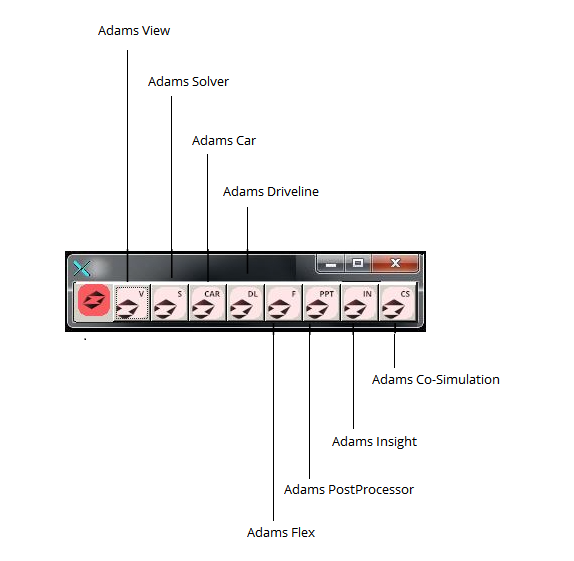
Selecting the product’s icon, with a left mouse click, starts the product. If the product default is to run in scripted mode, the product runs the specified command file.
For more information on running Adams products, refer to the online help for your product.
Template-Based Products
Hexagon provides several products built on Adams View, referred to as Adams template-based products. The products are:
■Adams Car lets you create, catalogue, and analyze suspension and full-vehicle assemblies.
■Adams Driveline lets you model drivelines to create and analyze virtual prototypes of driveline subsystems.
The template-based products let you select to run their user interface or their version of Adams Solver. In addition, you can select a binary file that the product reads at startup to change the look of menus, dialog boxes, and commands.
When you run a template-based product, the Toolbar searches the product's private, site, and standard location, in that order, for a user library to run. It runs the first library that it finds. If you want to run just the standard version of these products, be sure that there are no libraries in your private or site location.
The template-based product then reads the binary file that you have specified. You can specify that it read the binary file that is in either the private, site, or standard locations. You can also specify that it search the private, site, and standard location and read the first binary it finds.
To run template-based products with their interface and a particular binary:
■Right-click the product tool, point to Run, point to [Product] - Interface, and then select a binary. For example, for Adams Car, right-click the Adams Car tool, point to Run, point to ACar - Interface, and then select a binary.
To run template-based products with Adams Solver:
■Right-click the product tool, point to Run, and then select [Product] - Solver. For example, for Adams Car, right-click the Adams Car tool, point to Run, and then select ACar - Solver.
Running User Libraries
User libraries are subroutines that extend the functionality of Adams products to meet individual needs. For example, you can use a library of subroutines that define functions for motion or force magnitudes. You run a user library by selecting it from Adams Toolbar and then running it with its associated product. For more on user libraries, see User Library Overview.
When you select to run a user library with Adams View and Adams Solver, the associated product tool on the Toolbar changes to indicate that you are working with a user library. For example, for Adams View, the tool changes from  to
to  . You can then select to run the product with the user library as the default by clicking the tool.
to . You can then select to run the product with the user library as the default by clicking the tool.You can also run Adams View with an Adams Solver user library by setting it as a default preference, as explained in Adams View Preferences.
For Adams Car, you cannot specifically select a user library. Instead, the Adams Toolbar searches your private, site, and standard locations, in that order, for a user library to run.
To run Adams View or Adams Solver with a user library:
1. Right-click the product tool, point to Select Library, and then select a user library.
For example, for Adams Solver, right-click the Adams Solver tool  , point to Select Library, and select a library, such as Asolver1.
, point to Select Library, and select a library, such as Asolver1.The tool changes to indicate that the default is to run the product with the selected user library. For example, Adams Solver tool changes to  .
.
. 2. Click the product tool again.