Preprocess Roller Bearing FE mesh
Machinery → Bearing AT → Roller Bearing → Pre-processing → Mesh
Bearing AT has a built-in catalogue of many bearings, and after selecting any bearing based on the internal diameter, the macro-geometry of the selected bearing is automatically calculated.
In Create mode you define a new property file by selecting one of available bearings from catalogue and calculating the macro-geometry by using Compute geometry button. This can be also done by entering the basic bearing dimensions (inner diameter, outer diameter, bearing width) and the static load rating.
In Edit mode is possible to load already existing property file and change the macro-geometric parameters of the bearings manually. How to proceed not only in the Edit mode case, is explained in the following steps in Bearing AT Online Help. Meaning of all required input parameters is explained below.
In both modes, it is possible to make a preview of bearing macro-geometry. There are also sketches, which show the meaning of each macro-geometry parameter.
This dialog box allows you to create cylindrical roller bearing property file (*.rpf) or modify existing one. There are geometrical data of the bearing stored in this file. This preprocessing step will automatically generate FE meshes of bearing inner and outer ring and rolling element and submit Nastran computation (SOL101) which provides intermediate results (*.PCH) required for contact preprocessing.
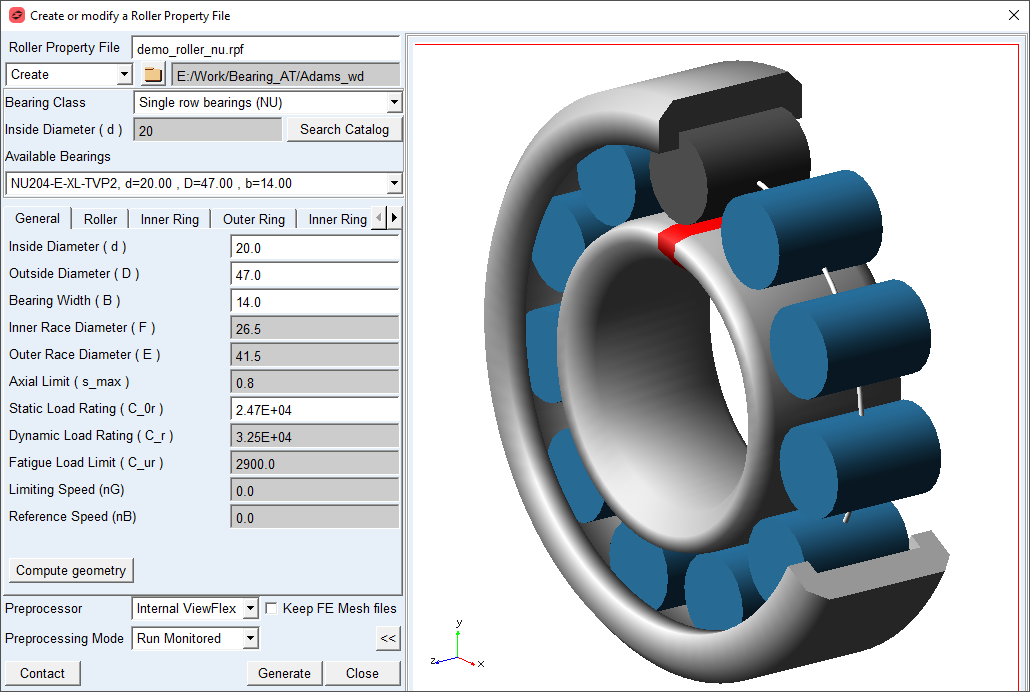
Figure 31 Cylindrical roller bearing geometry preview
Main
For the options | Do the following |
|---|---|
Roller Property File | Enter the name or browse for the cylindrical roller property file (*.rpf). It contains input for geometry and material data. |
Create/Edit mode | Choose one of the options. In Create mode you can choose from a wide range of catalogue bearings. In Edit mode you can load existing *.rpf file and adjust bearing macro-geometrical parameters. |
Destination folder | It is possible to select the destination folder for saving the property files via the button with the folder icon |
Bearing Class | Select from available classes: ■Single row bearing NU – consists of inner ring without collar, rollers with cage assembly and outer ring with collars on both sides ■Single row bearing NJ – consists of inner ring with collar on one side, rollers with cage assembly and outer ring with collars on both sides ■Without inner ring – consists of rollers with cage assembly and outer ring with collars on both sides; a role of inner ring is taken by shaft |
Inside Diameter (d) | Enter the required inside diameter of the bearing |
Search Catalogue | Click on this button after the inside diameter of the bearing has already been entered. |
Available Bearings | From option menu select one of required bearings |
Compute geometry | Click on Compute geometry button - all required values in all tabs will be calculated |
Preview >> | Show preview of bearing geometry after filling all parameters (Figure 31) |
Preprocessor | Select one of following options. ■External ViewFlex: use this option when there is no Nastran installation available. On background there is SOL101 running by Adams embedded Nastran Solver ■External Nastran: use this option when you have Nastran installation available. This option allows you to continue working since standalone Nastran is executed in external shell window hence the main window remains active. Please note that additional Nastran license is required. It makes use of Nastran SMP license if available. This option is not available on linux. ■Internal Nastran: use this option when you have Nastran installation available. It makes use of Nastran SMP license if available ■Mesher Only: use this option to verify that FE Mesh is valid before running SOL101 |
Mode to Run Preprocessing | Select one of following options for running mesh pre-processor. ■quiet: executes mesher without any output to the screen ■monitored: executes mesher with output to the screen ■batch only: the batch file is created but not submitted to execution, one has to launch it manually |
Contact | Open contact preprocessing dialog box after FE meshes are created and Nastran SOL101 is completed (Preprocess Roller Bearing Contact ) |
Roller

Figure 32 Roller tab and geometry
For the options | Do the following |
|---|---|
Number of Rollers | Enter the number of rollers in bearing assembly |
Roller Diameter ( d_roll ) | |
Length of Roller ( l_roll ) | Enter the length of the roller It defines the total length of the roller along its rotational axis. See Figure 32 |
Chamfer Length (l_ch) | |
Contact Angle Inner | Enter the contact angle inner (  ) measured on roller. It represents the angle of contact between rolling element and inner ring under ultimate bearing load measured around rolling element rotational axis in normal plane (XY) of bearing. See Figure 33 ) measured on roller. It represents the angle of contact between rolling element and inner ring under ultimate bearing load measured around rolling element rotational axis in normal plane (XY) of bearing. See Figure 33 |
Contact Angle Outer | Enter the contact angle outer (  ) measured on roller. It represents the angle of contact between rolling element and outer ring under ultimate bearing load measured around rolling element rotational axis in normal plane (XY) of bearing. See Figure 33 ) measured on roller. It represents the angle of contact between rolling element and outer ring under ultimate bearing load measured around rolling element rotational axis in normal plane (XY) of bearing. See Figure 33 |
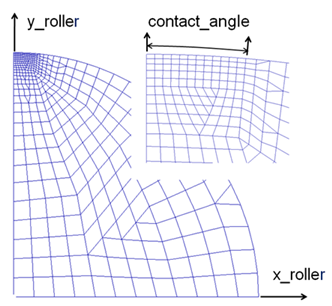
Figure 33 Roller contact angle
Inner Ring
Two types of inner ring are currently supported for cylindrical roller bearings: NU and NJ. The difference between them is noticeable in the Inner Ring card. In the case of the NJ bear class, the inner ring card contains two additional parameters that define the diameter of the inner collar: Inner Collar Diameter (d_col_ir) and the width of the inner collar: Inner Collar Width (c_w_ir). In the case of NU bear class these two parameters are not present on the Inner Ring card.
In order to make contact preprocessing possible, each bearing class requires to have inner ring defined. In case of Without inner ring bearing class a rolling element makes contact pair with shaft part, which is for the purpose of contact computation in Bearing AT represented by inner ring geometry defined in the Inner Ring tab of the dialog box. Neither inner ring geometry nor inertia will be applied in Adams model once a bearing element is created with previously mentioned bearing classes.
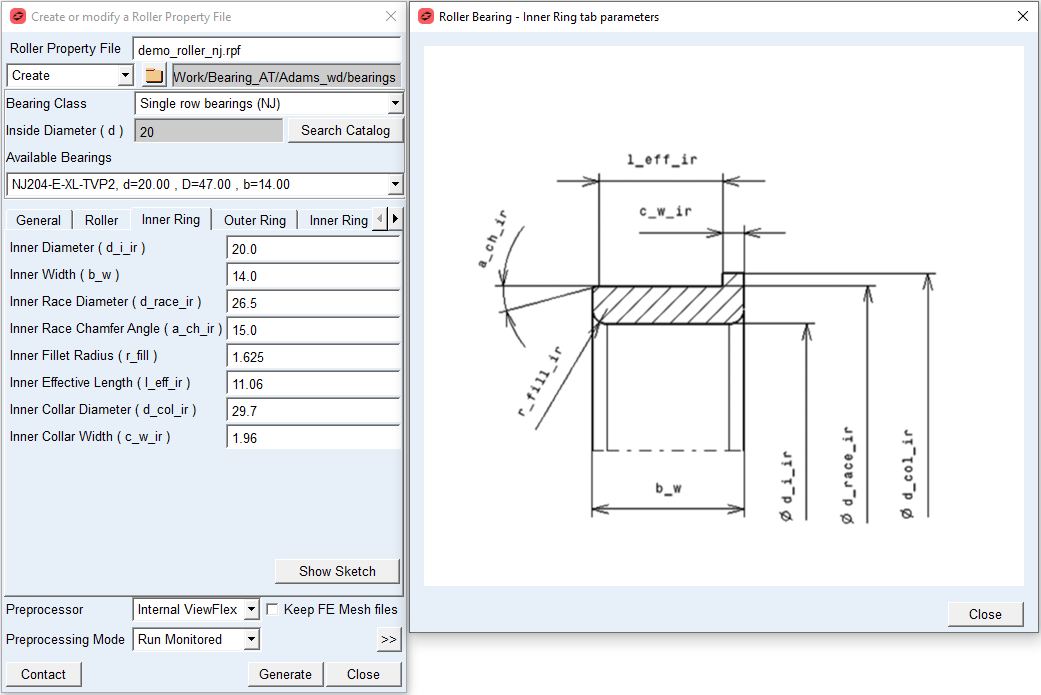
Figure 34 Inner ring tab and geometry (NJ bearing class)
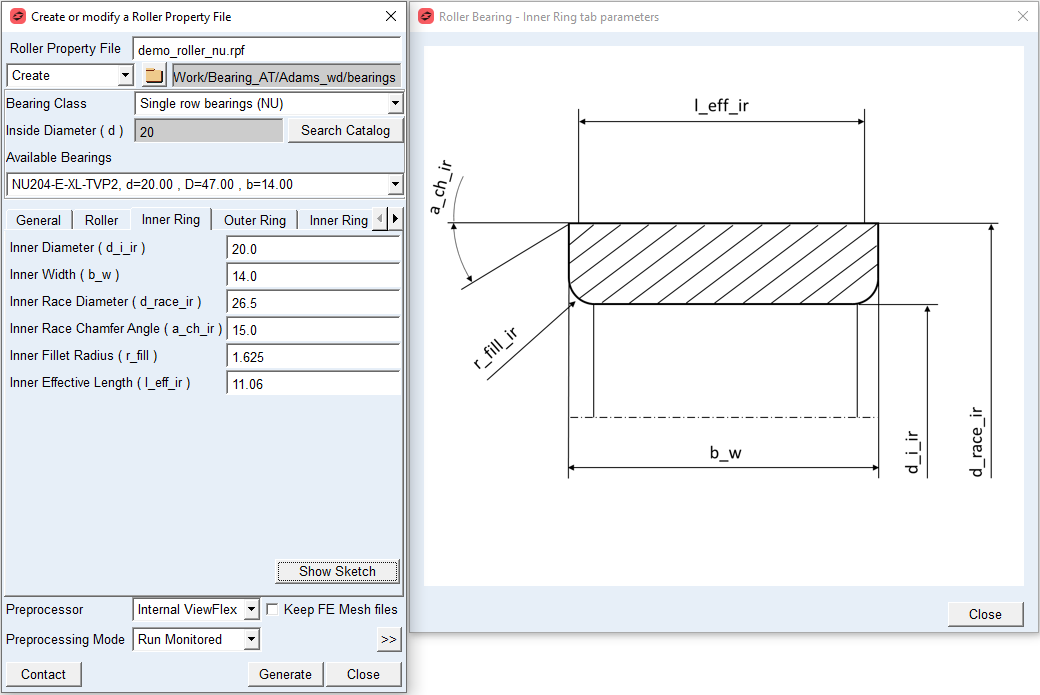
Figure 35 Inner ring tab and geometry (NU bearing class)
For the options | Do the following |
|---|---|
Inner Diameter ( d_i_ir ) | Enter the inner diameter of inner ring. It represents bearing inside diameter in case of Single row bearing NU or Single row bearing NJ bearing class and shaft bore diameter in case of Without inner ring bearing class.. |
Inner Width ( b_w ) | Enter the inner ring width. |
Inner Race Diameter ( d_race_ir ) | Enter the inner ring race diameter. It represents the contact surface with rolling element, hence the inside diameter in case of Without inner ring bearing class |
Inner Race Chamfer Angle (a_ch_ir) | Enter the inner race chamfer angle. It represents the chamfer of the inner race contact surface. |
Inner Fillet Radius ( r_fill ) | Enter the inner fillet radius. |
Inner Effective Length ( l_eff_ir ) | Enter the inner race effective length of the ring which defines contact surface with the rolling element in radial direction. |
Inner Collar Diameter ( d_col_ir ) | Enter the inner collar diameter of the ring which transmits load through the rolling element in axial direction. This parameter is applicable for NJ bearing class only. |
Inner Collar Width ( c_w_ir ) | Enter the width of inner ring collar. This parameter is applicable for NJ bearing class only. |
Outer Ring
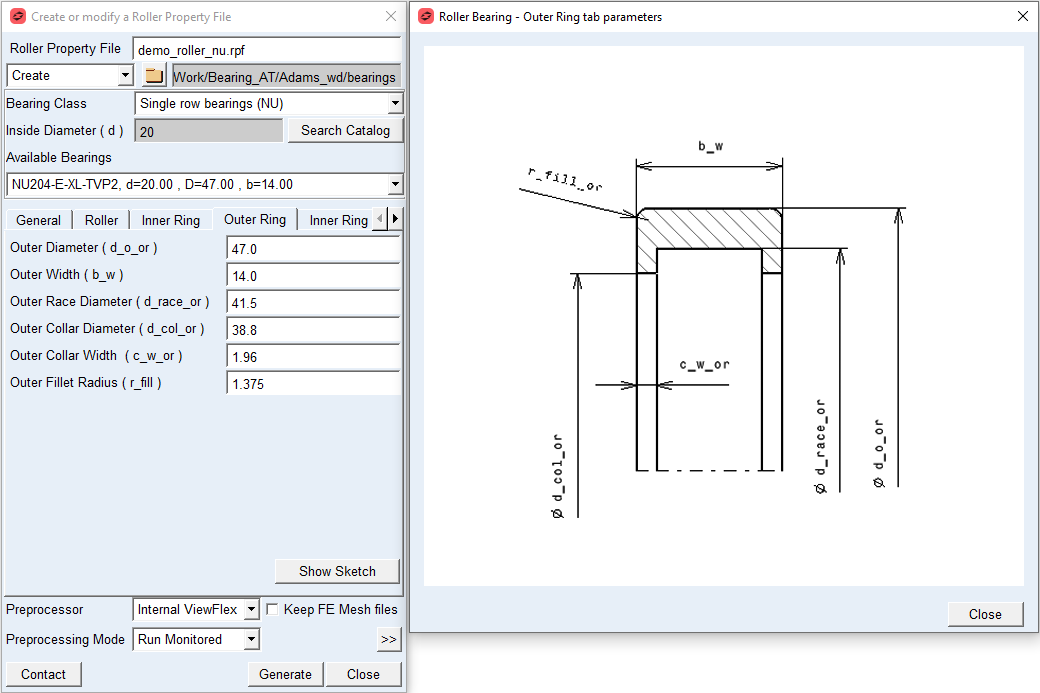
Figure 36 Outer ring tab and geometry
For the options | Do the following |
|---|---|
Outer Diameter ( d_o_or ) | Enter the outer diameter of outer ring. |
Outer Width ( b_w ) | Enter the outer ring width. |
Outer Race Diameter ( d_race_or ) | Enter the outer race ring diameter, which represents the contact surface with rolling element. |
Outer Collar Diameter ( d_col_or ) | Enter the outer ring collar diameter. |
Outer Collar Width ( c_w_or ) | Enter the outer ring collar width. |
Outer Fillet Radius ( r_fill ) | Enter the outer ring fillet radius. |
Inner and Outer Ring Mass
The Inner Ring Mass and Outer Ring Mass card allows you to define the mass of the inner and outer ring, respectively, based on the Geometry and Material Type or by specific User Input. In the former case the mass, center of mass and inertia tensor is computed later by the mesher based on FE mesh volume. In the latter case enter all required data in current model units. In either case, inertia data are written to the *.rpf file and applied to the bearing element once created in Adams.
Note: | In case of Without inner ring bearing class the zero inertia values will be set for inner ring part once a bearing element is created in Adams. |
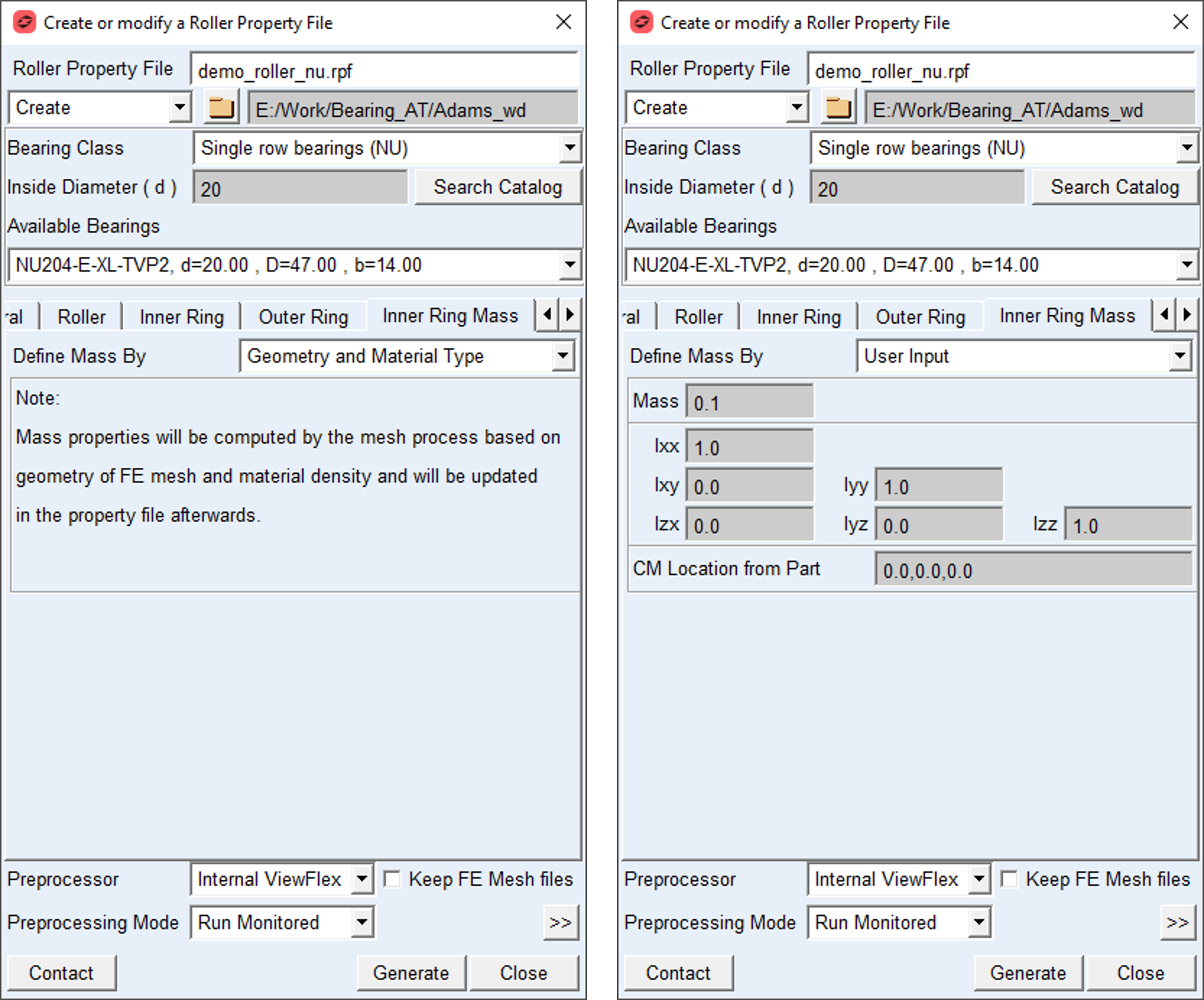
Figure 37 Mass tab for Inner Ring
For the options | Do the following |
|---|---|
Define Mass by | Set to one of following options: ■Geometry and Material Type ■User input |
For the option Define Mass by the Geometry and Material Type: Mass properties of a ring will be computed by the mesh process based on a ring geometry FE mesh and material density entered in the Material Data tab and will be updated in the property file data block. | |
For the option Define Mass by the User Input: Enter value of Mass, the principal mass moments of inertia (lxx, lyy, lzz) and cross-products of inertia (lxy, lzx, lyz) in model units. Note: You still need to define material parameters in the Material Data tab to define FE model of bearing properly. | |
Mass | Enter the mass of the part. |
Moments of inertia | Enter values of the bearing ring mass moments of inertia tensor expressed in local part reference frame (bearing reference marker). |
CM Location from Part | Enter location vector of center of mass expressed in local part reference frame (bearing reference marker). |
Material Data
You can define different materials for rolling elements, inner ring and outer ring. When defining via the Material Type option, you can use predefined materials from the library or you can create a new one. Using the User input option, it is necessary to enter values of Young’s Modulus, Poisson’s Ratio and Density appropriate for the material you require.
Note: | In either case the Young’s Modulus, Poisson’s Ratio and density of chosen material will be stored in the property file. |
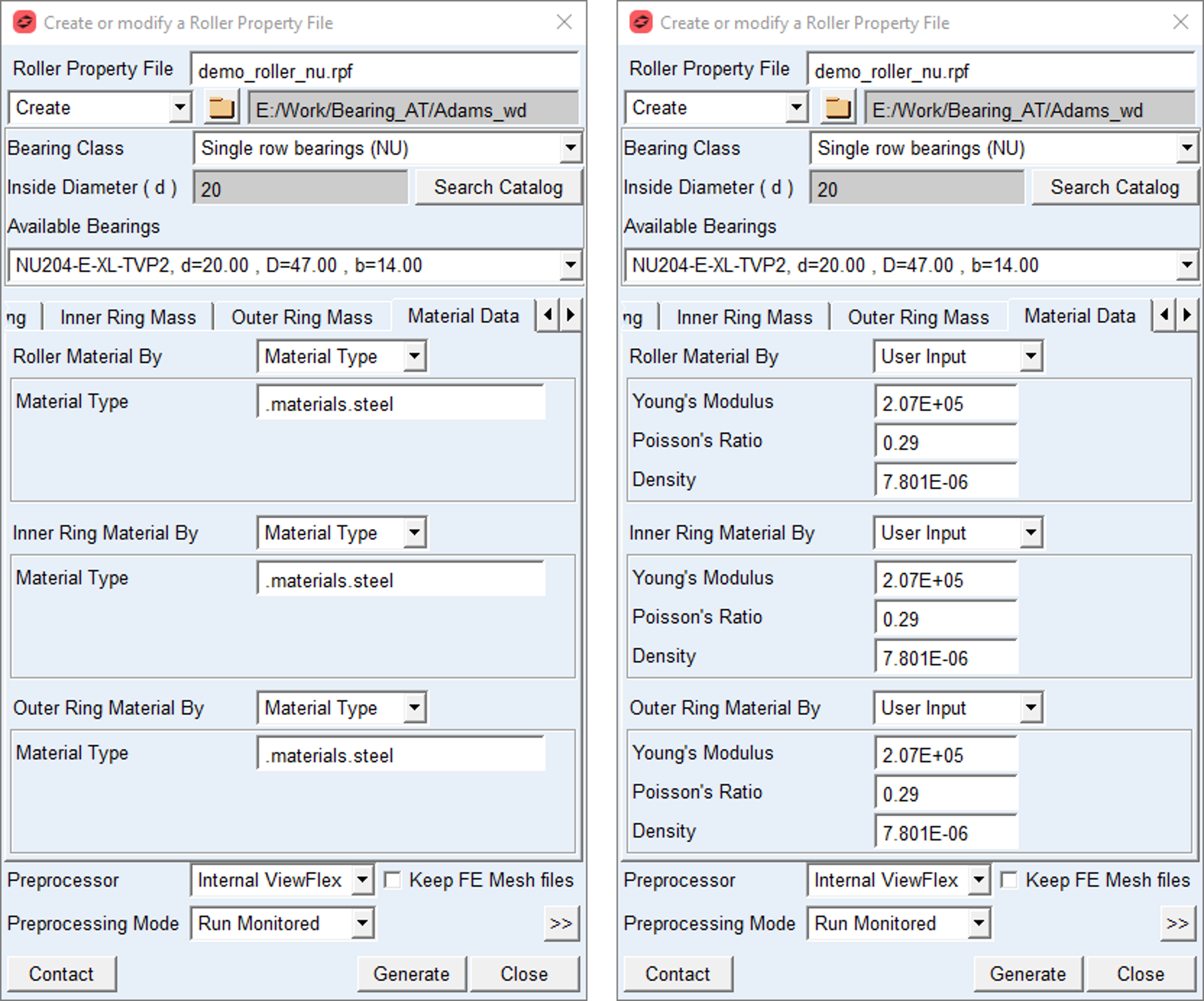
Figure 38 Material Data tab for Roller, Inner Ring and Outer Ring
For the options | Do the following |
|---|---|
Define Mass by | Set to: ■Material Type ■User input |
For the option Define Mass by Material Type: | |
Material Type | Choose material type either from predefined material library - right click the field and go to Material → Browse or create a new one. Material of steel is set by default. |
For the option Define Mass by the User Input: Enter value of Young’s Modulus, Poisson’s Ratio and Density appropriate for the material you require. | |
Young’s Modulus | Enter Young‘s Modulus value of the bearing material. It defines the relation between tensile strain e and tensile stress S by Hooke’s law; see equation below. For more detailed information: see literature about ‘theory of elasticity’ S = E * e Young's modulus for steel is around 2.1E5 N/mm2 |
Poisson’s Ratio | Enter Poisson's Ratio value of bearing material An extension ex of a linear elastic material is accompanied by lateral strains ey and ez. Poisson's ratio defines this relation by following equations ey = - ν* ( ex / E ) ez = - ν* ( ex / E ) Poisson's ratio can also be derived from the shear modulus G, please look at the literature for more details. G = E / ( 2 * ( 1 + ν) ) Poisson's ratio for steel is around 0.3. |
Mass Density | Enter Mass Density value of bearing material The mass m of a solid body is computed from its volume V multiplied by the Mass Density rho. m = V * rho Mass Density for steel is around 7.8E-6 kg/mm3 |
FE Data
You can control FE mesh division and number of load cases defined over contact surface of rolling elements, inner ring and outer ring.
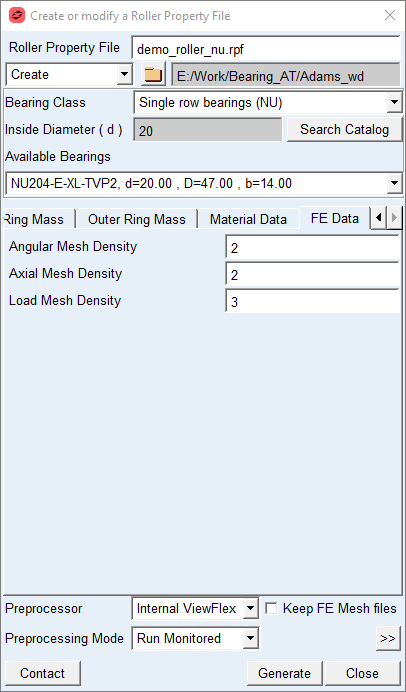
Figure 39 FE Data tab
For the options | Do the following |
|---|---|
Angular Mesh Density | Enter value of Angular Mesh Density Angular Mesh Density (supported values are 1 to 6) defines the number of elements along the Contact Angle of the roller (Figure 33). The values of 1 to 6 correspond to 10, 12, 14, 16, 18 and 20 elements. A higher value will result in a finer FE-mesh. Inner and outer ring have the same Angular Mesh Density. Default = 2.0 |
Axial Mesh Density | Enter value of Axial Mesh Density Axial Mesh Density controls the approximate number of elements in axial direction of the contact surface of the roller; supported values are 1 to 5. A low value means a low number of elements in axial direction. The element length in axial roller direction is a multiple of the element length in tangential direction (see Contact Angle and Angular Mesh Density); the multiplication factor decreases with increasing Axial Mesh Density. Default = 2.0 |
Load Mesh Density | Enter value of Load Mesh Density Load Mesh Density controls the fineness of the contact computations, what influences the CPU-time for the FEA-analysis and for the compliance analysis. Supported input values are 1 to 5. A high value of load mesh density means more finite elements per load element in axial direction. Default = 3.0 |