Constructing Bode Plots
Bode plots provide a way to study frequency response functions (FRFs) for linear systems and linearized representations of nonlinear systems. The frequency response function measures the response at the outputs due to unit harmonic excitation at the inputs at various frequencies. A Bode plot in Adams PostProcessor shows the amplitude gain and the phase shift between input to output for all output/input combinations of the linear system.
Note: | When you simulate a model to create results you are going to view as a Bode plot, specify the number of output steps as a power of two minus one. By specifying an even power minus one, the number of data points in the results is a power of two (the output steps you requested plus one for the model's initial condition). While this is not required, we recommend you do so to obtain peak performance on Bode calculations. Learn more about Simulation Basics in Adams View. |
Ways to Construct Bode Plots
Adams PostProcessor offers seven variations of what are, essentially, three separate ways to construct Bode plots, depending on how the linear system is represented. These are:
Transfer Functions
A transfer function is a ratio of two polynomials in the Laplace domain when used with associated array data elements as shown below:

Adams PostProcessor has methods that you can use to generate a Bode plot from a transfer function:
■TFSISO (Adams transfer function, single-input, single-output) - TFSISO is an Adams transfer function element.
■Transfer Function Coefficients - A transfer function is a ratio of the input to the output of a system. Adams PostProcessor converts the numerator and denominator of a transfer function from a time domain to a Laplace domain. A Laplace domain takes integrals and derivatives and replaces them with polynomials. Therefore, a system’s input and output can be modeled by the coefficients of the numerator and denominator polynomials.
Linear State Space Matrices and ABCD Matrices
Another common way of representing a linear system is through a state-space representation or ABCD matrices:
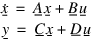
where u, y, and x denote input, output, and internal states, respectively.
The Adams PostProcessor Bode plot functionality has three ABCD matrix modes:
■Adams matrices - Direct user input of Adams PostProcessor matrix elements.
■Adams linear state matrix - Linear state matrices generated through a linearization of an Adams model using Adams Linear, an optional module to Adams.
Note: | You must precede a linear simulation with a linear static or dynamic simulation because you need to establish an operating point for the linearization. Before computing the Adams linear state matrix, you must define plant inputs and outputs, otherwise, Adams PostProcessor sets the B, C, and D matrices to zero. |
■Linear State Equation - ABCD matrices encapsulated in an Adams linear state equation system element.
Input/Output Signal Pairs
You can generate a Bode plot using two sample time signals for the input and output channels. Adams PostProcessor estimates the frequency response function by performing a Fast Fourier Transform of the two signals and computing a complex ratio of the two frequency domain series. The gain and the phase shift in the Bode plot are the real and imaginary parts of this ratio. Adams PostProcessor allows the Bode plot to be generated by representing the input signal using result set component or Adams PostProcessor measures.
■Time domain results set components (RSC) - The RSC method uses output from a simulation to define the system.
■Time domain measures - The time domain measure method uses predefined or user-defined measures of model input and output to define the system.
Creating a Bode Plot
To create a bode plot:
1. From the Plot menu, select Bode Plots.
The Bode Plots dialog box appears.
2. Select the type of input format. For more information, see Ways to Construct Bode Plots.
The elements in the dialog box change depending on the input format that you selected.
3. Enter the values in the dialog box as explained in the Bode Plots dialog box help, depending on the input format, and then select OK.