Managing Viewports
You can change the layout of a Page and place up to six Viewports on a page. Adams PostProcessor provides you with 12 viewport layouts from which you can choose.
Learn more about setting up viewports on pages:
Note: | You can also set the orientation of an animation in a viewport. See Controlling the Animation Display |
Setting the Viewport Layout
You select the Page layout you'd like from a palette of layouts or from the Page Layout tool stack on the Main toolbar. The palette and tool stack contain the same set of viewport layouts. If you select to display the palette, you can keep it open so that you can quickly select another layout.
Note: | A page that contains an FFT or Bode plot has two viewports. For an FFT plot, the top viewport contains the plot with the input data and the bottom viewport contains the plot with the output from the FFT. For a Bode plot, the top viewport contains the gain plot and the bottom viewport contains the phase plot. |
To select a layout:
1. Do either of the following:
■On the View menu, point to Page, and then select Page Layouts.
■On the Main toolbar, right-click the Page Layout tool stack  .
.
.A selection of layouts appears.
2. Select a layout.
3. If you used the palette, select Close to close. You can, however, keep the palette open and continue with your work so you can quickly change your window layout.
Selecting a Viewport
By default, Adams View changes the display of the active viewport, leaving the other Viewports the same. The active viewport is outlined in red.
To activate viewport so that any display changes occur in it:
■Click anywhere in the background of the viewport. Be sure the border changes to red.
Expanding Viewports
You can quickly zoom in on a viewport by expanding it to the full window.
To quickly zoom in on just one of the viewports:
1. Click the viewport you want to zoom in on.
2. On the View menu, select Expand View.
Tip: | From the Main toolbar, select  . . |
To return to viewing all the viewports on the page:
■On the View menu, select Expand View again.
Swapping Viewport Contents
You can swap the contents of one viewport (see Viewports) with the contents of another viewport. The viewports do not have to be on the same Page.
To swap the contents of viewports:
1. Select the viewport to be used as the default.
2. On the View menu, select Swap View.
3. Select the window whose contents will be swapped with the first viewport you selected.
Tip: | From the Main toolbar, select  . . |
Clearing Viewports
You can remove all objects in a viewport.
To clear a viewport:
1. Select the viewport to be cleared.
2. On the View menu, select Clear View.
Using Shortcut Menus
The different types of Shortcut menus are explained in the table below.
When cursor is over: | The shortcut menu lets you: |
|---|---|
Modeling object in the viewport (for example, a rigid body). See Viewports. | Select and display information about the object. 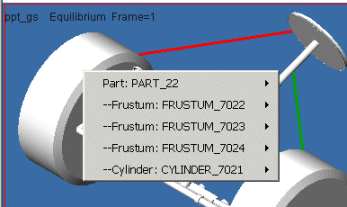 |
Viewport (over no modeling or plotting object) | Set the display of the viewport, such as zoom in or change the view orientation. 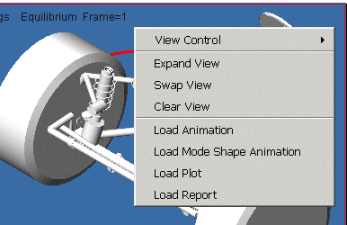 |
Text box in a dialog box, Property Editor, or Dashboard | Enter information required in the text box, such as lets you browse for a file or paste text in the file. 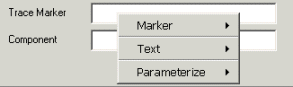 |