Overview
Starting Adams PostProcessor
You can run Adams PostProcessor as a stand-alone product or from within other Adams products, such as Adams View or Adams Car. The following instructions explain how to start Adams PostProcessor in stand-alone mode. It also explains how to start any add-ons or plugins to Adams PostProcessor. Currently, the only plugin is for Adams Durability.
To start Adams PostProcessor stand-alone in Linux:
■At the command prompt, enter the command to start the Adams Toolbar, and then press Enter. The standard command that MSC Software provides is adamsx, where x is the version number, for example adams2024_1.
The Adams Toolbar appears.
■Click the Adams PostProcessor tool  .
.
. For more information on the Adams Toolbar, see Running and Configuring Adams.
To start Adams PostProcessor stand-alone in Windows:
■From the Start menu, point to Programs, point to Adams 2024.1, and then select Adams PostProcessor.
For more information on running Adams products from the Start menu, see Running and Configuring Adams.
For information on running Adams PostProcessor from Adams View:
For information on running Adams PostProcessor from within other Adams products:
■See the online help for that product.
To start an Adams PostProcessor plugin (currently Adams Durability):
■From the Tools menu, select Plugin Manager.
■In the Load column next to the desired plugin, select Yes.
■Select OK.
For more information on the plugin, see the plugin online help. For more information on the Plugin Manager, press F1 when the cursor is in the Plugin Manager dialog box.
Exiting Adams PostProcessor
To exit Adams PostProcessor:
■On the File menu, select Exit.
Using Adams PostProcessor with Adams View
Learn how to use Adams View and Adams PostProcessor together:
Starting Adams PostProcessor from Adams View
To display Adams PostProcessor with no results currently displayed, do one of the following:
■On the Adams View Review menu, select Postprocessing.
 .
. To display the Adams PostProcessor with the results of a measure or parametric analysis:
■In a Strip chart window, right-click the background (not on a curve) to display a menu containing the name of the strip chart.
■Point to the name of the strip chart, and then select Transfer to Full Plot.
Adams View transfers the measure to Adams PostProcessor.
Returning to Adams View from Adams PostProcessor
To return to Adams View, do one of the following:
■On the Adams PostProcessor File menu, select Close Plot Window.
 .
. Adams View and Adams PostProcessor Interdependencies
When running Adams PostProcessor with Adams View, note that the settings you apply to Adams PostProcessor affect the Adams View environment. For example, changing the units or a color of a part in Adams PostProcessor automatically updates the model in Adams View to reflect these changes.
About the Adams PostProcessor Window
The following figure shows the Adams PostProcessor window. The elements shown are common to all modes.
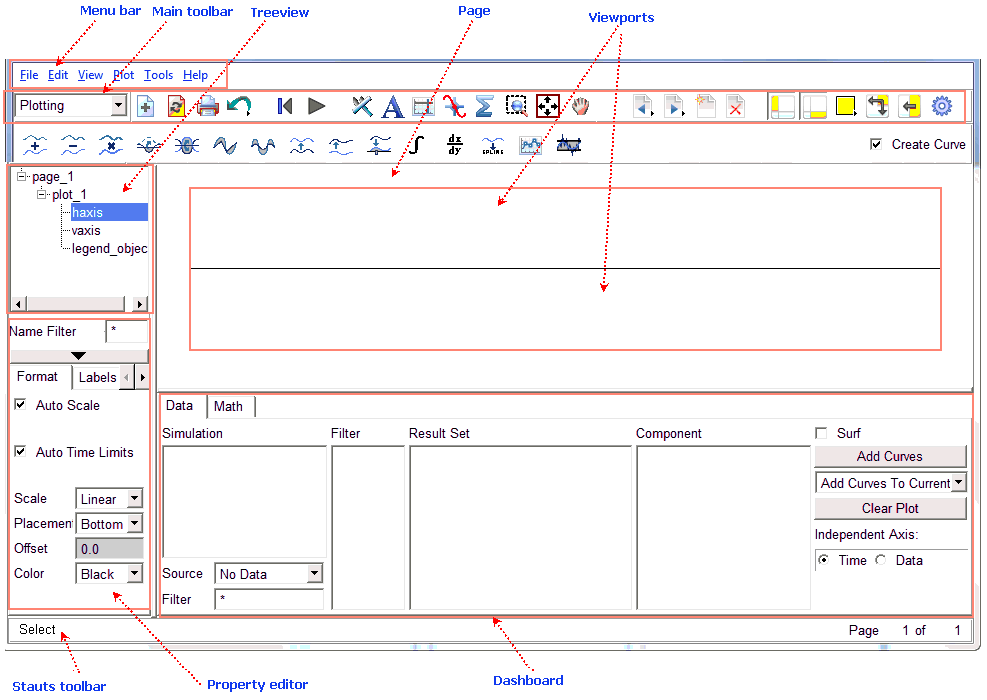
Adams PostProcessor Window
Setting the Window Mode
Adams PostProcessor has four modes: animation, plotting, reports, and three-dimensional plotting (only available with Adams Vibration data). Its mode changes depending on the contents of the current viewport (see Viewports). For example, the tools in the Main toolbar change if you load an animation. You can also manually set the mode.
To switch modes manually
■Do one of the following:
■Click in a viewport containing an animation, plot, or report.
■From the pull-down menu in the Main toolbar, select the desired mode.
■Right-click the viewport, and then select a Load command, such as Load Animation.
Managing Pages
Learn more about managing Pages.
Note: | For information on deleting pages, see Deleting Objects. |
Creating Pages
To create a page:
■From the View menu, point to Page, and then select New.
Tip: | From the Main toolbar, select  . . |
When you create a page, Adams PostProcessor automatically assigns a name to it.
Renaming Pages
To change the name of a page:
■In the treeview, click the page to be renamed.
■From the Edit menu, select Rename.
■Enter the new name for the page.
■Select OK.
Displaying Pages
Adams PostProcessor provides you with several ways to move through the pages of plots.
To display a specific page, do one of the following:
■In the treeview, click the page you'd like to display.
■From the View menu, point to Page, and then select Display. From the list of pages, select the page to display.
To navigate through the pages:
■To display the next page, from the View menu, point to Page, and then select Next Page.
Tip: | From the Main toolbar, select  . . |
■To display the previous page, from the View menu, point to Page, and then select Previous Page.
Tip: | From the Main toolbar, select  . . |
■To display the first page, from the View menu, point to Page, and then select First Page.
Tip: | From the Main toolbar, right-click and then select  . . |
■To display the last page, from the View menu, point to Page, and then select Last Page.
Tip: | From the Main toolbar, right-click and then select  . . |
Displaying Headers and Footers on Pages
You can display headers and footers on all pages. Each header and footer can have three items of information (left, center, and right). Each item on the header footer can be a bitmapped image (.jpg, .xpm, or .bmp) or text.
You can also set up default headers and footers to appear on all pages as explained in PPT Preferences - Page.
To set up headers and footers on a page:
1. Select the page on which you want to display the headers and footers.
2. In the Property Editor, select Header or Footer. Select None to turn off the display of headers and footers.
3. Select the item of information (left, center, or right) that you are setting up.
4. Set Source to Text or Image and then:
■For text, enter the text to be displayed, and set the text font size and color.
■For an image, enter the location and name of the image file to be displayed, and the height at which you want the image displayed.
Adams PostProcessor automatically displays the image as 50 pixels high.
Undoing and Redoing Actions
You can undo the effects of most Adams PostProcessor commands. Adams PostProcessor remembers up to 10 operations, by default. Note that you cannot undo the effects of some commands, such as the commands in the File menu.
To undo an operation:
■On the Edit menu, select Undo.
Tip: | From the Main toolbar, select  . . |
If you change your mind and do not want to undo an operation, you can redo it.
To redo an operation:
■On the Edit menu, select Redo.
Tip: |
 .
.Canceling Operations
You can cancel any operation that you started in Adams PostProcessor. For example, you can exit from a dialog box or stop a Simulation or animation.
To cancel an operation, do either of the following:
■Select the Cancel button on a dialog box if available.
■Press the Esc key.