Edit Background Color
Settings → View Background Color
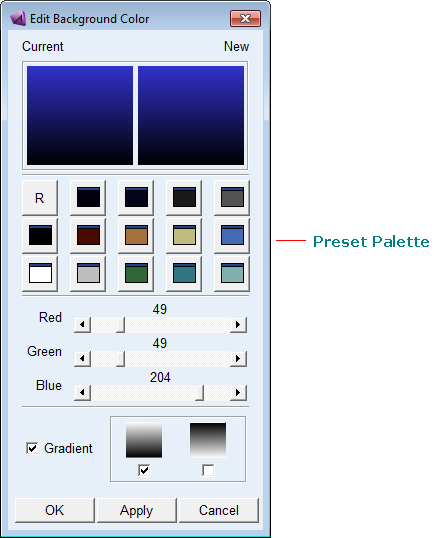
Lets you create a background color for the View window by setting its red, green, and blue light percentages and change the background of all view windows to this new color. You cannot add the color to the preset palette of colors or change the colors in the preset palette but you can set the gradient effect.
Learn about Setting View Background Colors.
Note: | You can also change the background color using the Edit Color dialog box. Learn about changing object colors, including the background. |
For the option: | Do the following: |
|---|---|
 | Displays current color and color as you edit. |
R | Resets the color to the original color of the background. |
Palette of preset colors | Shows the preset colors that appear in the Main toolbox when you select a background color from the Background color tool stack. You cannot change these colors. |
Red | Use the slider to change the red values, as desired. As you change the color values, the New color box changes to reflect the new values. |
Green | Use the slider to change the green values, as desired. As you change the color values, the New color box changes to reflect the new values. |
Blue | Use the slider to change the blue values, as desired. As you change the color values, the New color box changes to reflect the new values. |
Gradient | If Gradient is checked, then radio buttons became active and you have options to select Gradient top-light or Gradient top-dark. If Gradient is unchecked, then both are disabled and unselected. |