Working with Objects
Copying Objects
You can copy any selected objects within the same model. Adams View creates an identical copy of the selected object. Adams View assigns a default name to the duplicated object using the copied object name as the base name and appending _2 to the name. For example, if Adams View copies a rigid body called PART_1, it assigns the new object the name PART_1_2.
To copy selected objects:
2. Select one of the following:
■From the Edit menu, select Copy.
 .
.Adams View creates a copy of the objects. It selects the copied objects so you can edit or move them.
Tip: | Select Ctrl + C. |
To copy an object on the screen using the shortcut menu:
1. Right-click the object you want to copy.
Tip: | You can zoom in on the object on the screen to more easily place the cursor over just that object. |
2. From the shortcut menu that appears, select Copy.
To copy objects using the Database Navigator:
1. To clear any selections, click the background of the Adams View main window.
2. From the Edit menu, select Copy.
The Database Navigator appears.
3. Select the object you want to copy. Learn about Showing, Hiding, and Selecting Objects in the Database Navigator.
4. Select OK.
Deleting Objects
You can delete any object that you created in the current modeling database, including deleting a model. Learn about Deleting a Model.
You can delete any object that has a graphical representation on the screen, such as a rigid body or link, by selecting them first and then deleting them. You can also select objects that do not have graphical representations by searching for them through the Database Navigator and then deleting them.
To delete selected objects:
1. Select the objects that you want to delete. Learn about Selecting Objects (Classic Interface).
2. From the Edit menu, select Delete.
3. Adams View deletes the selected objects.
Tip: | Select the Del. key. |
To delete an object on the screen using the shortcut menu:
1. Right-click the object you want to delete.
Tip: | You can zoom in on the object on the screen to more easily place the cursor over just that object. |
2. From the shortcut menu that appears, select Delete.
To delete objects using the Database Navigator:
1. Double-click the background of the Adams View main window to clear any selections.
2. From the Edit menu, select Delete.
The Database Navigator appears.
3. Select the object you want to delete from the Database Navigator. Learn about Showing, Hiding, and Selecting Objects in the Database Navigator.
4. Select OK.
To delete unused markers using Remove Unused Markers Dialog box:
1. From the Tools menu, select Remove Unused Markers.
The Remove Unused Markers dialog box appears which list all the unused markers for the model that is currently displayed in the graphics window and model browser.
2. The option menu below the listing should be used to select a different model in-session.
3. Clicking "Delete" will delete all the listed unused markers.
4. If there are no unused markers in a selected model, then Clicking "Cancel" will close the dialog box.
Renaming Objects Through Menu Commands
About Object Naming
As you create objects in Adams View, Adams View automatically assigns names to them. The name consists of the type of object and a unique ID. For example, it names a joint JOINT_1 and a motion MOTION_1.
An object also has a full name, which is the name of the object’s parent followed by the name of the object. A full name always begins with a “.” (dot). For example, a part with the name PART_1 in the model SLA has the full name .SLA.PART_1.
Objects must have a unique name relative to other objects that belong to their parents. For example, you cannot have two points named PT1 on part PART_1, but you can have PT1 on more than one part because the full names of each point would be unique (.SLA.PART_1.PT1 and .SLA.PART_2.PT1).
Adams View allows you to change the default name assigned to any object but you cannot change its full name. Adams View often shows you just the name of the object and not its full name to simplify the display of objects.
To rename a selected object:
1. Select the object that you want to rename. Learn about Selecting Objects (Classic Interface).
2. From the Edit menu, select Rename.
The Rename Object appears.
3. In the New Name text box, enter the name you want to assign to the object.
 to display the
 5. Select OK.
To rename an object on the screen using the shortcut menu:
1. Right-click the object you want to rename.
Tip: | You can zoom in on the object on the screen to more easily place the cursor over just that object. |
2. From the shortcut menu that appears, select Rename.
The Rename Object dialog box appears.
3. In the New Name text box, enter the name you want to assign to the object.
4. Select OK.
To rename any object in the database:
1. Double-click the background of the Adams View main window to clear any selections.
2. From the Edit menu, select Rename.
The Database Navigator appears.
3. Select the object that you want to rename from the Database Navigator.
The Rename Object dialog box appears.
4. In the New Name text box, enter the name you want to assign to the object.
5. Select OK.
To rename an object as you modify it:
You can also rename an object when you are modifying it. You cannot, however, change the name of the object directly in the Name text box of the modify dialog box. Instead, you display the shortcut menu, and then select Rename. The example shows how to change the name of JOINT_1 as you are modifying it.
1. Display the object’s modify dialog box as explained in Accessing Modify Dialog Boxes.
2. Right-click in the Name text box, point to the name of the object (such as .model_1.JOINT_1), and then select Rename.
3. In the New Name text box, enter the name you want to assign to the object.
4. Select OK.
Adding Comments to Objects
You can add notes about the objects in your model to help you manage and identify them. The types of objects about which you can add comments are listed below. For parts, constraints, and forces, you add comments when you modify the object. For models, you can add the comments as you create the model, and you can also modify the comments.
■Models
■Parts
■Constraints
■Forces
■Materials
The comments that you create appear in the following:
To add comments to an object:
1. From the object's modify dialog box or from the Create/Modify model dialog box, select the Comment tool  . Learn about Accessing Modify Dialog Boxes.
. Learn about Accessing Modify Dialog Boxes. The Modify Comment dialog box appears.
2. In the Comment Text section of the dialog box, enter the comments that you want associated with the object.
3. Select Time or Date to add the time and date when you created the comments.
4. Select OK.
About Activation Status
Objects in Adams View have two states during a Simulation: active and inactive. When an object is active, Adams Solver includes the object in any simulations that you run. If an object is inactive, Adams Solver ignores the object. For example, if you constrain two parts using a Fixed joint to temporarily keep them fixed, you can deactivate the fixed joint during the simulation. The two parts are then free to move relative to each other.
You may find activating and deactivating objects helpful in the following circumstances:
■You have imported part graphics from a CAD program and you haven’t constrained all of the parts yet. By deactivating some of them, you can keep them in your Modeling database without having them affect the simulation. You can also test each Constraint that you create individually.
■You are debugging your model and you want to see which objects are causing problems. You can deactivate those you think are most likely to be generating errors.
■You are studying design variations and you want to alternate between different variations. For example, you could create both a Bushing and a Joint between two parts in your model. During the first simulation, you could activate the bushing and deactivate the joint. During the second simulation, you could deactivate the bushing and activate the joint. Finally, during a third simulation, you could activate both.
You can also create a Scripted simulation to turn on and off the activation states of objects during a simulation. For example, to simulate the launching of a missile, you can fix the missile to the plane with a fixed joint and then deactivate the joint during the simulation to simulate the release of the missile. Learn about Performing a Scripted Simulation.
You can set the activation status of the following objects. All objects are active by default.
■Groups (You set the activation status of groups as you create them. Learn about Grouping and Ungrouping Objects.)
■Parts (rigid bodies, point masses, and flexible links)
■Differential equations
■Markers
■Constraints
■Forces
■Data elements
■Output controls
About Inheriting Activation Status
When you activate an object, it only becomes truly active if and when all of its ancestors are active. In addition, if you deactivate an object, you also deactivate all its children. For example, if you have a part (PART_1) with two markers (MARKER_1 and MARKER_2), you can only activate MARKER_1 if PART_1 is also active. Also, if you deactive PART_1, you also deactivate its markers. The following figure shows the possible activation states for PART_1 and its markers.
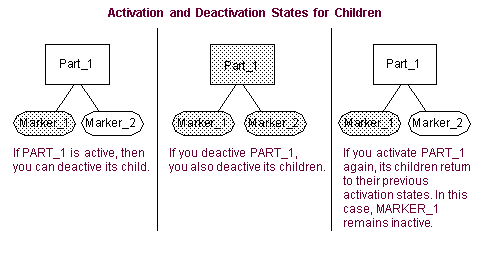
Learn about:
■About activation status
■Activating and deactivating objects
Activating and Deactivating Objects
Any objects that you deactive appear dimmed in the display of the Main window and Database Navigator. In addition, the text OFF appears next to the object in the Database Navigator Tree list.
Note that any geometry that you deactivate will not be included in mass calculations.
To activate or deactivate a selected object:
1. Select the object to be activated or deactivated.
2. From the Edit menu, select either Activate or Deactivate.
If you deactivated an object, Adams View changes its color to indicate it is not active.
To change the activation status of an object on the screen and its children:
1. Right-click the object you want to activate or deactivate.
Tip: | You can zoom in on the object on the screen to more easily place the cursor over just that object. |
2. From the shortcut menu that appears, select (De)activate.
The Deactivate/Activate Object dialog box appears.
3. Set the activation of the object and select whether or not you want the object's children to inherit the activation status of the parent. Learn About Inheriting Activation Status.
4. Select OK.
To activate or deactivate an object using the Database Navigator:
1. Double-click the background of the Adams View main window to clear any selections.
2. From the Edit menu, select Activate or Deactivate.
The Database Navigator appears.
3. Select the object you want to activate or deactivate from the Database Navigator.
4. Select OK.
To determine the activation status of an object:
■Display information about the object as explained in Viewing Object Information. Be sure that Verbose is selected in the Information window so that the window displays all information about the object.
Grouping and Ungrouping Objects
If several objects make up a unit or subsystem of your model, you can group them so that you can work on them as a single object. For example, you could group all the objects that make up a suspension system or a handle of a latch. Once you've grouped the objects, you can add them to the select list all at once so that you can perform editing operations on them, such as move or copy them. You can also set up their activation and deactivation status during simulations. (Learn about Activating and Deactivating Objects.)
When you create a group, you can specify the objects to be included or set up a filter to specify the objects in the group. You can also enter an expression that sets whether or not the objects are active or deactive during a simulation.
To create a group of objects:
1. From the Model Browser, select Groups tap. Right click and create New Group.
or

or
(Classic interface) From the Build menu, select Group.
The Group Create dialog box appears.
Note: | The pull-down menu Expand Groups is only present to provide backward compatibility. We recommend that you not use it. |
2. Enter a name for the group of objects. Adams View assigns a default name for you.
3. Add any comments about the group that you want to enter to help you manage and identify the group.
4. Specify the objects to be included in the group as explained in the table below.
To: | Do the following: |
|---|---|
Explicitly specify the objects to be grouped | In the Objects in Group text box, enter the names of the objects. Separate each name with a comma (,). You can select an object on the screen or browse for an object in the Database Navigator. If you select objects to group using the shortcut menu, Adams View enters commas between the objects. Tips on Entering Object Names in Text Boxes. |
Set filters for specifying objects to be grouped | In the Objects in Group text box, enter a wildcard, and then specify the type of objects in the Type Filter text box. For example, enter Parts to include only rigid bodies or Markers to include only coordinate system markers. |
5. Specify whether or not the group of objects is active during a simulation. You can enter an expression that evaluates to 0 (not active) or 1 (active) or enter 1 or 0. If you do not specify a value, Adams View uses the activation status you set using the Activate and Deactivate commands as explained in Activating and Deactivating Objects.
6. Select OK.
To ungroup objects:
1. From the Model Browser, select Groups tap. Right click under the Groups and select Delete.
or
(Classic interface) From the Build menu, select Ungroup.
The Delete Group dialog box appears.
2. Enter the name of the group of objects you want to ungroup.
3. Select OK.
Setting Object Appearance through Edit -> Appearance Command
You can set how individual or types of objects appear in Adams View.You can set:
■Visibility of the object and of its name on the screen.
■Color, line style, line width, rendering, and transparency of the object. For example, you can set the color of the object’s outline or its name.
■Size of the screen icons that represent the object in your model. Note that these changes take precedence over the size you specify globally for the Modeling database.
You can also set appearance through the Database Navigator. You cannot, however, set rendering mode, but you can additionally set the state of the object during a Simulation. Learn about Setting Appearance of Objects Through the Database Navigator.
To set the appearance of an object:
1. If desired, select the object whose appearance you want to set. Otherwise, you can use the Database Navigator to select the object. It appears after Step 2.
Tip: | Right-click the object on the screen, point to the name of the object, and then select Appearance. |
2. From the Edit menu, select Appearance.
If you did not select an object, the Database Navigator appears.
3. If necessary, select the object from the Database Navigator. Learn about Showing, Hiding, and Selecting Objects in the Database Navigator.
4. Do one of the following:
■To explicitly specify an object, in the Entity text box, enter the name of the object whose appearance you want to set.
Tips on Entering Object Names in Text Boxes.
Once the name of the object is in the text box, press Enter to update the dialog box.
■To specify an entire type of object whose appearance you want to set, in the Entity text box, enter a wildcard, and then specify the type of object in the Type text box. For example, enter Parts to set the appearance of all rigid bodies or Markers to set the appearance of all markers.
5. Set Visibility to how you want the visibility of the selected object or objects. You can select:
■On - Turns on the display of the objects.
■Off - Turns off the display of the objects.
■Inherit - Lets the object simply inherit the display settings from its parent. For example, a coordinate system marker inherits settings from its parent part.
6. Set Name Visibility to whether or not you want the name of the objects displayed in the View window. Refer to the options above for Visibility for an explanation of the choices.
7. Set Color Scope to the color you want used for the objects and set which elements of the objects should be affected by the selected color. You can select:
■Polygon Fill - Sets the color of those areas of a graphic that can be shaded (they include sides of a cylinders, frustums, boxes, and so on).
■Edge - Sets the color of the lines making up the edges of the facets of a graphic that can be shaded.
■Outline - Sets the color of the lines that make up those graphics that cannot be shaded or filled like the coil of a spring damper.
■All - Sets the selected color for all elements of an object.
To browse for a color in the Database Navigator or create a new color, right-click the Color text box, and select Browse or Create.
8. Set the Render choices to:
■Filled - Adds shading to a solid fill to give a more realistic appearance. It does not show edges. The light source is from the upper left.
■Wireframe - Shows only the edges of objects so that you can see through the objects. Helps you select points and edges.
9. Set how transparent the object or objects are. The higher the value, the more transparent the object is, allowing other objects to show through. The lower the value, the more opaque the object is, covering other objects.
Tip: | Setting the transparency of objects can have a negative impact on graphical performance if you are using a graphics card without hardware acceleration for OpenGL. Instead of setting an object’s transparency, consider setting the object’s render mode to wireframe. |
10. In the Icon Size text box, enter the size you want for the icons or, in the Icon Scale text box, enter the amount by which you want to scale the icons. The scale factor is relative to the current size set. A scale factor of 1 keeps the icons the same size. A scale factor less than 1 reduces the size of the icons and a scale factor greater than 1 increases the size of the icons. Note that these changes take precedence over the size you specify globally for the modeling database as explained in Setting Screen Icon Display.
Setting Up Material Types
You can create or modify a material, which you can then assign to parts. You define a material by its composition, such as restitution coefficient, Young's modulus, Poisson’s ratio, and mass density. Part material properties are important in determining the mass moments of inertia of a part.
To create or modify a material type:

or
(Classic interface) From the Build menu, point to Materials, and then select either New or Modify.
2. If you selected Modify, the Database Navigator appears. Select a material type to modify, and then select OK.
The Create/Modify Material dialog box appears.
3. Change the default name assigned to the new material type, if desired.
4. Enter the values for Young’s Modulus, Poisson’s Ratio, and mass density.
5. Select the Comments tool on the dialog box and enter any comments you want associated with the material type. Learn about Comments.
on the dialog box and enter any comments you want associated with the material type. Learn about Comments. 6. Select OK.
Standard Material Properties
The following table shows the material properties for the standard material types in Adams View. All material types in Adams View are assumed to be linearly elastic. Adams View automatically calculates the material’s Shear Modulus (G) from the Young’s Modulus (E) and Poisson’s Ratio () according to the equation: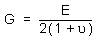
.
The material | Young’s Modulus value (Newton/meter2) | Poisson’s Ratio | Density (kg/meter3) |
|---|---|---|---|
Aluminum | 7.1705E+ 10 | 0.33 | 2740.0 |
Cast iron | 1.0E+11 | 0.211 | 7080.0 |
Steel | 2.07E+11 | 0.29 | 7801.0 |
Stainless steel | 1.9E+11 | 0.305 | 7750.0 |
Magnesium | 4.48E+10 | 0.35 | 1795.0 |
Nickel | 2.07E+11 | 0.291 | 7750.0 |
Glass | 4.62E+10 | 0.245 | 2595.0 |
Brass | 1.06E+11 | 0.324 | 8545.0 |
Copper | 1.19E+11 | 0.326 | 8906.0 |
Lead | 3.65E+10 | 0.425 | 11370 |
Titanium | 1.0204E+11 | 0.3 | 4850.0 |
Tungsten | 3.447E+11 | 0.28 | 19222\ |
Wood | 1.1E+10 | 0.33 | 438.0 |
Setting Object Colors
By default, Adams View displays each of the objects you create in a different color using its palette of objects colors. You can also:
■Change the color of any object.
■Modify any of the colors in the palette.
■Create a color of your own.
Learn about:
Changing an Object's Color
You can change an object's color using either the Object Color Tool Stack on the Main Toolbox, which contains 15 colors to which you can set the color of a object, or you can use the Edit Appearance Dialog Box. The Edit Appearances dialog box lets you select all the colors defined in the Modeling database.
To change an object's color using the Object Color tool stack:
1. Select the object or objects whose color you want to change as explained in Selecting Objects (Classic Interface).
2. Select a color from the Object Color tool stack.
To change an object's color using the Edit Appearances dialog box:
1. Select the object or objects whose color you want to change.
2. From the Edit menu, select Appearance.
3. In the Color text box, enter the name of a color.
Tips on Entering Object Names in Text Boxes.
Learn more about Setting Object Appearance through Edit -> Appearance Command.
Modifying and Creating Object Colors
You can change the colors that are available for displaying objects and define new colors. Note that the color changes are not reflected in the color tools on the Object Color tool stack. These are fixed and remain the same colors as the default colors.
To modify or create a color:
1. From the Settings menu in either the main or plotting window, select Colors.
The Edit Color dialog box appears.
2. Do one of the following:
■To modify a color, set Color to the the color that you want to modify. You can also select Background to edit the color of the view window background. The selected color appears in the Old color box.
■To create a new color, select New Color. The Create New Color dialog box appears. Enter the name of the color, and then select OK.
The selected color appears in the New color box.
4. Select OK.
Using the Color Picker to Select Colors
You can use the Color Picker to select a color from a preset palette of basic colors or colors you define yourself.
Selecting a Basic Color
There are forty-eight basic colors already defined for you.
To select a basic color:
1. Select the color’s square in the Basic Colors box. The selected color, its red, green, and blue (RGB), and hue, Saturation, and luminosity values (HSV) appear in the lower right corner of the Color Picker.
2. Select OK.
Defining a New Color
Tip: | You can define a custom color by clicking the closest basic color in the Basic Color palette and then modifying it. |
To define a new color:
1. Click anywhere in the color matrix to select a color.
2. Change the RGB or HSV values or use the Luminosity slider to the right of the color matrix to adjust the lightness or luminosity of the color. See a Picture of Color Picker.
3. Select OK.
Tip: | There are sixteen Custom Color squares that you can fill with colors that you want to use throughout the current session of Adams View. To store a custom color, select a Custom Color square, define a color, and then select Add to Custom Colors. The colors are only available for the current session of Adams View. |