Angle Measures
About Measuring Included Angle Characteristics
The included angle measure captures the instantaneous angle between two vectors defined by three markers. For example, you can use the angle measure to find the included angle between any two links connected by a revolute joint. The default unit for angle measures is degrees.
To create an included angle, you select three markers, as illustrated in the figure below. These three markers define two vectors:

It is the instantaneous angle between these vectors that Adams View tracks in an included angle measure. Note that the included angle changes over time as the markers move during a simulation.
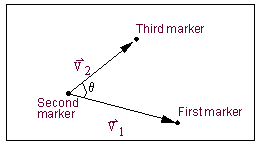
Example of Points That Define Included Angles
There are two conventions used in Adams View to define the sign and magnitude of an included angle measure as it changes over time:
■The sign and magnitude is always calculated so as to have an initial value within the range [0, PI] regardless of the order in which you select the points. The sign convention (+/-) is defined such that the first nonzero value is positive.
■The axis of rotation is automatically calculated as the cross-product of , and the order in which you select the points have no effect. This, along with the right-hand rule, determines all subsequent changes to the sign and magnitude of the included angle measure.
, and the order in which you select the points have no effect. This, along with the right-hand rule, determines all subsequent changes to the sign and magnitude of the included angle measure.Methods for Creating Angle Measures
There are two methods you can use to create an angle measure.
■Select method - Lets you graphically select the markers to be measured using the Angle tool  on the Measure Toolstack of the Main toolbox. Learn how to use the Select method.
on the Measure Toolstack of the Main toolbox. Learn how to use the Select method.Browsing for Markers to Define Angle Measures - Browse Method
To browse for three markers that define the angle measure:
1. Click the Design Exploration tab. From the Measures container, click the Angle Measure tool .
.
.or
(Classic interface) From the Build menu, point to Measure, point to Angle, and then select New.
3. In the Middle Marker text box, enter the second marker that defines the vertex.
4. In the Last Marker text box, enter the marker that defines the tip of the second vector.
Tips on Entering Object Names in Text Boxes.
6. Select OK.
Selecting Markers to Define Angle Measures - Select Method
To select from the screen three points that define the angle measure:
1. Click the Design Exploration tab. From the Measures container, click the Angle Measure tool.
.or
2. Using the left mouse button, select the following markers:
♦The marker that defines the tip of the first vector.
♦Second marker that defines the vertex.
♦Marker that defines the tip of the second vector.