Modeling Database
Adams View stores all your work in Modeling database.
Learn more:
About the Adams View Modeling Database
The Adams View Modeling database is a hierarchical database. Each object in the database has an object that owns it, called its parent, and many objects own other objects, called their children. The top level objects in the database are models, views, plots, and libraries containing such things as dialog boxes.
The following shows the hierarchy of a database called Database_1 that contains one model and a plot of the model.
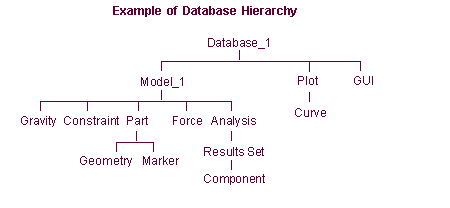
Names of objects in the database use a hierarchical naming structure. For example, a block built on the ground part is named .model_1.ground.block.
Creating a Modeling Database
When you first start working with Adams View, it provides you with options for creating a new Modeling database. You can also create a new modeling database anytime during your Adams View session. You can have only one modeling database open at a time, but it can contain multiple models.
Remember that Adams View saves all your customization changes, such as any new dialog boxes, in the modeling database. Therefore when you create a new modeling database, the standard Adams View interface appears and you will need to make any changes again in the new database. If, however, you use the command, Save Settings, on the Settings menu to save any preferences you set, Adams View reads these and changes the interface accordingly. Learn about Saving and Restoring Settings.
To create a modeling database:
1. Do one of the following:
■On the File menu, select New Database.
 .
.When you create a new database, Adams View automatically closes the current database. If you did not save your current database, Adams View asks you if you want to save it before closing.
2. Select one of the following if you did not save your existing database:
■Yes - Saves and closes the database.
■No - Closes the database without saving it.
■Cancel - Does not save the database.
Adams View displays the Welcome to Adams (Classic Interface) dialog box, which lets you choose how you want to start your modeling session with the new modeling database.
Opening a Modeling Database
You can open an existing Modeling database. You can only open one database at a time. To load different types of data into your modeling database, such as geometric data or commands, import the data as explained in Exchanging Data in Adams.
To open a modeling database:
1. Do one of the following:
■On the File menu, select Open Database.
 .
.The File Selection dialog box appears. The File Selection filter is set to display only modeling database files (those with a .bin extension).
2. In the Directories list box, select the directory in which the file is located.
3. Highlight the file that you want to open in the Files list box, or type the file name in the Selection text box.
The highlighted file appears in the Selection text box.
4. Select OK.
Saving Modeling Database
You can use the Save Database command to save the current Modeling database as an Adams View Binary format file. Saving your modeling database as a binary file saves all modeling information, including any customization changes you made. To save the model data in another format, export the data as explained in Exchanging Data in Adams. To save your preferences, see Saving and Restoring Settings.
To save an existing modeling database:
1. Select one of the following:
■On the File menu, select Save Database.
 .
.Before saving the file, Adams View displays a message asking you if you’d like to create a backup file of the current database file.
2. Select one of the following:
■Yes - Creates a backup file of the existing database file and saves the database. When Adams View creates a backup file, it adds a % to the end of the file extension (for example, model.bin%).
■No - Saves the database without making a backup copy of the existing database file.
■Cancel - Exit the command without saving the database.
Saving the Current Modeling Database with a New Name
You can save the current modeling database to a binary file with a new name. This lets you keep several versions of your database under different names and reduces the risk of losing your work if you inadvertently change or delete your model. Saving your modeling database saves all modeling information, including any customization changes you made. To save the model data in another format, export the data as explained in Exchanging Data in Adams. To save your preferences, see Saving and Restoring Settings.
To save a new database or an existing database with a new name:
1. On the File menu, select Save Database As.
The Save Database As dialog box appears.
2. In the File Name text box, enter the name you want to assign to the file.
Tips on Entering File Names in Text Boxes.
3. Select OK.
Object Name Length Limit
MSC recommends that users name their standard Adams objects, including the model name itself, using no more than 160 characters. Note that various actions in Adams products will automatically add prefixes or suffixes to object names. In some cases new objects are created and automatically named by concatenating two objects together (examples: the Adams Machinery Gear module naming of the force between two gears, Adams Mechatronics naming of control systems) and there even 160-character object names can cause issues. In other cases, though, objects can be safely named up to even 240 characters.