Setting Preferences
Setting Default Coordinate System
Coordinate Systems in Adams View
When you first start Adams View, it displays a View triad in the lower left corner. The view triad displays the global coordinate system for the Modeling database.
By default, Adams View uses a Cartesian coordinate system as the global coordinate system with three axes (x, y, and z). Adams View attaches the ground part to the global coordinate system and by default positions all other modeling objects to it.
Rotation Sequences
Adams View uses three orientation angles to perform three rotations about the axes of a coordinate system. You specify the order in which axes are rotated about as a sequence of three numbers (1,2,3), which correspond to x-, y-, and z-axes, respectively. For example, a rotation order of 312 produces rotations about the z-, then x-, and then y-axis. Adams View provides you with a set of 24 rotation sequences from which to choose. The most commonly used rotation sequence, body 313, is the default sequence.
The figure below shows how successive rotations defined by the rotation angles orient the axes. Dashed lines represent original orientations and solid lines represent new and unchanged orientations.
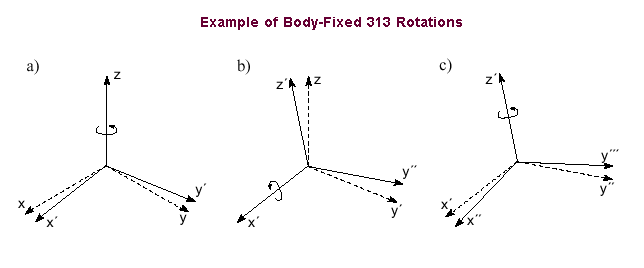
■The first angle rotates the coordinate system about its z-axis. This repositions the x-axis and the y-axis (see a in figure).
■The second angle rotates the coordinate system about its new x-axis (x´) to reposition the new y-axis (y´) and the z-axis (see b in figure).
■The third angle rotates the coordinate system about its new z-axis (z´) to reposition the new x-axis (x´) and the second new y-axis (y´´).
Together and in sequence, these rotations define the orientation of the coordinate system (see c in figure).
The right-hand rule defines the direction of positive rotation about each axis. For example, if you are looking down the initial z-axis, positive rotations are counterclockwise and negative rotations are clockwise.
To set the default coordinate system:
1. Do one of the following:
■On the Settings menu, select Coordinate System.
 .
. The Coordinate System Setting dialog box appears.
3. Select the type of rotation sequence. See Rotation Sequences.
4. Select either:
■Space fixed - Adams View applies the rotations about axes that remain in their original orientation.
■Body fixed - Adams View applies the rotations about axes that move with the body as it rotates.
As Adams View applies each rotation to an axis, it produces a new set of axes.
5. Select OK.
Specifying Gravitational Force
You can specify the magnitude and direction of the acceleration of gravity. For each part with mass, the gravitational force produces a point force at its center of mass.
To specify gravitational force:
1. Do one of the following:
■On the Settings menu, select Gravity.
 .
.The Gravity Settings dialog box appears.
2. Set the acceleration of the gravity in the x, y, and z directions with respect to the global coordinate system. See the table below for assistance.
3. Select OK.
To enter: | Do the following: |
|---|---|
A value | Enter the acceleration value in the X, Y, or Z text boxes as appropriate. |
A standard value (+ or -) | Select a standard button (+ or -) for the direction you want to set. The standard acceleration value appears in the apropriate X, Y, or Z text boxes. |
Setting Screen and Printer Fonts
You can change the font Adams View uses to display text in a view, such as the name of a part or a note on the screen, or to print text to a printer. The fonts available for displaying text in a view are those available with your operating system. The fonts available for printing text are a fixed set of 12 fonts. Note that your printer may not support all of these printer fonts. Use the appropriate font to display Unicode text in graphics window. For example, use the "Yu Gothic" font on Windows and the "WenQuanYi Zen Hei" font on Linux to display Unicode text. Learn about Printing Models.
To select a screen or printer font:
1. On the Settings menu, select Fonts.
The Fonts dialog box appears.
2. In the Screen Font text box, enter the name of the font you want Adams View to use to display text in a view. To browse for a font, right-click the text box, select Browse, and select a font.
3. Set Postscript Font to the font you want to use to print text.
4. Select OK.
Specifying Working Directory
By default, Adams View searches for and saves all files in the directory from which you ran Adams View. You can change the working directory.
To change the working directory for the current session:
1. On the File menu, select Select Directory.
Select the directory in which Adams View should save files.
2. Select OK.
You can also set the working directory when you start Adams View. Learn about starting a new session.
To change the working directory for all sessions:
1. On Linux:
■In the Registry Editor, select WorkingDirectory, and then change the working directory.
For more information, see Running and Configuring Adams.
2. On Windows:
From the Adams Settings, choose Shared, then Preferences.
a. Enable startInWorkingDirectory
b. Set the workingDirectory to the directory Adams is to start in.
Setting Units of Measurement
You can set the units that Adams View uses in modeling, importing, and exporting files. You can select individual units or select a set group of units.
Units of Measurement in Adams View
The units of measurement that Adams View provides for you are shown in the table below. The table also shows the default units when you start a new session
For the dimension: | Its supported units are: | The default unit is: |
|---|---|---|
Length | Meter, Millimeter, Centimeter, Kilometer, Inch, Foot, Mile, Micrometer, Nanometer, Angstrom, Microinch, Mils, Yard | Millimeter |
Mass | Kilogram, Gram, PoundMass, OunceMass, Slug, KilopoundMass, Tonne, Milligram, Microgram, Nanogram, Us_ton | Kilogram |
Force | Newton, KilogramForce, Dyne, PoundForce, OunceForce, KiloNewton, KilopoundForce, MilliNewton, CentiNewton, Poundal, Micronewton, Nanonewton, Meganewton | Newton |
Time | Second, Minute, Hour, Millisecond, Microsecond, Nanosecond, Day | Second |
Angle | Radian, Degree, Revolutions, AngularMinutes, AngularSeconds | Degree |
Frequency | Radians per second, Hertz | Radians per second |
Entering Unit Measurements in Text Boxes
When you enter a numeric value in a text box, you can specify the units of measurement that you want used for the value or let Adams View use the default unit. For example, you can specify the length of a link in millimeters even when the default unit is set to meters.
When you want to enter an alternate unit, you include the value and its unit. Adams View encloses the value and unit in parentheses ( ). You can also enter an abbreviation for the unit. For example, to specify 60 millimeters, enter the following:
(60mm)
You set default units when you create an Adams View model or you can use the Units command on the Settings menu to change the units.
Unit Labels
To enter units other than the default in text boxes, you can use either simple unit labels or composed unit labels.
Simple Unit Labels
Simple units: | Simple unit Labels: | Minimal abbreviations: |
|---|---|---|
Length | centimeter cm foot ft inch kilometer km m meter mile millimeter mm | centimeter c f ft i kilometer km m met mile millimeter mm |
Angle | am angular_minutes angular_seconds as degree radian | am angular_m angular_s as d r |
Mass | gram kg kilogram kpound_mass lbm megagram ounce_mass pound_mass slug | g kg kilogram kpound_m lbm meg ounce_m pound_m sl |
Time | hour millisecond minute ms second | ho millis min ms s |
Force | dyne kg_force kilogram_force knewton kpound_force lbf millinewton newton ounce_force pound_force | dy kg_ kilogram_force kn kpound_f lbf millin ne ounce_f pound_f |
Frequency | hz radians/second | hz radians/sec |
Any unique abbreviation for a simple unit label is acceptable. For example, you can abbreviate radians in the following ways, since none of the abbreviations conflict with abbreviations for any other units:
radians = radian = radia = radi = rad = ra = r
There are three exceptions for entering unique aliases:
Aliases: | Unit Labels: |
|---|---|
d | degrees, although it conflicts with dynes |
kg | kilograms, although it conflicts with kg_force |
m | meters, although it conflicts with mile, minute, ms, millisecond, and millinewton |
Here are some examples of unit labels associated with a number within text boxes:
■1mm
■1.2 inch (spaces are not significant)
■24in (you can use abbreviations)
Composed Unit Labels
Composed unit labels enable you to create aggregate units. You do this by combining Simple Unit Labels and operators. There are three operators for composing aggregate units from existing simple units:
Operator: | Notation: | Comment: |
|---|---|---|
Exponentiation | ** | Right operand must be an integer: inch**2 |
Multiplication | - or * | foot-pound_f = foot*pound_f |
Division | / |
A composed unit label is always enclosed in parentheses to eliminate ambiguity. Here are some tips and examples of composed unit labels:
■To indicate torque, enter: 3.3 (newton*meter)
■To indicate composed acceleration, enter: 9.8 (meter/sec**2)
■To indicate angular acceleration, enter : PI (rad/sec**2)
■To indicate multiplication with a dash, enter: (fun(1)*3)(in - lbf)
■You cannot include parentheses inside of composed units. Therefore, the following is incorrect:
1.2 (inch / (sec*deg))
Instead, enter the following:
1.2 (inch / sec/deg)
Tip: | In general, if you see units associated with numbers in the information window, command file, log file, and so on, you should be able to take that unit string and use it in a text box without error. |
To set the unit of measurement in Adams View:
1. On the Settings menu, select Units.
The Units Settings dialog box appears.
2. Select the unit of measurement for each of the dimensions using the table below for assistance.
3. Select OK.
To select: | Do the following: |
|---|---|
Unit for a specific dimensions | Select the individual unit from the pull-down menu associated with the dimension. |
Predefined unit system | Select one of the following buttons. In all the unit systems, time is in seconds and angle is in degrees. When you select a predefined unit system, the units selected appear in the upper portion of the dialog box. ■MMKS - Sets length to millimeters, mass to kilograms, and force to Newtons. ■MKS - Sets length to meters, mass to kilograms, and force to Newtons. ■CGS - Sets length to centimeters, mass to grams, and force to Dyne. ■IPS - Sets length to inches, mass to pound mass, and force to PoundForce. |
Interface Style
The user is provided with the option to switch 'Classic' View interface. This options provided under the main menu Settings → Interface style → Classic. If user wants to switch back to the new ribbon based view then select Settings → Interface style → Default.
Saving and Restoring Settings
You can save the current settings of the display of your model and any other settings you specify through the Settings menu. Adams View saves your settings in the file aviewBS.cmd in the directory from which you ran Adams View.
The settings that Adams View saves include:
■Part and model display
■Rendering mode, colors, and translucency
■Settings for working grid, units, and screen icons
■Toolbox and toolbar display and placement
■Simulation preferences
■Solution controls
When you start up Adams View, Adams View reads the settings stored in aviewBS.cmd, if it exists in your path, and uses them instead of any settings in the Modeling database.
To save settings:
1. Set the display of your model and any other Adams View settings, as desired.
2. From the Settings menu, select Save Settings.
To restore the saved settings:
1. From the Settings menu, select Restore Settings.