Using the Command Window
The command window provides text-based way to enter Adams View commands. It assumes that you understand the Adams View command language underlying the Adams View interface. The command window can accept single or multiple commands, allowing for efficient interaction with the Adams View environment.
About Adams View Commands
The commands that you enter in the command window or select from the Command Navigator are made up of keywords, parameters for the keywords, and parameter values as shown below:
{keywords} {parameters=values}
In a command:
■Keywords correspond to menu selections.
■Parameters correspond to dialog box choices.
■Parameter values correspond to values you enter or select in the dialog boxes.
For example, the following command contains the keyword constraint followed by other keywords, then by parameters, such as the name of the joint. In the example, the ! indicates a comment and the & at the end of a line indicates that the command continues onto the next line.
constraint create joint revolute & !{keywords}
joint_name=.model_1.JOINT_1 & !{parameter=value}
i_marker_name=.model_1.PART_1.MAR_3 & !”&” for continuation
j_marker_name=.model_1.ground.MAR_1 &
friction_enabled = no
Syntax Rules for Entering Commands
The commands that you enter in the command window are made up of keywords, parameters for the keywords, and parameter values as shown below:
{keywords} {parameters=values}
There are several rules that you must follow when you enter commands in the command window. For example, the commands must be entered in the order shown below. Because commands are case insensitive, you can type upper or lowercase letters or a mix of both.
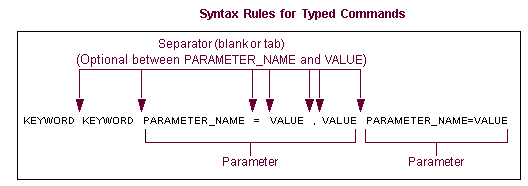
To help you enter commands correctly, Adams View checks for syntax errors whenever you enter a space, comma, or equal sign (except in a string or expression) in the command window. If Adams View detects an error, it displays a message above the command information area. You cannot proceed until you correct the error.
Syntax Rules for Entering Values
The values that you can enter in commands are data that have a particular type. There are four data types that Adams View commands support: integer, real, string, and database object references. The following table lists the data types and their use.
Data type: | Use: |
|---|---|
Integer | Whole numbers in the range -maxint ... +maxint, where maxint is machine dependent (usually around two billion) |
Real | Most numeric values, truncated to +/- 1E25 |
String | Character strings of varying length |
Object | Database objects |
The rules for entering values are that they:
■Can contain letters, numbers, and underscore characters. For more information, see Using Extended Names.
■Must begin with a letter or underscore character.
■Can contain any characters that are enclosed by double quotation marks.
■Have separators (blank space or tab) between keywords and parameters. Placing separators between parameters and their values is optional.
For strings, you must use a backslash (\) in front of special characters to ensure that Adams View does not try to interpret the characters. These characters include quotation marks (") and backslashes. For example, to be sure to include the quotation marks in the string: This is a "string", you would enter:
"This is a \"string\"."
To get a single backslash into the string, you, therefore, enter double backslashes. For example, to specify This ia a \string\, you would enter:
"This is a \\string\\"
Note also for path names on Windows, you can use backslashes as the separators, but you are not required to do so. You can write portable path names by using the forward slash so Adams View interprets the following as the same path:
"d:/users/efhl/some.file"
"d:\users\efhl\some.file"
If the file name is to be stored in a string variable, the backslashes would need to be doubled to preserve the file path:
"d:\\users\\efhl\\some.file"
Note that the forward slash is much preferred over the backslash.
Miscellaneous Command Information
Continuing Commands
You can continue an Adams View command you enter in the command window for as many lines as necessary. To continue a command, place an ampersand (&) at the end of a line and then continue the command on the next line. Note that a command must be entered all at once.
Keywords, strings, and expressions cannot be broken across lines.
Mixing Comments and Commands
If you want to mix comments and commands (so that your comments appear in the log file), use one of the formats below:
To create: | Enter: |
|---|---|
A comment alone on one line | !comment <CR> |
A command followed by a comment on one line command | !comment<CR> |
A command followed by a comment on one line, with the command continuing on the next line command | &!comment<CR> continue command |
A command followed by a comment on one line, with the comment continuing on the next line, and the command continuing on the following line command | &!comment<CR> &!comment<CR> continue command |
Entering Abbreviations
You can enter abbreviations for commands and parameters when you are entering commands directly in the command window. You should always use full keywords for macros and command files to avoid any future compatibility problems. Also note that if you use abbreviations, Adams View takes longer to execute your commands because it must substitute an abbreviation with its full command.
Verifying Command Input
Adams View verifies command input whenever you enter a space, comma, or equal sign (except in a string or expression) in the command window. If Adams View detects an error, it displays a message above the command information area. You cannot proceed until you correct the error.
Reviewing Commands
You can use the scroll bar at the side of the command information area to view the last 50 commands that were entered.
Recalling Commands
Use the arrow keys to recall and edit commands. After entering a command, in the command entry area, press the up arrow to display it in the command entry area again. Use the left and right arrows to edit it, and then press Enter.
Getting Help Completing Command Parameters
In the command window, you can get help with keywords and parameter name completion. In addition, you can get help with possible parameter values for modeling objects and files. For example, you can get a list of possible marker names in your model or you can display the File Browser to help you find a file.
To get assistance with keywords:
1. Enter the beginning of a keyword. For example, enter f.
2. Type ?.
The command window displays all the keywords that begin with letter or letters. For example, for f it displays file, floating_marker, and so on.
To view all parameter names associated with a keyword:
1. Enter the keyword. For example, enter file.
2. Type ?.
The command window displays all the parameter names associated with the keyword.
To get assistance with values for a parameter:
1. Enter the parameter name but do not include the parameter value. For example, enter the command mar del mar=.
2. Type ?.
If the parameter value requires a modeling object, the command window displays a list of possible objects in your current model. If the parameter value requires a file, the File Browser appears.
3. Copy or select the desired object and place it in the parameter value.
Grouping Operations into an Undo Block
As you issue Adams View commands from the command window, you can group them into undo blocks. By grouping them into undo blocks, you can use a single undo command to reverse all the operations in the block. You can define undo blocks around macros, command files, or any group of Adams View commands. You can nest them to any level.
To create an undo block:
1. Enter the following command in the command window to mark the beginning of the block:
UNDO BEGIN_BLOCK
2. Issue all the commands to be included in the undo block.
3. To close the block, enter the command:
UNDO END_BLOCK
Once you have closed the undo block, any individual commands that you issue that are not in the undo block or any nested undo blocks within the undo block are not affected by an Undo command. Once you close the undo block, you cannot open it again.
The following is an example of an undo block with individual commands surrounding it and several undo operations that were issued. The undo commands reverse all operations that were performed to create the model and part.
MODEL CREATE...
UNDO BEGIN_BLOCK
PART CREATE...
MARKER CREATE...
UNDO BACKWARD ! Undo the MARKER CREATE above, not entire undo block
MARKER CREATE...
GEOM CREATE...
UNDO END_BLOCK
PART DELETE...
UNDO BACKWARD ! Undo the PART DELETE command
UNDO BACKWARD ! Undo the entire undo block
UNDO FORWARD ! Restore the entire undo block
UNDO BACKWARD ! Undo the entire undo block again
UNDO BACKWARD ! Undo the MODEL CREATE command
Note the following about the example:
■The first UNDO BACKWARD within the undo block undoes only the preceding MARKER CREATE command.
■The third UNDO BACKWARD command after the Undo block undoes the entire contents of the undo block.
■The UNDO FORWARD reverses the undo of the entire undo block as if the undo block were a single command.
The limit on the number of commands Adams View remembers does not apply to commands within an undo block. You may notice slowed system performance if you store too many commands in a single undo block or if you have the number of undo steps set too high using the undo set command.