Step Four - Use S-Function to Create Adams External System Library
Setup MATLAB
If you haven't already done so, open ant_test.m in MATLAB as described in the section Step Three - Generate S-Function Using Code Generation. This will create variables required and modify the MATLAB path to pickup setup scripts and functions.
Create Adams Target for RTW
Here you will customize the makefile template and source code template for Adams. Once this is done, you can use the customized template files for other Simulink models.
To create the Code Generation files for the Adams Controls model:
1. At the MATLAB prompt (>>), type setup_rtw_for_adams
This will automatically detect the version of Matlab you are using and create the makefile template and source code template for Adams. This function will also build template for specific versions of Matlab if desired by entering the desired version token as an argument: setup_rtw_for_adams('version') For help with this, enter setup_rtw_for_adams('h').
2. You should see the following message for success in this step:
%%% Successfully created files for Adams library export from MATLAB/RTW.
3. You should also confirm that in your working directory that .tlc and .tmf files were created by this step.
Create Simulink Model
In this case, since the S-Function block created previously represents the Adams model with the same inputs and outputs, we can use the setio command to generate the input/output template for this S-Function (which will use the input/output information provided by ant_test.m).
1. Run setio.
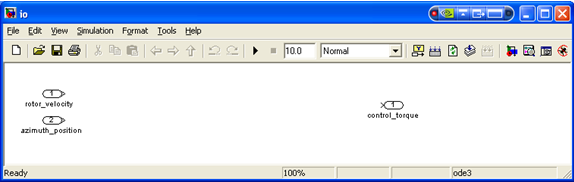
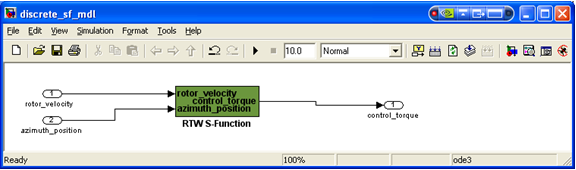
2. Copy S-Function block to setio model, and connect the inputs appropriately.
3. Save as discrete_sf_mdl.mdl:
Code Generation of Control System
First you will configure MATLAB/Code Generation and then you will create the External System Library from the Simulink model.
Given a controller designed with the appropriately designated inports and outports, the following steps are required to export the model using RTW.
1. From the Code menu, point to C/C++ Code, and then select Code Generation Options.
The Configuration Parameters dialog box appears.
2. Verify that Generate code only is not selected.
3. Complete the Simulink Parameters dialog box for MATLAB by selecting the Rapid Simulation Target in your working directory, as shown in Figure 33:
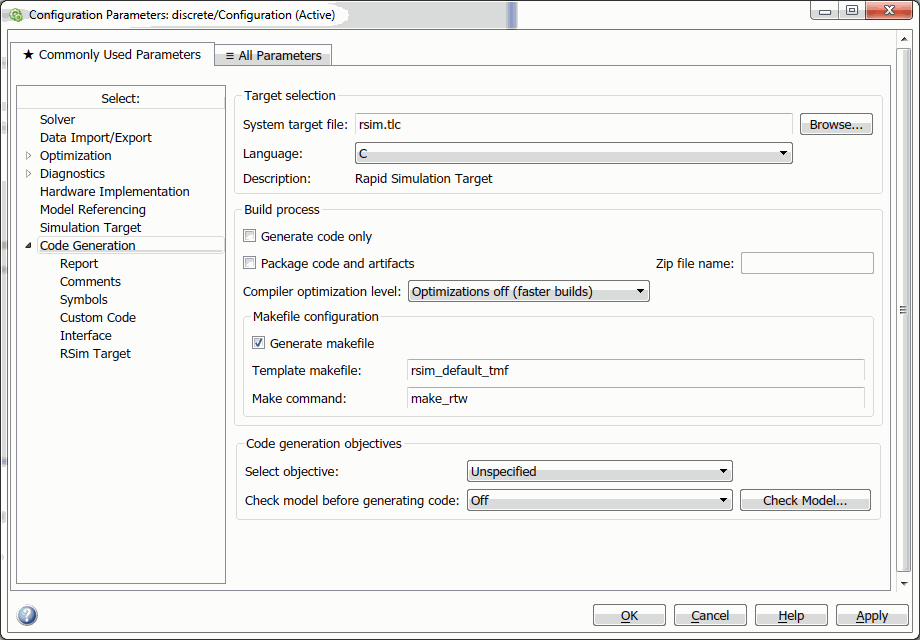
Figure 33 Rapid Simulation Target
4. From the treeview on the left side of the window, select Solver.
The dialog box displays the Solver options as shown in Figure 34.
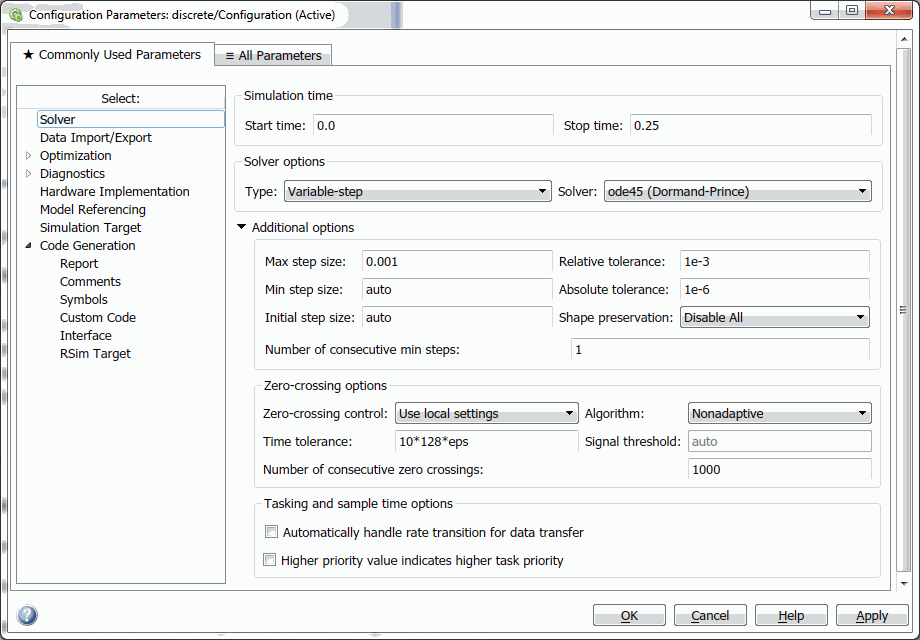
Figure 34 Configuration Parameters - Solver
5. Set Solver options Type to Variable-Step (it must be the same Type as specified when generating the S-Function). (If selecting Fixed-step solver, Set Mode to SingleTasking.)
6. Under zero-crossing options, set Zero-crossing control to Disable All.
Note: | Zero-crossing support is experimental in Adams Controls, and not available in Adams Mechatronics. If you have zero-crossing in your model, and you would like try to use them in Adams Controls, simply select Use local settings or Enable All to turn them on, and Adams SENSOR's will be created via Controls System Import that use the zero-crossings functions. |
7. From the treeview on the left side of the window, select Optimization → Signals and Parameters.
The dialog box displays the Advanced options as shown in the figure below.
8. Verify that Default parameter behavior is set to Inlined. Check the Inline Invariant Signals checkbox. Enabling Inline parameters has the following effects:
■Code Generation uses the numerical values of model parameters, instead of their symbolic names, in generated code.
■Reduces global RAM usage, because parameters are not declared in the global parameters structure.
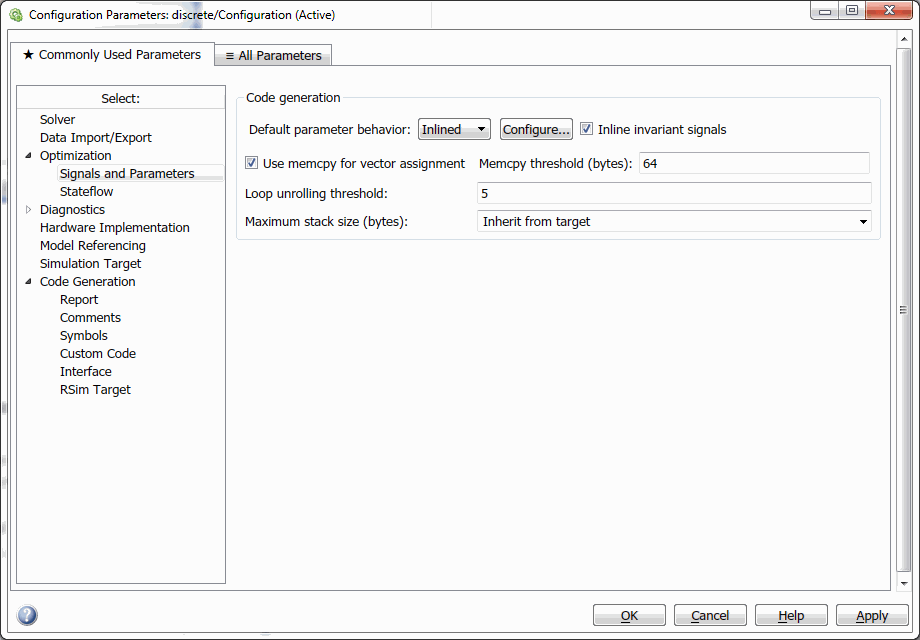
Figure 35 Configuration Parameters - Optimization
9. Select Apply
10. Select the Code Generation tab.
11. To begin code generation and build the RTW library, select Build.
Messages will appear in the MATLAB command window indicating successful code generation and RTW library creation. You should see messages that end with the following:
Creating library ..\discrete_sf_mdl.lib and object...\ discrete_sf_mdl.exp
### Created Adams External System Library discrete_sf_mdl.dll
C:\adams_temp\sfunction\discrete_sf_mdl_rsim_rtw>exit /B 0
### Successful completion of Code Generation build procedure for model: discrete_sf_mdl
The library you created will be in your working directory.