Step Five - Use S-Function without source code to Create ESL
Another way to generate an ESL using an S-Function is to exclude the source code for the S-Function to protect proprietary information. Here, we will copy some main files and generate a duplicate model to show that this should produce the same results as if the source code is available. These next steps assume that you have performed the all steps previously. You may omit this portion of the tutorial and skip to parameterization next, if desired.
Create Simulink Model
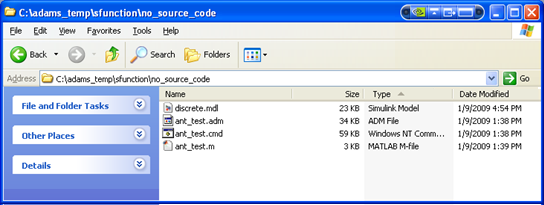
1. Create a directory within your working directory called "no_source_code" and copy the following files:
■ant_test.adm
■ant_test.cmd
■ant_test.m
■discrete.mdl
2. Restart MATLAB in this directory.
3. Build the S-Function in RTW from discrete.mdl using S-Function target in the same manner as in previous Generate S-Function from RTW:
a. Open discrete.mdl
b. Build with RTW using the S-Function target.
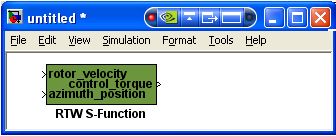
4. Save this model as discrete_sf_mdl.mdl.
Code Generation of Control System
1. As described in the previous section, load ant_test.m in MATLAB and use Adams Controls setup_rtw_for_adams script to generate Adams Controls-modified RSIM target.
2. Modify model with S-Function to choose RSIM target and build the S-Function again - this will create an object file that can be used in later steps to build the Adams Controls ESL from RTW.
3. Provide the following when distributing the model to the person who will make the Adams Controls ESL from RTW:
discrete_sf.mexw32
discrete_sf.h
discrete_sfcn_rtw/discrete_sf.h
discrete_sfcn_rtw/discrete_mid.h
discrete_sfcn_rtw/discrete_sid.h
discrete_sfcn_rtw/discrete_sf_private.h
discrete_sfcn_rtw/discrete_sf_types.h
discrete_sfcn_rtw/discrete.mk
discrete_sfcn_rtw/discrete_sf_data.c (if applicable)
discrete_sf_mdl_rsim_rtw/discrete_sf.obj
discrete_sf_mdl.mdl
4. To mimic what you would see at the receiver's end, first create a new directory called new_model. Then, using the files from Step 3, retain the directory structure and copy all of these files to new_model.
5. Also, move the files ant_test.m, ant_test.adm, and ant_test.cmd to the directory new_model.
6. Run ant_test.m in Matlab.
7. Open discrete_sf_mdl.mdl, and run setio to create the inputs and outputs for this model. Copy the inports and outports to discrete_sf_mdl.mdl so it looks like in Figure 36:
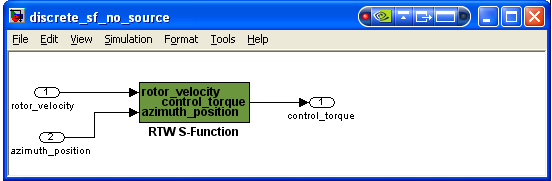
Figure 36 Discrete S-Fucntion - No Source
8. Rename the model to discrete_sf_no_source.mdl.
9. Run setup_rtw_for_adams to generate the RSIM target files in the folder new_model.
10. Choose Code → C/C++ Code→ Code Generation Options, and select the RSIM target for the System Target File.
11. Select Generate code only to make the proper directory needed for the build. We will copy the S-Function object file created previously to the RTW directory created by this process.
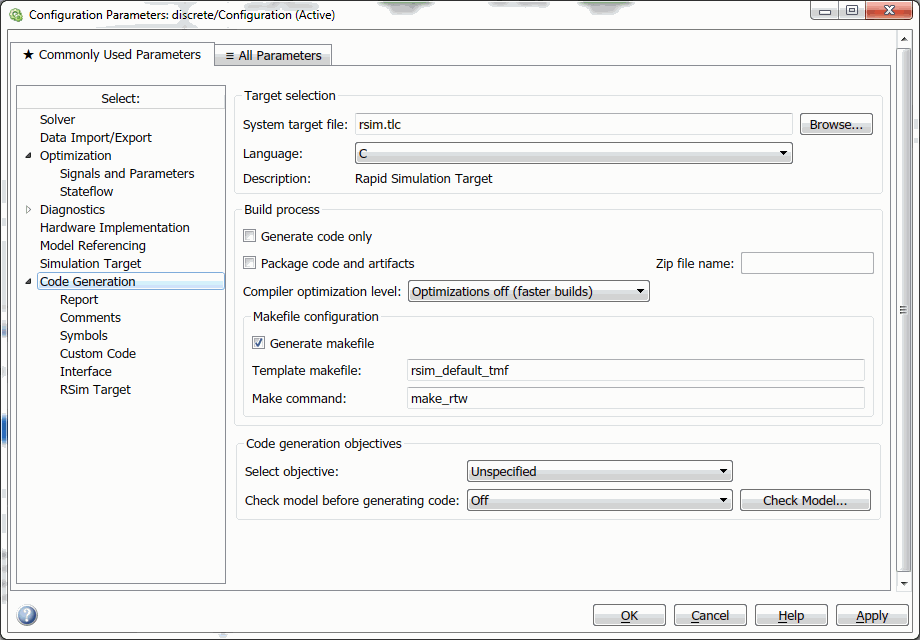
12. Select Apply and then click Generate code. You should see a directory called discrete_sf_no_source_rsim_rtw in the working directory, as below:
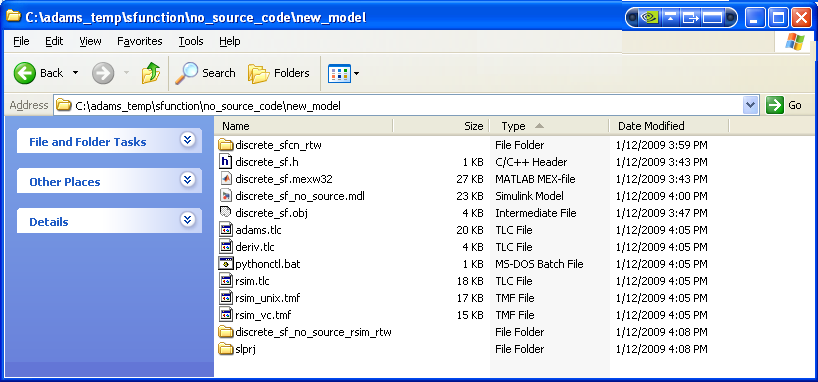
13. Place the S-Function object file created previously ("discrete_sf_mdl_rsim_rtw/discrete_sf.obj") in the directory of the new model's name ("discrete_sf_no_source_rsim_rtw/discrete_sf.obj").
14. In Configuration Parameters, uncheck the Generate code only option under the Code Generation tab, and then select Apply:
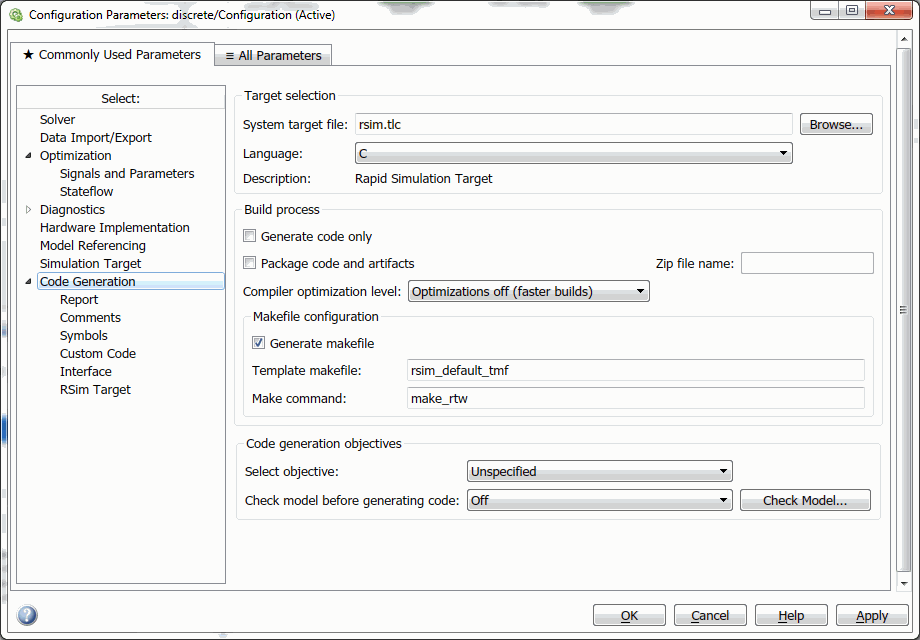
15. Select Build to build the ESL using the Adams Controls-modified RSIM target.
You should see the following messaging in the MATLAB window:
### Created Adams External System Library discrete_sf_no_source.dll
C:\adams_temp\sfunction\no_source_code\new_model\discrete_sf_no_source_rsim_rtw>exit /B 0
### Successful completion of Code Generation build procedure for model: discrete_sf_no_source
Note: | If you see a RTW message that it is compiling discrete_sf.c, then you have not performed the steps properly, as it should not have a discrete_sf.c provided. |
16. To use this ESL in Adams, See the section Step Seven - Use the S-Function ESL in Adams Control System Import.
Note: | The main RTW details can be found also written for another example here: ■How do I build my model that contains an RTW generated S-function block if I do not have the source code? ■How do I build my model containing a C-MEX S-function if I don't have the S-function C source file using Code Generation? |