Overview
This chapter introduces you to Adams Machinery.
Starting Adams Machinery
In this section, you learn how to start Adams Machinery in the Windows and the Linux environments.
In the Windows environment, you start Adams 2024.1 and Adams View will launch from the Start button. In the Linux environment, you start Adams View from the Adams Toolbar.
To start Adams Machinery on Windows:
1. From the Start menu, point to Programs, point to Adams 2024.1, and then select Adams View.
The Welcome dialog box appears.
2. Do one of the following:
■Welcome dialog box contains the options New Model and Existing Model.
■To create a new model, select the New Model from the start screen. You will be presented a panel which consist of options needed to create a new model.
■To start your Adams session from an existing model, select the Existing Model from the start screen. You can browse for the model by clicking the Existing Model button in the opened dialog box or you can right click inside the File Name field and locate the existing model through the Browse option. Select OK. For more information on welcome screen, see Welcome to Adams View Start Screen.
3. Select Machinery from tab container. The Adams Machinery Interface window appears as shown below.
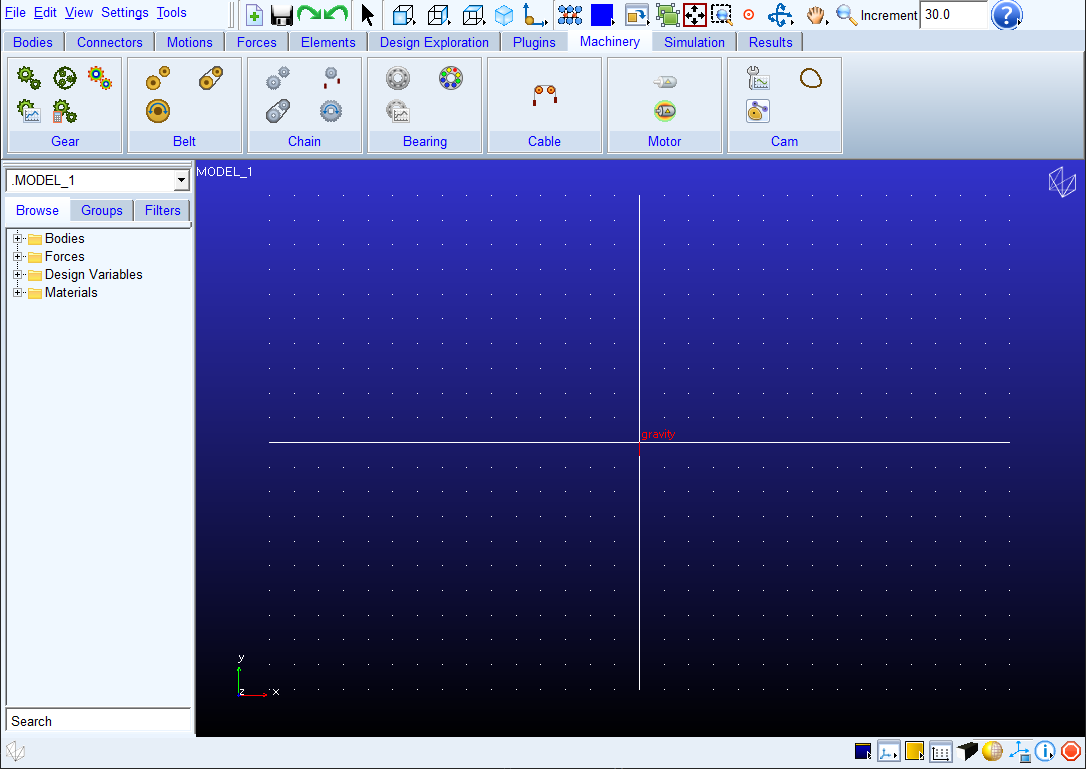
Figure 1 Adams Machinery Interface
To start Adams Machinery on Linux:
1. At the command prompt, enter the command to start the Adams Toolbar, and then press Enter. The standard command that MSC Software provides is adamsx, where x is the version number, for example adams2024_1.
The Adams Toolbar appears.
2. Click the Adams View icon.
The Welcome dialog box appears.
3. Do one of the following:
■Welcome dialog box contains the options New Model and Existing Model.
■To create a new model, select the New Model from the start screen. You will be presented a panel which consist of options needed to create a new model.
■To start your Adams session from an existing model, select the Existing Model from the start screen. You can browse for the model by clicking the Existing Model button in the opened dialog box or you can right click inside the File Name field and locate the existing model through the Browse option. Select OK. For more information on welcome screen, see Welcome to Adams View Start Screen.