Create Motor
(Template builder) Build → Motor → New/Modify
Creates or modifies a motor
For the option | Do the following |
|---|---|
Tips on Entering Object Names in Text Boxes. | |
Motor Name | If creating a Motor, enter a name for it. If modifying a Motor, enter its database name. |
Method | Select one of the following ■Analytical ■Curve based ■External Note: Inputs in the parameters tab vary for each method. |
Motor type | Select one of the following ■AC Synchronous ■DC ■Brushless DC ■Stepper Note: Motor type option is available only for analytical method. |
Direction | Select one of the following ■Clockwise: The rotor part of the motor rotates in clockwise direction ■Counter-clockwise: The rotor part of the motor rotates in the counter-clockwise direction. |
Attachment tab | |
Rotor Attach Part | Enter a part of the model to connect with the rotor part, via a fixed joint. Note: Rotor cannot be attached to the Ground as it cannot be stationary. |
Stator Attach Part | Enter a part of the model to connect with the stator part, via a fixed joint. |
Force Display | Select the part(s) on which a force vector should be displayed. |
Type | Define the motor as left, right, or single. |
Location Dependency | Select one of the following: |
Orientation Dependency | Select one of the following: |
Mass/Inertia | |
Create Rotor Stator Parts | Select to create Rotor and Stator Parts. If turned off, parts are not created and hence an SFORCE is created between Rotor and Stator Attach Part. |
Rotor Length | Enter the length of the cylinder geometry to be created on the rotor part. This parameter is for visualization purpose. |
Rotor Radius | Enter the radius of the cylinder geometry to be created on the rotor part. This parameter is for visualization purpose. |
Stator Length | Enter the length of the box geometry to be created on the stator part (that is, the dimension parallel to the rotor axis of rotation). This parameter is for visualization purpose. |
Stator Width | Enter the width of the box geometry to be created on the stator part. (Note cross-section will be a square: this value will be used for both dimensions perpendicular to the rotor axis of rotation). This parameter is for visualization purpose. |
Define Mass By | Select one of the following options for mass and inertia properties of rotor/stator: ■Geometry and Material Type ■Geometry and Density ■User Input |
If you selected Geometry and Material Type, the following option appears: | |
Material Type | Enter the type of material for the rigid body. Learn about Standard Material Properties. |
If you selected Geometry and Density, the following option appears: | |
Density | Enter the density of the part. Your template-based product uses the part's density and the volume of the geometry to calculate its mass and inertia. |
If you selected User Input, the following options appear: | |
Mass | Enter the mass of the part. |
Ixx/Iyy/Izz | Enter the values that define the moments of inertia components of the part. The inertia reference frame is parallel to BCS at the center of mass (CM) location. |
Off-Diagonal Terms | Select to display and undisplay the Ixy/Izx/Iyz fields. |
If you select Off-Diagonal Terms, your template-based product displays the following option: | |
Ixy/Izx/Iyz (optional) | Enter the values that define the products of inertia components of the part. The inertia reference frame is parallel to BCS at the center of mass (CM) location. |
For the option | Do the following |
|---|---|
Parameters | |
Curve Based Method | |
Spline File name | Provide a file that contains a curve of torque vs. speed. Note: In .mtr file, the independent axis (angular velocity) should be in RPM units. The ordinate axis (torque) units must be as per the model units. |
Analytical Method | |
AC Synchronous The torque for a AC Synchronous motor is calculated as, 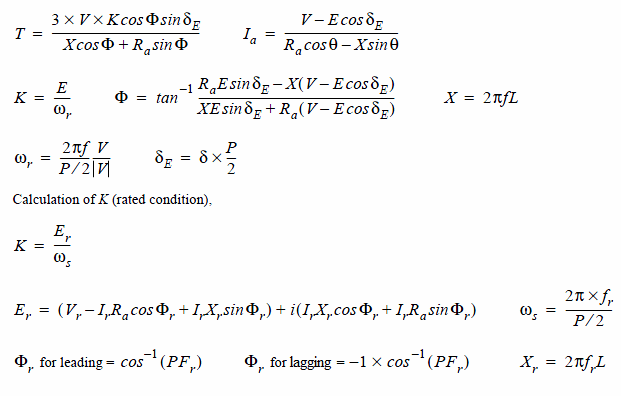 Please see the Torque Angle Calculation () and Pole Slipping adjustment for Torque angle calculation and pole slipping details. Note: In actual implementation Er is calculated as magnitude (Er = SQRT (Re(Er) ^2 + Im(Er) ^2)) and not as complex number. Where: | |
■T = Motor Torque ■V = Supply voltage ■K = BEMF constant ■φ = Power Factor Angle ■δΕ = ElectricalTorque Angle ■δ = Torque Angle ■X = Reactance ■E = Back EMF ■ωr = Rotor angular velocity ■f = Supply Frequency ■L = Inductance | ■P = Poles ■Er = Rated Back EMF ■s = Angular velocity ■Vr = Rated Voltage ■Ir = Rated Current ■Ra = Armature Resistance ■φ = Rated Power Factor Angle ■Xr = Rated Reactance ■fr = Rated Frequency ■PFr = Rated Power Factor |
Supply Voltage (V) | Enter the supply voltage. |
Rated Current (A) | Enter the value of current that flows through the motor circuit. |
Resistance (Ohms) | Enter the resistance value of the windings in the motor. |
Power Factor | Enter the power factor. The power factor of an AC system is defined as the ratio between the real power flowing to the load and the apparent power in the circuit. It is a dimensionless number between -1 and 1. |
Frequency (Hz) | Enter the AC frequency. |
Inductance (mH) | Enter the inductance. Inductance is the behavior of a coil in resisting any change of electric current through it. According to Faraday's law, inductance has an influence on the emf generated to oppose a given change in current. |
Poles | Enter the number of poles in the stator field. |
Synchronous Speed (RPM) | Enter the initial speed of the rotor in which it rotates in step with the rotating magnetic field of the stator. |
DC Shunt Motor The torque for a D.C. Shunt motor is calculated as   Where ■T = Torque developed in N-m ■K = Torque constant ■  = Flux per pole in Webers = Flux per pole in Webers■Ia = Armature current in Amps ■Z = Number of conductors ■P = Number of Poles ■a = Number of parallel paths in the Armature. ■Es = Source Voltage in Volts ■Eb = Back emf induced in Volts ■Ra= Armature resistance in ohms ■N = Revolutions per Minute | |
DC Series Motor The torque for a DC Series motor is calculated as:   Where ■T = Torque developed in N-m ■K = Torque constant ■K1 = Series motor constant ■  = Flux per pole in Webers = Flux per pole in Webers■I = Armature current in Amps ■Z = Number of conductors ■P = Number of Poles ■a = Number of parallel paths in the Armature. ■Es = Source Voltage in Volts ■Eb = Back emf induced in Volts ■Ra= Armature resistance in ohms ■N = Revolutions per Minute | |
No. of conductors | Enter the number of conductors. |
Flux Per Pole (Wb) | Enter the flux per pole. It is the measure of the quantity of magnetism, that is, the total number of magnetic lines of force passing through a specified area in a magnetic field. |
Source Voltage (V) | Enter the source voltage. |
No. of Paths | Enter the number of parallel armature winding paths. |
Armature Resistance (Ohms) | Enter the armature resistance, the resistance offered by the windings in the moving part of the motor to current flow in the coils. |
No. of Poles (P) | Enter the number of poles in the stator field. |
DC Type | ■Shunt A shunt wound DC motor connects the armature and field windings in parallel or shunt with a common DC power source. ■Series Enter Series Motor Constant. A series wound DC motor connects the armature and field windings in series with a common DC power source. |
If you selected Series, the following option appears: | |
Series Motor Constant | Enter torque constant for the motor. This represents the proportionality between motor torque and motor current. |
Brushless DC The torque for a BLDC motor is calculated as  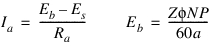 Where ■kd = Distribution Factor ■kp = Coil pitch Factor ■ks = Slot Skew Factor ■m = Number of Teeth per phase ■n = Number of Turns per phase ■B = Strength of the permanent Magnetic field ■L = Length of rotor windings ■R = Radius of Armature ■I = Current in the Motor winding ■T = Torque developed in N-m ■φ = Flux per pole in Webers ■Z = Number of conductors ■P = Number of Poles ■a = Number of parallel paths in the Armature ■Es = Source Voltage in Volts ■Eb = Back emf induced in Volts ■Ra = Armature resistance in ohms ■N = Revolutions per Minute | |
Distribution Factor | Enter the distribution factor. The distribution factor kd reflects the fact that the winding coils of each phase are distributed in a number of slots. |
Coil Pitch Factor | Enter the coil pitch factor. The pitch factor kp reflects the fact that windings are often not fully pitched, that is, the individual turns are reduced in order to decrease the length of the end-turns and do not cover a full pole-pitch (also called chorded). |
Slot Skew Factor | Enter the skew factor. The skew factor ks reflects the fact that the winding is angularly twisted, which results in an angular spread and reduced emf. |
Teeth per Phase Count | Enter the number of teeth per phase present in the motor. |
No. of Turns per Phase | Enter the number of turns per phase in the armature winding. |
Armature Resistance (Ohms) | Enter the armature resistance, the resistance offered by the windings in the moving part of the motor to current flow in the coils. |
No. of Poles | Enter the number of poles in the stator field. |
Strength of PM Field (T) | Enter the strength of permanent magnetic field of the stator. |
Length of the Rotor Windings | Enter the effective length of rotor windings. |
Radius of Armature | Enter the radius of the armature winding. |
Flux Per Pole (Wb) | Enter the flux per pole. It is the measure of the quantity of magnetism, that is, the total number of magnetic lines of force passing through a specified area in a magnetic field. |
No. of Conductors | Enter the number of conductors. |
No. of Paths | Enter the number of parallel armature winding paths. |
Maximum Torque | The maximum torque indicated by the user within which the output torque of the motor is to be controlled. |
Max. Ang. Velocity | The Max. Angular velocity indicated by the user such that Rated Torque = Tmax - Tmax * (Actual Angular Velocity/ Max. Angular Velocity). |
Control Method | ■Speed Control - Controls output speed of the rotor shaft based on user spline input. ■Position Control - Controls angular displacement of the rotor shaft based on user spline input. |
Enter Spline File | Provide a file which contains a curve of speed vs time or angle vs time based on control method. |
Friction Torque | Enter a constant opposing torque that does not vary with velocity. |
Damping Coefficient | Specify a constant which is multiplied by angular velocity to define a damping torque. It represents the combined electromagnetic and viscous damping. |
Gain | Specify the gain value used to calculate the speed gain. This speed gain is used in the PID controller. |
P Gain | Specify the proportional gain applied to the input signal. |
I Gain | Specify the gain applied to the integral of the input signal. |
D Gain | Specify the gain applied to the derivative of the input signal. |
Stepper The torque for a Stepper motor is calculated as, 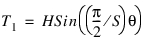 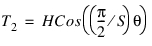 Where ■T1 = Torque on the first winding. ■T2 = Torque on the Secondary winding. ■H = Holding Torque in N-m. ■S = Step Angle in radians. ■θ = Shaft Angle in radians. | |
Holding Torque | Enter holding torque. The amount of torque required to keep the motor shaft in a particular position. |
Control Type | ■One Phase On-Full Step Drive ■Two Phase On-Full Step Drive |
Step Angle (Degrees) | Enter the step angle by which the rotor will rotate when a signal is passed. |
Friction Torque | Enter a constant opposing torque that does not vary with velocity. |
Damping Coefficient | Enter a constant damping coefficient which is multiplied by angular velocity to define a damping torque. It represents the combined electromagnetic and viscous damping. |
Input Type | To indicate the type of data in the input file. ■PPS vs Time - Pulse per second vs time. The Stepper motor rotates by its step angle when a pulse is received. ■Target Angle vs Time - Target angle is the end position of rotor shaft where the user desires the motor to stop. |
Input File | Provide a file which contains a curve of speed vs time or angle vs time based on input type. |
External Method | |
External Method | ■External System Library Import ■Co-Simulation |
If External System Library Import is selected, the following options will be displayed: | |
Plant Input/Output | ■Standard Standard method creates the GSE equation, by importing the External System Library and using the default input and output state variables. ■User Defined User-Defined method follows the same method as that of Standard method except it allows the user to select input and output state variables. |
If Standard is selected, the following options will be displayed: | |
General State Equation Name | Enter the name of the GSE to be created. |
External System Library | Enter the name of the external system library. If the extension entered is .fmu, Adams will expect an FMU that conforms to the FMI standard. |
Generate External Model Specifications | Click this button to do a plant export using whatever is specified for plant i/o above, for the controls software of your choice: ■Easy5 ■MATLAB ■FMU |
If User Defined is selected, the following options will be displayed: | |
General State Equation Name | Enter the name of the GSE to be created. |
External System Library | Enter the name of the external system library. If the extension entered is .fmu, Adams will expect an FMU that conforms to the FMI standard. |
Import I/O Signals from Existing Controls Plant | Select to display the Database Navigator, where you can select an existing controls plant from which output and input signals are to be imported. |
Input Signal(s) | Enter names of state variables that you want to use as plant inputs. Select From Pinput to use state variables from existing plant inputs. |
Output Signal(s) | Enter names of state variables that you want to use as plant outputs. Select From Poutput to use state variables from existing plant outputs. |
Static Hold | Select one of the following: ■Off: Turns static hold off. ■On: Turns static hold on. |
Generate External Model Specifications | Click this button to do a plant export using whatever is specified for plant i/o above, for the controls software of your choice: ■Easy5 ■MATLAB ■FMU |
Use External Library Error Tolerance | Check to apply the error tolerance values of the continuous states of ESL to the GSE during integration. The ESL error tolerance values change the computation of the local integration error that is computed after the corrector as converged. If the estimated error is greater than the specified integration ERROR the integrator rejects the solution. See the INTEGRATOR statement for more details about ERROR. You may want to use this feature to help refine the accuracy of your ESL states, but just like any INTEGRATOR setting, this may require tuning. This feature only applies to the C++ Solver, and only Easy5 models currently report error tolerance values. Error Scale Factor: ■Values > 0 will scale all of the ESL error tolerance values in order to tighten or loosen these values, that is, Final GSE error tolerance = Error Scale Factor * ESL error tolerance ■Values <= 0 will disable using the ESL error tolerance values, and the default computation for the local integration error will be used. |
Information | Check to display verbose information about the general state equation (GSE) that the controls system import created. |
Visibility | This option is only available for External System Libraries of type FMU. Visibility means the FMU runs in interactive mode. Turn it off if you want to run it in batch mode. In order for this option to work in Adams, visibility needs to be supported by the specified FMU. |
Communication Interval | This option is only available for External System Libraries of type FMU. To co-simulate with the FMU you need to specify the communication interval. Sample the FMU at least two times faster than the highest frequency of interest (refer to Nyquist frequency). |
If Co-Simulation is selected, the following options will be displayed: | |
Plant Input/Output | ■Standard Standard method creates the GSE by importing the External System Library and using the default input and output state variables. ■User Defined User-Defined method follows the same method as that of Standard method except it allows the user to select input and output state variables. |
If Standard is selected, the following option will be displayed: | |
Target Software | Select one of the following: ■Easy5 ■MATLAB ■FMU |
If User Defined is selected, the following options will be displayed: | |
Controls Plant Name | Enter the name of the Controls Plant to be created |
File Prefix | Enter the prefix for the .adm, .cmd, .acf, .m, and .inf files that Adams Controls creates. |
Initial Static Analysis | Select one of the following: ■Yes: Performs initial static analysis. ■No: Does not perform initial static analysis. Note: If Initial Static Analysis is set to Yes and Analysis Type is set to linear, Adams Controls performs a static analysis before the linear analysis. Otherwise, Adams Controls performs an initial conditions analysis. |
Initialization Command | Check if you want to enter Adams View or Adams Solver non-time advancing (NTA) commands that you want to execute before the co-simulation or function evaluation starts. In the text box that appears, enter one NTA command. To execute more than one NTA command, create an .acf file and refer to it using the FILE/COMMAND = command_file_name string in this text box. |
Import Settings From Existing Controls Plant | Select to display the Database Navigator, where you can choose an existing controls plant whose settings you want to use in your current plant. |
Input Signal (s) | Enter names of state variables that you want to use as plant inputs. Select From Pinput to enter state variables from existing plant inputs. |
Output Signal (s) | Enter names of state variables that you want to use as plant outputs. Select From Poutput to enter state variables from existing plant outputs |
Target Software | Select one of the following: ■Easy5 ■MATLAB ■FMU |
Analysis Type | Select one of the following: ■linear - Creates a linearized representation of the model in terms of (A, B, C, D) matrices. A linear analysis is performed. For Target Software of FMU, this option is not supported. ■non_linear - Exports plant for dynamic analysis. |
User Defined Library Name | Enter the name of the user-defined library. |
Adams Host Name | Enter the name of the host machine from which the Adams plant is being exported. This host name is used if you choose TCP/IP-based communication to perform co-simulation or function evaluation between Adams and MATLAB, Easy5 or FMU. |
Multiplication factor | |
Multiply | Select one of the following: ■Scale Factor ■Step Function ■Expression |
If Scale Factor is selected, the following option is displayed: | |
Scale Factor | Enter a constant scale factor to apply to the motor torque. |
If Step Function is selected, the following options are displayed: | |
Start Time | Enter start time. |
End Time | Enter end time. |
Start Value | Enter start value. |
End Value | Enter end value. |
If Expression is selected, the following option is displayed: | |
Expression | Enter a run-time expression to scale the motor torque. |