Running Component Analyses
Tire Test Rig
The Tire Test Rig application offers the possibility to analyze specific tire responses in a test rig with a single tire under any conditions with any excitations. Tire load or wheel axle height can be defined, as well as the tire forward velocity, rotational velocity, steering and camber angle. The roads can be flat or provided with a cleat, can be fixed to ground and can be moving according to the user's specification.
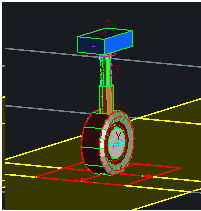
Starting the Tire Test Rig in Adams Car:
1. Select Simulate → Component Analysis → Tire Testrig. This will open the Tire Testrig dialog box as shown below.
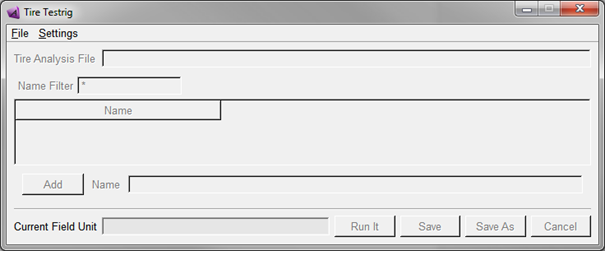
2. Predefined Test Rig analyses database files can be selected by clicking on File → Open.
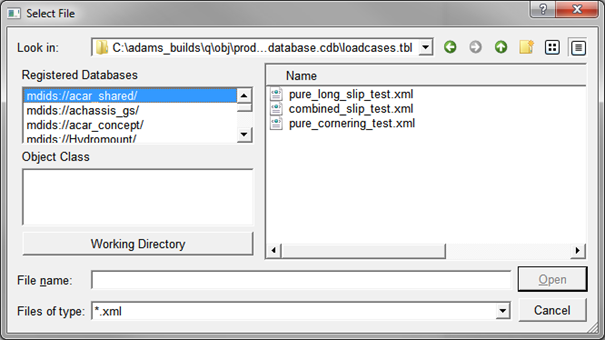
3. In the Registered Databases select mdids://acar_shared/ and pure_cornering_test.xml from the folder and then click Open.
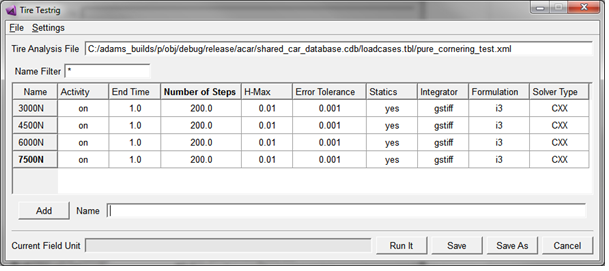
4. Each line represents one simulation with the Tire Test Rig. Clicking on one of the cells in the Name column will allow you to define the simulation specifications in detail. For example clicking on '3000 N' will bring you into the Tire tab.
5. By clicking the Run It button, all specified simulations will be run with the solver and simulation settings as shown. After each simulation the simulation results will be imported into the Adams Postprocessor and a set of standard plots will be created.
6. By clicking the Add button a new analysis will be added with a name specified in the Name box.
7. The set of simulations can be saved in an .xml database file and re-loaded for another session.
Tire Test Rig Inputs
The Test Rig different tab’s and their respective options are explained below:
1. Tire
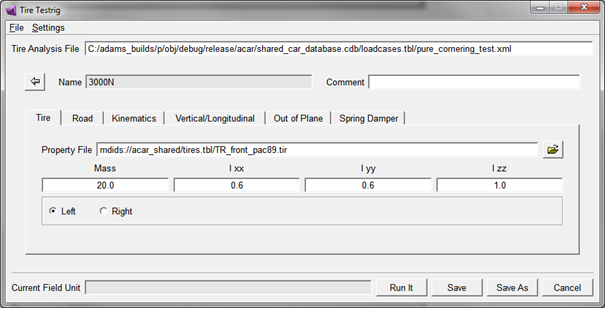
The 'Property File' cell defines the property file to be used in this simulation, while the 'Mass', 'Ixx', 'Iyy' and 'Izz' define the mass and inertia of the wheel and tire (see also Defining Wheel Inertia).
With 'Left' and 'Right' the tire characteristics may be mirrored depending on the mounted side of the tire defined in the tire property file (see section Left and Right Side Tires in the PAC2002 documentation).
2. Road
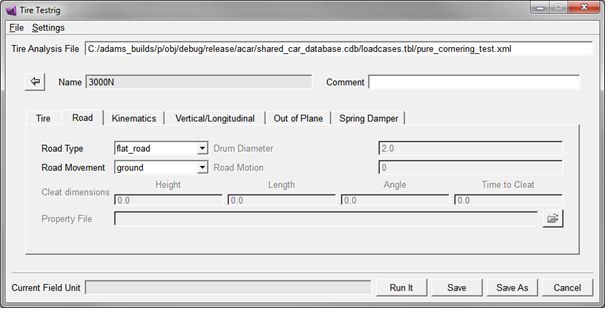
Input | Options | Explanation |
|---|---|---|
Road Type | flat_road | A 2D flat road will be used |
flat_with_cleat | A 2D flat road with a cleat (plank) positioned at a location (Time to Cleat) x (Initial long. Velocity) is used. For the Initial long. Velocity definition, see the Kinematics tab. The 'Height', 'Length' and the 'Angle' of the cleat can be specified. The 'Angle' is the angle in between the plank's x-axis with the road's x-axis. | |
drum_with_cleat | A 2D drum road with a cleat (plank) positioned at a location (Time to Cleat) x (Initial long. Velocity) is used. For the Initial long. Velocity definition, see the Kinematics tab. The 'Height', 'Length' and the 'Angle' of the cleat can be specified. The 'Angle' is the angle in between the plank's x-axis with the road's x-axis. | |
user_defined | Any Adams road property file can be selected | |
Road Movement | ground | The road will be fixed to ground, no movements of the road. |
cambered_road | In the 'Road Motion' cell an Adams (Motion displacement) function expression can be defined to specify a rotational movement of the road around the Test Rig's x-axis. The rotation axis of the camber motion is located at zero road height. | |
forward_moving_road | In the 'Road Motion' cell an Adams (Motion displacement) function expression can be defined to specify a forward movement of the road along the Test Rig's x-axis. | |
lateral_moving_road | In the 'Road Motion' cell an Adams (Motion displacement) function expression can be defined to specify a lateral movement of the road along the Test Rig's y-axis. | |
upward_moving_road | In the 'Road Motion' cell an Adams (Motion displacement) function expression can be defined to specify an upward movement of the road along the Test Rig's z-axis. |
3. Kinematics
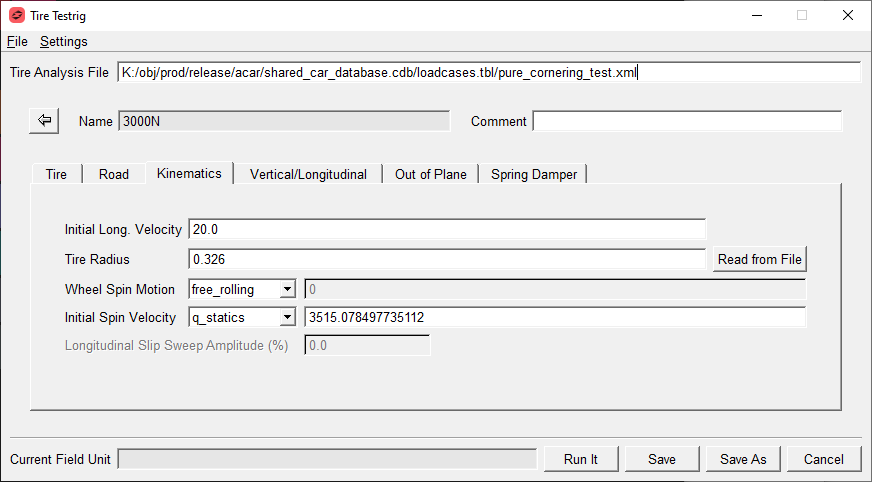
Input | Options | Explanation |
|---|---|---|
Initial. Long. Velocity | - | The initial forward velocity of the wheel with respect to ground at the start of the simulation |
Tire Radius | - | The tire unloaded radius, required to position the wheel exact at the tire radius distance above the road at the beginning of the simulation. By clicking Load from File the unloaded radius will be imported from the tire property files specified under tab Tire. |
Read from File | - | Reads the unloaded tire radius from the tire property file. |
Initial Spin Velocity (at free rolling only) | q_statics | The initial rotational velocity (used at the start of the simulation) of the wheel will be calculated using the 'Tire Radius' and the 'Initial Long. Velocity' by a quasi-statics setup. |
user_defined | The user can specify the initial rotational velocity of the wheel in the cell at the right of this drop down box. | |
Wheel Spin Motion | free_rolling | No rotational motion will be applied to the wheel (free rolling). |
long_slip_sweep | A rotational motion will be applied to the wheel starting at the negative 'Longitudinal Slip Sweep Amplitude' value towards the positive 'Longitudinal Slip Sweep Amplitude' at the end of the simulation. The slip value is based on the 'Initial Long. Velocity' and the 'Tire Radius'. Note: This is true only when the 'Constant Velocity' in the Vertical/Longitudinal tab is equal to the 'Initial Long. Velocity'. Small offsets of the Slip Sweep amplitude may occur due to differences in loaded and effective radius modeling in the tire model. | |
disp_motion | A rotational displacement motion that is applied to the wheel can be defined at the right of the drop down box. | |
vel_motion | A rotational velocity motion that is applied to the wheel can be defined at the right of the drop down box. |
4. Vertical/Longitudinal
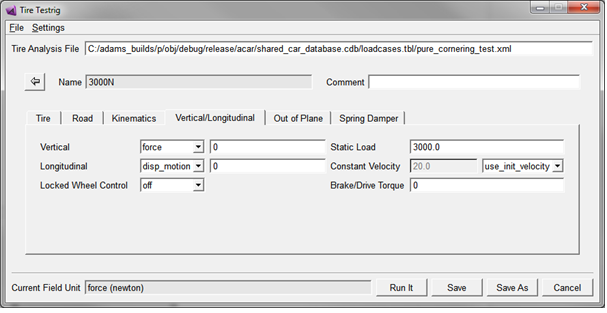
Input | Options | Explanation |
|---|---|---|
Vertical | force | A vertical load/force expression, for a vertical force on the wheel center, can be defined in the cell at the right of this drop down box. For a constant vertical load value the 'Static Load' input box can be used. When the 'force' option is used the wheel can move without any constraints in vertical direction. |
disp_motion | A vertical displacement motion is applied to the wheel center based on the function expression defined at the right side of the drop down box. A zero motion displacement means that the distance in between the wheel center and the road is equal to the Tire Radius defined under tab Kinematics. A positive displacement causes a tire deflection. | |
vel_motion | A vertical velocity motion is applied to the wheel center based on the function expression defined at the right side of the drop down box. In the initial position, the distance of the wheel center to the road is equal to the unloaded tire radius. | |
Longitudinal | force | A force along the x-axis of the tire Test Rig on the wheel center can be defined in the box at the right of this drop down box. |
disp_motion | A displacement motion along the x-axis on the wheel center will be applied as defined at the right of this drop down box. For a displacement equal to a constant velocity, the 'Constant Velocity' input box can be use. The Use Initial Velocity button will import the Initial Long. Velocity value defined under the Kinematics tab. | |
vel_motion | A velocity motion along the x-axis on the wheel center will be applied as defined at the right of this drop down box. For a velocity equal to a constant velocity, the 'Constant Velocity' input box can be used. The Use Initial Velocity button will import the Initial Long. Velocity value defined under the Kinematics tab. | |
Locked Wheel Controller | off | The anti-lock controller is not applied. |
on | A simple anti-lock (torque) controller is applied to the wheel. | |
Brake/Drive Torque | An expression can defined for a rotational torque along the wheel spin axis. |
5. Out of Plane
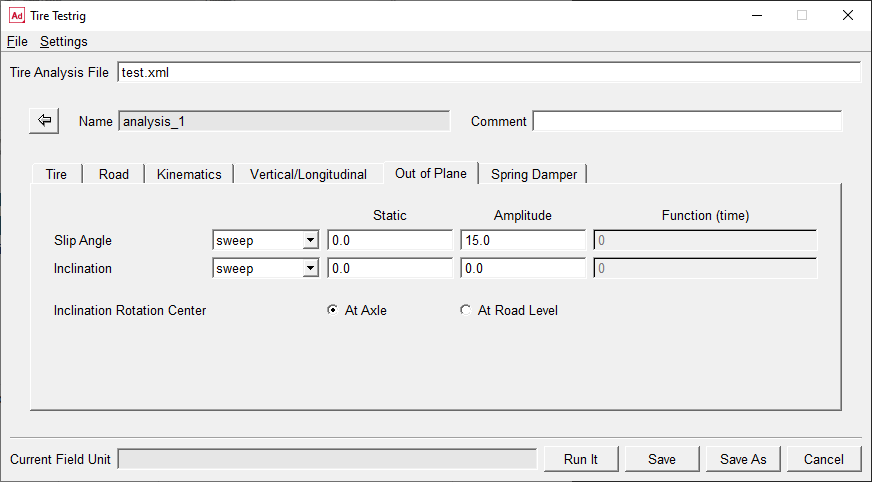
Input | Options | Explanation |
|---|---|---|
Slip Angle | sweep | A sine rotational motion is applied along the vertical axis of the wheel (at the wheel center). A static steer angle and the amplitude of the sweep can be specified. One complete sine period will be performed over the duration of the simulation. |
user_function | An Adams expression can be specified for the rotational motion of the wheel around the vertical axis. | |
Inclination | sweep | A sine rotational motion is applied along the longitudinal axis (x-axis) of the wheel (at the wheel center). A static steer angle and the amplitude of the sweep can be specified. One complete sine period will be performed over the duration of the simulation. |
user_function | An Adams expression can be specified for the rotational motion of the wheel around the longitudinal axis. | |
Inclination Rotation Center | At Axle | The rotation center of the wheel inclination is in the wheel center (default). |
At Road Level | The rotation center of the wheel inclination is at the road level. |
6. Spring Damper
The Spring Damper tab specifies the properties of a spring in between the wheel center and the ground.
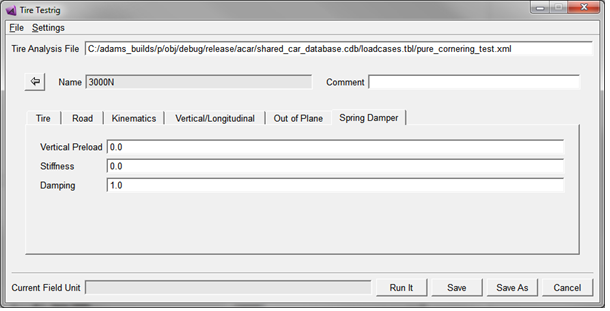
Input | Options | Explanation |
|---|---|---|
Vertical Preload | - | The preload force of the spring in between the wheel center and the ground |
Stiffness | - | The stiffness rate of the spring in between the wheel center and the ground |
Damping | - | The damping rate of the spring in between the wheel center and the ground |
Tire Test Rig Units
User can select and set the preferred unites for the Test Rig inputs by selecting Settings → Units from the Tire Testrig dialog box.
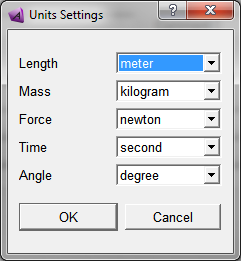
The 'Current Field Unit' informs about the units for the selected input box. The plots generated in the Adams PPT will be in the MMKS unit system by default.
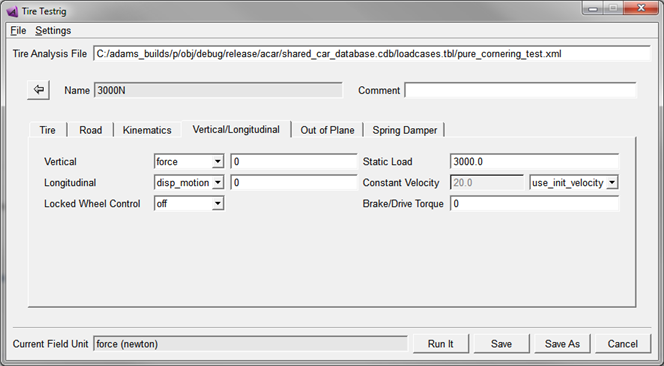
Note: | When switching units, the inputs contain the Adams expressions for a motion or a sforce are not converted. This can be checked by selecting the input box: the 'Current Field Unit' will remain blank! |
Running Tire Test Rig Parallel Simulations
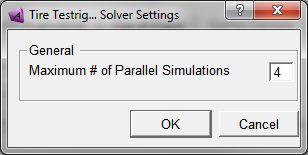
For increasing the test rig response, the tire test rig simulations can be run in parallel mode. When clicking on Settings - Solver Settings, one can specify the maximum parallel simulations.
Tire Test Rig PPT plots
When all tire testrig simulations have been finished, they will be loaded into the Adams Postprocessor and a set of plots will be created according to the default tire_testrig.plt file. The user may define his own specific set of plots by selecting his own plot file in the Settings → Plot File as shown below.
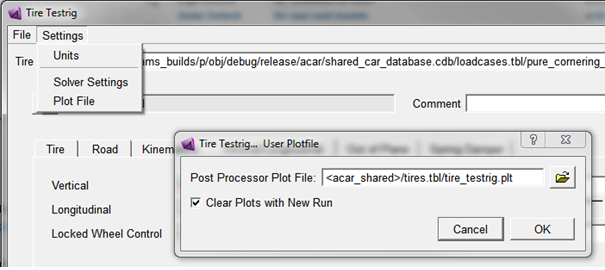
Another plotfile can also be chosen by defining the environment variable MSC_TIRETESTRIG_PLT, for example:
MSC_TIRETESTRIG_PLT=d:/adams/testrig/my_tire_testrig_plots.plt
By setting the checkbox 'Clear Plots with New Run', all plots of a previous run will be deleted before plotting the latest results.
Running the Tire Test Rig in batch
When creating a set of tire testrig simulations and saving the database with ‘Save’ or ‘Save As’, the set of simulations will be saved in .xml format.
The .xml can be used to run the simulations in batch mode. No postprocessor will be started after the simulations, but just the simulations will be executed. An example of a macro (.cmd) running the simulations is given below. This macro executed with the command:
Windows:
<release>\common\mdi.bat acar ru-acar b runtest_batch.cmd
Linux:
<release>/mdi -c acar ru-acar b runtest_batch.cmd exit
With the content of the runtest_batch.cmd (running the tiretestrig_batch.xml):
! example cmd for running tire testrig in batch:
! mdi.bat acar ru-acar b runtest_batch.cmd
!----
!
variable create variable_name=filename string_value="tiretestrig_batch.xml"
!
if condition=(!db_exists(".acar.variables.tireTestrig"))
variable set variable_name=ttmp_pyexe &
int=(eval(run_python_code("from mdi.visedit.common.tiretestrig_editor import *")))
variable set variable_name=ttmp_pyexe &
int=(eval(run_python_code("os.environ[\"MDI_PRODUCT_NAME\"]=\"main\" ")))
variable set variable_name=.acar.variables.tireTestrig &
int=(!eval(run_python_code("w_tire_testrig=TireTestrig_editor()")))
end
!
! for loading the acar databases
!
for var=ttmp_index start=1 end=(eval(cdb_get_number_of_cdbs()))
variable set variable_name=ttmp_name string = (eval(cdb_level2db(ttmp_index)))
variable set variable_name=ttmp_path string = (eval(cdb_alias2path(ttmp_name)))
variable set variable_name=ttmp_pycmd &
string=(eval("w_tire_testrig.addDb ('"//ttmp_name//"','"//ttmp_path//"')"))
variable set variable_name=ttmp_pyexe &
int=(eval(run_python_code(ttmp_pycmd)))
end
!
if condition=(filename != "")
variable set variable_name=ttmp_pyexe &
int=(eval(run_python_code("w_tire_testrig.loadFile ('" // filename // "')")))
variable set variable_name=ttmp_pyexe &
int=(eval(run_python_code("w_tire_testrig.runit_clicked(True)")))
end
!
variable delete variable=(eval(db_filter_name(db_children(.__ACAR,"variable"),"ttmp_*")))