Full-Vehicle Analysis: Constant-Radius Cornering
(Standard Interface) Simulate → Full-Vehicle Analysis → Cornering Events → Constant Radius Cornering
For the option: | Do the following: |
|---|---|
Full-Vehicle Assembly | Select the Full-Vehicle Assembly you want to analyze. The menu lists all full-vehicle assemblies currently open in your session. |
Assembly Variant | Select the assembly variant you want to analyze. The menu lists all full-vehicle assembly variants of the chosen assembly. |
 | Switches to the selected variant and adds the required testrig as needed. |
Output Prefix | Enter a string that specifies the Analysis Output Name. The string can contain only alphanumeric characters and underscores (_). Adams Car appends the suffix _crc to form the complete analysis name. For example, if you enter test_45 as the output prefix, the analysis name becomes test_45_crc. |
Solver Settings File | Select one or more files (extension .ssf) defining the solver settings to be temporarily applied for this simulation (optional). Note: Solver settings files are applied in the order specified, so if multiple .ssf files contain the same solver settings, the last file in the list determines those settings. |
 | Opens the Solver Settings File (extension .ssf) editor dialog box. |
Simulation Mode | Select interactive, background, graphical, files or event only. |
Enter the name of a file that contains road data information. The tire subsystems use this information to calculate the tire/road interaction forces. Tips on Entering File Names in Text Boxes. | |
 | Import and visualize road graphics from file. |
 | Remove road or path graphics. |
 | View road / path file in info window. |
 | Edit road / path file in road builder or text editor. |
Number of Steps / Step Size / Step Frequency | Select either of the following: ■Number of Steps: Specify the number of Output Steps. ■Step Size : Specify the size of the Output Steps. ■Step Frequency : Specify the number for the output frequency. |
Gear Position | Specify the initial transmission gear for the analysis. The powertrain subsystem uses this parameter that generally acts as a gain for the throttle-demand output from the cruise control. Adams Car stores the gear ratios in the powertrain subsystem. |
 | Suggested Gear Position based on desired Initial Velocity (or equivalent lateral acceleration and curvature radius for constant radius cornering events). The button suggests the gear position for the event in order for the engine speed to be in the range between stall speed and max revolution limit. |
Turn Radius | Enter the radius of the circular path. |
Length Units | Select the length units for the turn radius. By default, the length units are the model units. |
Turn Direction | Select a right or a left turn. |
Control | Select one of the following: ■velocity - Control of the vehicle is performed in terms of longitudinal velocity. ■lateral acceleration - Control of the vehicle is performed in terms of lateral acceleration. |
If you set Control to velocity, Adams Car displays the following options: | |
Duration of Maneuver | Enter the time interval during which Adams Car performs the actual constant-radius cornering analysis. This is the time required to get from the initial to the final velocity. |
Initial Velocity | Enter a value for the initial longitudinal velocity of the vehicle (held constant during the approach to the skidpad). |
Final Velocity | Enter a value for the final longitudinal velocity of the vehicle. |
Velocity Units | Select the units of velocity. |
If you set Control to lateral acceleration, Adams Car displays the following options: | |
Duration of Maneuver | Enter the time interval during which Adams Car performs the actual constant-radius cornering analysis. This is the time required to get from the initial to the final acceleration. |
Initial Acceleration | Enter a value for the initial lateral acceleration. |
Final Acceleration | Enter a value for the final lateral acceleration. |
Acceleration Units | Select the units of acceleration. |
Shift Gears | Select it if you want to enable the Driving Machine to change gears during the course of the analysis. A gear change during the analysis introduces transients, which depending on model robustness, can produce undesired effects in the Adams Car Solver. Clear its selection to force the same gear to remain active during the entire analysis. |
Quasi-Static Straight-Line Setup | Select to perform a quasi-static prephase analysis before running the transient analysis on your full-vehicle assemblies. ■For all cornering analyses, selecting this option causes Adams Car to perform a SKID_PAD quasi-static analysis. ■For all other analyses, selecting this option causes Adams Car to perform a STRAIGHT (sometimes called ClearVision adjustment) analysis. If you do not select this option, Adams Car performs a SETTLE analysis. For more information about the different quasi-static setup method keywords (such as SETTLE and STRAIGHT), see Structure of Event Files. Note: ■You cannot select the Quasi-Static Setup option if: You do not have a powertrain subsystem in your vehicle assembly, because it is not possible to set the initial condition for the longitudinal or the lateral dynamics (throttle position). ■There is a known limitation to using the SKID_PAD quasi-static setup for articulated vehicles when the wheelbase of such a vehicle (for example, <atruck_shared>/msc_tractor_semitrailer assembly) is too large as a fraction of the skidpad radius. The lateral acceleration imposed using 'accgra' introduces a small component along the longitudinal axis of the trailer and hitch connection. In combination with the large mass of such a vehicle the driving machine gains may need to be adjusted to better follow the target velocity: 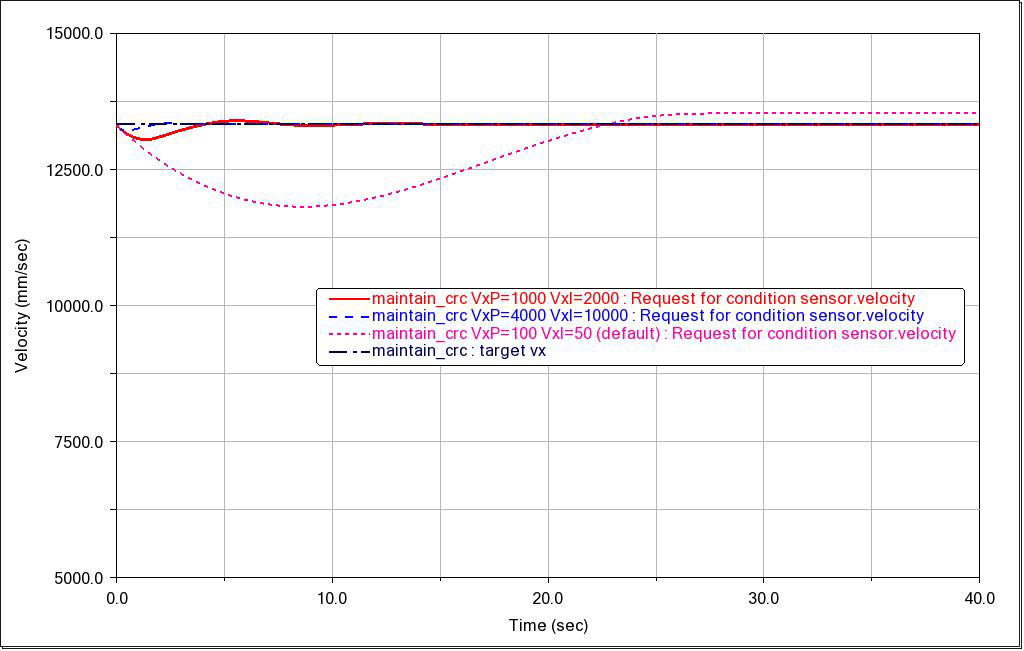 |
If you clear the selection of Quasi-Static Skidpad Setup, Adams Car enables the following two options: | |
Entry Distance | Enter a numerical value that defines the initial straight-line section of the analysis. Use the pull-down menu to select the unit definitions; for example, 20 m. |
Settle Time | Enter a value that describes the duration of the intermediate mini-maneuver INITIAL_SET. See Creating Mini-Maneuvers. Learn more about INITIAL_SET at Structure of Event Files. |
If you set the selection of End Condition, Adams Car enables the following two options: | |
End Condition Type | Select the condition type to be monitored to end the transient analysis of the 2nd mini-maneuver. |
End Condition Trigger | Select the trigger operator and value for the condition sensor type selected above. Please note that the AllowedError and filterTime parameters for the end condition definitions are predefined. Their values can be adjusted by changing the following design variables: ■ACAR.variables.condition_error_array ■ACAR.variables.condition_filter_array The delayTime parameter value is hard coded to be zero. |
Create Event Log File | Select if you want Adams Car to write information about the assembled model and analysis to an Analysis Log File. |
Compute Characteristic Values | Activates requests computing suspension and steering characteristics during the full vehicle event. The additional requests are equivalent to those previously already available for suspension analysis. See Output of Suspension Analyses in Adams Car - Running Analysis for more details. Note: This feature is only available for C++ Solver. |
 | Select to display a dialog box where you can add multi-line comments to any entity, to describe its purpose and function. Adams Car displays different comments dialog boxes, depending on the entity type for which you want to record comments: ■If recording comments for modeling entities in Standard Interface, Adams Car displays the Entity Comments dialog box. ■If recording comments for any other entity type, Adams Car displays the Modify Comment dialog box. Learn about Recording Comments. |
 | Select to display an Alignment dialog box where you can set toe, camber and caster alignment values. |
 | Construct road graphics from event user inputs. |