Running and Configuring Adams
This section of the online help provides you with instructions for running and setting up the Adams® suite of products. It describes:
■Running Adams products.
■Creating user dynamic-link libraries that extend the functionality of Adams and run them with the associated Adams products.
■Configuring Adams products so they work the way you want them to.
Installing Adams
The install guides for Linux and Windows can be accessed through Hexagon Documentation Center https://help.mscsoftware.com/.
Adams Interfaces
There are four types of interfaces that you can use to access Adams products and create libraries of custom operations for the products:
■Adams Toolbar on Linux only- The Adams Toolbar is your starting point to using Adams products. The Toolbar gives you access to the major products you installed. It uses a registry service that maintains values and settings that you need when running Adams.
■Adams Program Folder on Windows only - The Adams program folder is your main starting point for running and customizing Adams products.
■Adams Selection Menu - The Selection Menu is a menu- and text-based interface that allows you to enter information on the command line. You can enter all of the commands on one line to quickly start the product. Note that you cannot access all products nor change all settings from the Selection Menu.
■Command-Line Parameters - You can enter command-line parameters at the command prompt to run Adams.
Although you can use the Adams Selection Menu, on Linux we recommend that you use the Adams Toolbar because it provides an easy-to-use interface and lets you run all products. Because of its advantages, this online help focuses on how to run and configure Adams products using the Adams Toolbar. For information on how to use the Adams Selection Menu, see Selection Menu.
Adams Program Folder on Windows
The Adams program folder on the Start menu is your starting point for running and customizing Adams products. It provides you with access to all the Adams products which you installed. Note that if you are not licensed to run a product, it will not run even though it is in the program folder.
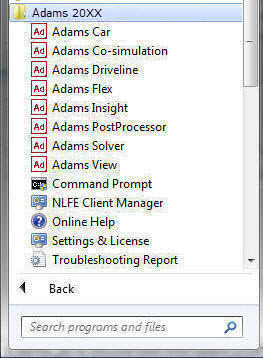
Each of the Adams products is listed in the Adams program folder. You may have fewer items than shown in figure above, depending on which products you installed. The program folder also contains options for creating and running user libraries, for setting Application defaults, and for generating problem reports. The following table groups the options by their function. For example, it groups all options that run products.
The option: | Does the following: |
|---|---|
Product group: Adams Car Adams Co-simulation Adams Driveline Adams Flex Adams Insight Adams PostProcessor Adams Solver Adams View | Runs Adams products. The run options are described in Running Adams Products on Windows and Running Adams Products on Linux. |
Command Prompt | Opens the Adams Selection Window in a Windows command shell. ■Creates user libraries of user-written subroutines to customize Adams products. For more information, see Creating User Libraries. |
Online Help | Starts the Adams online help. |
Settings & License | Sets up passwords and a license server to manage access to Adams products. See the Adams Installation and Operations Guide for more information. Allows you to control the look of your screen through the graphics drivers and select the amount of memory you need for your model. For more information, see Setting Preferences for Adams on Windows or on Linux. |
Troubleshooting Report | Creates a troubleshooting report that examines your system configuration and places important debugging information in the file adams_problem_report.txt. For more information, see Troubleshooting. |
Adams Toolbar on Linux
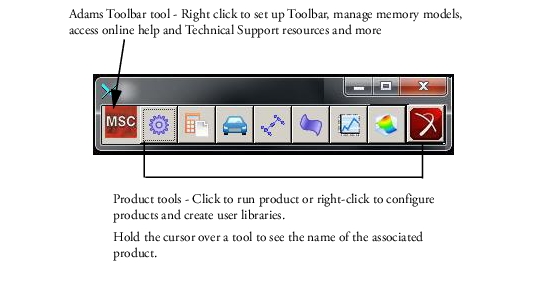
The Adams Toolbar provides access to many of the Adams major products, which all have tools on the Toolbar as shown in the figure below. Adams also has add-on modules or plugins, which expand the functionality of the major products, such as Adams Controls, Adams Durability, and Adams Vibration. You run these products from within the major products. For example, to run Adams Vibration, you first run Adams Car or Adams View and then select the command to run Adams Vibration.
Displaying the Toolbar
Your system administrator typically sets the command required to run the Adams Toolbar. Therefore, before you begin, you need to know the command to display the Adams Toolbar. It is also helpful to know where the software is installed so you can troubleshoot and access examples, demonstrations, and templates that come with Adams products. See your system administrator for assistance.
To start the Adams Toolbar:
■Enter the command to display the Adams Toolbar (the standard command that Hexagon provides is adamsx where x is the version number, for example adams2024_1).
The Adams Toolbar appears as shown next:
Setting Up the Toolbar
You can change the orientation of the Adams Toolbar and remove tools representing products that you do not use frequently. Deleting a tool does not remove it permanently; you can still restore it.
To change the orientation of the Toolbar:
■Right-click the Adams Toolbar tool, and select Horizontal or Vertical depending on the current orientation of the Toolbar.
To remove a product tool from the Toolbar:
■Right-click the tool you want to remove, and then select Remove from Toolbar. For example, to remove the Adams Insight tool, right-click the tool, and then select Remove Adams Insight from Toolbar.
Note: | If you would like to remove a product tool from the Toolbar, you must first be sure that the tool is not set to run the product with a user library. If it is, you can only select to remove the library. To check what a product tool is set to run, see Adams View Preferences. |
To restore all tools to the Toolbar:
■Right-click the Adams Toolbar tool, and then select Reset Icons.
Exiting the Adams Toolbar
To exit the Adams Toolbar:
■Right-click the Adams Toolbar tool, and then select Exit.
Viewing Licensing Information
Using the Adams Toolbar, you can generate a listing of the software for which you are licensed. The listing includes the major version of the products you are running, the number of licenses you have purchased, and the date when the licenses expire.
To view licensing information:
1. Right-click the Adams Toolbar tool, point to Support, and then select License Information.
The Adams License Information dialog box appears.
2. After viewing the information, select Close.