Integrating Custom Events into the Event Browser
Since users usually have many custom events, with corresponding macros and dialog boxes, it is often necessary to be able to integrate those existing customizations into the event browser framework to take advantage of the full capability of Adams Car. Integrating existing custom event macros into the event browser involves the following steps:
1. Create macro for execution of the analysis, optionally create also dialog box or container
2. Create a python class that maps to the event. The macro "acar toolkit event convert" is available to take an existing event macro and convert it into a python class that defines the event.
3. Register the python class to the event framework. The macro "acar toolkit event register" is provided for this purpose.
4. Create the event UDE instance. This can be done either via the macro or dialog box. Mapping is done by providing the reference to the macro.
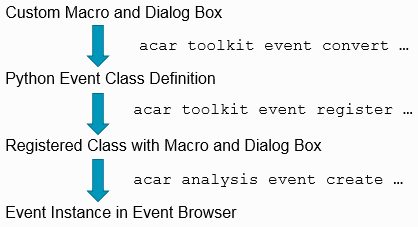
Each of these steps will be outlined in detail below.
Examples of custom events are placed in:
<Adams installation directory>/acar/examples/custom_events/
Creating the analysis custom macro
If a new custom event is needed it is often faster to start from one of the already existing events in the Adams car suite of events. Much of the base functionality will then already be in place. Best is to start with a go-though of the events under the Simulate menu to find something similar to the thought custom event. When the appropriate event has been found the name of the underlying macro is needed.
The event macros for Adams Car are placed under ACAR.macros and typically called something like mac_ana_ful_XYZ_sub (full vehicle events) or mac_ana_sus_XYZ_sub (suspension events) where XYZ is the typically the analysis file suffix, but some exemptions exist for this rule. For example, the suspension event opposite wheel travel which have a longer suffix (opposite_travel).
To export the macro:
1. Go to Tools → Macro → Write
2. Browse the desired macro and optionally specify a filename
3. Press OK. File is written to working directory or specified filename
Add additional functionality to the exported macro. If the event is such that not all functionality happens in the macro but there are also steps happening in python it is also good to find the python class for the event and investigate it. For example, this is true for events that have pre-events. There are examples of such event classes in the folder:
<Adams installation directory>\python\win64\Lib\site-packages\mdi\afc\chassis\
on Windows and on Linux in the folder:
<Adams installation directory>/python/linux64/lib/pythonX.X/site-packages/mdi/afc/chassis/
where pythonX.X may vary with the version of Python Adams is currently using.
If a macro already has been written earlier and used outside of the event framework, it can still be adapted to the event framework to enable that the resulting event is handled in the same way as native events are. But integration into the event framework will be easier if parameter names of the macro follows the Adams Car standard. Hence it is advised that the parameter names of the macros are changed to fit with the standard events. This is easiest done by inspecting the standard analysis macros.
Creating the Event Definition
In order to integrate with the event browser framework in Adams Car, each event must have a "class" definition. This backbone is built using the Python programming language to allow for greater extensibility and to take advantage of the object-oriented features of the language. In order to make conversion easier, a macro ("acar toolkit event convert") is provided to facilitate the conversion into the python event class. The python class can also be created manually if the new event is a variant of an already existing event. Here python inheritance enables to, in large, add only the differences to the python file. See, Custom Event Example 1: Custom Swept Steer Integrated In Standard Dialog Box.
The following table details the parameters to this macro.
acar toolkit event convert &
{macro=<macro_object> &
[{testrig=<existing testrig> class=<base class>}] &
[output_suffix=<output_suffix parameter>] &
[dbox_modify=<existing dialog box object>]
Parameter | Type | Description |
|---|---|---|
macro | Adams View Macro | If provided, this will use the macro provided and convert it into the event definition. [Either macro or file is required]. |
python_file | Filename | If not provided, will use macro name or filename as prefix for the python class. |
testrig | Model | If provided, used to determine the “type” of event. For example, passing the suspension testrig will yield a “suspension” event [either class or testrig can be provided].. |
class | String | If provided, will use the exact test for the base class in the generated event [either class or testrig can be provided]. |
output_suffix | String | Output suffix is required and used for mapping the event. If the macro uses a different parameter than “output_suffix”, it is required to provide it to this parameter. |
dbox_modify | Existing Dialog Box | If provided, will map this dialog box to the event class. Otherwise, no dialog box will be used for modification and a custom table will be used instead. |
Note that this step should be performed once (or whenever the macro changes) to generate the python class and does not need to be performed each time Adams Car starts.
If the event is a full vehicle event it is recommended that the full vehicle analysis common dialog box is used to modify the event. In Adams Car all full vehicle events use the dialog box .ACAR.dboxes.dbox_ana_ful_sub which display containers depending on the event class.
Example for a full vehicle event:
!--- Create event class definition
acar toolkit event convert macro=.myplugin.macros.mac_ana_ful_cus_swp_sub &
testrig=.__MDI_SDI_TESTRIG &
python_file="C:/myplugin/event_classes/mac_ana_ful_cus_swp_sub.py" &
dbox_modify=.ACAR.dboxes.dbox_ana_ful_sub
If the output_suffix is defined in the macro and the name of the container equates cont_ + the output_suffix, the dialog box and correct container will be shown at event modify.
If a standalone dialog box (separate dbox per event) is to be used the call should be something along the lines with:
!--- Create event class definition
acar toolkit event convert macro=.myplugin.macros.mac_ana_ful_cus_swp_sub &
testrig=.__MDI_SDI_TESTRIG &
python_file="C:/myplugin/event_classes/mac_ana_ful_cus_swp_sub.py" &
dbox_modify=.myplugin.dboxes.dbox_ana_ful_cus_swp_sub
Registering the Event Definition
Each event definition must be registered into the current Adams Car session. This enables the event framework to apply the mapping between the custom macro and the class definition. This registration happens via the following macro:
acar toolkit event register &
macro=<macro_object> &
python_file=<filename of python event class> &
[class_name=<event class name in python_file>] &
[class_name=<event class name in python_file>] &
[plugin=<plugin name>]
Parameter | Type | Description |
|---|---|---|
macro | Adams View Macro | Macro to be mapped to the python class [required]. |
python_file | Filename of python class | Python class to be mapped [required]. |
class_name | string | The name of the event class in the python file. If not provided the class name is assumed to be a CamelCase version of the python file name. |
plugin | string | If provided, will “group” the customizations with the plugin. |
Note: | This step must be performed before the event definition is used to create an instance. The macro must also exist in the session. |
The best way of registering event definitions is by making it run automatically by adding the command in the acarAS.cmd/acarBS.cmd, plugin "load" macro in case the event is to be a part of a plugin or in the macro .ACAR.macros.acar_init_site if the event is to be part of a site.
Creating the Event Instance
The final step is to create an event instance that uses the custom event. This enables the event browser to display the instance for modification and/or rerun. This registration happens via the following macro call:
acar analysis event create &
name=<output_prefix>_<output_suffix> &
class=<macro_reference> &
model=<model name>
[attributes=<list of parameter names> values=<list of values]
All the event values must be entered as strings as shown in the example below.
!--- Create event instance
acar analysis event create name="test_custom_event" &
class=.adriveline.macros.mac_ana_ful_con_evt_sub model=.JEEP_RWD &
attributes="end_time", "steps", "cycle_length", &
"time_to_constant_torque", "constant_torque", &
"impulse_start_time", "impulse_amplitude", "analysis_name" &
values="5", "100", "2", "1.0", "500", "2.5", &
"10", "tst_too_cus_evt_01_01"
All parameter values should be entered as strings and if the value to an attribute is for example a vector of values, then the values should be enclosed in hard brackets like so: "[1, 2 ,5 ,6]" . At the completion of this command the event is created in the default event set.
If no dialog box is defined for the event upon display of the event browser, a custom table will display all the attributes of the event directly in the event browser. For example:
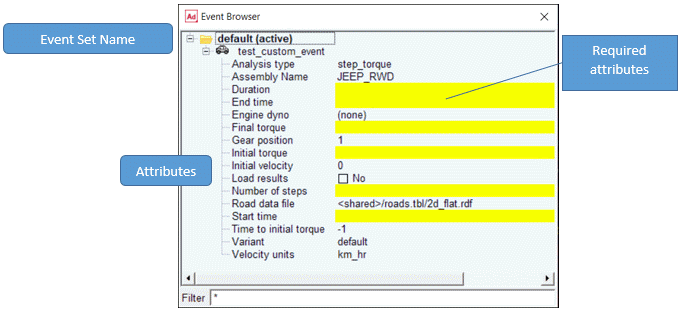
Note: | Creation of the event instance is easily automated by placing this command in either the macro or dialog box itself. In Adams Car standard events, the event instance is typically created in the dialog box execution commands. |
Assigning a Dialog Box to a Custom Event
There are several ways to make a custom event having a dialog box connected to it in the event framework. Using a custom container in the standard dialog or using a separate dialog box. If an advanced dialog box has already been built it may be the right choice to let the event have a separate dialog box and integrate it into the event workflow. However, for most cases the best practise is to use the standard dialog boxes and switch containers depending on event. Another option is to make a copy of the standard dialog box with a new name, remove the standard containers and insert the custom ones. The third option is to use a complete standalone dialog box for each new analysis. It may seem tempting to use a standalone dialog box for each event but, but if the number of custom events become more than a few then the first or second option will result in an easier code to maintain over time. The first option will also make it easier to make use of additions made to Adams Car the future.
Using a container in standard dialog box
For full vehicle events, to integrate the event seamlessly it is best to use the dialog box .ACAR.dboxes.dbox_ana_ful_sub as this dialog box already handles many of the standard input to a macro such as Variant, Output Prefix, Analysis Mode, End time, solver Settings file. It is important to know that the custom macro may need changes to accommodate these inputs if they are not present today.
To use this dialog box, a container for the event should be prepared. By naming convention, the three last letters of the output suffix are used together with the prefix cont_ as the name of the container. So if the output suffix of the event is "abc" then the name of the container should be cont_abc. In the session it should be created under the dialog box .ACAR.dboxes.dbox_ana_ful_sub. It is also important for this case to set the variable $_topgui.className to the custom macro name in case the macro name is not matching .ACAR.macros.mac_ana_ful_abc_sub.
To understand how this works it is recommended to study a few containers in the dialog box editor and/or export it to disk for study there. To export a container for example, the Swept Steer event do the following:
1. Go to Simulate → Full-Vehicle Analysis → Open-Loop Steering Events → Swept Steer. This shows the full vehicle analysis dialog box with the container in question active and displayed.
2. Go to Tools → Dialog Box → Modify. This shows the Database Navigator
3. Select ACAR.dboxes.dbox_ana_ful_sub and press OK. This shows the Dialog-Box Builder and starts modification of dbox_ana_ful_sub. This is shown as by coloring the dialog box differently and that the title of the dialog box is changed. Also, this can be seen in that the text below the buttons in the Dialog Box Builder. It says Dialog box "dbox_ana_ful_sub".
4. In Dialog-Box Builder go to Edit → Select and select ACAR.dboxes.dbox_ana_ful_sub.cont_swp and press OK. This highlights the container in a different color.
5. In Dialog-Box Builder go to Edit → Attributes. This changes the modification of the dialog box to modification of the container. This can be seen in that the text below the buttons in the Dialog Box Builder changes to 'Container "cont_swp"'.
6. Export the container by going to File → Export → Command File. The file cont_swp.cmd is written to the working directory.
Placing it under the dialog box could easiest be done if a site is used as the modifications to the dialog box during site build then would be preserved in the site binary. If the event is to be placed in a plugin then the dialog box should be extended with the container during for example the load macro of the plugin. Modifications can also be done in acarAS.cmd/acarBS.cmd
For suspension analysis the process is analogue to the process of the full vehicle event but the container should be placed under the dialog box .ACAR.dboxes.dbox_ana_sus_sub.
It is of course also possible to create a custom separate dialog box which switches container just like the standard dialog boxes depending on event.
A complete example on how to integrate an analysis as an event into the standard dialog box is available in:
<Adams installation directory>/acar/examples/custom_events/multi_stepped_steer/
event_framework_common_dbox/
event_framework_common_dbox/
A complete example on how to integrate an analysis as an event into a separate dialog box is available in:
<Adams installation directory>/acar/examples/custom_events/multi_stepped_steer/
event_framework_separate_dbox/
Both the above examples can be compared (using a file comparison tool) to the unaltered classic custom analysis which is not adapted to the event framework. It is placed here:
<Adams installation directory>/acar/examples/custom_events/multi_stepped_steer/classic/
Adapting the dialog box or container to work with event instances
In general, there are two sets of commands that need to be modified to work with the event instance:
■The dialog box/container start-up commands should be changed to populate the dialog box/container with the event parameters
■The dialog box/container execution commands should be changed to create (or modify) the event instance, populate it with the current inputs, and execute the event.
The start commands are used to populate the dialog box upon selecting Modify from the Event Browser. The dialog box will be called with the following parameters:
$_1: event suffix, used by the standard dialog box in case of container to display the correct
container. It is typically not used if standalone dialog box.
$_2: event UDE, used to determine "create" vs "modify" modes
The general procedure for populating interface objects is to for each attribute extract the value from the event instance using a function depending on the type of value it contains:
where e is the event instance and <member_name> is the name of the attribute from the python class (usually the same as corresponding macro parameter).
There are three functions. One for integers one for strings, and one for reals, They all take a string argument as input which should evaluate as a python expression. The value is returned as the type the function name indicates. If the values could not be evaluated an empty string is returned or the value -1234567890 in case of integers and reals.
For example, the o_no_of_turns option menu, the r_turn_direction radio box and the f_wait_time and f_steer_angles fields of a container or a separate dialog box can be set like this:
if condition=(db_exists('$_2'))
interface option_menu set option_menu=$_self.o_no_of_turns &
value=(eval(py_eval_int('e.no_of_turns()'))) execute=yes
interface radio_box set radio_box_name=$_self.r_turn_direction &
choice=(eval(py_eval_str('e.turn_direction()'))) execute=yes
interface field set field=$_self.f_wait_time &
string=(eval(py_eval_real('e.wait_time()'))) execute=yes
interface field set field=$_self.f_steer_angles &
string=(eval(STR_MERGE_STRINGS(',',py_eval_real('e.steer_angles()')))) execute=yes
… (more commands for remaining interface objects to be set upon modification of the event)
end
The same commands can be used for a container or a separate dialog box, but for a separate dialog box the event instance python variable, e must be created in beforehand by using the python command:
e = acar_event_utils.ude_to_instance('$_2')
or (in Adams command language):
variable set variable_name=$_self.pyexe
int=(eval(run_python_code("e = acar_event_utils.ude_to_instance('$_2')")
For a container in the standard dialog box the variable e is already set during start of the dialog box.
For the execution commands, the process is to replace the macro call (that is, "acar analysis full_vehicle …) with:
■Event UDE creation command (acar analysis event create …)
■Event UDE modify command (acar analysis event modify …)
■Event UDE execution command (acar analysis instance execute …)
In a standalone dialog box, the following commands should be added in the execution commands to create the event (and to modify it)
if condition=(db_exists('$_2'))
variable set variable=$_self.eventUDE object=$_2
else
acar analysis event create name='$f_output_prefix' &
class=<macro_reference>
variable set variable=$_self.eventUDE &
object=(eval(db_default('.system_defaults', 'ac_event')))
end
For a container in the standard dialog box a variable called $_topgui.eventUDE is already created present and can be used for modification of the event.
In the container execution commands or after the above commands in the standalone dialog boxcommands like the following should be added to set the attributes of the event (typically the macro parameters):
acar analysis event modify &
event=(eval($_topgui.eventUDE)) &
model=$o_assembly &
attributes="turn_direction", &
"turn_radius", &
"length_units", &
"steer_angles", &
"output_prefix" &
values="$r_turn_direction", &
"$f_turn_radius", &
"$o_length_units", &
"[$ steer_angles]", &
"$f_output_prefix"
There may be multiple calls to this macro changing all the attributes of the event. Only the "event", "attributes" and "values" parameters are required in the call to this macro.
Finally, the following commands should be added to the execution commands of the separate dialog box only to show the event browser or run the simulation in addition to removal of the temporary variables:
if condition=('$o_analysis_mode' == 'event_only')
variable set variable=$_self.tmp
integer=(eval(run_python_code('__ACAR_EB.show()')))
else
acar analysis instance event execute &
instance_name=(eval($_self.eventUDE))
analysis_mode=$o_analysis_mode
end
! Cleanup of used variables.
variable delete &
variable=(eval(db_filter_name(db_children($_self,'variable'),'tmp*')))
variable delete variable=$_self.eventUDE
To support modification and creation only, without running the event the event_only simulation mode the analysis_mode should be added to the simulation model option menu in case of a separate dialog box.
In case of container, execution of the event and clean-up is performed but the standard dialog box.
Getting the custom events into the Adams environment
The last step after objects have been modified is to make the changes persistent over sessions and most often also available for other users within the organization. Adam Car offers several ways of accomplishing this.
The simplest way is just to include commands in acarAS.cmd file in the home or working directory. Other options are inclusion in a plugin or a personal or company site.
All the provided examples contain a file called readin.cmd which contains all the needed commands which have to be placed in the site /plugin/acarAS.cmd.
Inclusion in acarAS.cmd
By adding the commands to read macro and dialog box / container together with registering an event to the file acarAS.cmd the event will become available for usage by the local user. This is a great way to go when the event is being developed as changes take effect immediately after restart. Once the event is working and mature it is recommended that the event is included in a site or a plugin instead as this will facilitate sharing and lead to faster start up times of Adams Car.
Inclusion in a site
In site building scripts load the macro into the session as how it would be done with any macro, eg
macro read macro=.my_company.macros.mac_ana_ful_cus_swp_sub &
file_name="<site build source path>/macros/mac_ana_ful_cus_swp_sub.cmd" &
user_entered_command="my_company analysis full_vehicle custom_swept_steer"
where <site build source path>/macros is the location to where the macro is placed.
Read also the commands to update the full vehicle analysis dialog box with the new container:
file command read file_name=<site build source path>/dboxes/cont_swp_cus.cmd
where <site build source path>/dboxes is the location to where the container update file is placed.
Add the following lines to the macro .ACAR.macros.acar_init_site (this shall be created when building the site) to connect the macro with the python file.
acar toolkit event register &
macro=.my_company.macros.mac_ana_ful_cus_swp_sub & python_file=(eval(getenv("MDI_ACAR_SITE")/event_classes/cust_swept_steer.py)
The macro .ACAR.macros.acar_init_site is executed when Adams starts and the site has been loaded, that is, the commands will be executed when Adams opens for usage and not during building of the site.
Inclusion in a plugin
In plugin building scripts load the macro into the session as how it would be done with any macro, for example,
macro read macro=.my_plugin.macros.mac_ana_ful_cus_swp_sub &
file_name="<plugin build source path>/macros/mac_ana_ful_cus_swp_sub.cmd" &
user_entered_command="my_plugin analysis full_vehicle custom_swept_steer"
where <plugin build source path>/macros is the location to where the macro is placed.
Read also the commands to update the full vehicle analysis dialog box with the new container:
file command read file_name=<plugin build source path>/dboxes/cont_swp_cus.cmd
where <plugin build source path>/dboxes is the location to where the container update file is placed.
Add the following lines to the macro .my_plugin.load to connect the macro with the python file.
acar toolkit event register &
macro=.my_company.macros.mac_ana_ful_cus_swp_sub & python_file=(eval(getenv("MDI_ACAR_SITE")/event_classes/cust_swept_steer.py)
The macro.ACAR.macros.load is executed when Adams starts and the plugin is loaded, that is, the commands will be executed when Adams opens for usage and not during building of the plugin.
To make the dialog box F1 help work, place the single file html file: dbox_ana_ful_swp_cus_sub.mht in a folder called /help/dialog_boxes/ (see documentation_text in cont_swp_cus.cmd) under the folder of one of the paths listed in MDI_USER_PLUGIN_DIR or change the path in documentation_text in the container to a hardcoded path.
Custom Event Integration Examples
An example where a custom event is created in which the steering function attribute of a swept steer event is updated using an added field in a custom container. See, Custom Event Example 1: Custom Swept Steer Integrated In Standard Dialog Box.
Three sets of files showing how a classic analysis is transformed to an event using standalone dialog box and common dialog box methods. See, Custom Event Example 2: Transforming An Existing Analysis Into An Event.
Two simulations brought together forming a single event where the second simulation is taking results from the first simulation as input. Results are shown in a custom report and in a custom plot for the event. See, Custom Event Example 3: Pre-event, report, and plot config files.
Appendix: Related command line language reference
To create a new event set using Adams command language:
acar analysis event_set create &
event_set_name = <new_event_set_name> &
make_active = yes/no &
add_suffix_if_exist = yes/no &
error_variable = <Adams integer variable>
Parameter | Type | Description |
|---|---|---|
event_set_name | String | Name of the new event set to create |
make_active | Plugin | Decide if the created event set also will be the active one (optional, default: yes) |
add_suffix_if_exist | Filename of python class | If the event set already exists, we can optionally add a suffix to the name, for example: _1 (optional, default: no) |
error_variable | Filename of python class | An integer variable which value will be set to 1 if an error is raised during creation |
The same thing in python language can be done like this:
__ACAR_EB.new_event_set('<new event set name', add_suffix_if_exists=True/False, make_active=False/True)
To activate an event set using Adams command language
acar analysis event_set set_active
event_set_name = <new_event_set_name>
event_set_name = <new_event_set_name>
Parameter | Type | Description |
|---|---|---|
event_set_name | Library | The event set to activate |
error_variable | Filename of python class | An integer variable which value will be set to 1 if an error is raised during activation |