Changing Modal Content
The Flexible Body Modify dialog box lets you manage which modes of your flexible body you want included during a simulation. To help you determine which modes to include, you can view each mode individually and animate its deformations.
Learn more about how to change the properties of your flexible body:
About Flexible Body Modal Content
By default, when you create a flexible body from a Modal Neutral File (MNF) file in Adams View, Adams Flex enables all modes in the MNF except those that it considers rigid body modes. Because Adams Flex supplies each flexible body with six nonlinear rigid body degrees-of-freedom, you can get a singularity in the results if you try to run a simulation with the rigid body modes enabled. Note, however, that because the zero natural frequency of a rigid body mode is sometimes inaccurate, Adams Flex sometimes fails to recognize a rigid body mode. If that happens, you need to disable the rigid body mode as explained in Enabling and Disabling Modes.
To increase the efficiency of simulations, you should disable any modes that do not contribute to the motion that you are attempting to model. You should use caution when disabling modes, however. Once you disable a mode, the flexible body cannot take on the particular shape of the disabled mode. This is the same as applying a constraint to the model.
Using Adams Flex, you can enable and disable modes individually based on their mode number or strain energy contribution, as a group based on their mode number or frequency, and through a table that lets you view all modes at once.
Viewing Modes
When you create a flexible body from a Modal Neutral File (MNF) in Adams View, Adams Flex calculates the number of modes in the flexible body. It displays the number of modes on the Flexible Body Modify dialog box as shown below.
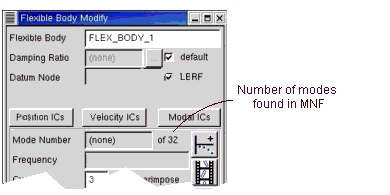
Mode Display in Flexible Body Modify Dialog Box
When you display a mode, Adams Flex displays its frequency in the Frequency text box. Also, when you display a mode, the mode deformations appear along with the undeformed flexible body. You can turn this off to display only the deformed mode.
To display a specific mode:
■In the Mode Number text box, enter the mode number, and then press Enter.
To view the next mode:
■Select the Next Mode tool  .
.
.To view the previous mode:
■Select the Previous Mode tool  .
.
.To select a mode based on its frequency:
■In the Frequency text box, enter the frequency, and then press Enter.
The mode closest to the specified frequency appears.
To turn off superimposing:
■Clear the selection of Superimpose.
Note: | You can also filter out graphically insignificant modes before running an animation. Learn more about Filtering Modes |
Animating a Mode
The Flexible Body Modify dialog box contains an Animate tool  that lets you animate a particular mode to see how it deforms. By default, the animation runs 3 times or through 3 cycles.
that lets you animate a particular mode to see how it deforms. By default, the animation runs 3 times or through 3 cycles.The location of the Animate tool is shown below. You can also use the Animation tool on the Main toolbox to animate the entire model containing the flexible body after you've run a simulation.
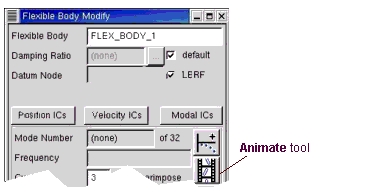
Animate Tool on Flexible Body Modify Dialog Box
To animate a mode:
1. View the mode that you want to animate as explained in Viewing Modes.
2. In the Cycles text box, enter the number of animation cycles.
3. Select the Animate tool .
.Note: | You can also filter out graphically insignificant modes before running an animation. Learn more. |
Enabling and Disabling Modes
You can enable and disable modes in the following ways:
Enabling and Disabling Modes Individually
To enable or disable modes individually based on their number:
1. View the mode that you want to enable or disable as explained in the Viewing Modes.
2. In the Flexible Body Modify dialog box, select Disable or Enable as appropriate. If you disable a mode, its mode number and natural frequency appear in parentheses.
3. Select OK.
Enabling and Disabling Groups of Modes
You can disable or enable a group of modes based on either their mode number or frequency by entering a range of values in a dialog box or by selecting the modes from a table.
To enable or disable a range of modes through a dialog box:
1. From the Flexible Body Modify dialog box, select range.
The Enable or Disable a Range of Modes dialog box appears.
2. Select the options from the dialog box to set how you'd like to disable or enable the range, and select OK.
3. From the Flexible Body Modify dialog box, select OK.
To disable or enable range of modes using a table:
1. From the Flexible Body Modify dialog box, select Modal ICs.
The Modify Modal ICs dialog box appears. Click here for an image. It displays all the modes in the flexible body. An asterisk (*) appears next to all modes that are enabled.
2. Highlight the modes that you want to enable or disable.
3. Select Disable Highlighted Modes or Enable Highlighted Modes.
4. Select Close to return to the Flexible Body Modify dialog box.
Enabling and Disabling Modes Based on Strain Energy Contribution
After performing a pilot simulation, you can disable those modes that do not significantly contribute to the total strain energy of a flexible body. You can set Adams View to automatically disable any modes that contributed less than a specified fraction of the total strain energy during the test simulation. After disabling the modes that do not significantly contribute to strain energy, simulation times should be reduced.
The pilot simulation that you run should be typical of the simulations that you are going to run on the flexible body. Disabling a particular set of modes based on the simulation of one event might be totally inappropriate when simulating another unrelated event.
An important energy contribution from a model might be of a short duration that its total energy can seem insignificant but yet the mode is important to the simulation. For example, although the strain energy a mode contributes may be quite low compared to the total strain energy for the entire simulation, Adams Solver may be unable to complete the simulation without the mode. Therefore, you should choose a very conservative strain energy fraction (for example, 0.001 or smaller). If a mode is truly inactive, it will be disabled in spite of a low setting.
Disabling an important mode can adversely affect the numerical conditioning of a flexible body model, however. The computational savings that you gain by disabling a mode can be quickly lost by the computational cost of a difficult simulation.
To disable or enable modes based on their contribution of strain energy:
1. Run a pilot simulation of the model containing the flexible body.
2. From the Flexible Body Modify dialog box, select auto.
The Auto Disable Modes by Strain Energy dialog box appears.
3. In the Analysis Name text box, enter the name of the pilot simulation.
4. In the Energy Tolerance text box, enter a fractional value. Adams Flex will disable all modes that contributed less than the specified fraction to the total strain energy during the test simulation. For example, to disable all modes that contributed less than 0.1% of the strain energy, enter 0.001.
5. Select OK.