Setting Up Translation Options through the MNF Toolkit
You can set up the translation of FE data using the MNF toolkit.
Learn more:
Note: | All environment variable examples are shown for the C-shell. Make the appropriate changes for a Bourne shell derivative. |
About the MNF Toolkit
The MNF toolkit is a library of functions that assists third-party developers of FE model translators. MSC Nastran, MSC Marc, ANSYS, I-DEAS, and ABAQUS use the MNF toolkit to generate MNFs. The MNF toolkit is highly flexible and easy to configure using environment variables.
Because the MNF toolkit is embedded in third-party products, you communicate with it through the MDI_MNFWRITE_OPTIONS environment variable, shown below, where options is a set of options you can set as explained in the list below:
MDI_MNFWRITE_OPTIONS options
You can combine the options in any order with no particular separation of the keywords. For example, you can enter:
setenv MDI_MNFWRITE_OPTIONS "fast_invar, MKS, strip_face"
Automatic Interior Geometry Removal
To enhance graphics performance, the MNF toolkit can recognize certain interior geometry, such as the mated faces of two brick elements, and remove it. When used with invariants computation (explained on subsequent help topics), removing interior geometry can significantly reduce the size of an MNF.
To turn on the removal of interior geometry, type the following in a shell prompt before running the FE model translator:
setenv MDI_MNFWRITE_OPTIONS "strip_face"
Note that when you use strip_face with the option for invariants computation, Adams Flex removes FE model nodes that were only connected to geometry it also removed. Occasionally, you may find this undesirable when a particular interior node is to be the target for an attachment in Adams. To prevent node removal, connect the node with exterior nodes (for example, using zero stiffness, zero mass, and beam elements).
Automatic Modal Load (MFORCE) Nodes Optimizer
Allow the MNF Optimizer to remove nodes that have modal loads defined. All modal load nodes are retained by default so that detailed MFORCE plots can be generated in View. This may result in exported MNF that are larger than expected in size when modal loads are defined. If detailed MFORCE plotting is not necessary and smaller MNF is required, then you can set this option to also eliminate modal load nodes when optimizing the MNF.
To turn on the modal load nodes optimizer, type the following in a shell prompt before running the FE model translator:
setenv MDI_MNFWRITE_OPTIONS "optimize_mforce_nodes"
Automatic Mesh Coarsening
Finite element (FE) models used with Adams frequently contain greater detail than that required for dynamic simulations. The MNF toolkit can coarsen the mesh without losing significant geometric features. When you use the mesh coarsening option with the invariants computation option, mesh coarsening can significantly reduce the size of the MNF.
For an example of mesh coarsening, see Knowledge Base Article:
To turn mesh coarsening on, type the following at a shell prompt before running the FE model translator:
setenv MDI_MNFWRITE_OPTIONS "coarsen(res,ang,colin,N1,N2,...)"
where:
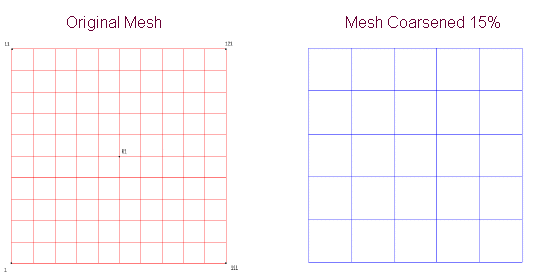
res | The desired resolution, which is the fraction of the total component size below which Adams Flex removes the detail of the mesh. For example, if your component is approximately 1 meter long, and you select 15% mesh resolution, the coarsening results in a mesh with 15 cm-wide mesh cells. You enter the percentage as a fraction. Example of Mesh Resolution. |
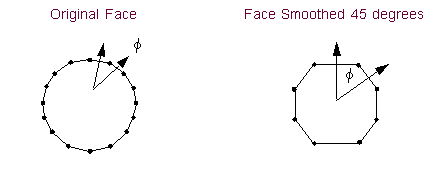
ang | The angle tolerance for parallel faces, in degrees, below which Adams Flex merges faces. For example, if you select 15, the coarsening algorithm does not merge two faces when one face is more than 15o out of the plane of the other face. Example of Face Smoothing. |
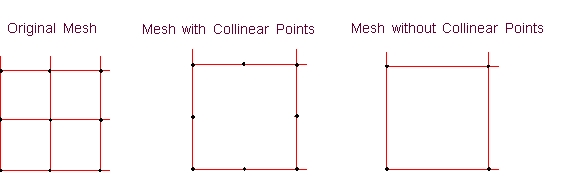
colin | 1 if you want to remove the nodes that are intermediate nodes on the straight edge of a face, or 0 if you do not want to control the nodes. Example of Collinear Point Removal. |
N1,N2,... | List of nodes that Adams Flex should not remove. Only visible nodes can be used to place markers, joints, and so on, onto the flexible body. Therefore, make sure to include relevant nodes. |
For example, if you want res to be 20% and ang to be 15 degrees, the syntax is:
setenv MDI_MNFWRITE_OPTIONS "coarsen(0.20,15,0)"
Note that you must enter the percentage as a fraction and it must be within the accepted range:
■Mesh Resolution, res: 0.0 to 0.50
■Angle Tolerance, ang: 0.0 to 45.0 degrees
If you exceed the limits of this range, Adams Flex uses the default values of 0.02 for res and 10 degrees for ang.
Example of Mesh Resolution
In the following example:
■Diagonal dimension of original mesh = 1000 *  = 1414.21 mm
= 1414.21 mm Mesh coarsening resolution is set to 15% = 1414.21 * .15 = 212.13 mm
Therefore, any element whose diagonal is smaller than 212.13 mm is combined with its neighboring element to produce a larger element. Multiple elements are combined to satisfy this parameter. The result is a coarser mesh.
For this example, 4 (100 mm * 100 mm) elements were combined to produce a larger element with a diagonal of 282.84.
Example of Face Smoothing
During the coarsening algorithm, the adjacent elements in the following example were merged together if the resulting angle, phi, was less than 45 degrees.
Example of Collinear Point Removal
Advanced Automatic Mesh Coarsening
Another automatic coarsening option is available which is more powerful and efficient for reducing the size of huge Flex file (MNF or MD DB). This advanced option generates a reduced Flex file and a sketch file to be applied. The reduced Flex file is no different from a physical perspective, but much lighter for graphical display purposes, while significant faces are retained to provide suitable animation of the flex body.
To turn advanced mesh coarsening on, type the following at the flextk shell prompt before running the mnf2mtx translator:
setenv MDI_MNFWRITE_OPTIONS "adv_coarsen(res,ang,sketch_file,N1,N2,...)"
where:
res | The desired resolution, which accepts one of the following string options ■Light ■Standard ■Aggressive “Aggressive” option performs the heaviest coarsening algorithm which results in the smallest Flex file size. “Standard” is not as aggressive and results in a slightly larger file size compared to “Aggressive”. “Light” is the least aggressive of the options which results in slightly larger file size from standard. Note: Only one of these strings is allowed. |
ang | The angle setting for edge control of adjacent mesh faces. If edge control is desired, then specify ang to be a nonzero positive integer value in degrees; otherwise enter a zero (0). |
sketch_file | Specify the name of the sketch file applied to reduce Flex file if desired. Default is the prefix of a reduced Flex file name. |
N1,N2,... | List of nodes that Adams Flex should not remove in addition to the interface nodes. Only retained nodes can be used to place markers, joints, and so on, onto the flexible body. Therefore, make sure to include relevant nodes. No need to specify interface nodes since they are always retained. |
An example of using this advanced mesh simplification capability and reduce an MNF named big.mnf is as follows
setenv MDI_MNFWRITE_OPTIONS "adv_coarsen(standard, 45, reduced_sketch, 110, 220, 455, 934, 1182)"
Then specify the following for the flextk command:
mnf2mtx big.mnf -O reduced_flex
This employs the standard coarsening option with edge control at 45 degree, and preserving nodes 110, 220, 455, 923 and 1182 in the MNF, resulting in 2 new files being generated:
■reduced_sketch.ske
■reduced_flex.mnf
For more information on environment variables, see Adams Flex Environment Variables.
Manual Mesh Simplification
You can also manually reduce the mesh down to a user-defined sketch of the mesh using the MNF toolkit. If the visual representation of the flexible body is less important than animation speed or file size, then this technique may be ideal. Note that the MNF toolkit only eliminates disconnected nodes from the MNF if you also requested precomputation of invariants. Therefore, to reduce the size of the Modal Neutral File (MNF), you must both coarsen the mesh and request that the invariants be computed. In addition, remember that you can only place markers on nodes; therefore, any flexible body node where you might place a marker must be represented in the simplified mesh.
You use a sketch file to describe the mesh. The format of the sketch file, which describes the mesh as a collection of faces, must be as follows:
face_count
face_1_node_count face_1_nodeid_1 face_1_nodeid_2 ...
face_2_node_count face_2_nodeid_1 face_2_nodeid_2 ...
<etc>
Faces must have a node count of at least two. For example, a mesh comprised of a single brick element might be described as follows:
6
4 1000 1001 1002 1003
4 1007 1006 1005 1004
4 1000 1004 1005 1001
4 1001 1005 1006 1002
4 1002 1006 1007 1003
4 1003 1007 1004 1000
Alternatively, the mesh might be described as a stick figure using a collection of lines (two node faces), as shown below:
8
2 101 102
2 102 103
2 103 104
2 104 105
2 105 106
2 106 107
2 107 108
2 108 109
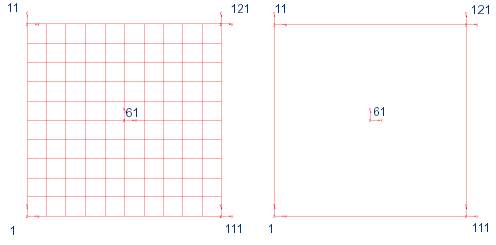
Example of manual mesh simplification
Sketch File and Result
2 Number of total faces
4 1 11 121 111 4 total nodes defining the face. The face connects nodes 1, 11, 121, and 111.
1 61 1 node defining this face. The face just contains node 61.
To turn on manual simplification, type the following at a prompt before running the FE model translator:
setenv MDI_MNFWRITE_OPTIONS "sketch(mysketch.dat) fast_invar"
Do not combine manual mesh simplification with any of the automatic mesh reduction methods.
Invariants Computation
The MNF toolkit lets you compute the modal flexibility inertia invariants and store them in the MNF. If the invariants are in the Modal Neutral File (MNF), the mnf2mtx translator, which translates an MNF to a matrix file, selects the required invariant components from the invariants stored in the MNF rather than recomputing them.
To turn on the computation of invariants, type either of the following at a C-shell prompt before running the FE model translator:
setenv MDI_MNFWRITE_OPTIONS "full_invar"
setenv MDI_MNFWRITE_OPTIONS "fast_invar"
where:
full_invar | Computes all nine invariants. |
fast_invar | Suppresses the computation of the more computationally expensive invariants five and nine. Note that fast_invar corresponds to the Partial Coupling formulation for modal flexibility. The fast_invar setting is also suitable for use with the Constant Coupling formulation. Only Full Coupling requires all nine invariants. Unless you think you might need Full Coupling, you can safely select fast_invar. (For more information on interia coupling, see Modifying the Modal Formulation.) |
Note also that when you use either fast_invar or full_invar with the internal geometry removal or mesh coarsening option described earlier, the MNF toolkit discards disconnected nodes after computing their invariant contribution, therefore, greatly reducing the size of the MNF.
Optimized Units
The output of an FEA program is labeled with the units of the data and the FE model translator, by default, transfers the labels to the Modal Neutral File (MNF) . When you use the MNF with Adams View, Adams View transfers all the data in the MNF into its internal units (SI), which are meters, kilogram, seconds, and Newtons. Adams View performs the unit scaling as it performs operations, which can significantly degrade performance. As an alternative, you can store the data in the MNF in SI units.
To store the data in the MNF in SI units, type the following at a shell prompt before running the FE model translator:
setenv MDI_MNFWRITE_OPTIONS "MKS"
Single-Precision MNFs
By default, the numerical values stored in the MNF are in double precision. You can optionally generate a single-precision MNF. This reduces the MNF size by 50%, and speeds up the animation of flexible bodies.
To store the data in the MNF in single precision, type the following at a shell prompt before running the FE model translator:
setenv MDI_MNFWRITE_OPTIONS "single"
Optimized Formatting of MNF
By default, the data stored in the MNF are in a standard portable format. You can optionally generate a platform specific MNF. This greatly speeds up the data processing during writing and importing of the MNF in Adams especially for large MNF without sacrificing portability between Windows and linux operating systems. Speeds of up to 10x can be released when opening a Adams Car model with a full flexible body.
To format the data in the MNF as platform specific, type the following at a shell prompt before running the FE model translator:
setenv MDI_MNFWRITE_OPTIONS "no_xdr"
Note: | XDR is used by default to format the data in the MNF for standard portability across unix, linux and windows systems. “no_xdr” formats the data to “platform specific” and the MNF remains portable between windows and linux systems. |
Sparse Stress and Strain Modes
By default, the latest version of the MNF (version 6) only stores stress and strain components for nodes where either stress or strain has been recovered in the finite element program and exported to the MNF. Therefore, the stress and strain modes are said to be stored in sparse format. In older versions of the MNF, the stress and strain modes are stored in dense format. If neither stresses nor strains were provided by the finite element program, the MNF sets the nodal values to zero. This unnecessarily increased the size of the MNF.
If you have an MNF where the stress and strain modes are stored in dense format, you can remove the zero entries by typing the following at a shell prompt before the MNF is written:
setenv MDI_MNFWRITE_OPTIONS "sparse_str"
If you have an MNF where the stress and strain modes are stored in sparse format, and you want to store them in a dense format, type the following:
setenv MDI_MNFWRITE_OPTIONS "full_str"
Rigid-Only MNFs
Depending on the component and application, the size of the MNF can be very large, exceeding several gigabytes, and difficult to manage. If you are in the process of building your Adams Flex body model, you may consider treating the body as rigid until you are confident in how you have assembled your model. Learn about Modifying the Modal Formulation. If temporarily using a rigid body formulation for an Adams Flex body makes sense, you can drastically reduce the size of the MNF.
To set a rigid-only MNF, type the following at a shell prompt before the MNF is written:
setenv MDI_MNFWRITE_OPTIONS "empty"
This creates a reduced MNF that only contains enough information to build a rigidized flexible body. With this MNF, you cannot build an Adams Flex body with Constant, Partial, or Full modal formulations, but it may be convenient to work with while you are assembling and verifying your model. When you are confident with your model, you can easily replace the reduced MNF with the full MNF. Learn about Replacing Existing Bodies with Flexible Bodies.
High- and Low-Pass Frequency Filter
By default, a Modal Neutral File (MNF) only keeps modes with frequencies in the range of –1.0 to 1.0E+08 Hertz. The lower default threshold of –1.0 is chosen because some rigid body modes may have a slightly negative frequency due to numerical round-off. Even though they are automatically disabled in Adams View, rigid body modes are important to keep in the MNF to correctly treat the resultant components of modal forces vectors and generalized damping matrices.
You can change the frequency range of the modes kept in the MNF, by specifying the highpass and lowpass options in the MDI_MNFWRITE_OPTIONS environment variable.
To change the upper frequency threshold, enter the following in a shell prompt before running the FE model translator:
setenv MDI_MNFWRITE_OPTIONS "lowpass(XXX)"
where XXX is a numerical value indicating the maximum frequency for modes in the MNF. For example, to lower the maximum frequency from 1.0E+08 to 1.0E+06, type the following at the shell prompt.
setenv MDI_MNFWRITE_OPTIONS "lowpass(1.0e6)"
To change the lower frequency threshold, enter the following in a shell prompt before running the FE model translator:
setenv MDI_MNFWRITE_OPTIONS "highpass(YYY)"
where YYY is a numerical value indicating the minimum frequency for modes in the MNF. For example, to lower the minimum frequency from –1.0 to –10.0, enter the following at the shell prompt.
setenv MDI_MNFWRITE_OPTIONS "highpass(-10.0)"
Note that the highpass and lowpass options behave like V1ORTHO and V2ORTHO on the AdamsMNF Case Control command in MSC Nastran. These options are exposed through the MNF Toolkit for those not using MSC Nastran but still would like to control the frequency content of modes in the MNF.