Controlling the Display of Three-Dimensional Plots
(Available for Adams Vibration data only)
For three-dimensional plots, you can control the following:
Zooming In on a Three-Dimensional Plot
You can define the area of a plot that you want enlarged and displayed in the current window. You draw a box to define the zoom area.
Note: | You can also zoom in on an area of a plot by setting the minimum and maximum values to be displayed on the plot axes. Learn about modifying axis attributes. |
To define a zoom box:
1. On the View menu, select Zoom Plot.
2. Place the cursor where you want the upper right corner of the box and click and hold down the left mouse button.
3. Drag the mouse diagonally to define the size of the box.
4. Release the mouse button.
Tip: | Either: ■Click and hold down the middle mouse button when the cursor is in the window and drag the mouse to define a zoom box. |
 .
. Fitting a Curve to a Three-Dimensional Plot
You can scale all the curves on a three-dimensional plot so that they fit entirely within a viewport.
To fit curves to a plot:
■From the View menu, select Fit Plot.
Tip: | Either: ■Double-click the middle mouse button in the window. |
 .
. Setting the Center of a Three-Dimensional Plot in a Viewport
You can move a particular point in a three-dimensional plot to the center of the current viewport. You can also reposition the model or plot so that the origin (0,0) of the window is again at the center of the viewport.
To set a particular point as the center of a viewport:
1. On the View menu, point to Position/Orientation, and then select Center.
Tip: | On the Main toolbar, select  . . |
2. Click the left mouse button on the point in the model that you want at the center of the window.
To return the origin (0,0) of the viewport to the center of the viewport:
■On the View menu, point to Position/Orientation, and then select Origin.
Setting the View of Three-Dimensional Plot
Adams PostProcessor provides seven standard views of your three-dimensional plot that you can display. The table below lists the views, their coordinate system orientations, and the tools on the Main toolbar that activate them. You can also redefine the orientations as explained in PPT Preferences - Orientation.
Standard Views
You can display the: | The default orientation is: | Its tool is: |
|---|---|---|
Plot3D |  | No tool |
Front |  |  |
Back |  |  |
Top |  |  |
Left |  |  |
Right |  |  |
Bottom |  |  |
Isometric |  |  |
To set a view in a viewport:
1. Click the viewport you want to change.
2. Do one of the following:
■On the View menu, point to Pre-Set, and then select a view.
 , and then select one of the
 Displaying Coordinates of Vertex in Three-Dimensional Plots
To display the coordinates of a vertex in a three-dimensional plot:
■Switch to Probe Mode.
To display the coordinates of a vertex on a three-dimensional plot:
■Type a lowercase p.
■Place the cursor over the vertex of interest.
Adams PostProcessor displays the coordinates (x, y, z values).
Rotating and Translating the Viewport of Three-Dimensional Plot
You can:
■Dynamically translate a viewport - You can move the display of a three-dimensional plot in the viewport so that you can see objects that are outside its boundaries. Translating the view moves the view in the x, y, and z directions as you move the cursor.
■Dynamically rotate a viewport - You can rotate the display of the viewport about any of the view's three axes (x, y, or z). All the rotation operations work using screen axes. Screen axes are fixed with x to the right, y up, and z out of the screen as shown below.
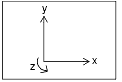
Screen Axes
To dynamically translate or rotate the view:
1. On the View menu, point to Position/Orientation, and then select one of translation or rotation commands.
Tip: |
 or
or  , and then select a tool.
 2. Place the cursor in the viewport and click and hold down the left mouse button.
3. Drag the cursor in the window in the direction you want to translate or rotate the view. The view of the window follows the movement of the mouse.
4. When the window contains the desired view, right-click.
Setting Rendering Mode of Three-Dimensional Plots
Adams PostProcessor provides four rendering modes in which you can display a three-dimensional plot in a viewport, as listed in the table below.
Rendering Modes
The mode: | Does the following: |
|---|---|
Wireframe | Shows only the edges of objects so that you can see through the objects. |
Shaded (flat) | Shaded, but polygon edges are visible. |
Smooth shaded | Shaded, with polygon edges not visible. |
Hidden-line removal | Shows only the edges of object. It does not show edges, or portions of edges, that are obscured by other geometry. |
To select a rendering mode:
1. Click the viewport whose rendering mode you want to change.
2. On the View menu, point to Render Mode, and then select a rendering mode.
Tip: | To toggle between shaded and wireframe, on the Main toolbar, select  . . |
Note: | If you are using the Native Open GL graphics driver, which is the default, only two modes have an effect: wireframe and smooth shaded. For more information on selecting graphics drivers, see Running and Configuring Adams. |
Setting Up Three-Dimensional Plot Parameters
The figure below shows the plot parameters that you can set for the general aspects of the three-dimensional plot, the plot surface colors, and the legend that appears when you select to display a plot as a range of colors as shown below.
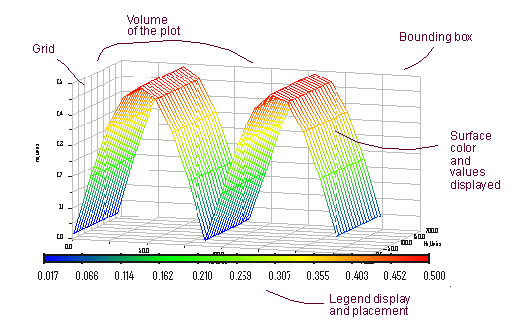
To set general parameters for a three-dimensional plot:
1. Select a three-dimensional plot.
2. In the Property Editor, clear the selection of:
■Bounding Box to turn off the display of the box surrounding the plot.
■Grid to turn off its grid.
3. In the Graph Volume text box, enter the x,y, and z aspect ratio of the plot. For example, a volume of 1,1,1 makes the plot look like a cube, while a volume of 2,1,1 makes the plot twice as long in the x dimension as it is in the y and z. See Example of Same Data with Different Graph Volumes.
To set parameters for the surface of the plot:
1. Select the surface of a three-dimensional plot.
2. In the Skip X or Skip Y text boxes, set the x and y increment of values you want Adams PostProcessor to skip. Setting it to 1 for creates a smooth surface.
3. Set how you want the colors displayed:
■To display the surface of the plot as a range of colors, select Interpolated Colors. Then, in the Number of Colors text box, enter the number of interpolated colors to be displayed in the plot. There can be no more than 255.
A legend explaining the colors and the values they represent appears. See Property Editor - 3D Legend for more information.
■To display the plot as a single color, clear the selection of Interpolated Colors, if necessary, and set Color to the desired color.
To set parameters for the interpolated color legend of the plot:
1. Set the plot surface to be displayed in interpolated colors as explained above.
2. Select the legend.
3. To turn off the legend, clear the selection of On.
4. Set Legend Placement to where you'd like the legend to appear.
5. In the Number of Colors text box, enter the number of interpolated colors to be displayed in the plot. There can be no more than 255.
6. In the Gradients text box, enter the number of color gradients shown in the legend
7. Set the properties for the numbers as explained in the table below.
Legend Number Options
To set: | Do the following: |
|---|---|
Trailing zeros | Select to have Adams PostProcessor display zeros after the numbers in the legend. The number of zeros depends on the number of decimal places you selected as explained next. |
Decimal places | Enter the number of decimal places to which the numbers in the legend should be displayed. |
Scientific range | Enter the exponential form for scientific notation. This controls the lower and upper powers of ten where the format for real numbers switches from a fixed point format to scientific notation. The default values are -4 and 5, meaning that any number less than or equal to 1.0E-04 or greater than or equal to 1.0E+05 will be written in scientific notation. |