Overview of Motion
A motion generator dictates the movement of a part as a function of time. It supplies whatever force is required to make the part satisfy the motion. For example, a translational joint motion prescribes that a joint on a part move at 10 mm/second in the z direction. You can apply the motion to either idealized joints or between a pair of parts.
Types of Motion
Adams View provides you with the following types of motion:
■Joint Motion - Prescribes translational or rotational motion on a translational, revolute, or cylindrical joint. Each joint motion removes one degree of freedom (DOF) from your model. Joint motions are very easy to create, but they limit you to motions that are applied to the above listed joints and movements in only one direction or rotation.
■Point Motion - Prescribes the movement between two parts. When you create a point motion, you specify the direction along which the motion occurs. You can impose a point motion on any type of idealized joint, such as a spherical or cylindrical.
Point motions enable you to build complex movements into your model without having to add joints or invisible parts. For example, you can represent the movement along an arc, of a ship in the ocean, or a robot’s arm.
For more on point motions, see About Creating Point Motions.
Defining the Motion Magnitude
You can define motion as acceleration, displacement, or velocity over time. By default, Adams View creates a motion that moves at a constant velocity over time. When you create a motion, you can define its magnitude by entering one of the following:
■Translational or rotational speed - As you create a motion, you can specify the translational or rotational speed of the motion. By default, you enter the rotational speed in number of degrees per second and the translational speed in length units per time unit (for example, number of inches per second).
When Adams View creates the motion, it uses the value you enter as the motion function. It also converts the rotational motion speed to radians. When you modify the motion, you can change the value or enter a function expression or a user-written subroutine as explained next.
■Function expression - You can use Adams View function expressions to specify the exact movement applied to a joint as a function of time. For example, using function expressions you can define a motion function that holds the joint in a fixed position, as well as one that moves the joint with the required force to produce a constant velocity. To learn more about function expressions, see Function Builder and Adams View Function Builder online help.
Note: | If you make your function a function of displacements or forces, Adams View issues an error and stops execution. These types of functions contain a VARVAL (function that returns variable name), and although a VARVAL is allowed in the function, Adams View issues a warning. The motion function containing the VARVAL will not give correct velocities, accelerations, or reaction forces in a joint, and may have trouble converging to a solution. |
■Parameters to be passed to a user-written subroutine - You can create a much more complex motion by creating a MOTSUB User-written subroutine and entering the values to be passed to the subroutine to determine the motion. For more on creating subroutines and passing values to them, see the Subroutines section of the Adams Solver help.
Tips on Creating Motions
The following are some tips for creating motions:
■The motions that you assign determine the initial displacements and velocities of your model. For any joint that has a motion applied to it, do not specify initial conditions that act in the same direction as the motion. If you specify initial conditions for both the joint and the motion, Adams Solver uses the motion conditions and ignores the initial conditions you specified for the joint.
■You can define a zero motion with respect to time, which is the same as locking two parts together.
■If any motion generates nonzero initial part accelerations, Adams Solver may not produce reliable accelerations and velocities for the first two or three internal Integration steps of a Dynamic simulation. Adams Solver automatically corrects for this; therefore, the values it returns at the first output step are accurate. A sensor, however, that depends on the accelerations or reaction forces due to this motion may trip unexpectedly before the first Output step, even though the solution appears correct when the sensor is removed. If this occurs, you should modify the initial conditions set for the motion so that the initial accelerations are zero.
■If you defined the motion using velocity and acceleration, you cannot set a dynamic simulation so that it uses the ABAM integrator. For more on controlling your simulation, see Solver Settings - Dynamics.
■Adams Solver cannot perform a kinematic simulation on a zero-DOF model containing motions whose function expressions are specified as velocity or acceleration. You’ll need to perform a dynamic simulation instead.
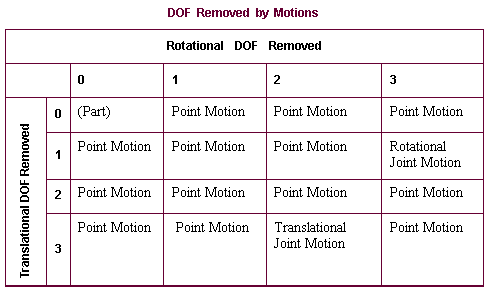
DOF Removed by Motion
The following lists the motions that can be applied to the axes of parts. It places the general point motion in all fields of the table because a general point motion can apply motion to none, any, or all axes of a part.