Scripted Simulation
Simulation tab → Simulate container → Scripted 
Display tools for performing Scripted simulation.
Learn about Performing a Scripted Simulation.
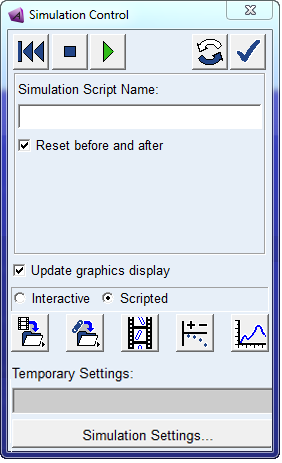
Icon | Description |
|---|---|
 | Sets your model back to its initial design configuration so you can modify your model or perform another simulation starting at time 0. You do not have to set the model back to its design configuration to continue simulating. You can pick up from the last frame of your animation and continue. Shortcut: Double-click the Select tool. |
 | Stops any further processing, and the modeling objects appear in the positions that Adams Solver last successfully calculated. |
 | Starts the Simulation. |
 | Replays an Animation of the last Simulation. Replaying an animation displays the results much faster than if you simulate the model again and watch the frames update as the solution calculates results. You can also replay an animation of a saved simulation; for more information, see Animation Controls. How Adams View replays your simulation depends on whether or not you have finished the simulation and reset the model back to its initial design configuration. ■If you have run a simulation, or part of a simulation, but not set the model back to its initial configuration, when you select to replay the animation, Adams View animates the model up to the last simulation step and leaves your model there. ■If you reset your model back to its initial configuration, when you select to replay the animation, Adams View automatically sets the model back to the initial design configuration when the animation is complete. |
 | |
Simulation Script Name | Enter the name of the simulation Script. |
Reset before and after | Sets your model back to its initial design configuration before you run the Simulation. |
Interactive/Scripted | Displays tools for controlling either an interactive or Scripted simulation. |
 | Save/Delete Simulation Results ■Left-click to display the Save Run Results dialog box so you can save the simulation results. ■Right-click to select a set of simulation results to delete. |
 | Save Simulated Position Displays the Save Model at Simulation Position dialog box so you can save the model at a simulated position into the Modeling database under a new name. |
 | Save Model at Simulation States Displays the Save Model at Simulation State dialog box so you can save the model at a simulated state into the Modeling database under a new name so you can use it as your new design configuration with states. |
 | Displays the Animation Controls dialog box. |
 | Displays the Linear Modes Controls dialog box. |
 | Displays Adams PostProcessor. |
Temporary Settings | Specify one or more Temporary Settings Files (.tsf) files. Property values contained in the file(s) will be applied before starting the simulation and then reverted to their original values immediately after the simulation finishes, even if the simulation fails to complete. Note that this field is only available if the Temporary Settings capability has been enabled from the AView-Preferences section of the Adams Registry Editor. |
Simulation Settings | Displays the Solver Settings dialog box, letting you set how you want the Simulation performed. |