Performing a Scripted Simulation
Instead of letting Adams View set the commands to be run during an Interactive Simulation, you can create a simulation Script. A simulation script lets you program the simulation and add advanced options to your simulation. Simulation scripts are useful when you have come up with a good set of simulation parameters that you want to repeat again and again. They are also needed for Design study, Design of experiments (DOE), and Optimization simulations.
Learn more:
Types of Simulation Scripts
You can create the following types of simulation scripts:
■Simple run - A set of options that correspond to the options on the Interactive Simulation controls. It lets you store simulation settings so that you can use them again. A simple run performs a single Transient simulation with an optional equilibrium at the start. If you want to do your simulation in several parts or mix in other types of simulations, such as computations of linear modes or a state matrix, you must create an Adams View or Adams Solver command script.
■Adams View - A set of Adams View commands, including commands that change the model or Adams Solver settings. If you enter commands to change the model or Adams Solver settings, they do not affect a simulation that is in progress. For example, if you run a simulation to 5 seconds, then change the model, then continue the simulation, the continuation uses the original model. You must restart the simulation to use the changes during a simulation.
The best way to get started with the Adams View commands is to use the interactive controls to perform a simulation, then look at the script that Adams View creates, called Last_Sim. You can then modify and rename it. Also, you can get assistance on entering basic simulation options as you create the script. See Create/Modify Simulation Script dialog box.
■Adams Solver - A set of Adams Solver commands, including commands that change the model or Adams Solver settings. Unlike an Adams View command script, you can use an Adams Solver command script to change your model or Adams Solver settings during the simulation. Also, you can get assistance on entering basic simulation options as you create the script.
Example Adams Solver Script
The following Adams Solver script contains four commands that run a Simulation. The commands are presented in uppercase for emphasis but they are not case-sensitive when you enter them in Adams View.
Example of Create Simulation Script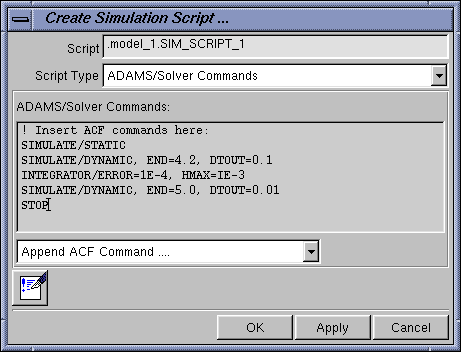
The commands are explained in the table below.
The commands: | Do the following: |
|---|---|
! Insert ACF commands here | Provide comments. |
SIMULATE/STATIC | Initially, at time 0.0, perform a static simulation to bring the model into equilibrium. |
SIMULATE/DYNAMIC, END=4.2, DTOUT=0.1 | Starting from equilibrium, perform a dynamic simulation from 0.0 to 4.2 seconds outputting data every 0.1 seconds. |
INTEGRATOR/ERROR=1E-4, HMAX=1E-3 | At 4.2 seconds, tighten the integration tolerance by reducing the default value of 1E-3 down to 1E-4 and manually limit the maximum solution time step size to 1E-3. |
SIMULATE/DYNAMIC, END=5.0, DTOUT=0.01 | Continue the dynamic simulation from 4.2 to 5.0 seconds, this time outputting the data every 0.01 seconds. |
You would use a script like this if you wanted to make sure your solution remained more accurate at a particular point in time, and you wanted to increase the frequency of data output. You would increase the accuracy and output because you expect a high-frequency response to become active in your model starting around the specified time. For example, an abrupt event, such as parts coming into contact, causing forces to change magnitude quickly, might make you increase your number of output steps during that interval so you can see more fidelity in your animations and plots.
Creating a Simulation Script
The following procedure explains how to create each type of simulation scripts. Learn about getting assistance entering commands.
To create a script for a simulation:
1. From the Simulate menu, select Simulation Script, and then point to New.
The Create/Modify Simulation Script dialog box appears.
3. Do one of the following depending on the type of script you are creating:
♦For a simple run script, enter the values as explained in Running an Interactive Simulation.
♦For an Adams View command script, enter commands below the comment line !Insert View commands here:. Learn about getting assistance entering commands.
♦For an Adams Solver command script, enter commands below the comment line !Insert ACF commands here:. Learn about getting assistance entering commands.
4. Select OK.
Modifying a Simulation Script
You can modify any simulation script in your current Modeling database. Modifying a script is a good way to get started in creating a new one. Also, the best way to get started creating Adams View command scripts is to use the script Last_Sim that Adams View creates each time it runs an interactive simulation.
Note that you cannot change a simulation script's type after you create it. For example, if you create a simple run script, you cannot change it to an Adams View command script. Learn about Types of Simulation Scripts.
To modify a script for a simulation:
1. From the Simulate menu, point to Simulation Script, and then select Modify.
The Database Navigator appears.
2. Select the script that you want to modify. Learn more about Database Navigator.
The script appears in the Create/Modify Simulation Script dialog box.
3. Modify the script as desired, and select OK. Learn about getting assistance entering commands.
Getting Assistance Entering Commands
Adams View provides you with assistance on entering commands whether you are creating an Adams View command script or an Adams Solver command script. Learn more
Getting Assistance with Adams View Commands
Instead of having to know command names and syntax for many commands for running simulations and for saving and resetting simulation, Adams View lets you enter values for the operations and then appends the appropriate commands to the current selected script. Assistance on modeling commands is not available.
To get assistance with Adams View simulation commands:
1. At the bottom of the Create or Modify Simulation Script dialog box when you are creating or modifying an Adams View script, select Append Run Commands.
Options for running simulations appear in the dialog box.
2. Select the simulation operation that you'd like to add to your script. For example, select Transient - Dynamic to enter a command for performing a Dynamic simulation.
Options for the operation you selected appear in the dialog box. For example, text boxes and button appear for setting the duration of a simulation.
3. Enter the appropriate values in the dialog box, and then select OK.
Adams View appends the corresponding command and command parameters to your script.
For additional assistance, you can also:
■Use the help for the Adams View Command language
■Use the Command Navigator to see the available Adams View commands, their keywords, and parameters. Learn more about the Command Navigator.
■Look at your aview.log file to see the commands that have been executed and their syntax. Learn more about Using the Adams View Log File.
Getting Assistance with Adams Solver Commands
Instead of having to know command names and syntax for the Adams Solver commands, Adams View lets you enter values for the commands in dialog boxes.
To get help with Adams Solver commands:
1. Set Append ACF Command ... at the bottom of the Create/Modify Simulation Script dialog box when you are creating or modifying an Adams Solver script to the operation that you like to perform. For example, select Dynamic Simulation to get assistance on entering the command to perform a dynamic simulation.
A dialog box appears with options for the operation that you like to perform.
2. Enter values in the dialog box, and then select OK.
For additional assistance with Adams Solver commands, see the Commands section of the Adams Solver online help. Below is a list of the assist dialog box and its associated Adams Solver command to help you more quickly get help:
The dialog box: | Contains options for the command: |
|---|---|
Initial Conditions | SIMULATE/INITIAL_CONDITIONS |
Transient Simulation | SIMULATE/TRANSIENT |
Kinematic Simulation | SIMULATE/KINEMATICS |
Dynamic Simulation | SIMULATE/DYNAMICS |
Quasi-static Simulation | SIMULATE/STATICS |
Static Calculation | SIMULATE/STATICS |
Nastran Export | C++ - LINEAR/EXPORT |
Activate | |
Deactivate | |
Output File Separator | OUTPUT/SEPARATOR and OUTPUT/NOSEPARATOR |
Reload | |
Save | |
Eigen Solution Calculation | FORTRAN- LINEAR/EIGENSOL C++ - LINEAR/EIGENSOL |
General State Matrix | FORTRAN- LINEAR/STATEMAT C++ - LINEAR/STATEMAT |
MKB Matrix | C++ - LINEAR/MKB |
Import Adams Command File ... | See the Importing an Adams Solver Command File (.acf) section below |
Importing an Adams Solver Command File (.acf)
You can import an Adams Solver command file (.acf) and run it as an Adams Solver command script. When you import an .acf, Adams View removes the file names at the beginning and the STOP command at the end. Learn more about Creating an Adams Solver Command File.
To import a command file:
1. From the Simulate menu, point to Simulation Script, and then select Import ACF.
The Create/Modify Simulation Script dialog box appears with options for importing an Adams Solver script.
2. Enter the name of the script that you want to import.
3. Select OK.
Running a Scripted Simulation
To run a scripted simulation:
1. Do either of the following:
♦From the Simulate menu, select Scripted Control.
2. In the Simulation Script Name text box, enter the name of the simulation script to use.
3. Select the Simulation Start tool  .
.
.See Scripted Simulation pallette dialog box help for more information.