Importing and Exporting Other Data
HTML Files Created for HTML Reports
When you export Adams PostProcessor files to an HTML report, the result is a series of HTML pages, images, and style sheets, including a main homepage. The homepage is an HTML page with two frames: the left frame is a treeview of the top-level objects, the right frame displays the object selected in the treeview.
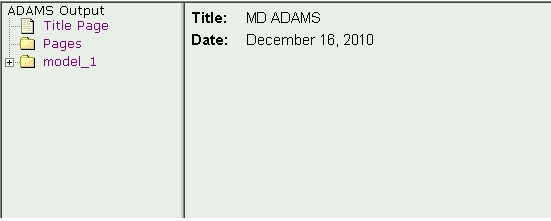
In the treeview, there are three top-level objects:
■Title Page - Displays a title page with general information about the data exported.
■Pages - Lists the pages exported from Adams PostProcessor. Click a page to display an image of a plot or animation or play a movie of an animation.
■Model - Lists the models for which you selected to export information. When you click a model, its different objects (parts, forces, constraints, requests, measures, and assembly objects) appear in the treeview. Click an object to display information about the object in the right frame.
To display the main HTML homepage:
1. In a Web browser, change to the folder containing the results of the export.
2. Select the file with the same name was you entered in the Files tab. For example, if you entered suspension_1, select suspension_1.htm.
Exporting Results for Co-animation
An Adams model and analysis can be exported for use in an external post-processing tool called CEI EnSight©. This is most often done to create co-animations of results from co-simulations of Adams and other tools (for example, Marc). To access this capability, the Co-animation plugin must be loaded. Launch the plugin manager from Adams View or Adams PostProcessor (Tools → Plugin Manager) and check "Load" for the row labeled "Co-animation". See Plugin Manager documentation for more information on managing plugins. The Co-animation plugin will add a "Co-animation" button to the File → Export menu in Adams PostProcessor. Click this button to launch the Co-animation dialog box which will prompt for the information required to export the EnSight .case file (and dependent files) to the working directory. This .case file can then be opened in EnSight. We recommend EnSight version 10.2.2b or greater.
EnSight represents both rigid and flexible bodies as finite element meshes. Rigid body geometry from Adams is therefore facetized and represented as faces and vertices.
Test Data Format
The test data that you want to import into Adams must be in an ASCII file composed of columns of values. Each column should hold the values for a separate component. The values in each column should be in order by the time step, from earliest to latest.
Adams reads the columns from left to right and from top to bottom. One or more blank spaces separates each column from the column on either side, and one or more comment lines separates columns placed beneath each other. You can separate numbers with a comma (,) and you do not have to line them up evenly. Adams considers any lines that do not begin with a number as a comment line.
Adams reads a column until it reaches a comment line, which indicates the end of the component. For example, in the sample numeric data file the columns beginning with 1 and 10.0 are the first two components. The third component is the column beginning with 22. Each component has ten numbers.
If you specify that one of the columns contains a time index, then Adams stores the data in that column as the x data for each spline it creates. In addition, you can specify that Adams assign the names for the splines using the text in the column headers. If you do not specify that Adams obtain the names from the column headers, Adams automatically generates their names.
Be sure that any text in the file does not begin with a number. If it does, Adams tries to read the line. To prevent Adams from reading text as a value, place a non-numeric character in front of text that you want Adams to ignore. We recommend that you use an exclamation point (!).
Test Format Example
Test Format Example
1 10.0
2. 11.0
3.4 12.5
-4 13.0
5 +14.0
6 15.5
7 17
8 18
9 ,19
10, 20
!
22
23
.24
25
26
27
28
29
30
31
Example of Number in Text
This sample file contains only one component but contains the number
3 at the beginning of a line in this header paragraph. Adams View will try to read
this line because it is not considered a comment.
1.5
3.0
! This sample file contains only one component and contains the number
! 3. Because we used an exclamation point (!) in front of each line in this header
! paragraph, however, Adams View does not read the line starting with 3.
1.5
3.0
Exporting Data Defining a Geometric Spline
You can export data defining a geometric spline element (for example, a spline that you created by following a point during an animation. Learn about Creating Trace Spline).
To export the data:
1. Right-click the spline geometry, point to its geometry name, and then select Modify.
2. To the right of the Values text box, click the More button  .
.
. 3. The Location Table appears.
Use the Write button to export the data. Learn about Reading and Writing Location Information.