Moving Objects Using the Precision Move Dialog Box
Adams View provides a Precision Move dialog box to help you move objects:
■By increments
■To precise coordinates
You can select to move the objects relative to a specified object's coordinate system, called the reference coordinate system. You can also select to move objects relative to the screen. In addition, you can use the Precision Move dialog box to view the coordinates of one object in relation to another.
The Precision Move dialog box consolidates some operations that are available using the By Increments and Precise Coordinates tools and provides new functionality for rotating objects by increments relative to any object.
Overall Procedure for Using the Precision Move Dialog Box
The following provides general instructions for moving objects using the Precision Move dialog box.
To move objects using the Precision Move dialog box:
1. Select the objects to be moved.
2. If you want to move the objects along or about axes that another object in the model defines (the reference coordinate system), then select either Relative to the or About the, and enter the name of the object that is to define the reference coordinate system.
3. If you do not enter a reference coordinate system, Adams View moves the objects about the default coordinate system.
4. Then, either:
■If you know the destination coordinates of the objects you are moving, enter the destination coordinates into the C1 through C3 (for translation) and A1 through A3 (for rotation) text boxes, and then select OK.
■Use the Rotate and Translate dials to move the objects by incremental values.
Accessing the Precision Move Dialog Box
To display the Precision Move dialog box:
 .
. Selecting the Objects to Move
When you display the Precision Move dialog box, Adams View places all selected objects in it so you can quickly move them. You can also change the objects to be moved.
To select an object to move:
2. Enter the name or names of the objects to move.
Selecting the Reference Coordinate System
By default, the Precision Move dialog box moves the selected objects relative to the default coordinate system. You can specify that Adams View use a different coordinate system as the reference coordinate system. The rotational and translational coordinates you enter for the move or the incremental values you select are with respect to the origin and orientation of this coordinate system. You can select the following types of objects:
■Model - Global coordinate system.
■View - Adams View defined view, such as front, right, or left. Use the Database Navigator to select the name of the view.
■Entity - Any entity, including those that are not on the screen. Entities also include the working grid and gravity.
■Screen - The plane of the screen. When you select to move objects relative to the screen, the Precision Move dialog box changes. Learn about Translating and Rotating Objects Using Screen Coordinates.
You can specify two options for the reference coordinate system: Relative to the or About the:
■If you specify the Relative to the option for rotations, objects rotate in place (their locations do not change) and their rotations are with respect to the coordinate system specified in the Relative to the text box.
■If you specify the About the option for rotations, the objects rotate about the origin of the coordinate system specified (their locations change) and the rotations are with respect to the coordinate system specified in the About the text box.
■Translations are with respect to the coordinate system defined as either Relative to the or the About the.
To set the reference coordinate system:
1. Set the second option to either Relative to the or About the.
2. In the text box to the right, enter the object whose coordinate system is to be used as the reference coordinate system.
3. If you do not enter a reference coordinate system, the Precision Move dialog box moves the objects about the current default coordinate system.
Moving Objects Relative to or About Coordinate System by Increments
The Rotate and Translate dials on the left side of the Precision Move dialog box move an object with respect to a body-fixed or reference coordinate system in incremental amounts. You specify the reference coordinate system using the Relative to the and About the options Learn about Selecting the Reference Coordinate System.
Examples
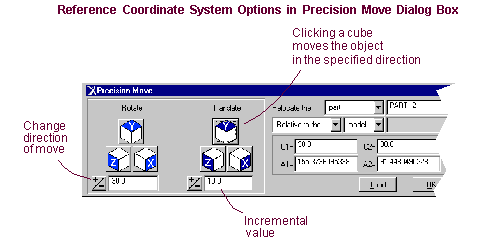
To change the incremental value:
■Enter new values for translation or rotation in the text boxes below the cubes, and then press Enter.
To change the direction of the move:
■Click the + or - .
To move an object relative to or about another object:
3. Click a cube for the direction you want to translate or rotate the object.
Example 1
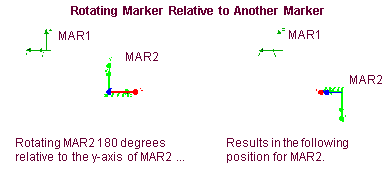
Rotate a marker (MAR2) 180 degrees relative to the y axis of the coordinate system that MAR1 defines:
1. Set Relocate the to marker, and then enter MAR2 in the text box to the right.
2. Set Relative to the, and then enter MAR1 in the text box to the right.
3. Set the increment value to 180.
4. Click the y cube on the Rotate dial
.
Example 2
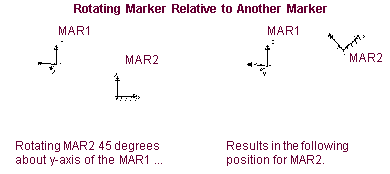
Rotate a marker (MAR2) 45 degrees about the y axis of MAR1:
1. Set Relocate the to marker , and then enter MAR2 in the text box to the right.
2. Set About the , and then enter MAR1 in the text box to the right.
3. Set the increment value to 45.
4. Click the y cube on the Rotate dial.
Viewing Locations of Objects Relative to Other Objects
You can use the Precision Move dialog box to view the current coordinates of an object with respect to the coordinate system of another object (reference coordinate system). Adams View displays the coordinates in the six position text boxes (C1 through C3 for translation and A1 through A3 for rotation) of the Precision Move dialog box.
For example, if you want to ensure that two markers, which you want to connect using an inplane joint, are in the same plane, you can set one marker as the object to be moved and the other object as the relative to object. You can then view the rotation coordinates of the first marker to ensure that they are (0, 0, 0).
To view current coordinates:
1. Select the object to move.
3. Select Load.
Adams View loads the current coordinates relative to the reference coordinate system.
Moving Objects Relative to or About Coordinate System by Precise Coordinates
Using the Precision Move dialog box, you can move an object to precise coordinates relative to another object's coordinate system (the reference coordinate system). You specify the reference coordinate system using the Relative to the and About the options (Learn about Selecting the Reference Coordinate System). You enter the coordinates in the six position text boxes (C1 through C3 for translation and A1 through A3 for rotation) of the Precision Move dialog box.
To move an object to coordinates relative to a reference frame:
1. Select the object to move.
3. Change the values in the C1 through C3 and A1 through A3 text boxes.
4. Select OK.
Example
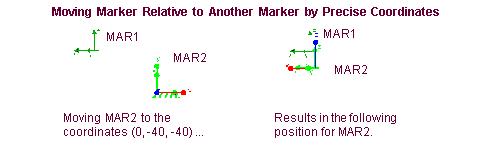
Move a marker (MAR2) to (0, -4, -4) in another marker's (MAR1) coordinate system.
1. Set Relocate the to marker , and then enter MAR2 in the text box to the right.
2. Set Relative to the , and then enter MAR1 in the text box to the right.
3. In the C1 through C3 text boxes, enter:
■C1: 0
■C2: -40
■C3: -40
4. Select OK.
Translating and Rotating Objects Using Screen Coordinates
Using the Precision Move dialog box, you can move an object based on screen-fixed coordinates. The active view defines the screen-fixed coordinate system. Regardless of the object's orientation in the active view, the move is relative to the screen coordinates.
When you select to move an object based on screen coordinates, the Precision Move dialog box changes the dials on the left to those shown in the figure below. The dials translate and rotate the objects:
■Think of the translation as pulling the object in the direction of the arrow. For example, when you select the small arrow that points up, you pull an object up along the vertical axis. The double arrows to the right translate an object along an axis that is normal to the screen (works only if the view is in perspective mode).
■Think of the rotation as pushing on an object at that point. For example, if you select the arrow that points to the right, you are pushing the horizontal axis back, resulting in a positive rotation around the vertical axis.
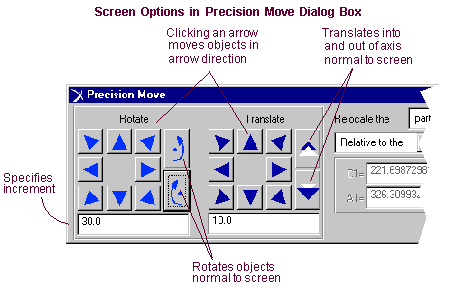
To move an object in screen coordinates:
1. Select the object to move.
3. Click an arrow for the direction you want to translate or rotate the object.