Ribbon Capability
Introduction
The Adams 2024.1 ribbon based style interface and the GUI explained below.
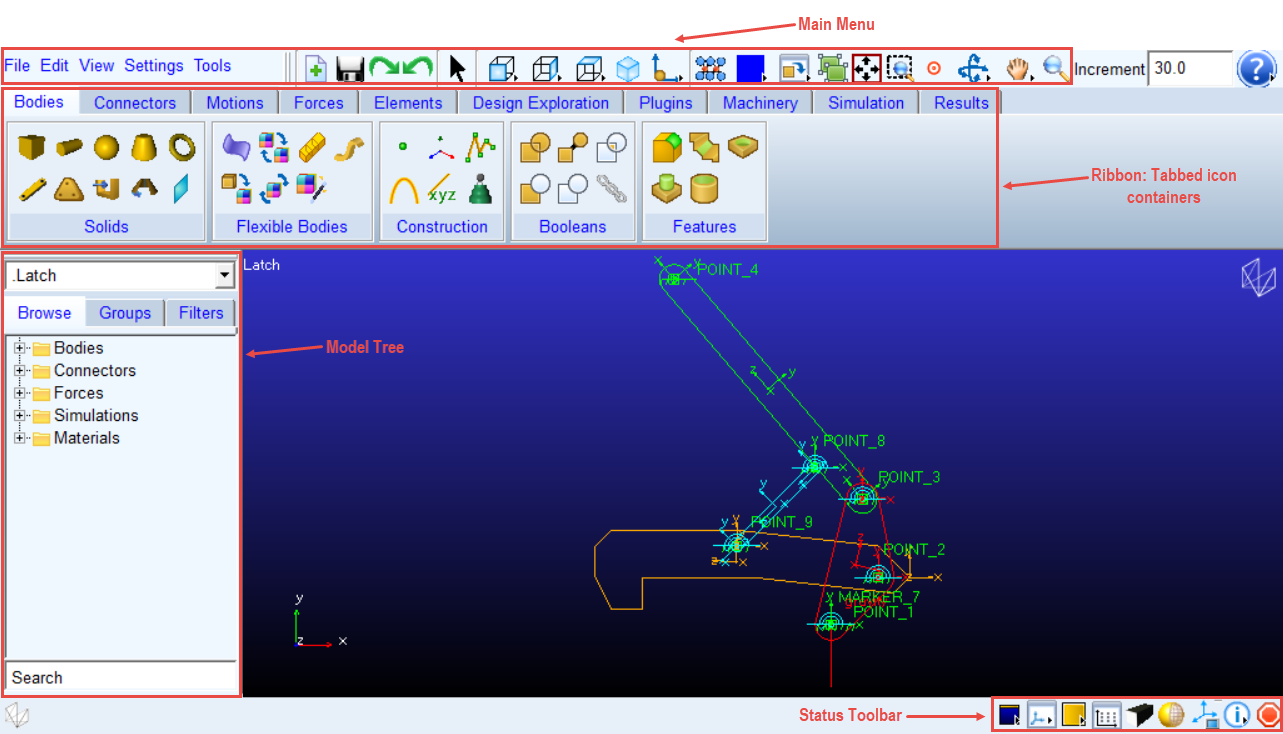
Figure 1 Adams View 2024.1 Ribbon based Interface
Main Menu
Main menu divided in to following sections.



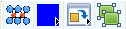

Text-based menus
■File
■Edit
■View
■Settings
■Tools
Important: | Those users who customize the Adams View main text menu should be advised that this text menu's location is .gui.main.mmenu_menu.mbar_refresh. The Adams View main text menu for the Classic interface style remains .gui.main.mbar as it has been in previous releases. To learn more about customizing Adams View refer to Customizing Adams View. |
File handling Strip

■ Save Database
Save Database ■ Redo
Redo
Redo ■ Undo
Undo
Undo Selection Strip
Select, clear the select list. Double click to display model.
View Plane Strip
■ Set the view orientation in front
Set the view orientation in front ■ Set the view orientation to right
Set the view orientation to right■ Set the view orientation to top
Set the view orientation to top■ Set the view to isometric
Set the view to isometric■ Set the view plane to coincident with the xy plane of an object users select
Set the view plane to coincident with the xy plane of an object users selectObject Manipulation Strip
 Create Material
■ Change Entity Color
Change Entity ColorThis will allow you to change the entity color. Right click on the button for more color option.
button for more color option. Reposition objects relative to view coordinates


 ) tool
 Create new group
View Manipulation Strip
■ View Fit
View Fit ■ Dynamic Pick
Dynamic Pick■ Center
Center■ Rotate
Rotate■ Dynamic Translate
Dynamic Translate■ Dynamic Zoom
Dynamic ZoomRibbon: Tabbed icon
Bodies

Solids


Flexible Bodies
 Adams Flex
 Rigid to Flex
 Flex to Flex
 MNF XForm
 Discrete Flexible Link
Construction


 Point Mass
Booleans


Features


Connectors
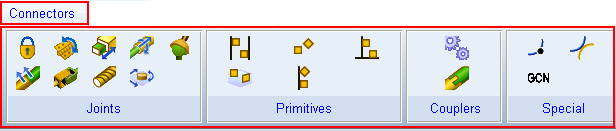
Joints


Primitives


Couplers


Special


 General Constraint
Motions
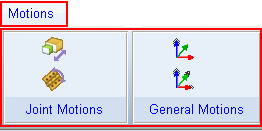
Joint Motions


General Motions


Forces
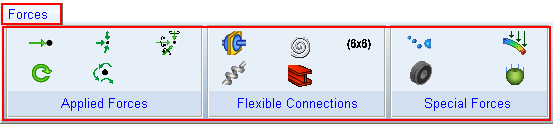
Applied Forces


Flexible Connections

 Rotational Spring Damper


Special Forces
■ Contact
Contact ■ Tire
Tire
Tire  Modal Force
Elements

Data Elements


System Elements


Function
 Create a Function (
 Create a runtime Function (
Controls Toolkit

User Defined


Design Exploration

Design Variable

Measures


Instrumentation


Design Evaluation


■ Evaluate All With Default Analysis
Evaluate All With Default Analysis
Adams Insight


Plugins
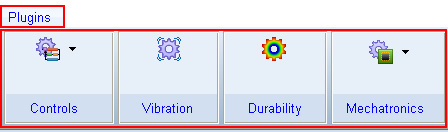
Controls
■ Controls
ControlsVibration
■ Vibration
VibrationDurability
■ Durability
DurabilityMechatronics
■ Mechatronics
MechatronicsNote: | Plugins located on this tab may be initially loaded by clicking the corresponding icon. To unload these plugins or to subsequently reload these plugins one must use the Plugin Manager located under the Tools menu. To learn more about the Plugin Manager, see section Loading and Unloading Plugins. |
Machinery

Gear
■Create Gear Pair
■Planetary Gear
■Gear Output
Belt
■Create Pully
■Create Belt
■Belt Actuation Input
Chain
■Create Sprockets
■Create Chain
■Sprocket Actuation Input
Bearing
■Create Bearing
■Bearing Output
Cable
■Create Cable
Motor
■Create Motor
Cam
■Create Follower Motion
■Create Cam Profile
■Construct Cam System
Simulation
Setup

■ Import ACF
Import ACF Simulate


Results
Review

■ Create Trace Spline
Create Trace Spline
Adams PostProcessor
■ Adams PostProcessor
Adams PostProcessorModel Browser
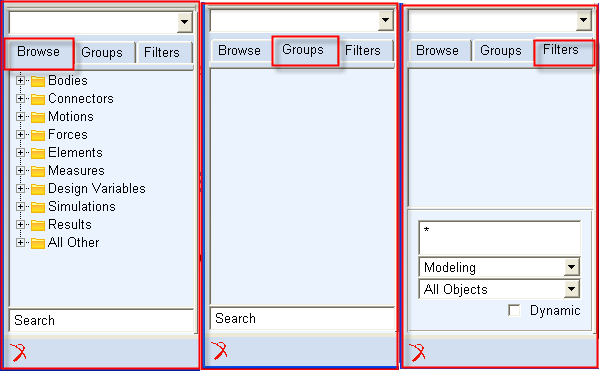
Browse
The browse tab is the default tab. It depicts a hierarchy of all the objects in the database. It has nine top level folders that contain the objects by type. The objects that do not fit into the first eight categories, are included in the "All Other" folder.
Groups
The Groups tab allows the user to gather database objects together.
Filters
The Filters tab enables you to create and save complex searches which can update dynamically.
To learn more about the model browser see section Model Browser.
Status Toolbar
View Setup Strip
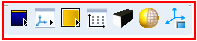
■ Set background color
Set background color■ Toggle visibility
Toggle visibility■ Window layout
Window layout■ Single: Toggle grid visibility. Double - grid settings
Single: Toggle grid visibility. Double - grid settings■ Toggle project between orthograpic and perspective
Toggle project between orthograpic and perspective■ Wireframe/Shaded toggle for current view
Wireframe/Shaded toggle for current view■ Toggle icon visibility for current view
Toggle icon visibility for current viewInformation Strip

■ List information about database objects
List information about database objects■ Stop command
Stop command