Information Window
Adams View uses the Information window to display many different types of information about your model, Simulation, or motion data. In addition to just viewing information about your model, you can perform a variety of operations in the Information window. For example, you can display additional information about the current object's parent or child, print the information, display information about a different object in the database, and more.
Learn more:
Displaying Information
Managing Information
Displaying Object Information and Accessing Information Window
You can display information about each object in your Modeling database, including parts, geometry, motion, and Markers. You can view the information about an object currently on the screen or any object in the database, including view windows or dialog boxes.
When you display information about the objects in your modeling database, Adams View displays information specific to that type of object. For example, when you display information about a rigid body in your model, Adams View displays information about its material content, inertial properties, initial conditions, orientation, velocity, and more. When you display information about a motion, Adams View display information about the type of motion it is, its function, and time derivative.
To display information about a modeling object displayed on the screen:
■Right-click the object on the screen, and then select Info.
Tip: | You may want to zoom in on the object on the screen to more easily place the cursor over just that object. |
Information about the object appears in the Information window.
To use the Database Navigator to display information about objects in the Information window:
1. On the
 from the
 The Database Navigator appears.
2. Select the object about which you want to display information. Learn about selecting objects.
3. Select OK.
The information window appears.
To display object information once you've displayed the Information window, do one of the following:
■In the text box at the top of the Information window, enter the name of the object, and then select Apply.
■If the object name already appears in the Information window, place the text cursor in the name of the object, and then select Apply.
Displaying Parent and Children Information
Each object in the database has an object that owns it, called its parent, and many objects own other objects, called their children. The top-level objects in the database are models, plots, and interface objects, called gui objects. These objects do not have parents. You can display information about the parent or children of the object currently displayed in the Information window.
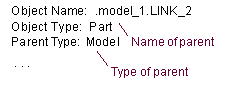
If an object has a parent, the type of parent it has appears in the Information window under the heading Parent Type and the name of the parent is placed in front of the name of the object in the Object Name heading. For example, for the part LINK_2, its parent type and name appear in the Information window, as shown below:
To display an object's children:
To display an object's parent, do one of the following:
■In the Information window, select Parent.
■In the Information window, place the text cursor in the name of the parent and select Apply.
Displaying an Object's Modify Dialog Box from the Information Window
When information about an object is displayed in the Information window, you can access that object's modify dialog box so you can modify the object.
To access an object's modify dialog box from the Information window:
■In the Information window, place the text cursor in the name of the object and select Modify. Learn about accessing the Information window.
Clearing the Information Window
Each time you request information in the Information window, Adams View adds the information to the bottom of the Information window without removing the current information. You can remove all current information.
To clear the Information window:
■In the Information window, select Clear.
Saving Information in the Information Window
You can save the contents of the Information window to a text file.
To save the contents of the information to a text file:
1. In the Information window, select Save to File.
The Select File dialog box appears.
2. Select the directory in which you want to place the file.
3. In the File Name text box, enter the file name.
4. Select Open.
Displaying a Text File in the Information Window
You can display any text file in the Information window. You will find this helpful if you want to display an information file that you saved or you are creating a demonstration of your model using an Adams View command file and you want to display information about a particular object or aspect of the demonstration.
To display a text file when the Information window is already displayed:
1. In the Information window, select Read from File.
The File Selection dialog box appears.
2. Select the directory in which you want to place the file.
3. Highlight the file that you want to open in the list, or type the file name in the File Name text box.
4. Select Open.
Copying Text in the Information Window
You can copy any text in the Information window for use in another window, dialog box, or application. You cannot paste or delete any text in the window.
To copy text in the Information window:
1. Highlight the text that you want to copy.
2. Right-click the Information window and select Copy.
Setting the Information Mode
By default, the Information window displays only a part's parent and type. To display more information about the part, you can turn on verbose mode. When you turn on verbose mode, the Information window displays the children of the object, its geometry, whether or not comments are associated with it, and its attributes, such as its color and visibility.
To turn on verbose mode:
■Select the Verbose check box.