Database Navigator
The Database Navigator helps you view, select, and modify objects in your Modeling database.
Learn more:
Viewing Objects
Changing Objects
Viewing Information About Your Model
About the Database Navigator
The Database Navigator appears when you do one of the following:
■Select Database Navigator from the Tools menu.
■Execute an editing command, such as Modify, from the Edit menu when no object is currently selected.
■Browse for the name of an object to enter in a dialog box using the Browse command.
The Database Navigator has several modes in which you can display object information. It can be set to just let you browse for objects or you can set it to rename objects, view information about the objects, such as view how the object relates to other objects, and view dependencies.
The Database Navigator only displays the types of objects that are appropriate for the command you are executing. For example, if you are renaming a model, it only displays models in your database. On the other hand, if you are searching for any modeling object in the database, it displays all types of modeling objects. You can also set a filter for the types of objects that the Database Navigator displays.
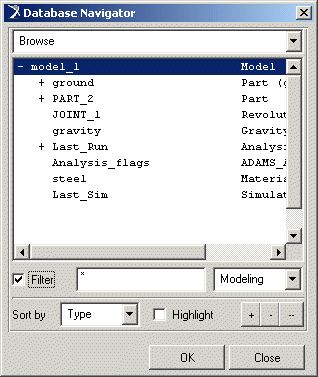
The Database Navigator shows objects in their database hierarchy. The following figure shows the Database Navigator with the top-level modeling objects in a small database that contains one model, model_1. These objects do not have parents. Double-click the name of a model, in this case model_1, to find all the objects belonging to that model.
Showing, Hiding, and Selecting Objects in the Database Navigator
In the Database Navigator Tree list, a plus (+) in front of an object indicates that the object has children below it but they are hidden. A minus (-) indicates that all objects immediately below the object are displayed.
To show or hide objects below a single object:
■Double-click an object with a plus or minus by it.
To expand or collapse all objects by one level:
■In the lower right corner of the navigator window, select the + or - button.
To hide all objects:
■In the lower right corner of the navigator window, select the - button.
You can use the Database Navigator to select any object in the database. You can also select more than one object to complete a command. You can create a list of selected objects on which to perform options by choosing Select List from the pull-down menu at the top of the Database Navigator.
To select a single object:
■In the tree list, click the object and select OK. If the Database Navigator is not in multi-select mode, you can also double-click the object to select it.
To use the mouse to select a continuous set of objects:
1. In the tree list, drag the mouse over the objects you want to select or click on one object, hold down the Shift key, and click the last object in the set. All objects between the two selected objects are highlighted.
2. Select OK.
To use the Up and Down arrow keys to select a continuous set of objects:
1. In the tree list, click on the first object, hold down the Shift key, and then use the Up or Down arrows to select a block of objects.
2. Select OK.
To select a noncontinuous set of objects:
1. In the tree list, click on an object, hold down the Ctrl key, and click on the individual objects you want to select.
2. Select OK.
To clear any selection in the tree list:
■Hold down the Ctrl key and click the selected object to clear its highlighting.
Managing the Select List
You can use the Database Navigator to view objects you've selected using the procedures explained in Showing, Hiding, and Selecting Objects in the Database Navigator. The list of objects is called the Select list. You can also add and remove objects from the Select list.
To view the select list:
■From the pull-down menu, select Select List.
The selected objects appear in the text box to the right.
To add objects to a select list:
1. From the pull-down menu, select Select List.
2. From the tree list or view window, select the objects to be on the select list as explained in the previous section.
3. Select Add.
4. Select Apply.
To remove objects from the select list:
1. From the pull-down menu, select Select List.
2. From the list that appears on the right, select the objects to be removed.
3. Select Remove.
4. Select Apply.
To clear all objects from the select list:
1. From the pull-down menu, select Select List.
2. Select Clear.
3. Select Apply.
Filtering Objects in the Database Navigator
You can filter the types and names of objects that you want displayed in the Database Navigator Tree list to narrow the display to exactly what you want or to broaden the display using wildcards. For example, you can narrow the display to only parts or broaden the display to include all objects that begin with a particular character, such as an h. Learn about Using Wildcards.
To set the filter of the Database Navigator:
1. In the Filter text box, enter the name of the objects that you want to display. Type any wildcards that you want to include.
2. From the pull-down menu to the right of the Filter text box, select the type of object or objects that you want to display in the Database Navigator. To select from all the different object types in the modeling database, select Browse.
3. To only display active or inactive objects, set the pull-down menu below the Filter objects to either Active Objects or Inactive Objects. Learn about Activating and Deactivating Objects.
4. Select OK.
Sorting Objects in the Database Navigator
You can sort objects in the Database Navigator by their name or type, such as parts or geometry. You can also select to not sort the object so the objects appear in the Database Navigator in the order they are stored in the modeling database.
Note that sorting by name can be slow for objects with very long names. Setting no sorting is the fastest way to see objects.
To sort objects in the Database Navigator:
■At the bottom of the Database Navigator, from the Sort by pull-down menu, select how you'd like the objects sorted.
Setting Highlighting in the Database Navigator
You can set up the Database Navigator so that whenever you select an object in the tree list, it also appears selected in the main window and the reverse. Highlighting is off by default.
To toggle highlighting:
■Select Highlighting.
Setting Appearance of Objects Through the Database Navigator
Through the Database Navigator, you can set how individual, types of objects, and children of objects appear in Adams View.You can set:
■Visibility of the object and of its name on the screen.
■Color, line style, line width and transparency of the object. For example, you can set the color of the object’s outline or its name.
■Size of the screen icons that represent the object in your model. Note that these changes take precedence over the size you specify globally for the modeling database.
■State of the object during a simulation: active or inactive.
You can also set appearance through the Edit -> Appearance command. Learn about Setting Object Appearance through Edit -> Appearance Command.
To set the appearance of objects:
1. Select an object from the Database Navigator Tree list.
2. Use the options in the dialog box to set the appearance of the object. To inherit an attribute from a parent of the object, select None from any of the pull-down menus. See Display Attribute dialog box help.
Tip: | For transparency, the higher the value, the more transparent the object is, allowing other objects to show through. The lower the value, the more opaque the object is, covering other objects. However, setting the transparency of objects can have a negative impact on graphical performance if you are using a graphics card without hardware acceleration for OpenGL. Instead of setting an object’s transparency, consider setting the object’s render mode to wireframe. |
3. To set the scope of the appearance changes, you can select either:
■Object - Only apply to the selected object.
■Siblings - Apply changes to all objects of the same type that are children of the parent of the selected object.
■All - Apply changes to objects matching the filter you set in the Filter text box.
4. Select Apply.
Renaming Objects Through the Database Navigator
You can use the Database Navigator to rename any object. Also see Renaming Objects Through Menu Commands.
To rename an object:
1. From the Database Navigator pull-down menu, select Rename.
2. From the Tree list, select the object to rename.
3. In the text box that appears to the right, type a new name for the object.
4. Select Apply.
Adding Comments Through the Database Navigator
You can use the Database Navigator to associate comments with any object in the Modeling database.
To associate comments with an object:
1. From the Database Navigator pull-down menu, select Comments.
3. In the text box that appears to the right, type or modify the comments associated with the object.
4. Select Apply.
To save the comments in a file:
■Select Save to File.
Viewing Model Topology Through the Database Navigator
The model topology map displays information about the parts in your model and determines what constraints are owned by the model and what parts the constraints connect. The information appears in the window on the right of the Database Navigator.
You can view the part connection information in the following ways:
■By part - Lists each part in the model, along with the parts it is connected to and what constraints or forces are affecting it.
Learn more about Model Topology by Part.
■By connections - Displays each constraint and force with the parts they connect and act on. Also displays any unconnected parts.
Learn more about Model Topology by Connections.
■Graphically - Displays a representation of the selected part and shows its connections to other parts.
Learn more about Graphically Viewing Model Topology.
Graphically Viewing Model Topology
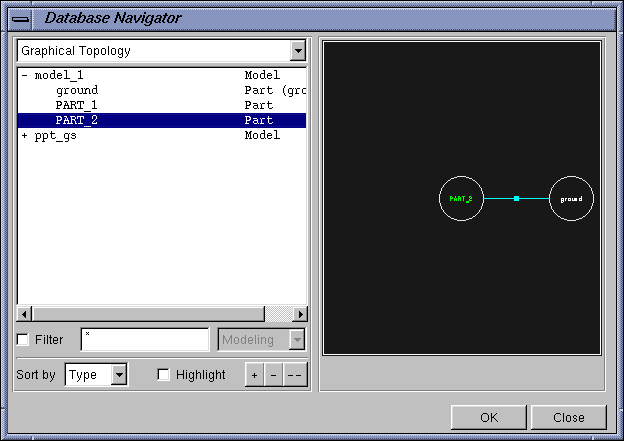
In graphical topology, the Database Navigator displays a representation of the selected part and shows its connections to other parts. The connections represent the joints or forces between the parts. Each time you select a different part in the tree list of the Database Navigator, the graphical display changes to show the select part at its center. If an object is inactive, the part appears dimmed.
To display model topology of parts and connections:
■From the Database Navigator pull-down menu, select Topology by Parts or Topology by Constraints.
To graphically view the topology of parts:
1. From the Database Navigator pull-down menu, select Graphical Topology.
2. From the Tree list or view window, select an object.
Viewing the Associativity of Objects
You can use the Database Navigator to display the objects that a selected object uses. For example, you can select a joint in the tree list to show the I and J markers that the joint uses. You can also select to view the objects that use the selected object.
To view the associativity of objects:
1. From the Database Navigator pull-down menu, select Associativity.
2. Set the associativity:
■To show the objects that the selected object uses, select Uses
■To show the objects that use the selected object, select Is Used By.
The objects associated with the selected object appear in the text box to the right.
To set up automatic navigation of the objects:
To save the current associativity information to a file:
■Select Save to File.
Viewing Object Information Through Database Navigator
You can use the Database Navigator just as you would the Information Window to display information about an object.
To display object information:
1. From the Database Navigator pull-down menu, select Information.
The information about the object appears in the window to the right.
To save the information to a file:
■Select Save to File.
To return to the information about a previous object:
■Select  .
.
.About Auto Navigation
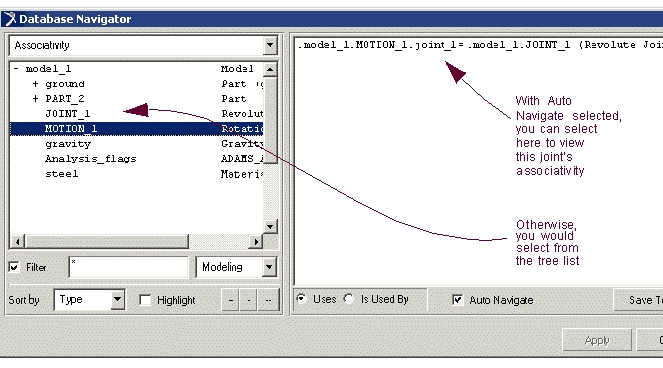
When you select Auto Navigate, the Database Navigator lets you view the associativity of objects that you select from the Tree list and any objects listed in the window on the right. For example, if you have a model with a joint motion, and then select to view the associativity of that motion, you see a joint listed in the right window, as shown below.
With Auto Navigate selected, you can just select that joint from the right window to view its associativity. If it were not selected, you would have to select the joint from the tree list to view its associativity. In addition, when you select the joint in the right window, the Database Navigator also highlights it in the tree list.