Learning Function Builder Basics
You use two major types of functions in the Function Builder: design-time and run-time functions. Depending on the type of function you want to use, you can work either in the expression mode or the run-time mode of the Function Builder.
Types of Functions
The following two sections provide details about the two major types of functions you can use in the Function Builder:
Design-Time Functions
Design-time functions allow you to parametrically configure your model for optimization and sensitivity studies. Adams View evaluates design-time functions only during the design process, and not during a simulation, except for optimization and design studies.
The Function Builder gives you access to over two hundred design-time functions. In addition, you can create your own user-written functions. The Function Builder categorizes all system-supplied functions based on their functionality. The following table lists the design-time functions categories:
Design-Time Function Categories
Category: |
|---|
Besides the categories listed above, the Function Builder includes a category called All Functions that lists all design-time functions in alphabetical order.
For more information and examples for each design-time function, see Design-Time Function Descriptions.
Run-Time Functions
Run-time functions allow you to specify mathematical relationships between simulation states that directly define the behavior of your model. Adams updates the run-time functions only during a simulation.
The Function Builder gives you access to over one hundred run-time functions, that it categorizes based on their functionality. The following table lists the run-time functions categories:
Run-Time Function Categories
Category: |
|---|
Clearance Functions |
Constants & Variables FE part |
Besides the categories listed above, the Function Builder includes a category named All Functions. This category contains all the run-time functions, grouped by functionality.
For more information and examples for each run-time function, see Run-Time Function Descriptions.
Function Builder Modes
The Function Builder has two different modes: expression mode and run-time mode. Adams View gives you access to the appropriate Function Builder mode based on the type of operation you want to perform.
The following table shows what types of operations you can perform in each mode.
Operations and Function Builder Mode
For this operation: | Use this mode: |
|---|---|
Expression | |
Expression | |
Expression | |
Run-time | |
Run-time |
The following two sections introduce you to the Function Builder modes:
Expression Mode
In expression mode you can create expressions, which are the basis of all parameterization. Adams updates expressions when it detects that dependencies have been changed. Performing optimization and design studies can affect the dependencies for some expressions.
In addition to design-time functions, expressions can include the following elements:
■Design variables
■Operators
■Operands
■Database Access
For detailed information on expressions and their elements, see Expression Language Reference.
To learn more about the expression mode, see Working in Expression Mode.
Run-Time Mode
When working in run-time mode, the Function Builder allows you to combine run-time functions with a variety of elements to build functions. After you define the functions, Adams Solver uses them during the simulation process.
The following sections introduce you to the run-time function elements.
Design Variables
Design variables are a means of storing data that you can later use and modify. You can use design variables throughout the Adams View command language. For example, you can define the radius of a cylinder in terms of a design variable:
variable create variable=my_radius real=40 units=length geometry modify shape cylinder & cylinder_name = .model_1.PART_1.CYLINDER_1 & radius = (my_radius)
For more information on design variables, see Expression Language Reference.
Numerical Values
In run-time mode you can use integers and real numbers. Adams doesn't support complex numbers at this time.
Operators
You can use the standard set of FORTRAN operators in the functions you create in run-time mode. The operators table below lists the operators Adams View supports in this mode. The table lists the operators by precedence, with grouping being the highest precedence operator.
■Different from FORTRAN convention, when in run-time mode, the unary minus operator has precedence over the exponentiation operator, and exponentiation associates from left to right.
Operators
This operator: | Has this role: |
|---|---|
( ) | Grouping |
- | Unary minus = negation |
** | Exponentiation |
/ | Division |
* | Multiplication |
+ | Addition |
- | Subtraction |
To learn more about the run-time mode, see Working in Run-Time Mode.
Accessing the Function Builder
You can access the Function Builder in different ways, depending on the operation you are performing. Adams View displays the Function Builder in either the run-time or expression mode, reflecting the way you accessed it. For an overview of the Function Builder modes, see Learning Function Builder Basics.
The following table shows what types of operations you can perform in the expression mode, and how you can access it:
Accessing the Expression Mode for Basic Operations
To do the following: | Access the expression mode from: |
|---|---|
Build expressions | The Build menu |
Create or modify computed measures | The Build menu |
Build design-time functions | Text boxes that accept expressions |
The following table shows what types of operations you can perform in the run-time mode, and how you can access it:
Accessing the Run-Time Mode for Basic Operations
To do the following: | Access the run-time mode using: |
|---|---|
Create or modify function measures | The Build menu |
Build run-time functions | Text boxes that accept run-time functions |
The following sections provide step-by-step instructions on accessing the Function Builder modes:
Working in Expression Mode
You access the Function Builder in expression mode in several ways, depending on the operation you are performing. The Function Builder might look slightly different depending on the operation for which you intend to use it. For example, if you open the Function Builder to build a custom function, you'll notice that it includes boxes for entering general attributes for functions.
For information on design-time functions, functions you can use in expression mode, see Design-Time Function Descriptions.
In expression mode you can perform three basic types of operations:
Building Expressions
You use the expression mode when you want to build expressions to use in various operations. Some of the operations for which you can use expressions include parameterizing values for point and marker locations, parameterizing values for geometry dimensions, and working with design variables. For more information on expressions, see Expression Language Reference.
To perform such operations, you can access the expression mode from the pop-up menus of boxes that can be parameterized.
To access the expression mode from a box:
1. Right-click any box that accepts expressions, point to Parameterize, and then select Expression Builder.
The Function Builder appears in expression mode, as shown next.
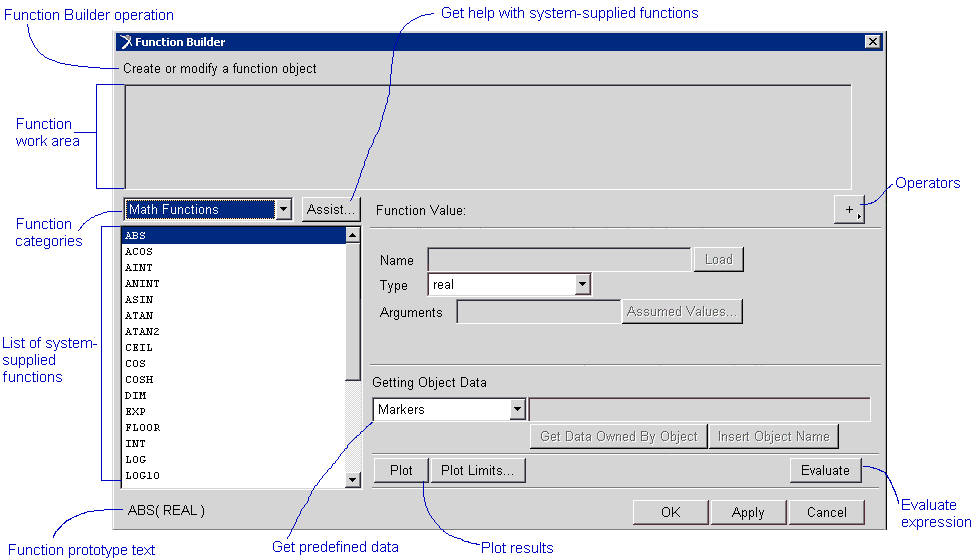
2. Build your expression, and then select OK.
Adams View inserts the expression in the box from which you displayed the Function Builder.
Creating or Modifying Computed Measures
If you want to create or modify computed measures, you use the expression mode of the Function Builder. To create or modify computed measures, access the expression mode, as shown below:
To access the expression mode from the Build menu:
1. Click the Design Exploration tab. From the Measures container, click the Computed Measure tool  .
.
.or
(Classic interface) From the Build menu, point to Measure, point to Computed, and then select New.
The Function Builder appears as shown next
The Function Builder appears as shown next
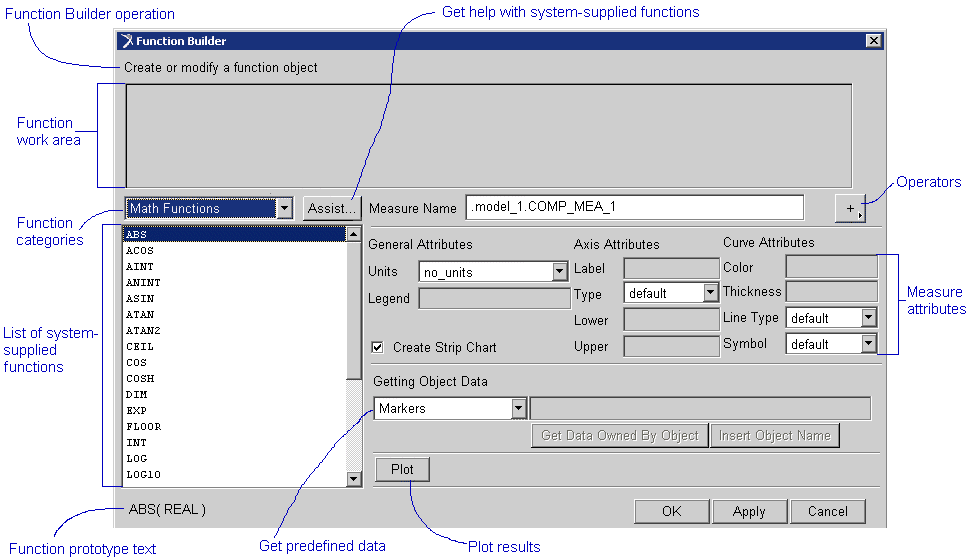
2. Create your computed measure, and then select OK.
Building Design-Time Functions
You can also use the expression mode when you want to build custom functions. To build functions, you can access the expression mode from the Build menu.
To access the expression mode from the Build menu:
1. Click the Elements tab. From the Function container, click the Create a Function tool  .
.
.or
(Classic interface) From the Build menu, point to Function, and then select New.
The Function Builder appears as shown next.
The Function Builder appears as shown next.

2. Create your custom function, and then select OK.
Working in Run-Time Mode
You can access the run-time mode of the Function Builder in several ways, depending on the operation you want to perform. The Function Builder might look slightly different depending on the operation for which you intend to use it. For example, if you open the Function Builder to build function measures, it includes boxes for entering general attributes for the measure.
For information on run-time functions, functions you can use in run-time mode, see Run-Time Functions.
In run-time mode, you can perform two basic types of operations. In addition, you can set how Adams View references database objects.
Setting Default Database Object References
Run-time functions reference Adams View objects using one of the following methods:
■The object's full name. For example: DX(.Model_1.Part_2.Mar_15).
■The object's short name, which is only that portion of the object's name required to uniquely identify it. For example, if a marker is the only marker named Mar_15 in your model, then only MAR_15 appears. For example: DX(Mar_15).
■If, however, you have several parts with markers named Mar_15, then the part to which the marker belongs and its name appear. For example: DX(Part_2.Mar_15).
■The object's Adams ID, which is an integer used to identify the object in the Adams Solver dataset (.adm) file. For example: DX(15).
The option you choose determines whether Adams View uses full object name, short object names, or Adams IDs when displaying run-time functions in the Information window and in the Modify dialog boxes. This option also determines the naming the Function Builder Assist box uses for object names or Adams IDs to generate run-time functions.
■Regardless of the option you select, you can enter the object's full or short name or its Adams ID while writing functions.
To set the default function references:
1. From the Settings menu, select Names.
The Defaults Name dialog box appears.
The Defaults Name dialog box appears.
2. Select the desired option.
3. SelectOK.
Building Run-Time Functions
You use the run-time mode of the Function Builder when you want to build run-time functions to use in various operations. Some of the operations for which you can use run-time functions include working with applied forces, motions, and differential equations. To perform such operations, you can access the run-time mode of the Function Builder from the pop-up menus of boxes that accept run-time functions.
For example, to build functions for motions, you access the run-time mode as described next.
To access the run-time mode from a box:
1. Right-click any box that accepts run-time functions, and then select Function Builder.
The Function Builder appears as shown next.
The Function Builder appears as shown next.
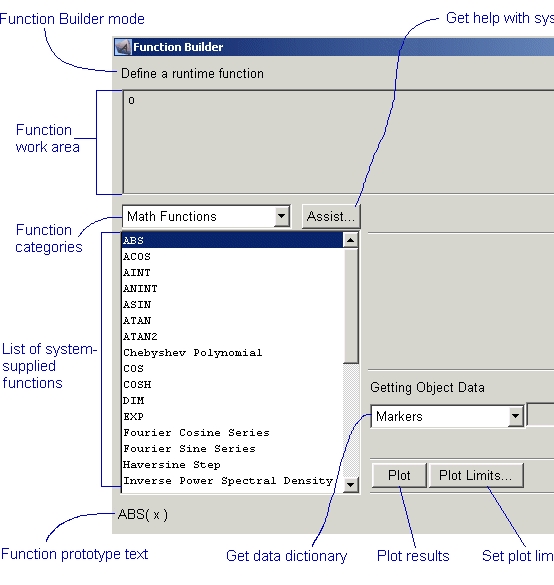
2. Create a function, and then select OK.
Adams View inserts the function in the box from which you displayed the Function Builder.
Adams View inserts the function in the box from which you displayed the Function Builder.
Creating or Modifying Function Measures
You can also use the run-time mode when you want to create or modify function measures. To create or modify function measures, you can access the run-time mode of the Function Builder from the Build menu, as explained next.
To access the run-time mode from the Build menu:
1. Click the Elements tab. From the Function container, click the Create a Function tool .
.or
(Classic interface) From the Build menu, point to Measure, point to Function, and then select New.
The Function Builder appears as shown next.
The Function Builder appears as shown next.
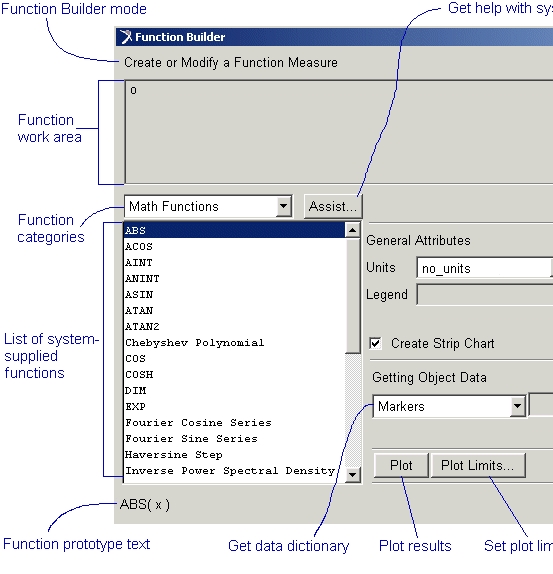
2. Create or modify your function measure, and then select OK.