Modify Gear AT Element
An existing Gear AT Element can be modified by clicking on the object in Adams/View (Figure 105), by right-clicking in the Model Browser and/or through the database navigator.
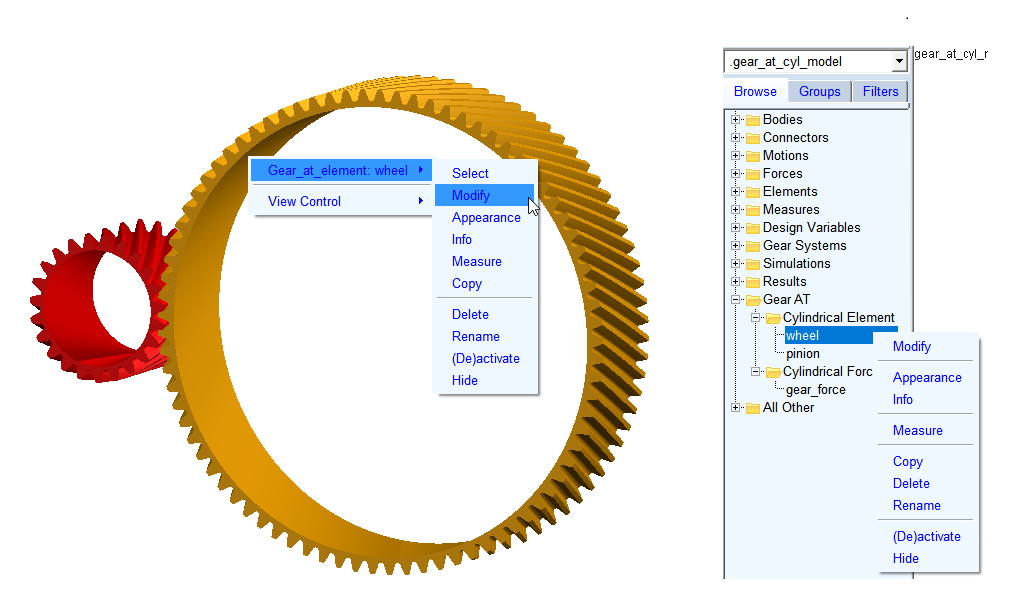
Figure 105 Modify Gear AT element
When a Gear AT Element is selected for the modification, a dialog box is popped out, as shown on the left side of the Figure 106. By clicking the icon marked on the left dialog box in the Figure 106, another dialog box is opened for the Modifications. Once the modification values are applied, you need to click the Save cgp File button to update the Gear AT Element along with respective *.cgp file.
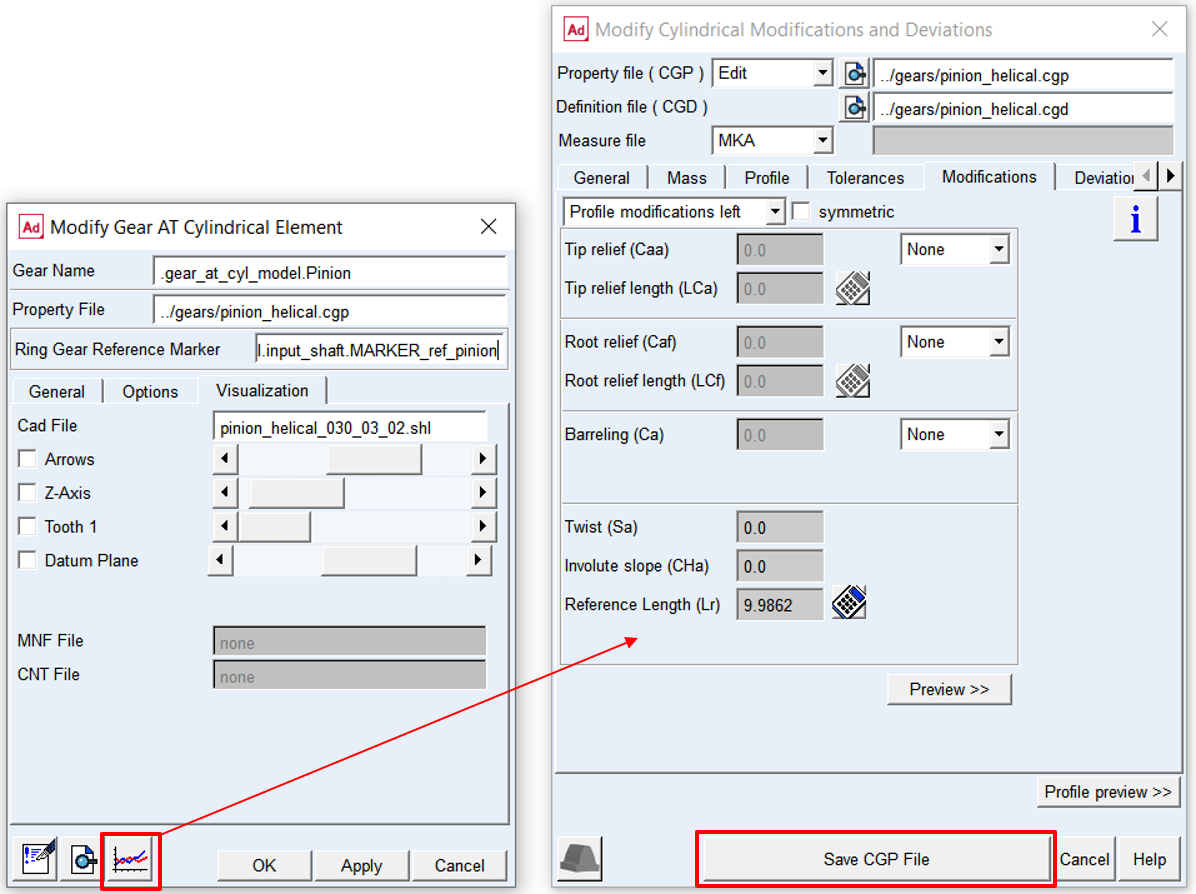
Figure 106 Gear Element Modify
One can quickly activate or deactivate modifications and deviations to evaluate their impact on simulation results by toggle ON or OFF in the Options tab as shown in the Figure 107.
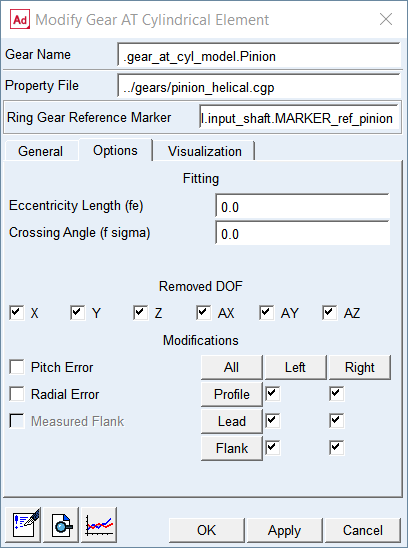
Figure 107 Activate deviations and modifications