Performing Calculations on Curves
Adams PostProcessor provides you with several tools to help you perform post-processing operations on data in plots. You can perform mathematical calculations on the data in any curve, including:
■Add, subtract, or multiply values in a curve by values in another curve.
■Find the absolute value of curve values or negate the values.
■Interpolate the values in a curve to create an evenly spaced sampling of the curve values.
■Scale a curve by a specified value.
■Offset a curve by a specified value. Offsetting a curve shifts the data along the corresponding axis.
■Align one curve to the starting point of another curve or align a curve so it starts at zero. Aligning one curve to another can help you compare the data in the curves.
■Differentiate the data in one curve over the closed interval represented by a second curve or define an integral.
■Create a spline from the curve values.
■Manually change the values in the curve.
■Filter the curve data.
You can create a new curve based on the calculations or modify the first curve that you select for an operation.
Learn more about performing calculations on curves:
Displaying the Curve Edit Toolbar
When you choose to perform mathematical calculations, Adams PostProcessor displays a Curve Edit toolbar, as shown below.

To toggle on and off the display of the Curve Edit toolbar:
■On the View menu, point to Toolbars, and then select Curve Edit Tool Bar.
Tip: | From the Main toobar, select  . . |
The Curve Edit toolbar appears at the top of the window below the Main toolbar.
Note: | The Curve Edit toolbar automatically detects when curves are incompatible, and either clips or fits an Akima spline to the curves to assist in performing curve math. |
Performing Simple Mathematical Calculations on Curve Data
You can modify the values in a curve by performing simple mathematical calculations on the values. You can use the values contained in another curve or specify a value. The curves on which you perform the operations must belong to the same plot.
To perform mathematical calculations on curves:
1. If you want to modify a curve based on the values and not create a new curve, at the far right of the Curve Edit toolbar, clear the selection of Create New Curve. Adams PostProcessor modifies the first curve for those operations requiring two curves (for example, subtraction).
2. Select a tool from the Curve Edit toolbar and enter any requested values as explained in the table below.
Simple Mathematical Calculations
To: | Do the following: |
|---|---|
Add, subtract, or multiply values in a curve by values in another curve | 1. Select one of the following tools from the Curve Edit toolbar depending on the operation that you want to perform: ■Add Curve Data tool  . .■Subtract Curve Data tool  . .■Multiply Curve Data tool  . . 2. Select the curve that you want values to be added to, subtracted from, or multiplied by. 3. Select the second curve. |
Find the absolute values of data points or negate data points | 1. From the Curve Edit toolbar, select one of the following tools depending on the operation you want to perform: ■Absolute Value tool  . .■Negate tool  . . 2. Select a curve. |
Create evenly spaced sampling of curve values (interpolate values) | 1. From the Curve Edit toolbar, select the Curve Sampling tool  . . 2. From the pull-down menu on the right of the toolbar, select the spline type to be used for the interpolation. ■akima - Uses the Akima method as documented in Journal of the Association Computing Machinery, Volume 17, No 4, October 1970. ■linear - Uses the first order LaGrangian interpolation. ■cubic - Uses the second order LaGrangian interpolation. ■cspline - Performs a global fit. ■notaknot - Interpolates using the Not-a-knot cubic spline. ■hermite - Interpolates using the Hermite cubic spline. 3. Enter the number of interpolation points to be used to fit the data. The default is 1024. You must enter a positive integer. If you are preparing the curve for an FFT operation, we recommend that the number of points be an even power of two (for example, 256, 512, 1024, and so on). 4. Select a curve. |
Scale or offset a curve by a specified value | 1. From the Curve Edit toolbar, select one of the following tools depending on the operation you want to perform: ■Scale tool  . .■Offset tool  . . 2. In the text box that appears at the far right of the Curve Edit toolbar, enter the scale or offset value. 3. Select a curve. Note: Select and drag the curve to a new location. |
Align one curve to the starting point of a second curve | 1. From the Curve Edit toolbar, select Align Curve to Curve tool  . . 2. Select a curve whose values you want to align. 3. Select a second curve. |
Align a curve so it starts at zero | 1. From the Curve Edit toolbar, select Align Curve to Zero tool  . . 2. Select a curve. |
Calculating Integral or Differential of Curve Data
You can calculate the definite integral or differential function of existing data points. The definite integral operation evaluates the area under the data curve over the closed interval represented by the curve data.
■Integral - Adams PostProcessor calculates the integral by fitting a cubic spline to the curve data and analytically evaluating the definite integral. In other words, the cubic spline fit gives a polynomial representation of the segments that represent the data. Adams PostProcessor then analytically integrates the polynomial over the closed interval of the data.
■Differential - Adams PostProcessor numerically differentiates the curve data over the closed interval represented by the finite set of data points in the curve.
Adams PostProcessor evaluates the derivative by fitting a cubic spline to the curve data and analytically forming the derivative. The cubic spline fit gives a polynomial representation of the segments that represent the data. Adams PostProcessor then analytically differentiates the polynomial over the closed interval of the data.
To calculate the integral or differential:
1. From the Curve Edit toolbar, select either of the following depending on the operation that you want to perform:
■Integrate tool  .
.
.■Differential tool  .
.
. 2. Select a curve on which the calculations will be performed.
3. Select a second curve.
Creating Splines from Curves
You can take the data points in a curve and create a spline from them. You can use the splines to define motions or forces. You can also export the spline to be used as a loadcase in a finite-element program.
To use the spline that you create in your model definition, you must write a function expression that includes Adams spline functions (such as Akima Fitting Method (AKISPL) or Cubic Fitting Method (CUBSPL)) or create a User-written subroutine that calls one of the spline utility subroutines (AKISPL or CUBSPL subroutine).
For more information on using splines in:
■Adams View, see Splines, in the Adams View online help.
■Expressions, see the Adams View Function Builder online help.
■User-written subroutines, see Welcome to Adams Solver Subroutines.
Once you have created a spline, you can modify it through Adams View. You use the Build -> Data Elements -> Spline -> Modify command.
To create a spline from data points:
 .
. 2. In the Spline Name text box that appears on the left of the Curve Edit toolbar, enter the name that you want assigned to the spline.
3. Select the curve from which you want to create the spline.
Manually Changing Data Point Values
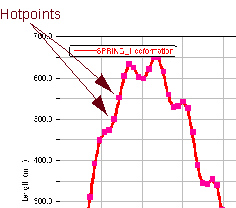
You can change the data point values manually for any curve you've created. When you change values manually, Adams PostProcessor displays hotpoints at each vertex as shown below. You can control your changes by restricting the hotpoints to only move vertically or horizontally.
To manually change data points values:
1. Select the curve on which you want to display hotpoints.
■Yes - To move the hotpoints in any direction.
■Vertical - To move the hotpoints only vertically.
Tip: | From the Curve Edit toolbar, select Hotpoints tool  . . |
■Horizontal - To move the hotpoints only horizontally.
3. Position the cursor on a hotpoint and drag the hotpoint to the desired location.
Note: | To make more precise changes, zoom in on the curve. |
Using Expressions to Modify Curve Data Points
You can use the Adams View Function Builder from Adams PostProcessor to create mathematical expressions that generate curve data as output. As with any expression in Adams, an expression creating curve data can contain basic math, trigonometric, and signal-processing functions. For more information on writing expressions, see the Adams View Function Builder online help.
To modify a curve based on expressions:
1. Select a curve.
3. Enter the expressions for x and y data in the appropriate text boxes and define the unit values. To display the Function Builder to help you create expressions, clear the text boxes and double-click. You can also use the shortcut menu that appears when you right-click the text box.
4. In the Legend text box, enter the text that you want used in the legend for the curve.
5. Select OK.
Note: | Be careful with the division operation. It has problems if you divide by zero. You get errors similar to the following: ERROR: Division by zero ERROR: Expression entered for vertical axis is invalid. |