Property Editor - Plot
In treeview -> plot
Lets you set plot parameters. See Listing of Plot Parameters.
Select a tab:
General Tab
Sets plot parameters for title, subtitle, and axis placement.
For the option: | Do the following: |
|---|---|
Auto Title/Title | Select to have Adams PostProcessor automatically generate titles or clear the selection, and in the Title box, enter the text for the title. The title can only be a single line of text. |
Auto Subtitle/Subtitle | Select to have Adams PostProcessor automatically generate subtitles or clear the selection of Auto Title or Auto Subtitle, and in the Subtitle box, enter the text for the subtitle. The subtitle can only be a single line of text. |
Analysis | Select to have the analysis name appear on the plot. |
Date Stamp | Select to have the date on which the analysis was generated appear on the plot. |
Legend | Select to add legend text. Learn about Modifying Legend Properties. |
Zero Line | Select to create a line at the position 0,0. |
Dep. Axis | Set where you want the dependent axis of data to appear by selecting either Horizontal (along the x-axis) or Vertical (along the y-axis). Note that you can only change the orientation if there are no curves on the plot. |
Table | Select to display plot in tabular form. Learn about Displaying Plots as Tables. |
Border Tab
Sets border parameters.
For the option: | Do the following: |
|---|---|
Line Color | Select a Line Color for the border. |
Line Style | Select the type of line style for the border. |
Line Weight | Select the weight for the border. The weight values range from 1 to 5 screen pixels. |
Auto Fit Border | Select to center the plot in the viewport (see Viewports) and keep it centered even when you make modifications to its layout, or clear to set your own margins for the plot. |
Min X, Max X, Min Y, Max Y | To set your own margins for the plot, after clearing the selection of Auto Fit Border, and then enter the minimum and maximum values for the margin in the x and y directions in pixels. See the figure below for assistance. ■Min X - Sets the space from the left edge of the window to the left edge of the plot. ■Max X - Sets the width of the plot. It includes the left margin that Min X defines. ■Min Y - Sets the size of the space from the bottom edge of the window to the bottom edge of the plot. ■Max Y - Sets the height of the plot including the bottom margin that Min Y defines. Minimum and Maximum Values for Borders 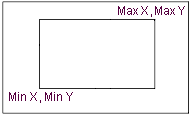 |
Grid/2nd Grid Tabs
Sets grid parameters. Adams PostProcessor displays grids on a plot to provide visual guides for inspecting curves. You can have primary and secondary grid lines. Primary grid lines appear at all major unit sections. Secondary grid lines appear at specified intervals between the primary grid lines. If you turn off the primary grid lines, Adams PostProcessor also turns off the secondary grid lines.
For the option: | Do the following: |
|---|---|
Visible | Clear to turn off the display of the grid. |
Line Count/Increment/ No Choice | (Primary grid only) Set the number of lines by selecting either: ■Line Count and entering the number of lines in the grid. ■Increment and entering the amount of space between each grid line in the x and y directions. Enter the values in length units. |
Line Color | Select a Line Color for the grid. |
Line Style | Select a line style for the grid. |
Line Width | Select a weight for the grid. The weight values range from 1 to 5 screen pixels. |