Animation Controls Basics
Setting Up Lighting
You can enhance the quality and realism of your Animations. You can set:
■Overall intensity of the light (much like setting a dimmer switch in your home).
■Background, ambient light to control the diffusion of light sources to effect the amount of lighting on edges.
■Reflections off of parts. (Note that this is computationally expensive and can slow down your animations.)
■Focused lighting that comes from different directions, and define the angle of that lighting (how far it is from the centerline). You can think of this as if you were swinging a light boom across your model.
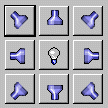
To access the lighting options:
■From the Settings menu, select Lighting.
■The Lighting Settings dialog box appears.
To set up overall light intensity, ambient lighting, and reflections:
1. Use the Intensity slider to set how bright the overall light is.
2. Use the Ambient slider to set the ambient light.
3. Toggle Reflections to set up reflections off of parts.
To set up focused lighting:
1. Use the light buttons to turn on different focused light sources.
2. Use the Angle slider to set how far from the center line the light source is. May not be appropriate for all light sources, such as front.
Note: | The number of light sources you can select depends on the graphics driver and system you are using. If you selected OpenGL, the number of light sources depends on your graphics card. |
To set up one-sided lighting:
■Clear the selection of Two-Sided.
Tip: | To achieve the fastest animations, set the lighting options to: ■No reflections ■One-sided ■One light source |
Specifying Which Simulation Results to Animate
By default, Adams View animates the results from the last Simulation performed. You can animate the results of any simulation that you have saved in your Modeling database. You can also animate the results of more than one simulation at the same time and change the colors of animations belonging to different simulations to help you differentiate between them.
■To run animations of different simulations in different colors, use Adams PostProcessor. See the Adams PostProcessor online help.
■To store simulation results in your modeling database, see Saving Simulation Results.
To animate a specific simulation:
■On the Animation Controls dialog box, in the Analysis box, enter the name of a saved simulation, and then play the animation as explained in Playing Animations.
To animate multiple simulations simultaneously:
■On the Animation Control dialog box, enter the names of the simulations that you want to animate in the Analysis text box, and then play the animations. Separate each simulation name with a comma.
The animations all play in the currently active or selected view. Learn how to select view windows in which to display animations.
Note: | When animating multiple simulations simultaneously, each simulation must have the same number of output steps or frames associated with it, as well as the same output time step size. |
Selecting View Windows in Which to Display Animations
By default, Adams View only displays Animations in the currently active View window. You can choose to play animations in a different view window or play the animation in multiple view windows at the same time. For more information on selecting the currently active view window or on setting up multiple view layouts, see Setting Up the Window Layout.
To animate your results in a window other than the currently active one:
■On the Animation Controls dialog box, enter the name of any view window that is currently visible on your screen. The default name is the currently active view.
To animate your results in multiple views simultaneously:
■On the Animation Control dialog box, in the View text box, enter multiple view names, separating each name with a comma.
Note: | If you choose to animate in more than one view simultaneously, every view specified must animate the same simulation results. You cannot display one simulation in one view and another simulation in another view. |
Superimposing Animation Frames
By default, during an Animation, Adams View erases the previous frame before drawing the next frame. You can also overlay or superimpose frames on top of one another.
We recommend that you use the frame or time range features, as well as the frame increment so that only certain frames are superimposed on top of one another. See Skipping Frames During an Animation and Playing a Subset of Frames.
To superimpose animation frames:
■Before selecting the Play-forward tool  on the Animation Control dialog box, select Superimpose.
on the Animation Control dialog box, select Superimpose.Setting Screen Icon Display During Animations
By default, Adams View turns off all Screen icons during Animations to speed up the animation. If you need to examine the behavior of particular portions of your model to see if they are working properly, it may be helpful, however, to display the icons. When you display screen icons during an animation, all the screen icons that are visible when building your model are also displayed in the animation.
For example, displaying screen icons during animations allows you to see if joints or forces applied to parts are behaving as expected because you can see their icons move as the animation progresses. Displaying screen icons can also help you see how coordinate system markers move during animations since they control the locations and directions for constraints and forces.
Learn about Setting Screen Icon Display.
To display screen icons during an animation:
3. Run the animation.
Tracing Paths of Points During Animations
During an Animation, you can draw curves on the screen that represent the path that one or more points in your model traveled. This can be useful when you are trying to design a mechanical system to produce a certain motion, and you would like to see whether or not the parts move as intended.
Tracing the paths of points can also be useful when performing envelope studies to see if any parts move outside a particular working envelope as the mechanical system completes a typical work cycle. By default, Adams View does not trace the paths of any points in your model during animation.
To draw paths on the screen, you specify one or more markers for which you want paths generated. Adams View draws curves representing the path of the marker during each animation frame. The more frames you have in your animation, the smoother the curves appear.
To trace the paths of particular points during an animation:
2. In the box that appears, enter the names of one or more markers for which you want Adams View to generate paths.
To search for or select a marker from the screen, right-click the box, and select the appropriate command.
Specifying the View Perspective of Animations
By default, Adams View uses the same view perspective or camera angle for an Animation as that of the View window you were using just before you ran the animation. You can also change your viewing perspective. For example, you can change the perspective to always look at a particular part as it moves or to always look from a particular vantage point, possibly one that moves with a part. Setting different animation view perspectives can be especially useful when parts undergo large motions and move off your screen during an animation, such as with vehicle simulations.
A good example of setting the view perspective is when you simulate a vehicle driving through a slalom course on a test track. By default, you view the simulation as a bystander alongside of the road whose gaze is fixed in one direction. Unfortunately, as the vehicle moves forward, it quickly moves out of your field of view. You can, however, set the animation view perspective to mimic the movement of your head as it moves to follow the vehicle. Furthermore, rather than observe the vehicle as a bystander alongside a road, you can also set your animation view perspective to mimic what the driver sees as he or she looks out the front windshield of the vehicle.
The table below explains the different options available to you to set up your view perspective from the Animation Controls dialog box.
Note: | The Camera option menu is only available in the Animation Controls dialog box. |
To set the view perspective to: | Do the following: |
|---|---|
Be the same as during modeling | 1. Set the Base option menu to Fixed Base. 2. Set the Camera option menu to Std Camera. |
Look from a stationary point to a movable point | 1. Set the Base option menu to one of the following: ■Base Part and enter the part whose center-of-mass marker you want to follow. 2. Set the Camera option menu to Std Camera. |
Look from a movable point towards a stationary point | 1. Set the Base option menu to Fixed Base. 2. Set the Camera option menu, to Camera Marker, and then select the marker that you want to remain in the center of the screen. |
Look from one movable point to another | 1. Set the Base option menu on the Animation Control dialog box to one of the following: ■Base Marker, and then enter the marker that you want to follow. ■Base Part, and then enter the part whose center-of-mass marker you want to follow. 2. Set the Camera option menu to Camera Marker, and then enter the marker that you want to remain in the center of the screen. |
Note: | If you specify a camera and base marker, then the view direction points from the camera marker towards the base marker. This does not, however, uniquely define the resulting orientation of the view, so Adams View uses the positive y-axis of the camera point marker to define the “up” direction for your animation view perspective. |
Setting Up Force Graphics
Learn About Force Graphics.
To specify force graphics for animations:
1. From the Settings menu, select Force Graphics.
The Force Graphics Settings dialog box appears.
2. In the Force Scale and Torque Scale text boxes, enter the amount by which you want to scale force (straight arrows) and torque (semi-circular arrows) graphics. The default scale is 1.0.
3. If you do not want to see the values of the force and torque magnitudes during animation, clear Display Numeric Values. If you leave it selected, Adams View continuously displays the magnitudes for all force and torque graphics during the animation.
4. If you want to see the force and torque graphic arrows respresented as three-dimensional objects instead of as simple lines and arcs, clear Always Wireframe Vectors. If you leave it selected Adams View shows the force graphics in Wireframe render mode even when you are rendering the view in Shaded rendering mode.
5. Select Always in Foreground if you want Adams View to show force graphics in the foreground of the model so model geometry does not obscure them.
Tips on Speeding Up and Slowing Down Animations
The following tips will help you speed up the replay of Animations. To slow down an animation, do the opposite of many of the tips below.
■Reduce the graphic information on the screen. You can:
■Turn off the visibility of your screen icons. Learn about setting screen icon display during animations.
■Turn off the working grid. Learn about Displaying View Accessories.
■Turn off the visibility of parts that you do not need to see. Learn about Setting Part Display.
■Turn off the display of all measure strip charts, status bar, and numeric values associated with force graphics.
■Skip frames while replaying the animation. Learn about Skipping Frames During an Animation.
■Play only the set of frames within a desired time interval. Learn about Playing a Subset of Frames.
■Keep complex geometry to a minimum in your model.
■Perform the simulation again and request fewer output steps. You can either set fewer output steps in the same time interval or use the same number of steps in a longer time interval. Be careful if you request fewer output steps, however, because it could affect your solution accuracy as well as the resolution of your plot data. For more on setting output steps, see Performing an Interactive Simulation.
■Animate in only one view window at a time or animate only one set of simulation results at a time.
■Use the Consolidate to Shells option when you import CAD geometry. Learn about Exchanging Data in Adams.