Reviewing and Using Parametric Analysis Results
After running a parametric analysis, you can examine the results in tabular or plotted format. You can also save or delete results or update your model to match one of the runs. You can perform these operations using the tools at the bottom of the Design Evaluation Tools dialog box.
Saving Results
By default, Adams View overwrites the current results if you perform another parametric analysis. You can automatically and permanently save all parametric results using the Solver Settings dialog box. Learn About Setting Simulation Controls. You can also save a single set of results using the Save Design Results to Database tool  at the bottom of the Design Evaluation Tools dialog box.
at the bottom of the Design Evaluation Tools dialog box. Note: | Be sure to save your modeling database after you save the parametric analysis results. Learn about Saving Modeling Database. |
To save parametric analysis results:
The Save Design Evaluation Results dialog box appears.
2. Enter a name for the analysis.
3. If you want Adams View to add a unique number at the end of the name, select Auto-Increment Name.
4. Select OK.
Adams View copies the current parametric results to a new analysis with the name you specify.
Deleting Results
To delete a single set of simulation results:
1. From the Design Evaluation Tools dialog box, right-click the Save Design Results to Database tool  to display its Tool stack.
to display its Tool stack. 2. From the tool stack, select the Delete Results from Database tool  .
.
. The Database Navigator appears.
3. Select the names of the Simulations that you want to delete from your Modeling database. Learn About the Database Navigator.
4. Select OK.
Generating Plots
You can plot parametric results in the following ways:
Plotting using: | Does the following: |
|---|---|
By default, Adams View creates strip charts of the following: ■Objective versus trial for a Design of experiments (DOE). ■Objective versus iteration number for an Optimization. | |
Adams View also saves curves on any displayed measure for each trial or iteration. You turn these on or off by doing the following in the Solver Settings dialog box: 2. Select More. 3. In the Design Evaluation Display area, select Chart objective and Save Curve. For more information, press F1 when the Solver Settings dialog box is active. | |
Manual plots | You can also transfer the strip chart to the plotting window for further use, or you can use the Results option in the plotting window to plot the parametric results directly. For more information on creating and modifying plots using the plotting window, see Transferring a Strip Chart to Adams PostProcessor, and the Adams PostProcessor online help. |
Automatic plots | You can also automatically generate detailed plots using the Plot Results tool. The plots are similar to the strip charts of the measure and objective, but Adams View adds appropriate titles, legends, and labels. To automatically plot results of a parametric analysis: Adams View displays the Plot Design Evaluation Results dialog box. 2. In the Result Set text box, enter the name of the parametric analysis result set you want to plot. 3. To generate a plot of the measure or objectives versus the variable value, trial number, or iteration number, select Measure/Objective vs. Run. 4. To generate a plot of the measure or objectives versus time with a curve for each trial or iteration, select Measure vs. Time For All Runs. If you use this option, you must have specified a measure or an objective that refers to a measure or result set component (not a macro or function). In addition, you must have saved the results from the individual runs. For information on saving results from individual runs, see Setting Simulation Controls. 5. Select OK. Adams View generates one or two plots and displays the plotting window showing the last plot. |
 .
. Generating a Table
You can set up Adams View to create a table that contains the following:
■Description of the model.
■Constraints (if any).
■Design variables used in the analysis.
■Table of the objective, constraint, and variable values for each trial or iteration.
For a Design study, the table also includes a column of approximate design sensitivities for each trial. The approximate design sensitivity is the average of the sensitivity with respect to the preceding trial and the sensitivity with respect to the following trial, as shown in the formula below: 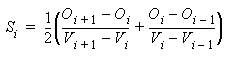
where:
■O - Objective value
■V - Design variable value
■i - Iterations
Note: | For the first trial, Adams View computes the value from the changes between the first and second trial. For the last trial, it computes the value from the changes between the next-to-last trial and the last trial. |
You can control the format of the numbers in the table, the width of the columns, and the precision of the numbers. For the format of the numbers, you can select:
■Automatic - Selects either exponential or fixed, depending on the size of the number and the column width. If you select automatic format, the value you enter for the precision of the numbers sets the overall number of digits.
■Exponential or fixed - The value you enter for the precision sets the number of digits past the decimal point.
Note: | You can set Adams View to automatically display a table at the end of a parametric analysis. Setting Simulation Controls. |
To generate a table of results:
 .
. Adams View displays the Design Evaluation Results Table dialog box.
2. In the Result Set text box, enter the name of the parametric analysis result set you want to display.
3. Enter values for column width and precision, and select the format that you want to use to control the numeric format of the table.
4. If you want to write the table to a file, in the File Name text box, enter the file name.
5. If you want to display the table in the Information window, select the Display in Information Window.
Adams View displays the information window showing a tabular summary. If you entered a file name, Adams View writes the table to the specified file.
Updating Variables
You can use the Update Variables tool  from the Design Evaluation Tools dialog box to set the design variable values to those of a trial or iteration. This is helpful if you want to:
from the Design Evaluation Tools dialog box to set the design variable values to those of a trial or iteration. This is helpful if you want to: ■Update your model to match the best trial of a Design study or Design of experiments (DOE) analysis.
■Visualize the variable settings of a particular trial or iteration.
■Use an intermediate iteration in an Optimization instead of the final values.
To update the design variable values:
1. From the Design Evaluation Tools dialog box, select the Update Variables tool  .
.
. The Update Design Variables dialog box appears.
2. Enter the name of the parametric analysis result set that you want to use to update the variables.
3. In the Trial text box, enter the trial or iteration number you want to use.
4. Select OK.
Adams View sets the design variable values to match those used in the specified trial or iteration, and updates the model graphics to reflect the new values.